Christmas Photo Generator: Add Santa, a Tree or Snow to Your Photo

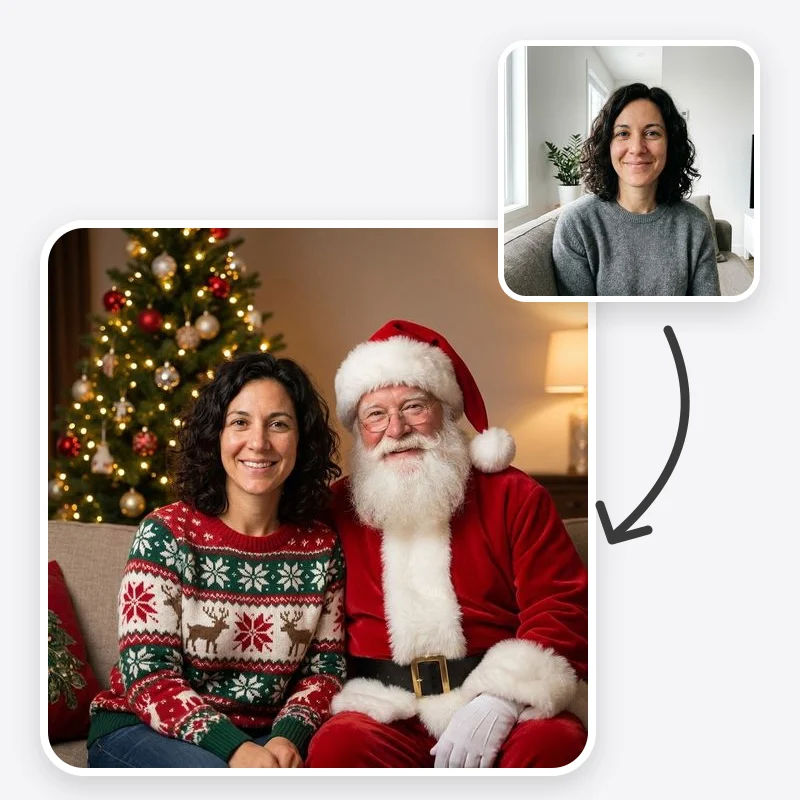
Christmas photo generator for people, families and pets: add Santa beside you, a tree-lit room, snow or festive sweaters while everyone stays recognisable.

Where the Christmas photo takes place, or keep your own background

Keep their clothes, or add sweaters and Santa hats

A plain photo, or a card-style layout with blank space for your greeting

Open in Oakgen
Christmas Photo Generator example
Example result

Christmas Photo Generator: Add Santa, a Tree or Snow to Your Photo

Upload a photo of yourself, your family or your pet. Choose a Santa visit, a cozy tree-lit living room, a snowy outdoor scene or your own background, then decide on sweaters, Santa hats and a card-style layout.

What is Christmas Photo Generator?

The Christmas Photo Generator turns an ordinary photo of a person, family or pet into a Christmas photo while asking the model to keep every face, pose and pet marking as it was. You pick one of four scenes (Santa standing beside you, a living room by a decorated tree, a snowy winter landscape, or your original background with a few lights and garland), then optionally swap tops for knit Christmas sweaters or add Santa hats. A Christmas Card Look option widens the frame and leaves blank space for a greeting, but it does not write text for you; add the words in a card or design app. The result is a generated image, so faces can drift slightly and hands, hats and small pets need a careful look before you print or send it.

Features and options

  • A Christmas photo session is hard to schedule in December, and the same everyday photo can become a holiday image without a studio or a costume shop.
  • Adding Santa beside you is one of the most common holiday photo requests, and the Santa option asks for one Santa at a believable scale and in the same light as the people.
  • Families and pet owners can work from a photo they already like instead of re-staging everyone in matching outfits.
  • Outfits are a separate choice, so you can keep the clothes everyone actually wore or switch to sweaters and Santa hats without changing the scene.
  • Eligible outputs can be used commercially under Oakgen's Terms and provider terms, which matters if you make cards or posts for a small business.

When to use Christmas Photo Generator

  • You want a Christmas card photo but there is no time, budget or good weather for a holiday photo session.
  • You have a favourite family or pet photo from earlier in the year and want a festive version of it.
  • You want a playful photo with Santa for social posts, a group chat or a grandparent's photo frame.
  • You run a small shop, salon or pet business and want a seasonal image of your team or shop dog.
  • You want to try a few scene and outfit combinations before deciding on a real holiday photo setup.

How to use Christmas Photo Generator

  1. 1

    Upload one clear photo

    Use a sharp, well-lit photo where every face is visible and nobody is cut off at the edge. For a pet, choose a photo that shows its face and markings clearly. Only upload photos of yourself or of people who agreed.

  2. 2

    Choose the scene

    Santa Next to You adds one Santa in a tree-lit room. Cozy Living Room by the Tree and Snowy Winter Outdoors replace the background. Keep My Background leaves your location and adds a few lights and garland.

  3. 3

    Pick outfits and finish

    Keep everyone's clothes, or add Christmas sweaters, Santa hats or both. Choose Photo for a plain image, or Christmas Card Look for a wider frame with space for a greeting.

  4. 4

    Check every face before you share

    Compare the result with your original: faces, hands, glasses, pet markings and the number of people. Regenerate if anyone looks off, then add your greeting text in a card or design app.

Ways to use the results

Family Christmas cards

Turn a relaxed family photo from the summer or a recent trip into a tree-lit or snowy Christmas image, then use the Card Look to leave space for your greeting.

For: Families sending printed or digital cards

Pet Christmas photos

Give a dog, cat or rabbit a festive scene and a small Santa hat or knit scarf without asking it to sit still in a costume.

For: Pet owners

A photo with Santa

Add a friendly Santa beside a child, a couple or a group for a fun keepsake or social post. Say clearly that the image is AI-made when you share it.

For: Parents, couples and friend groups

Small business holiday posts

Make a seasonal image of a team, a shop front or a shop dog for December posts and email headers.

For: Small shops, salons and local businesses

Strengths

  • Four clearly different scenes plus an option to keep your own background
  • Outfits and scene are chosen separately, so you can mix them
  • Card Look leaves space for a greeting instead of writing text that may be misspelled
  • Works from a photo you already have, including family and pet photos
  • Eligible outputs can be used commercially under Oakgen's Terms and provider terms

Trade-offs

  • Faces are regenerated with the scene, so likeness can drift slightly; large groups and small or distant faces drift most
  • Santa's scale, hands and contact with the people can look off and may need a few attempts
  • The tool does not write your greeting; add text in a card or design app
  • Replacing the background also changes the lighting on people, which can make skin tones shift
  • Pets that are blurred, half-hidden or very small in the frame may lose markings

Tips for better results

  • Start with the presets and no extra text; add instructions only to fix one specific thing.
  • Name what must stay: 'keep my glasses', 'keep the baby on her lap', 'keep the dog's white chest patch'.
  • For Santa, say where he should be: 'Santa standing behind the sofa' or 'Santa sitting on the left'.
  • Add one or two scene details at most, such as 'stone fireplace' or 'red and gold ornaments', so the people stay the focus.
  • If a face changes, try a sharper source photo where that person is larger in the frame before rewriting the prompt.

Christmas Photo Generator vs the alternatives

vs A holiday photo session
A photographer gives you real moments, real light and prints you can trust, and is the right choice when you can book one. This tool works from a photo you already have, which helps when December is full, the family is spread out or the weather will not cooperate. Expect to check faces closely, because the result is generated.
vs Sticker and frame apps
Sticker apps place a Santa hat or a border on top of your photo, which is quick but looks pasted on. This tool regenerates the scene so the lighting, outfits and Santa share one picture. The trade-off is that faces can change slightly, which stickers never do.
vs Manual compositing in a photo editor
Cutting people out and placing them in front of a Christmas background gives full control and keeps faces untouched, but matching light, shadows and edges takes skill and time. This tool does the blending for you; use manual editing when you need exact pixel-level faces.

Frequently asked questions

How do I add Santa to a photo?

Upload your photo, choose the Santa Next to You scene and generate. The prompt asks for one Santa in a classic red suit standing or sitting beside you in a tree-lit room, at a believable scale and in the same light. Check his hands and where he touches the people, and regenerate if the scale looks wrong.

Will everyone still look like themselves?

The prompt asks the model to keep each face, age, skin tone, hair and pose, but the image is regenerated, so small changes are possible. Faces that are large, sharp and well lit in the source hold up best. Always compare the result with the original before printing or sharing.

Can I use a family photo with several people?

Yes. Upload one photo with everyone in it. Groups of a few people work best; in large groups with small faces, likeness is harder to keep and someone may be changed or missed, so count the people and check each face.

Does it work for pets?

Yes. Dogs, cats and other pets can be placed in any scene, and the outfit options add a small Santa hat or knit scarf when it fits. Use a photo where the pet's face and markings are clear so the model has something to keep.

Can it write 'Merry Christmas' on the photo?

No. The Christmas Card Look leaves empty space and a simple pine border for a greeting, and the prompt asks for no letters, because generated text is often misspelled. Add your greeting and names in a card or design app.

Can I keep my own background?

Yes. Choose Keep My Background. The model keeps your location and adds a few string lights, a little garland and a warmer color grade instead of replacing the scene.

Is the result good enough to print as a card?

It depends on the source photo and the print size. For standard photo cards, check the image at full size for soft faces or odd hands first. If you need a larger print, upscale it and inspect it again.

Can I use photos of other people?

Only upload photos of yourself or of people who agreed, and ask a parent or guardian before using a child's photo. Do not use the tool to make someone appear somewhere they were not in a misleading way.

Can I use the image commercially?

Eligible outputs can be used commercially under Oakgen's Terms and provider terms. You still need the rights to the original photo and consent from the people in it.

Related AI tools