ChatGPT
 Claude
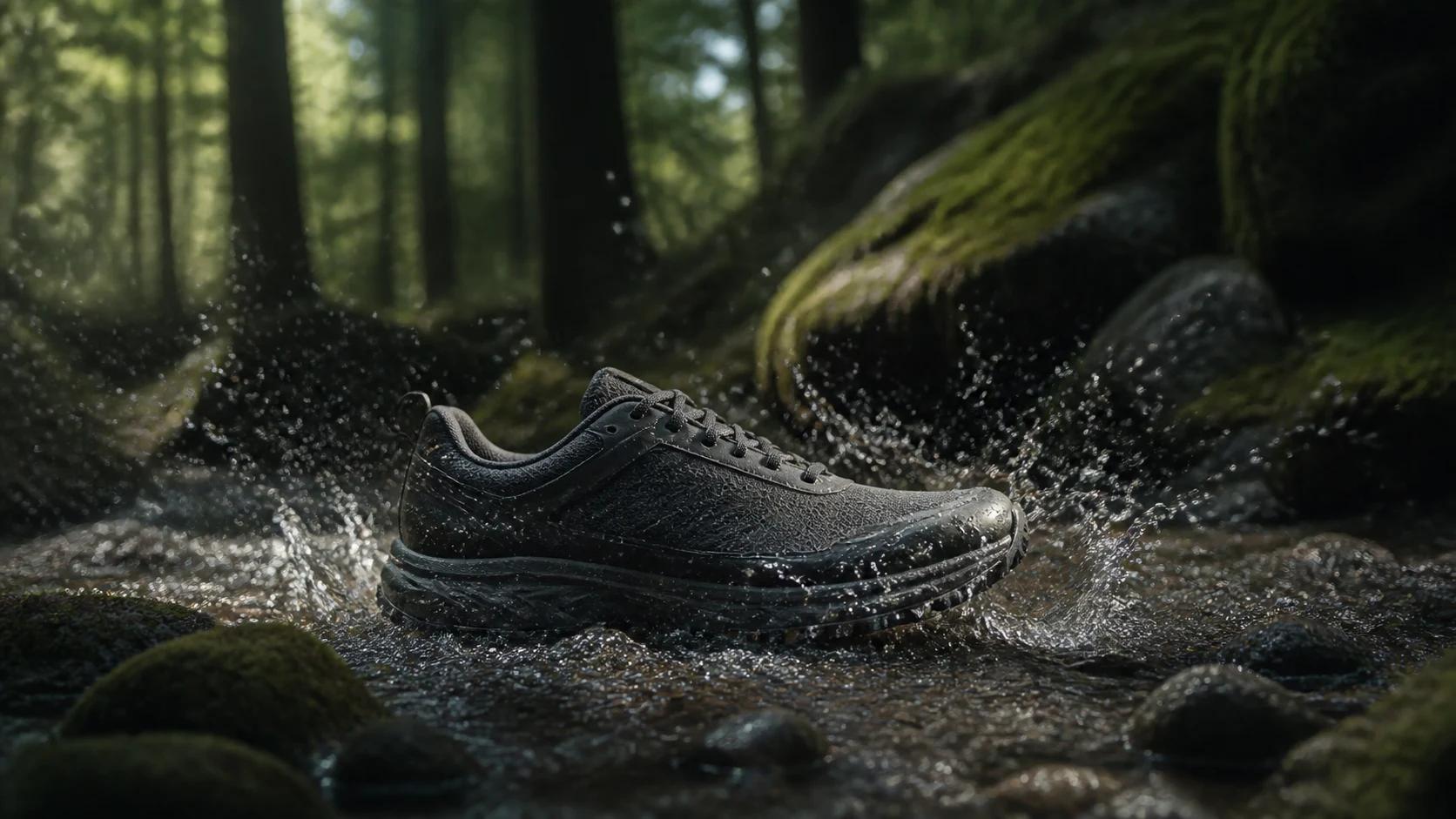
ChatGPT and Claude can both plan a product video ad and hand the shot to Oakgen through a custom connection. Start with the chat your team already uses. Ask for two opening shots from one product photo, check what one clip will cost, and approve one generation. Oakgen uses the same model catalog and credit balance from either chat.
How do ChatGPT and Claude compare for making product ads?
The main difference is how you connect Oakgen and make its tools available in the conversation. Once connected, both paths let you ask Oakgen to find a video model, check its accepted inputs and quote the job before spending credits.
- ChatGPT. On the web, open Plugins, select the plus button, then choose Add custom MCP server. Enter
https://oakgen.ai/api/mcp, choose OAuth, create and install the plugin, then sign in to Oakgen. In a new chat, type@and select Oakgen. Your ChatGPT plan and workspace settings determine whether you can add the plugin. ChatGPT setup in Oakgen - Claude. Open Customize → Connectors, select Add, then choose the custom web connector. Use the same Oakgen URL and sign in to Oakgen. Enable the connector for the conversation from Connectors in the prompt menu. A managed workspace may require an owner or another authorized role to add it first. Claude setup in Oakgen
Both paths use a paid Oakgen plan to start generation. Ask for the quote using the exact model, reference and settings you plan to use. Duration, resolution and supported inputs vary across models. Oakgen Developer Hub
What should the brief say before you generate anything?
Give the assistant an approved product photo, one reason the customer should care, and the exact details the clip must preserve. The example below is for a fictional outdoor shop advertising a trail shoe. The shop wants to show its clay-colored upper and black laces. Claims about grip or waterproofing would need separate evidence.
| Part of the brief | Trail shoe example | Weekly replacement |
|---|---|---|
| Product reference | A photo the shop owns showing the shoe in side profile | The new SKU and a photo showing the details the ad will mention |
| Details to preserve | Clay upper, black laces and the sole profile in the photo | The exact color, branding and visible construction in the new reference |
| Two opening shots | A slow camera move across the side profile or a close detail of the laces | Two views that the same reference supports |
| Shared ending | Use the actual product photograph with "See available sizes" | The current product image and an approved call to action |
Paste the same brief into either chat so the planning and approval steps are comparable.
Write two openings for a vertical video ad about this trail shoe. Use the approved side-profile photo as the reference. Keep the clay-colored upper, black laces and sole profile as shown. Plan one slow camera move and one detail opening. Avoid claims about grip or waterproofing. End both storyboards with the real product photo and "See available sizes."
Use Oakgen to find a video model that accepts the reference and can make a 9:16 clip. Show the shortest suitable duration, the exact inputs you will use and the credit price for one clip. Stop and wait for my approval before starting.
If the assistant cannot pass your photo to the selected model, ask it for the shot brief and use the Oakgen Video Generator to add the source yourself. If the actual camera angle matters to the sale, give the assistant a real photograph from that angle first.
How do you turn the quote into one reviewable clip?
Approve one shot at the quoted price. Oakgen's start tool accepts a credit ceiling. If the price rises before the job starts, the assistant needs a fresh quote and approval. Save the generation ID after the start. It lets the assistant check progress on the same job while the video runs. Oakgen's video generation workflow
Watch the clip through once at phone size. Then pause on the first usable frame and the closest shot of the product. Check that the laces, sole and any logo still match the source photo. If the clip changes a detail a buyer would rely on, use the real footage or photo for that shot. First-frame hooks for product video ads
For a second opening, keep the same offer, end card and destination page. Change the shot you planned to test. Save the brief, source photo and accepted clip together so next week's product can start from the same format. For paid placements, review orders or qualified leads alongside early views. A clip can hold attention before a buyer has enough information to act.
When is another tool a better choice?
Use Oakgen's UGC Ad Generator when you already have a product link and want a scripted presenter-style ad. This chat workflow is suited to picking a specific shot and approving the model and cost before it runs. If the ad needs to prove how a product fits, opens or performs, record the demonstration on the real item. A generated shot can still give the ad an opening or transition.
How we checked this
We reviewed the live Oakgen setup and Developer Hub, Oakgen's public MCP tool instructions, and the OpenAI and Anthropic setup docs on November 19, 2026. We did not run a side-by-side generation in ChatGPT and Claude for this article. The trail shoe brief is an example you can adapt to your own reference.
Price your first product video from chat
Connect Oakgen to ChatGPT or Claude. Check the model and credit quote before you approve a clip.
Frequently asked questions
Does ChatGPT or Claude generate the video when connected to Oakgen?
The assistant turns your brief into a request. Oakgen runs the selected video model and returns the finished asset when the job completes.
Do I need a paid Oakgen plan to make a product video from chat?
Yes. Starting a generation requires a paid Oakgen plan. You can connect and look up model inputs and credit prices before starting a paid job.
Can I get two hooks from one product photo?
Yes, when the selected model accepts an image reference. Try two camera treatments using the same owned reference and keep the offer and final frame fixed. Review both clips against the real product.
What should I do if an Oakgen video takes several minutes?
Keep the returned generation ID and check the same job's status. Starting a fresh job for the same shot can spend credits again.
Can I use a generated clip in a paid ad?
Review Oakgen's Terms of Service section 4.4, the selected provider's terms, and your rights in the inputs before publishing. Verify product claims and any required disclosures for your placement.