An AI tattoo generator is good at one thing that most people find hard: turning an idea in your head into a picture you can point at. It is not good at deciding what will look right on your skin in twenty years. This guide is about getting the first part right, so the second part (your artist's job) starts from a clear brief.
We use Oakgen's AI Tattoo Generator throughout. You write your idea, choose one of nine tattoo styles, and pick a single design or a flash sheet. The output is flat artwork on a white background, not a preview on your body. When you have a design you like, the companion guide on testing a tattoo design before you get inked covers placement previews and how to brief your artist.
If you want a large library of hand-written prompts for every style, our older post on AI tattoo design concepts has them. This guide is about using a style-preset tool and judging what it gives you.
How the generator builds the image
It helps to know what the tool adds on top of your words. Your idea is combined with:
- the style you chose, described in tattoo terms (for example, traditional means bold black outlines and a limited palette of red, yellow, green and black);
- the layout: one design on white with margins, or a flash sheet of three or four clean outline variations;
- fixed rules: flat 2D artwork as drawn on paper, viewed straight on, no skin, no body, no mockup, crisp lines with enough space between them, and a pure white background.
So you do not need to write "on white background" or "tattoo style" yourself. Spend your words on the subject.
Step 1: Write the idea
The idea box takes up to 1,000 characters, but most good tattoo briefs are one or two sentences. A reliable shape:
Main subject + one or two supporting elements + mood + size and shape.
For example:
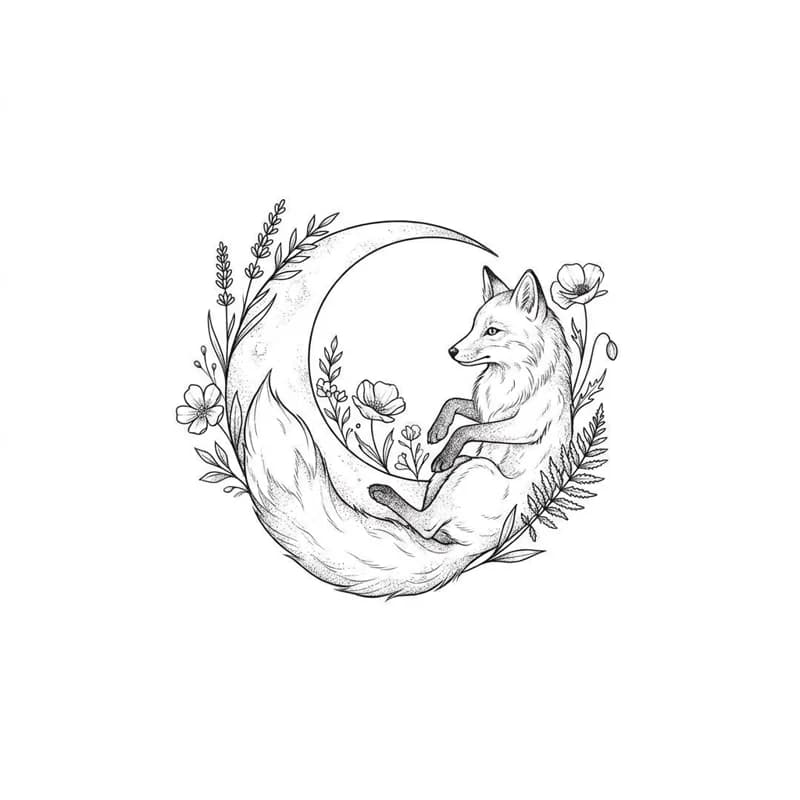
- "A sleeping fox curled around a crescent moon, small pine branches, calm mood, fits inside a palm-sized circle."
- "A single peony with two buds and a few leaves, flowing downward, long and narrow for the forearm."
- "A lighthouse on rocks with three waves, strong and simple, square composition for the upper arm."
Some habits help:
One focal point. A tattoo is read from a distance in a second. Two or three supporting elements are plenty; past that, the design becomes a collage.
Concrete mood. "Sleeping fox" tells the model something. "Meaningful fox" does not.
Describe the shape, not the measurement. The model cannot draw to a centimetre, but "long and narrow", "fits inside a circle" or "wraps like a band" changes the composition.
Use the Make this better helper for short ideas. If you only have three words, it expands them into a fuller description. Read what it wrote before generating and remove anything you did not mean.
Leave out other artists' signature work. Describe what you want to see, not someone's existing tattoo or a trademarked character.
Turn your idea into a tattoo design
Describe the subject, choose from nine tattoo styles, and get a single design or a flash sheet on white.
Step 2: Choose the style
Each style changes line weight, colour and composition. A quick guide to when each fits:
Fine Line. Thin single-needle lines and soft shading. Suits small, delicate pieces: botanicals, small animals, constellations. Watch for lines drawn so close together they would blur over time.
Traditional. Bold black outlines and a limited palette of red, yellow, green and black. Suits classic subjects such as swallows, roses, daggers and ships, and reads clearly from across a room.
Neo-Traditional. Bold outlines with varied line weight, richer colours and more decorative detail. Suits animal portraits and flowers when you want traditional strength with more depth.
Blackwork. Solid black areas, strong negative space, dotwork. Suits graphic, high-contrast pieces and bands.
Japanese. Bold outlines and flowing composition with waves, wind bars, clouds and blossoms. Suits larger areas such as the upper arm, thigh or back. At small sizes it loses its point.
Watercolor. Soft colour washes behind a light line skeleton. It looks beautiful on paper; ask your artist how they would anchor it with enough linework to hold its shape as it heals.
Geometric. Precise lines, circles and polygons, often symmetrical, with dotwork. Suits mandalas and structured designs. Check symmetry closely, since generated lines are rarely perfectly even.
Minimalist. Very few lines and lots of empty space. Suits tiny, quiet tattoos on the wrist, ankle or behind the ear.
Script / Lettering. Hand-lettered calligraphy in black. Suits names, dates and short phrases. See the lettering section below.
If you are torn between two styles, run the same idea in both and compare. The style changes the feel of a design more than any wording does.
Step 3: Single design or flash sheet
Single Design gives one complete piece, centred, with margins. Choose it when you know what you want and need to see it finished, including colour if the style uses it.
Flash Sheet gives three or four variations of your idea as clean, closed black outlines on one sheet. Choose it when you are still exploring: the variations show different compositions side by side, and you can point at the one you like. Outlines also make it easier for an artist to see the structure and trace a starting point.
A practical pattern: start with Flash Sheet to find the composition, then switch to Single Design with a sentence describing the variation you liked.
Lettering: the part to check twice
Image models draw letters as shapes, so text is where they most often fail. To get usable lettering:
- Put the exact words in quotes: a tattoo of the word "Amor fati" in flowing script.
- Keep it short. One to three words is far more reliable than a sentence.
- Check every letter, including double letters, accents and capitals. Read it backwards to catch errors your eyes skip.
- Treat it as a layout idea. The flourish, slant and line breaks are the useful parts; your artist should redraw the actual letters.
Dates and numbers need the same check. A wrong digit in a birth date is the kind of mistake you only notice once it is on your arm.
Step 4: Judge whether it will tattoo well
A design that looks great as an image can still be a poor tattoo. Look at each result with an artist's eye:
- Line spacing. Lines drawn very close together tend to spread and merge as tattoos age. If details are crowded, ask for "fewer, bolder lines" or switch to a bolder style.
- Detail size. Tiny details in a small design, such as eyelashes on a sparrow, will not survive. Either enlarge the plan or simplify.
- Contrast. Squint at the design. If it becomes a grey blob, it needs more black or more empty space.
- Silhouette. Can you tell what it is from its outline alone? Strong tattoos usually can.
- Colour reliance. If the design only works because of subtle colour gradients, discuss with your artist how it will look on your skin tone.
None of this means the design is useless; it means it is a reference. A good artist will take what you like about it and make it work in skin.
Troubleshooting
It looks like an illustration, not a tattoo. Choose a bolder style (traditional or blackwork), or add "tattoo flash, bold outlines, simple shading".
Too busy. Remove supporting elements, switch to Minimalist or Fine Line, and add "simple, few lines, lots of empty space".
It drew the tattoo on an arm anyway. Regenerate; the prompt asks for flat artwork, and a repeat usually comes back on white. Remove words like "sleeve" or "on my forearm" from your idea, which push the model toward a body.
Every result looks different. That is normal. The same description can produce quite different designs. Generate several, keep the best, and describe what you liked in the next attempt.
The style is mixed. Remove style words from your idea text, such as "watercolor" when the style is set to Japanese. Let the preset decide.
What to do with the design
- Save the two or three designs closest to your idea, plus one you clearly do not like. Showing an artist what you do not want is useful too.
- Preview placement with the Virtual Tattoo Try-On, which shows a tattoo style on your own photo. The testing guide explains how to describe your design there and what the preview can and cannot show.
- Bring the designs to a consultation, along with notes on what you like about each.
Design your tattoo idea
Write the idea, pick a style, and compare a flash sheet of variations before you book a consultation.
Frequently asked questions
How should I describe my tattoo idea to an AI generator?
Lead with one main subject, add one or two supporting elements and a concrete mood, and mention the rough size and shape of the placement. For example: 'a sleeping fox curled around a crescent moon, small pine branches, calm mood, fits inside a palm-sized circle'.
Can an AI tattoo design be tattooed as it is?
Treat it as a reference. Generated lines can be too thin, too close together or uneven to heal well. A tattoo artist redraws and resizes the design for your skin and placement.
Why does the AI keep misspelling my tattoo text?
Image models draw letters as shapes, so spelling errors are common, especially in long phrases. Put the exact words in quotes, keep them short, check every letter, and have your artist redraw the lettering.
What is the difference between a single design and a flash sheet?
Single Design gives one finished piece centred on white. Flash Sheet gives three or four outline variations of the same idea on one page, which is useful for comparing directions and for an artist to trace.