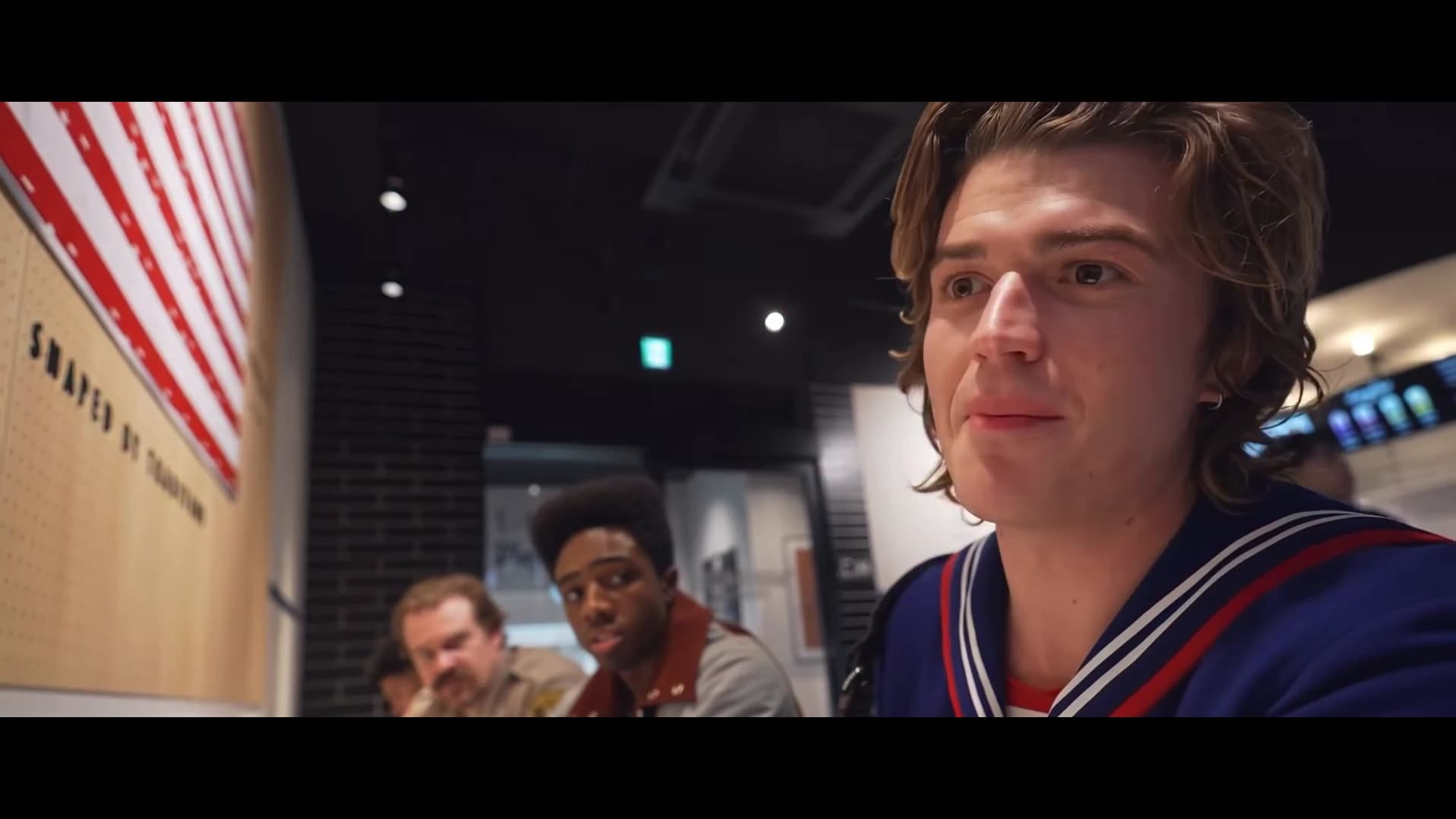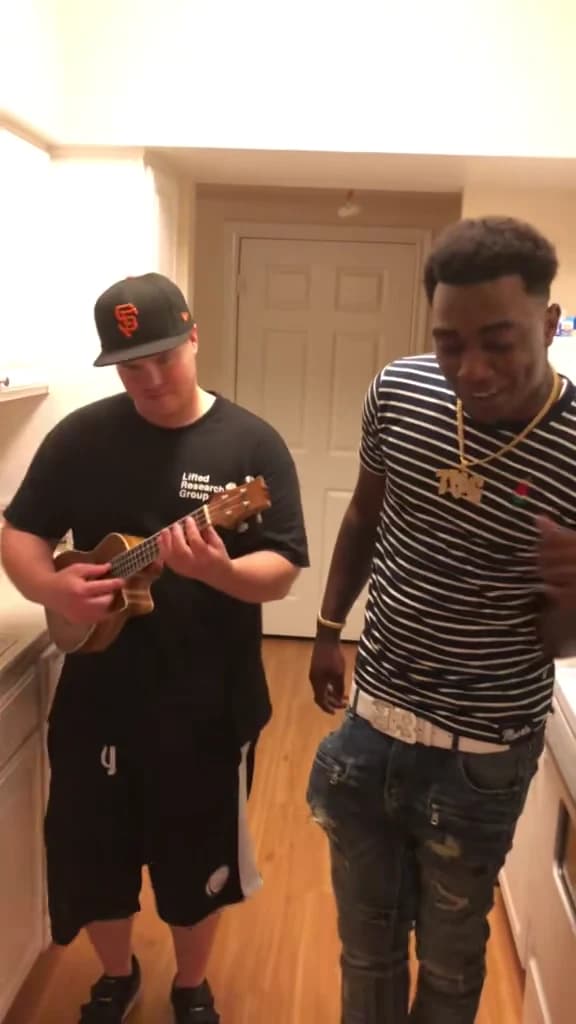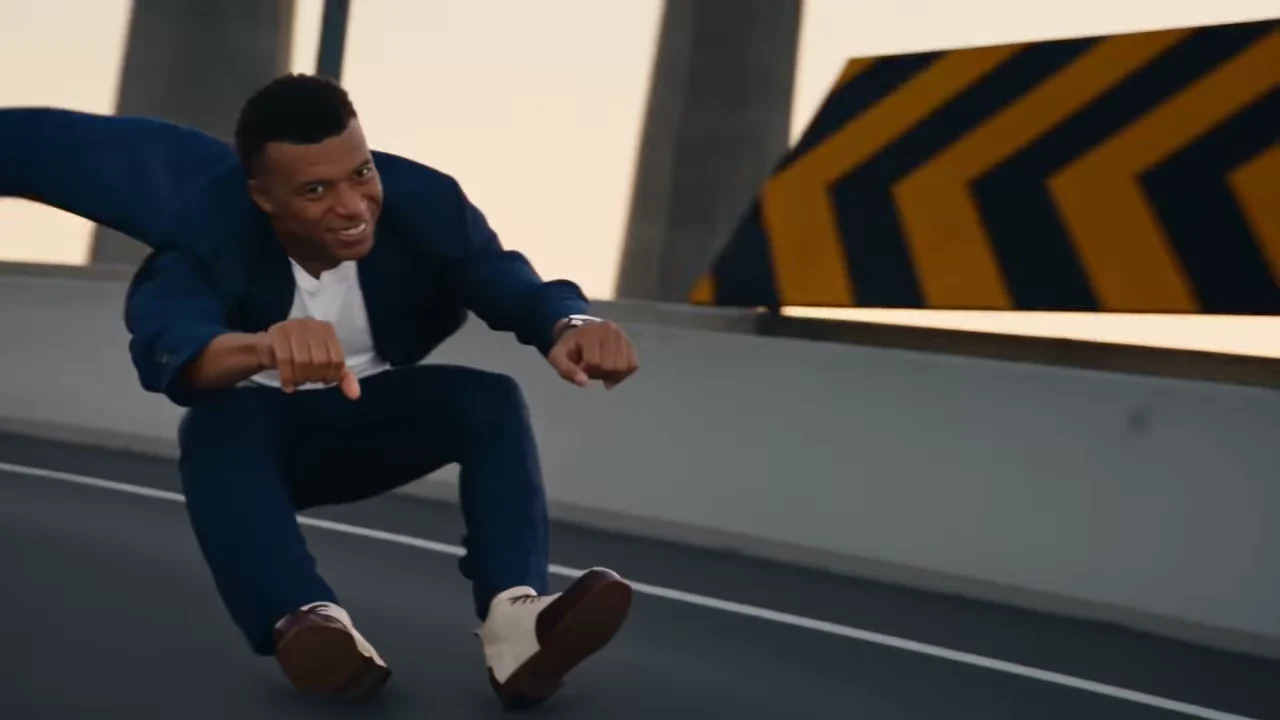
To make the Crazy Frog Hover Chase AI trend, open Oakgen's Hover Chase generator, choose Landscape or Portrait, and add two photos: one for the lead character and one for the pursuing pilot. Select Portrait for the supplied Hagrid and Voldemort reference. Choose a quality, review that version's quote and generate, then inspect both characters through the complete chase.
The supplied Hagrid and Voldemort remake by @ausar.ai uses Axel F by Crazy Frog. It is an AI variant, not Harry Potter footage. It is available as Portrait on the same Hover Chase page; Landscape remains the default. The cover is the existing Zeyan AI Landscape reference frame, not a verified Oakgen result.
Recognize the format without confusing the versions
The memorable picture is a lead character travelling low over a roadway as though riding an invisible vehicle, with a pilot closing in on a futuristic machine. The chase cuts between the lead, the pursuer and a wider view. A stunt and the movement down the road complete the sequence.
The two versions share the lead-and-pursuer structure but use different reference clips, framing, lengths and endings. Open the Hover Chase preview and switch between them before planning your post. You keep one product page and the same two roles while choosing the scene you want.
| Decision | Oakgen Hover Chase | Why it matters |
|---|---|---|
| First character | Lead rider or runner in the chase | Carries the main movement and reaction |
| Second character | Pursuing pilot | Needs to remain distinct in its own close-up |
| Photos required | Two, with both roles filled | The scene is rebuilt using both character references |
| Landscape | 18.04 seconds, 16:9, selected by default | Keeps the existing longer Zeyan AI reference |
| Portrait | 15 seconds, 9:16 | Uses the supplied @ausar.ai Hagrid and Voldemort reference |
| Sound | The selected version's reference soundtrack | Preview and quote follow the selected version |
This distinction lets you use the familiar Crazy Frog search name while keeping expectations tied to the actual template you select.
Prepare the two characters
Choose clear photos with one person in each. The lead appears at different distances and changes pose during the action, so show the face, hair and enough clothing to establish their look. The pilot deserves an equally clear reference even if they spend less time in the foreground.
Do not choose the second photo as an afterthought. A blurry image of the pursuer can become obvious when the camera cuts to a close-up. The difference in screen time does not make that role optional.
Your photos do not need to show running, a motorcycle or a hovercraft. The template supplies movement and vehicles. A calm portrait gives a cleaner identity reference than a motion-blurred action selfie.
For an easy first casting, pick two people with visibly different hair or outfits. You can use matching outfits if that is the joke, but then pay closer attention to facial identity and role continuity. Read the two-character Hover Chase photo guide if the same person seems to occupy both parts or a character changes after a cut.
Create the chase in Oakgen
1. Start with the existing Hover Chase tool
Open Hover Chase. The fixed scene is already configured; you do not need to recreate the motorway, camera cuts and action in a general text prompt.
Choose a version before uploading. Landscape is the default 18.04-second, 16:9 scene. Portrait selects the 15-second, 9:16 Hagrid and Voldemort reference. The selector changes the source preview, aspect ratio, duration and quote together; Portrait is a configured version, not a manual crop of Landscape.
2. Assign the lead and pilot separately
Add the photo you want in front to the lead rider slot. Add the pursuing character to the pilot slot. Check both selected thumbnails before continuing.
The slot describes a job in the scene. You are not required to copy a celebrity, fictional costume or source performer's appearance. Use photos you have permission to use and choose the outfits you want as part of your character references.
3. Review quality and the credit quote
Available output choices are 480p, 720p and 1080p; 720p is the default. Read the quote attached to your selected version and quality. It includes preparation of the required character photos. If you switch versions, review the updated duration and quote before generating.
The quote is more useful than a credit number from another service's Crazy Frog tutorial. Different generators can use different timelines, resolutions and required inputs. This guide does not promise a particular price, production time or creative success rate.
4. Generate and watch the whole chase
When the result is ready, view it at normal speed with the included soundtrack. Decide whether the lead, pursuer and getaway remain understandable. Then inspect the cuts and action more closely before downloading the version you plan to share.
Put your two characters in Hover Chase
Choose Landscape or Portrait, assign both photos and review the selected version's quote.
Review the chase as a sequence
A single good portrait is not enough for an action scene. Use this scene-based checklist to evaluate the complete result.
| Part of the chase | Main check | Useful question |
|---|---|---|
| Lead introduction | Identity and low riding pose | Can you recognize the chosen person before the action accelerates? |
| Pursuit appears | Separation of the two roles | Is the pilot still a different character behind the lead? |
| Pilot close-up | The second photo's identity | Does the face match the person assigned to that slot? |
| Turn or stunt | Anatomy and outfit continuity | Does the same character remain visible through the movement? |
| Landscape ending | Lead's final frontal close-up | Is this the same recognizable lead seen earlier? |
| Portrait ending | Roadway and pursuing craft action | Does the wider chase finish without an invented extra close-up? |
Watch hands and feet where they approach the road or vehicle. Those interactions can distract even when the face looks good. Check whether a prop or part of the machine passes through a body, and whether the pilot remains attached to the same vehicle through a cut.
These are review criteria drawn from the scene, not reported defects from a paid Oakgen test. No paid end-to-end output was generated for this article. A supplied social remake shows the format; it does not qualify every result the template might produce.
Plan captions for the version you selected
Choose Portrait in the tool when you want the supplied vertical reference. It provides its own 15-second scene rather than asking you to crop the longer Landscape video. The two endings differ, so pick the version for its action as well as its shape.
If you make additional edits, preview them at the lead introduction, pilot close-up, action peak and ending. Keep the untouched download from the selected version. A further crop or large overlay can still hide the second character, even when the source version already has the shape you need.
Use captions to explain the casting instead of covering the road and hands. A short setup such as a friend's name or an in-joke can work without obscuring the movement. Describe the result as an AI recreation, and avoid implying the people in your photos performed the stunt.
If you want a slower two-person scene, see the Oouuh ukulele duet tutorial. For a single visible character and a dialogue soundtrack, the Stop Sign guide is another fixed trend with a different review checklist.
Frequently asked questions
How do I make the Crazy Frog hover chase trend?
Open Oakgen's Hover Chase tool, choose Landscape or Portrait, and add one photo for the lead rider and another for the chasing pilot. Choose a quality, check the selected version's quote, generate and review the complete chase before downloading.
Is the Hagrid and Voldemort Reel an original film scene?
No. The supplied @ausar.ai Reel is an AI character remake of the chase format. It is not Harry Potter film footage or a verified Oakgen result.
Does the supplied remake use Crazy Frog's Axel F?
Yes. Audio identification of the supplied remake matched Axel F by Crazy Frog. Portrait uses that supplied reference; Landscape retains its own reference soundtrack.
How do I select the Hagrid and Voldemort portrait version?
Choose Portrait in the Hover Chase preview or tool. It selects the 15-second 9:16 @ausar.ai reference and updates the preview, framing and quote. Both character photos are still required, and generated details can differ.
Can I upload only the person being chased?
No. Hover Chase requires both character photos: the lead rider and the pursuing pilot. An empty second slot does not keep the pilot from the reference.
Sources and further reading
- Supplied @ausar.ai character remake: the specific Crazy Frog audio variant requested.
- Axel F by Crazy Frog: song identification associated with the supplied audio.
- Hover Chase preview and requirements: Landscape and Portrait versions on one primary product page.
- Hover Chase two-character photo guide: continuity diagnosis across close-ups and action.
Make your Hover Chase video after choosing a clear photo for each character.