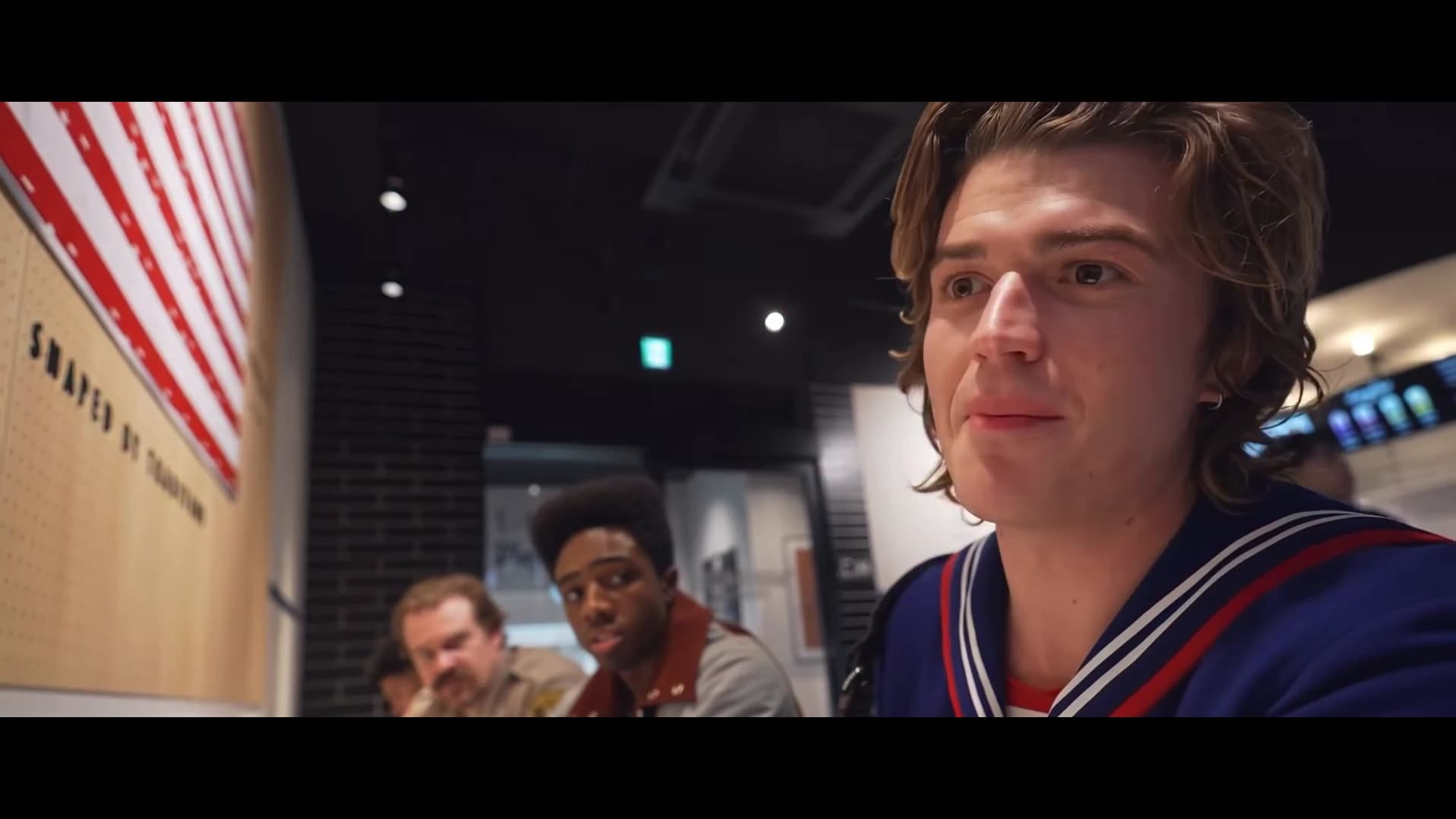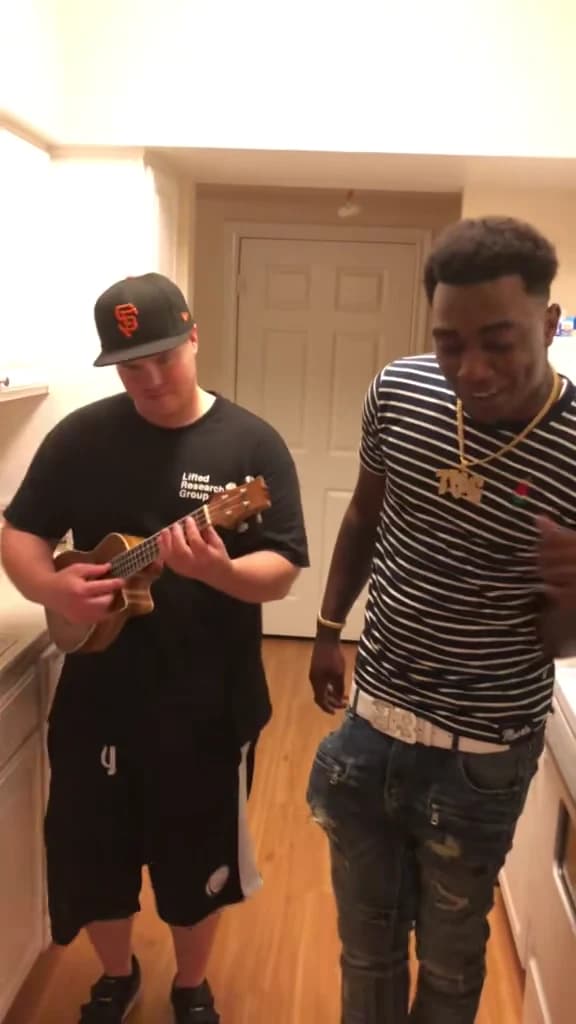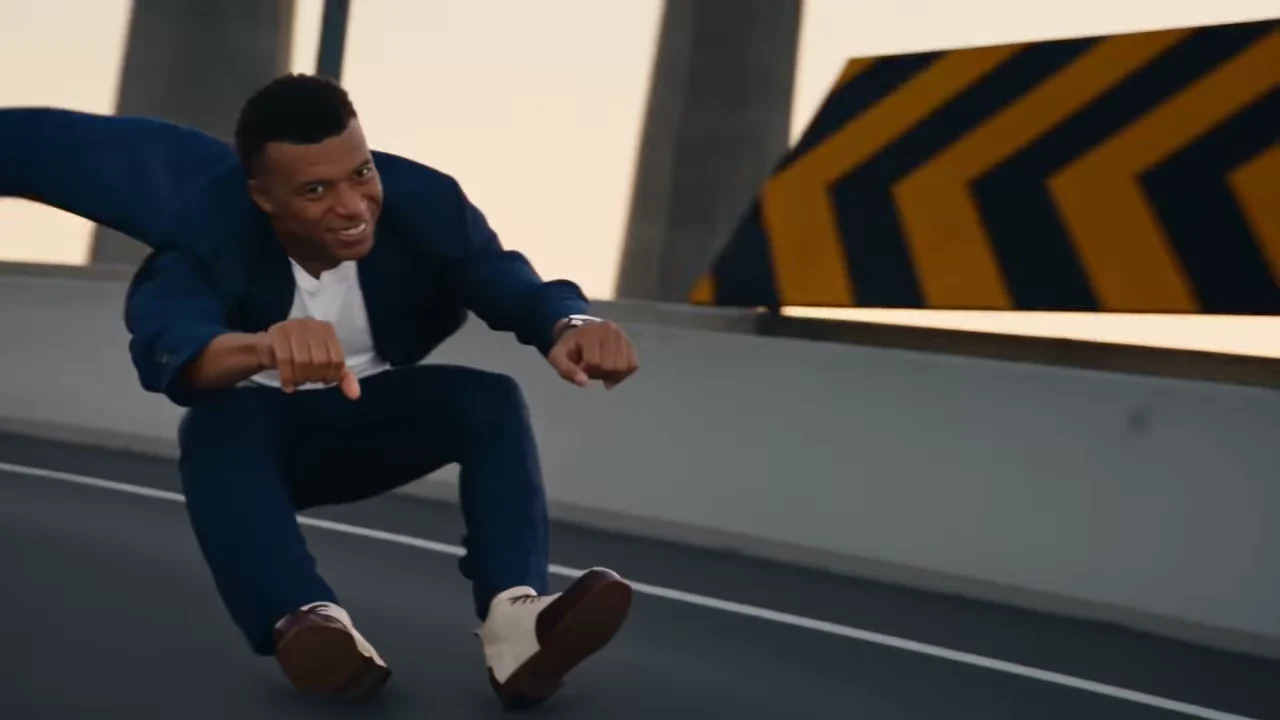
For Hover Chase AI photos, give the lead rider and pursuing pilot equally clear character references in Oakgen's Hover Chase tool. Choose Landscape or Portrait first; both require the same two roles. Review each person across distance changes, close-ups and the stunt. A good opening face does not establish that two identities survive the full action sequence.
This guide is for input selection and continuity diagnosis. The Crazy Frog Hover Chase tutorial covers the creation workflow and explains how the supplied character remake relates to Oakgen's existing scene.
Judge the roles by the whole scene
The Hover Chase preview follows a lead character and a pursuing pilot. Because the lead commands the opening, it is easy to spend time on that photo and rush the second. The camera can bring the pilot into a much clearer view later, making a weak second reference noticeable.
Select the version you intend to make, then watch its preview once for the lead and once for the pilot. Landscape is 18.04 seconds at 16:9 and remains the default. Portrait is the 15-second, 9:16 @ausar.ai Hagrid and Voldemort reference. Identify a moment where each face is easiest to read in that version; those moments become your comparison points after generation.
| Character | Useful source-photo detail | Important output comparison |
|---|---|---|
| Lead rider | Complete head, hair and readable upper-body outfit | Introduction, turn, stunt and return to the roadway |
| Chasing pilot | Equally clear face and distinguishing appearance | Distant pursuit, pilot close-up and getaway |
| Both together | Separate, unambiguous identities | Neither role becomes a copy of the other |
The pilot's photograph does not need to include a vehicle. The reference scene supplies the machine and action. Your input needs to describe the character who occupies that role.
Select two photos that make continuity assessable
Use one person per image. The eyes, mouth and jaw should be readable, with enough space to show the hair. If the outfit matters, include the upper body rather than supplying only an isolated face.
Two people in similar clothing can be a deliberate creative choice. For an initial version, however, visibly different hair or outfits make it easier for a viewer to track the roles. That is a way to simplify your review, not a claim that contrasting clothes eliminate identity errors.
Avoid choosing an action selfie because the trend contains action. Motion blur makes facial detail harder to inspect. A relaxed image gives you a clearer comparison when the generated character leans, turns or changes distance from the camera.
If a friend has several possible portraits, choose the one that best establishes the intended appearance. An image with a strong filter or colored shadow may be stylish, but it adds uncertainty about which features should remain stable in the generated scene.
Make a continuity card for each character
Before generating, write a short description of what you expect to recognize. For example: “lead: short dark hair, round glasses, blue jacket” and “pilot: tied-back hair, bare face, pale shirt.” Use details actually visible in your chosen photos.
These notes are for your review; they are not new controls in the fixed trend tool. They help you decide whether a later frame belongs to the same character rather than vaguely judging that the video “looks different.”
Use facial identity and clothing together. A jacket alone cannot prove that the right face stayed in the lead role. Equally, a recognizable face with an outfit that changes across cuts can still interrupt the continuity you intended.
Choose both Hover Chase characters carefully
Select Landscape or Portrait, check both photo roles and review that version's current quote.
Diagnose casting, identity, motion and editing separately
The next table distinguishes problems that can look similar on a quick watch. The checks are a practical review method, not a promise that another attempt will fix a particular issue.
| Visible issue | Check first | What you are separating |
|---|---|---|
| Intended lead appears as the pilot | Selected role thumbnails | Assignment error versus generated identity drift |
| Pilot's face resembles the lead | The two original uploads | Duplicate input versus character blending in the output |
| Face changes after a cut | Same character immediately before and after | Cross-shot continuity versus an unclear first portrait |
| Body becomes confusing during the stunt | Frames through the movement | Anatomy/motion quality versus photo identity |
| Pilot disappears after an extra crop | Selected version's full download and edited copy | Composition loss versus absence in the generated scene |
| Outfit changes near the end | Source photo and earlier output frames | Missing input detail versus continuity loss |
If the slots are wrong, fix them before changing images or quality. If a source photo is too small or obscured, replace that input. If the full result includes the pilot but your crop does not, revisit the edit.
When the inputs are clear and the result still changes identity, record the relevant shot or action. Increasing resolution is not a guaranteed repair. 480p, 720p and 1080p are output-size options with different displayed quotes, not separate promises about movement accuracy.
Review both sides of every important cut
Pause on the final readable frame of a character before a cut and the first readable frame when they return. Compare the face, hair and outfit. Then play through the cut at normal speed to see whether the change is distracting in motion.
Use this approach for the pilot close-up as well as the lead. A pilot who looks convincing in a close-up may still have a different appearance in the distant pursuit. Review role identity across both views rather than accepting whichever one looks best.
For the stunt, focus on continuity through the movement. Can you follow the same body into and out of the action? Do hands, legs and clothing remain understandable? Does the sequence return to the same lead character afterward?
Check the ending for the version you selected. Landscape ends with a frontal close-up of the lead, so compare that face with the introduction. Portrait ends on wider roadway and pursuing-craft action; use position, body shape and outfit to track the cast there. Do not treat the absence of Landscape's closing face shot as an error in Portrait.
Compare with the selected version, not a crop of the other
The supplied Hagrid and Voldemort Reel is the Portrait reference, set to Crazy Frog's Axel F. The version selector changes the preview, aspect ratio, duration and quote while keeping the same Hover Chase page and two required photo roles. You do not need to crop the longer Landscape version to access it.
Confirm Landscape or Portrait before generating and recheck the quote after switching. These are different reference sequences with different endings, not just two shapes of the same exported file. Keep the untouched download of the version you actually made when reviewing another edit.
If you add a further crop elsewhere, preview the opening, pilot close-up, stunt and ending. The lead does not occupy the same part of the frame at every moment. A crop that captures one face early may remove a character or important action later.
Compare any edited soundtrack with the untouched download too. The tool keeps its own reference audio. Changing a music start point during editing can alter the feel of the action without indicating a generation problem.
The DDG Bills photo-role guide applies a similar assignment-first approach to a conversation scene. The Oouuh duet photo guide separates identity from hand contact in a slower two-person performance.
Frequently asked questions
What two photos does Hover Chase require?
Use one photo for the lead rider and another for the chasing pilot. Both slots are required, and each should clearly establish one character's face, hair and visible outfit.
Does the pilot need a good photo if they appear less often?
Yes. The pilot has a distinct role and can appear prominently in a close-up. Choose their photo with the same care as the lead's rather than judging importance by the opening frame.
Why might a character look right in close-up but wrong during the stunt?
Close-up identity and action continuity are separate checks. Review the same character before, during and after the movement; a convincing portrait frame does not guarantee stable anatomy or appearance throughout a stunt.
Do I need running or motorcycle photos?
No. The template supplies the chase action and scene. Use clear character references instead of motion-blurred action photos.
Do I need to crop Landscape to make the portrait version?
No. Choose Portrait in the Hover Chase tool for the configured 15-second 9:16 reference. Landscape remains the default 18.04-second 16:9 version. Switching versions changes the preview, framing, duration and quote on the same product page.
Sources and further reading
The continuity cards and diagnosis table are original editorial review aids based on source and product inspection on October 18, 2026. No paid end-to-end generation was run for this guide. A possible error described here is not a measured failure rate.
- Existing Hover Chase source credited to Zeyan AI: the default Landscape reference.
- Supplied @ausar.ai Hagrid and Voldemort variant: the Portrait reference, an AI remake rather than film footage or a verified Oakgen result.
- Hover Chase primary page: current preview and required photo roles.
- Complete Crazy Frog Hover Chase tutorial: generation, review and sharing workflow.
The cover is the existing trend reference frame. Open the Hover Chase photo slots when both characters have clear identities and assigned roles.