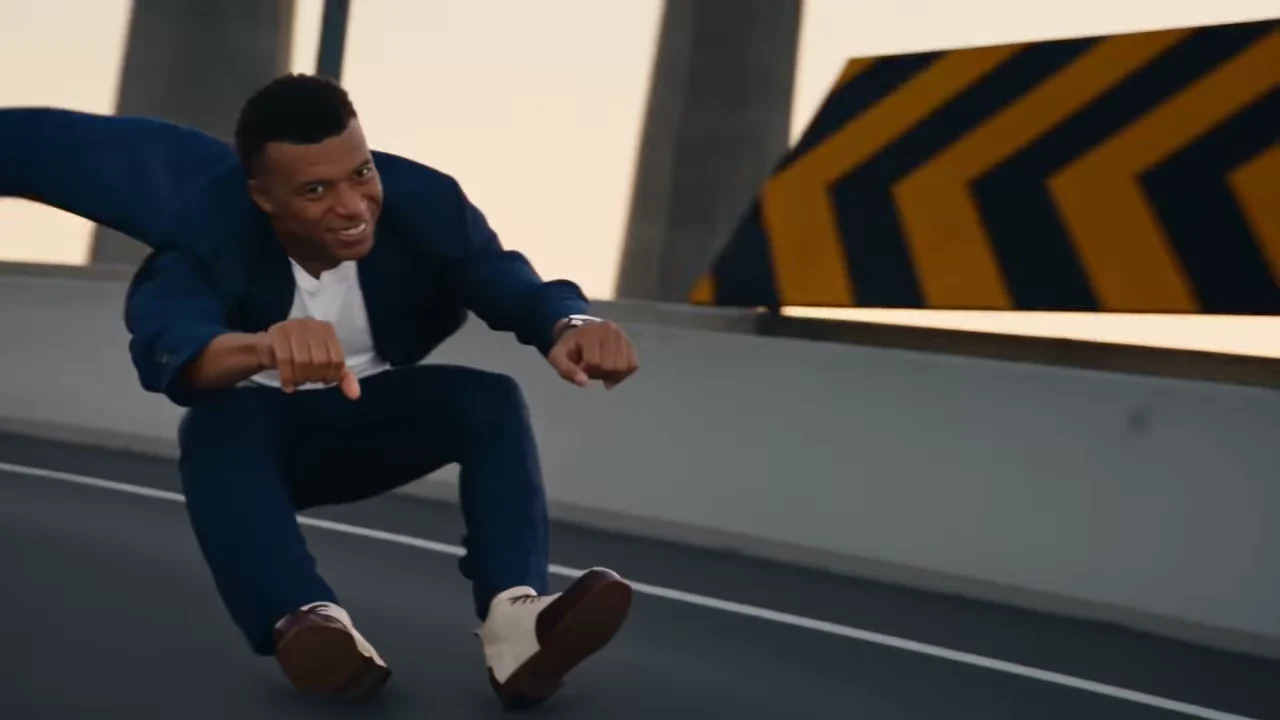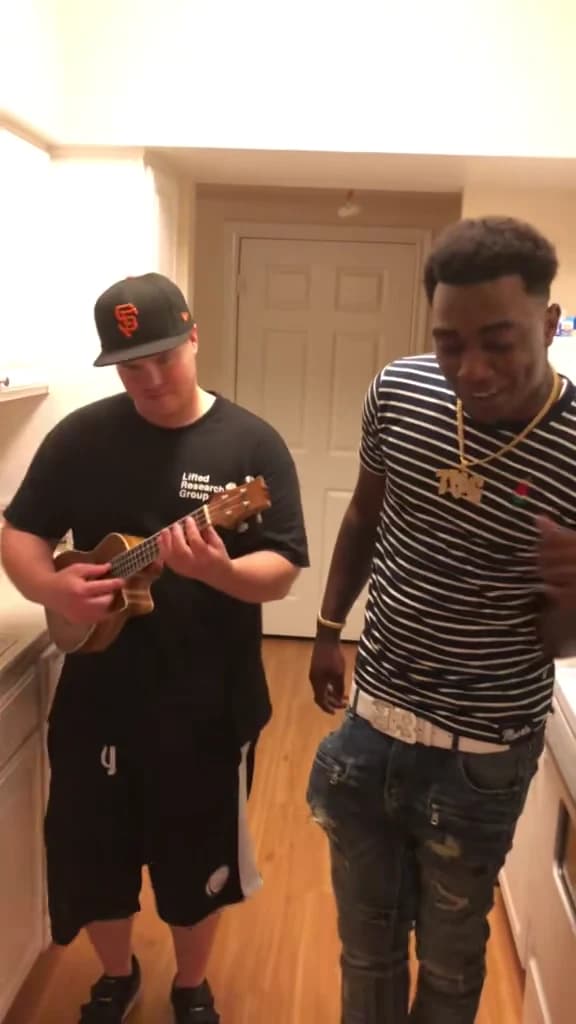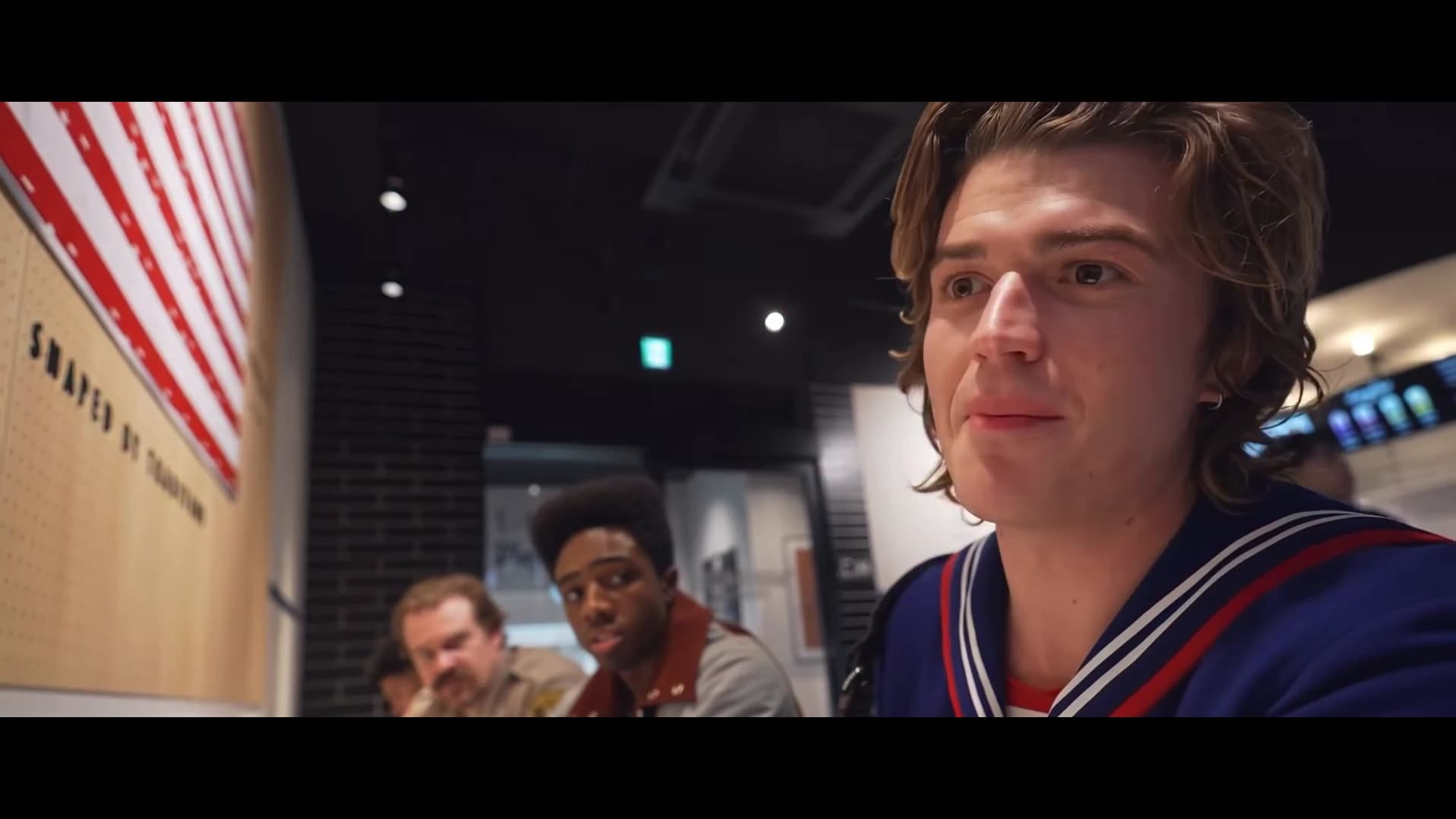
For DDG Bills AI video photo roles, start by mapping people to positions: closest speaker at the front/right, middle seated responder, and far seated companion. Fill all three roles in Oakgen's DDG Bills tool. If a result feels wrong, check that mapping before changing resolution or replacing every photo. A cast-assignment error, an unclear portrait and a generated mouth-timing error are different problems.
This guide helps you choose inputs and diagnose a result. For the complete creation workflow, use the DDG Bills recreation tutorial.
Make a three-person cast sheet before uploading
The DDG Bills reference shifts attention between people along a restaurant counter. The nearest character dominates the opening, while the others become more readable as the conversation develops. A distant character still needs a good photo; the camera's attention is not fixed on the opening face.
Write a simple cast sheet using your own names. “Alex: closest; Sam: middle; Jo: far” is enough. The purpose is to remove an avoidable ambiguity before the tool starts building the scene.
| Cast-sheet field | Closest speaker | Middle responder | Far companion |
|---|---|---|---|
| Intended person | Name your lead | Name the person reacting | Name the remaining companion |
| Photo to use | Clear face plus hair and outfit | Equally clear independent portrait | Detailed enough for a smaller appearance |
| Preview check | Front/right role | Person between the others | Most distant companion |
| Output check | Same identity through the head turn | Same identity when attention shifts | Remains distinct in the closing view |
Treat this as an assignment sheet, not a ranking of which person deserves the best photograph. All three slots are required. A weak input for the least prominent character can still become noticeable when the scene draws attention to them.
Choose between portraits using the scene's demands
Start with the face at ordinary viewing size. Can you distinguish the eyes, mouth and jaw? Is the hair visible? Can you identify the outfit without guessing? A picture that answers those questions is a useful candidate even if its background looks nothing like the restaurant.
A group shot creates an extra choice inside each slot. If you must crop one, make sure no second face remains visible and that the intended person's head is not clipped. An individual portrait is easier to evaluate because the input contains one clear subject.
For the closest speaker, compare a normal portrait with any tightly cropped selfie you are considering. The reference shows more than a still front-facing face: the character turns toward the companions. A wider view of the head and shoulders provides more visible appearance information, though it cannot guarantee a perfect side view.
For the responder and far companion, avoid relying on tiny faces from a distant group photograph. Increasing the size of a crop does not create reliable missing facial detail. If a sharper source exists, replace the weak portrait before spending time on generation settings.
Separate the photo's appearance from its pose
The template guides where people sit and how they move. Your photo establishes who occupies each role. You do not need three images of people leaning over counters or reacting to one another.
This matters when choosing clothing. If a friend wants a particular jacket in the result, use a photo in that jacket with its upper-body shape visible. A face-only crop supplies less evidence for the outfit. If two photos show contradictory looks, choose the single appearance you want instead of expecting the tool to reconcile them.
Avoid changing several things at once while troubleshooting. Replacing a portrait, moving it to another slot and switching quality makes it harder to understand what changed. First decide whether the face is in the correct role. Then decide whether the photo clearly describes the desired appearance.
Check your DDG Bills cast before generating
Match each person to the closest, middle or far role, then review the selected thumbnails.
Diagnose the visible problem first
Use this decision table after watching the complete result. The suggested checks are ways to narrow the problem; they are not promises that a particular replacement photo will fix a generative error.
| What you notice | First thing to inspect | What that check can tell you |
|---|---|---|
| The right person appears in the wrong seat | Selected role thumbnails | The upload may be assigned to the wrong slot |
| One character looks unclear from the start | That person's original photo | The identity reference may be too small or obscured |
| A face changes when turning | Opening, side view and later view of the same role | The problem is continuity across movement, not just the first frame |
| Two companions resemble each other | Separate inputs and generated frames | A duplicated upload or output identity blending may be involved |
| The soundtrack is correct but a mouth moves on the wrong line | Exact speaking turn and role mapping | Audio preservation and mouth animation need separate review |
| A hand crosses a face unnaturally | Frames around the gesture | A motion or overlap problem may remain despite a clear portrait |
If the thumbnails are correct and the source photos are readable, a flawed result can still be a generation limitation. Do not present a new credit purchase or higher resolution as an assured repair. Revisit the result against the scene checklist before deciding whether another attempt is worthwhile.
Review identity across the camera movement
Choose an identity anchor for each person: hairstyle, face shape and one visible clothing feature. These are human review notes, not fields to enter into the tool. Their purpose is to help you notice whether a character changes as attention moves along the counter.
Watch the nearest speaker's turn first. Then follow the middle responder as the camera gives them more space. Finally inspect the far companion and the last exchange. A still image of all three people does not tell you whether the same cast survived the full sequence.
Review without audio before judging lip-sync. If you cannot reliably identify who is in each role while the video is silent, the problem is already visible. Adding captions will not correct a mixed-up cast.
Then replay with sound. Listen for the shift in conversational attention and check who is articulating. A face making a natural expression is not automatically evidence of the correct speaking turn. The punchline depends on the direction of the exchange.
Distinguish your edit from the generated result
Before diagnosing a late problem, compare the downloaded video with any version you cropped or captioned. A vertical crop may remove the far companion even when the full result contains them. A subtitle panel may cover the middle person's mouth precisely when you are trying to evaluate it.
Keep the unedited download as the reference for that comparison. If the issue appears only after editing, fix the crop, overlay or soundtrack placement. If it is already present in the original output, return to the role and identity checks above.
This is the same distinction that matters in the two-character Hover Chase review guide: a close-up and a wide shot reveal different problems. For performance hands and vocal timing, the Oouuh photo guide offers another scene-specific checklist.
Frequently asked questions
Which DDG Bills photo belongs in each role?
Assign one photo to the closest speaker at the front/right, another to the middle seated responder, and the third to the far seated companion. Check the role thumbnails rather than relying on file-selection order.
Can I leave the far companion photo empty?
No. Oakgen requires all three DDG Bills photos. The far companion is a separate character reference even when that person occupies less of the frame.
Should I increase resolution when two characters look mixed up?
Check role assignments and source photos first. Resolution changes output size; it does not guarantee correct casting, distinct faces or accurate dialogue timing.
Does the reference photo need the same restaurant pose?
No. Use a readable single-person photo showing the face, hair and outfit you want. The template supplies the restaurant pose and motion.
What should I check when the wrong character seems to speak?
First verify the photo-to-role mapping, then replay the exchange with sound and inspect the visible mouths. Correct soundtrack playback does not guarantee that generated mouth movements belong to the right person.
Sources and further reading
The role sheet and diagnosis tables are original editorial checklists based on source inspection and the shared Oakgen inputs reviewed on October 18, 2026. No paid end-to-end generation was run for this article.
- Supplied @ausar.ai restaurant reference: an AI character remake; the cover is a reference frame, not a verified Oakgen result.
- DDG Bills primary page: preview and required roles.
- Full DDG Bills creation guide: quality selection, generation and sharing workflow.
Open the DDG Bills photo slots once your three-person cast sheet is settled.