Chibi Maker: Chibi Yourself from a Photo

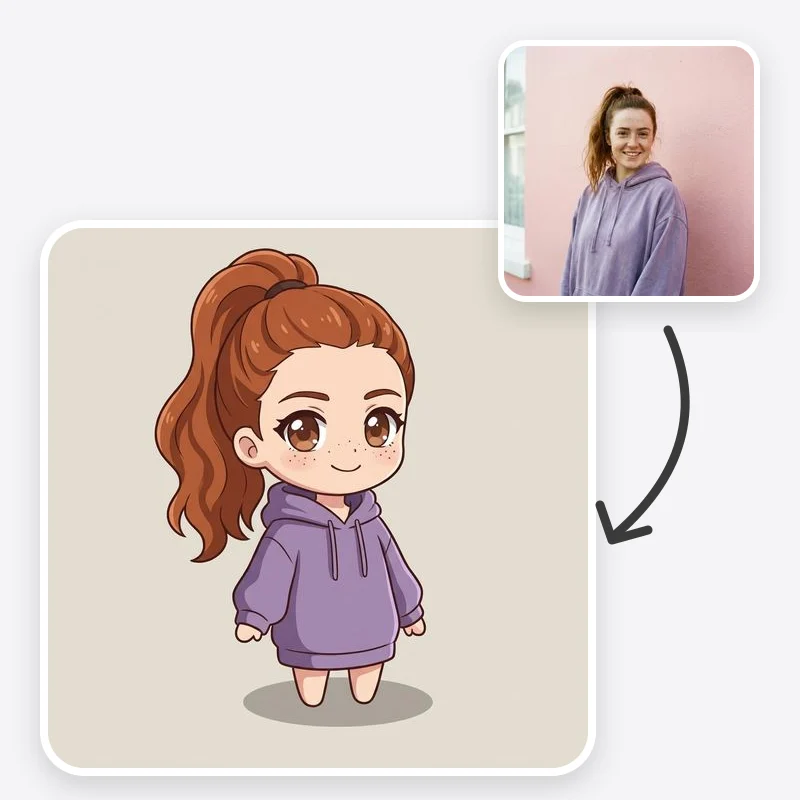
Chibi maker that turns your photo into a cute big-head character with your hairstyle and outfit colours, as an anime drawing, sticker, toy or watercolor.

Choose how the chibi is drawn

Keep the photo's expression or pick a new one

The white option looks cut-out but is not a transparent file

Open in Oakgen
Chibi Maker example
Example result

Chibi Maker: Chibi Yourself from a Photo

Upload a photo and get a cute big-head, small-body character that keeps your hairstyle, outfit colours and glasses, drawn as anime, a sticker, a toy-style figure or a pastel watercolor.

What is Chibi Maker?

Chibi Maker turns a photo of a person into a chibi: a cute character with a large head, a small rounded body and a simplified face. You pick one of four styles (anime chibi, kawaii sticker with a white border, 3D vinyl-toy look or pastel watercolor), an expression and a background, and the preset asks the model to keep the hairstyle, hair colour, glasses and outfit colours so the chibi still reads as you. The output is a single generated still image. It is not a transparent PNG, a vector sticker file, a 3D model or an animated character, and small details such as logos on clothing or jewellery are usually simplified or dropped.

Features and options

  • A chibi version of yourself works as an avatar, a sticker or a small gift, and it only needs one photo.
  • Four styles cover the main chibi looks people want: anime drawing, sticker, toy-style figure and soft watercolor.
  • The preset keeps hair, outfit colours and accessories, which is what makes a chibi recognisable at small sizes.
  • You can keep your real expression or switch to happy, wink or surprised for a set of reactions.
  • The clean white background option makes the character easy to cut out for stickers and emotes.

When to use Chibi Maker

  • You want a cute avatar or profile picture that still looks like you.
  • You are designing personal stickers, emotes or a sticker sheet from your own photo.
  • You want a matching set of chibis for a couple, friends or a team, each from a photo they shared.
  • You need a small character for a stream overlay, a planner or a social post.
  • You want to preview a chibi look before commissioning an artist for a custom design.

How to use Chibi Maker

  1. 1

    Upload a clear photo

    Use a well-lit photo of one person where the face, hair and outfit are visible. Upper-body or full-body photos help the outfit carry over. Only upload photos of yourself or of people who agreed.

  2. 2

    Choose a chibi style

    Anime chibi for a drawn avatar, kawaii sticker for a white-bordered sticker look, 3D vinyl toy for a figure-like render, or pastel watercolor for a soft illustration.

  3. 3

    Pick expression and background

    Keep your photo's expression or choose happy, wink or surprised. Choose clean white if you plan to cut the character out later.

  4. 4

    Generate and check the details

    Compare hair, glasses and outfit colours with your photo. If something changed, name it in Additional Instructions, such as 'keep the red striped scarf', and generate again.

Ways to use the results

Avatars and profile pictures

Make a chibi version of yourself that stays readable as a small circle on social apps, forums and chat servers.

For: Gamers, streamers and community members

Personal stickers and emotes

Generate the same character with different expressions on a clean white background, then cut them out for a sticker set or chat emotes.

For: Streamers and people making their own sticker sheets

Couple and friend sets

Make one chibi per person in the same style and background so they sit together as a matching set for an anniversary post or a group gift.

For: Couples, friends and families

Planners, cards and small merch mockups

Use a chibi on a birthday card, planner page or a mockup of a keychain or badge before ordering a print.

For: Hobby crafters and small online sellers

Strengths

  • Four distinct chibi styles from one photo
  • Keeps hair, outfit colours and glasses so the chibi stays recognisable
  • Expression presets make it easy to build a set of reactions
  • Clean white background option for sticker and cut-out work
  • No brand names or logos added to the toy style

Trade-offs

  • The white background is not transparency; you still need a background remover or editor for a transparent PNG
  • Small details such as jewellery, patterns and printed text are often simplified or lost
  • Each generation draws the character slightly differently, so a multi-expression set may need a few attempts to match
  • Group photos are less reliable; one person per photo works best
  • The 3D vinyl-toy style is a rendered image, not a 3D model or a physical figure

Tips for better results

  • Name the outfit detail that matters most: 'keep the yellow hoodie with the white drawstrings'.
  • Add one prop rather than many: 'holding a coffee cup', 'with a small black cat'.
  • For a sticker set, keep style and background fixed and change only the expression between runs.
  • If the chibi looks too generic, add 'keep my glasses and side-parted hair' or whatever feature you are known for.
  • Avoid brand or character names in your instructions; describe the look instead, such as 'round matte vinyl figure'.

Chibi Maker vs the alternatives

vs Commissioning a chibi artist
An artist draws a consistent original character, can produce a matching emote set and gives you layered or vector files. This tool gives you quick digital versions to explore styles and expressions, and works well as a reference to send an artist.
vs Avatar builder apps
Avatar builders assemble a character from preset parts such as hair, eyes and outfits. This tool starts from your photo, so the hairstyle and outfit come from you rather than a parts menu, but you have less control over each individual feature.
vs Prompting a general image generator
A general image generator can make any chibi you can describe, but you have to write and refine the prompt and restate the likeness details. This tool packages chibi proportions, likeness and style into three choices; use a general generator for scenes the presets do not cover.

Frequently asked questions

What is a chibi?

Chibi is a Japanese term used for a super-deformed drawing style: a very large head, a small rounded body, short limbs and a simplified, cute face. It is common in anime and manga merchandise, stickers and fan art.

How do I make a chibi of myself?

Upload a clear photo of yourself, choose a chibi style, an expression and a background, and generate. Check that your hair, glasses and outfit colours carried over, and use Additional Instructions to fix anything that changed.

Will my chibi look like me?

Chibi style simplifies faces a lot, so likeness comes mostly from your hairstyle, hair colour, glasses, facial hair and outfit. The preset asks the model to keep those. Results vary between runs, and a distinctive outfit or hairstyle helps.

Can I get a transparent background?

Not directly. The Clean White option puts the chibi on a flat white background with no shadow, which makes it easier to remove. Use a background remover or image editor for transparency, and check that the downloaded file really has a transparent background.

Can I make chibi stickers to print?

Yes. The Kawaii Sticker style adds a white die-cut border, and the Clean White background makes the outline easy to trace. Check the downloaded resolution against your sticker size before printing.

What is the difference between chibi and anime style?

Anime style keeps roughly realistic body proportions with large eyes and clean line art. Chibi shrinks the body to roughly the height of the head for a cuter, toy-like look. Use the Anime/Manga tool for a regular anime portrait and Chibi Maker for the big-head look.

Can I make a chibi of a couple or group?

The preset draws one character. For couples and groups, make one chibi per person with the same style and background and place them together in an editor. That keeps each likeness clearer.

Can I use my chibi commercially?

Eligible outputs can be used commercially under Oakgen's Terms and provider terms. You also need the right to use the person's likeness, and you should not add other companies' characters or logos.

Related AI tools