Cartoonize a Photo in 2D or 3D

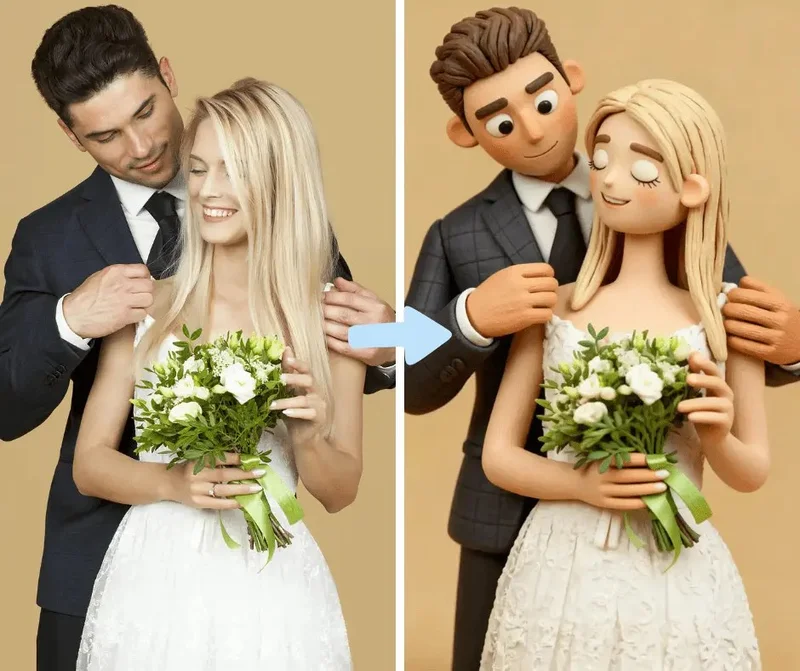
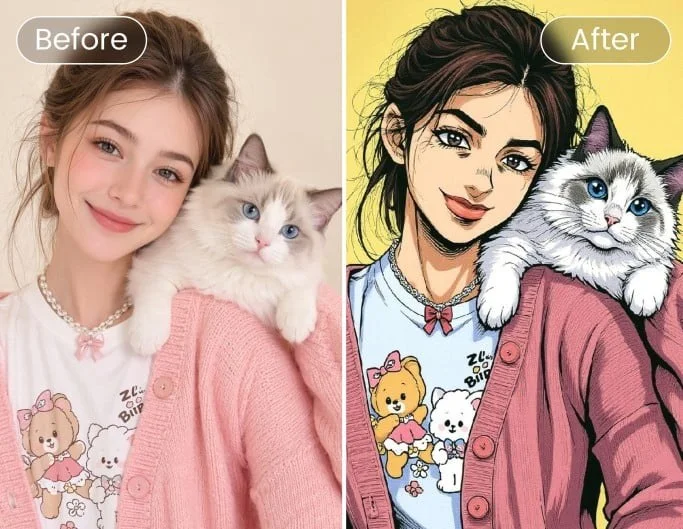
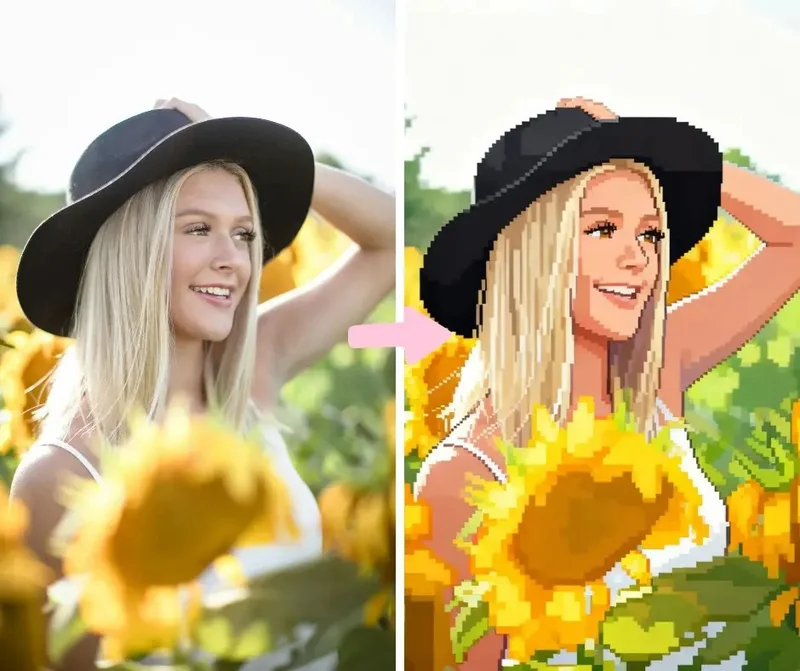
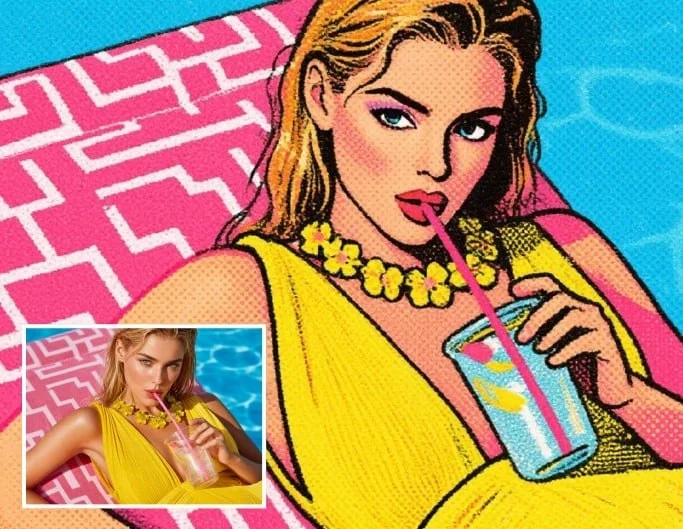
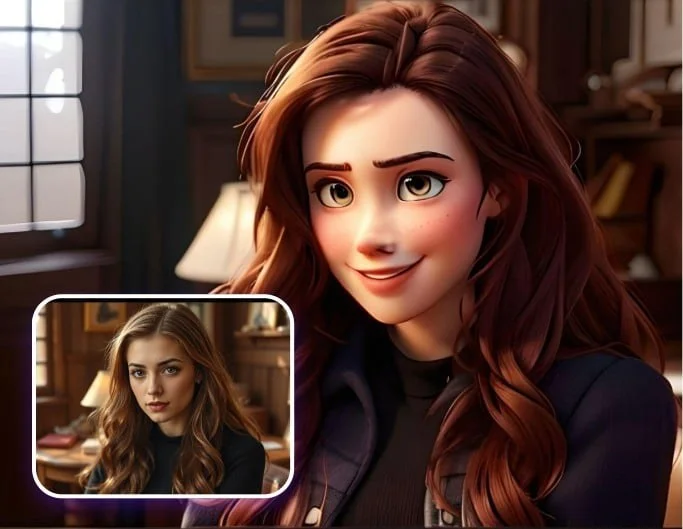
Make a cartoon character from a photo. Choose a rounded 3D look or a classic 2D animation style for a portrait or character reference.

For a 3D cartoon avatar, choose Pixar 3D. Leave space around ears, curls and glasses when you crop the source. The cartoon can widen those features past the edges of a tightly cropped selfie.

Choose the cartoon studio style

Continue to Studio

Generation uses paid credits. View pricing

Disney/Pixar Cartoon example
Example result

A full-length character leaves room for hands, shoes and costume details. For a profile picture, use a closer source so the expression is easy to see.

How to use Disney/Pixar Cartoon

  1. 1

    Choose a readable pose

    A portrait with space around the hair and shoulders gives the character room for exaggerated proportions.

  2. 2

    Compare flat and rounded styles

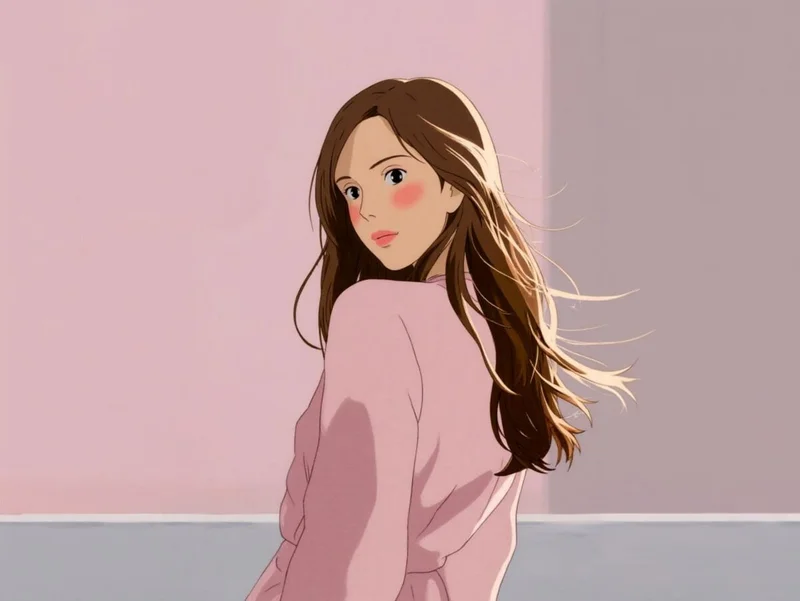
    Choose Pixar 3D for a sculpted look, or Disney Classic for a flat illustration. Check the character's expression at the size you plan to use.
Tips for better results

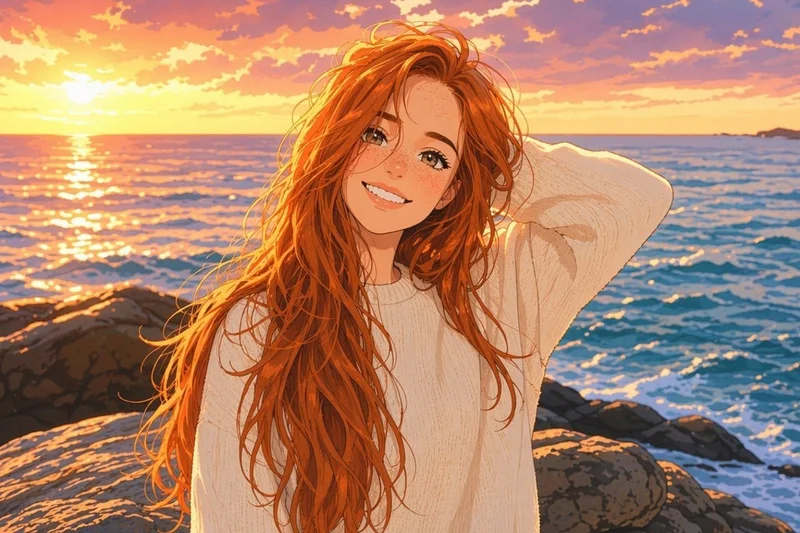
  • A bright raincoat or a particular pair of glasses makes a character easier to recognize after its facial proportions change.

Frequently asked questions

Do I get a 3D model I can rotate?

The output is a still image. A 3D-style portrait has painted depth and lighting, without a mesh or a rig.

Compare a rounded 3D portrait with a line-drawn one in the character style guide.

Related AI tools