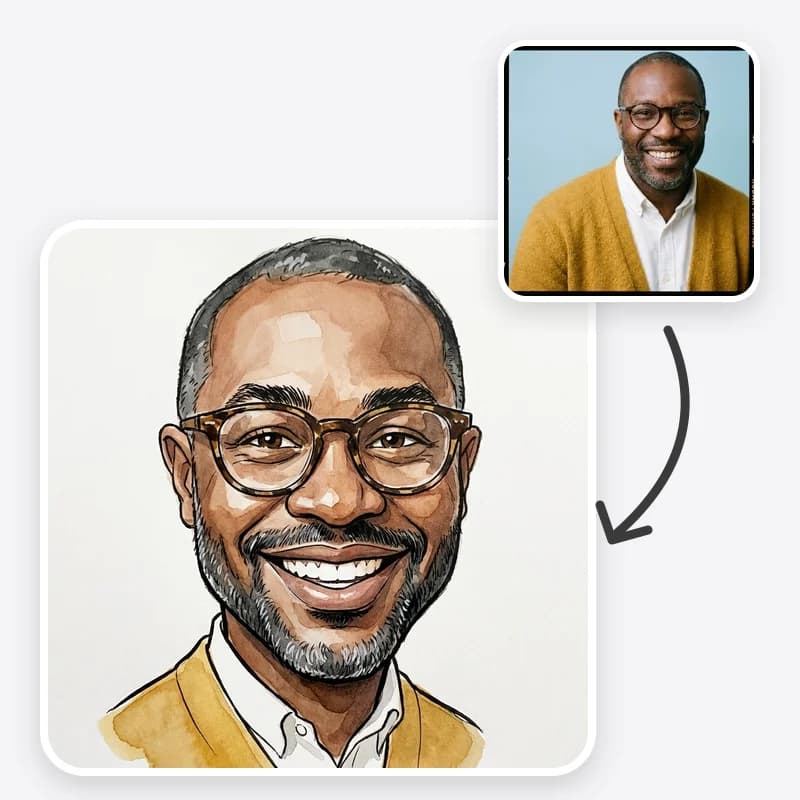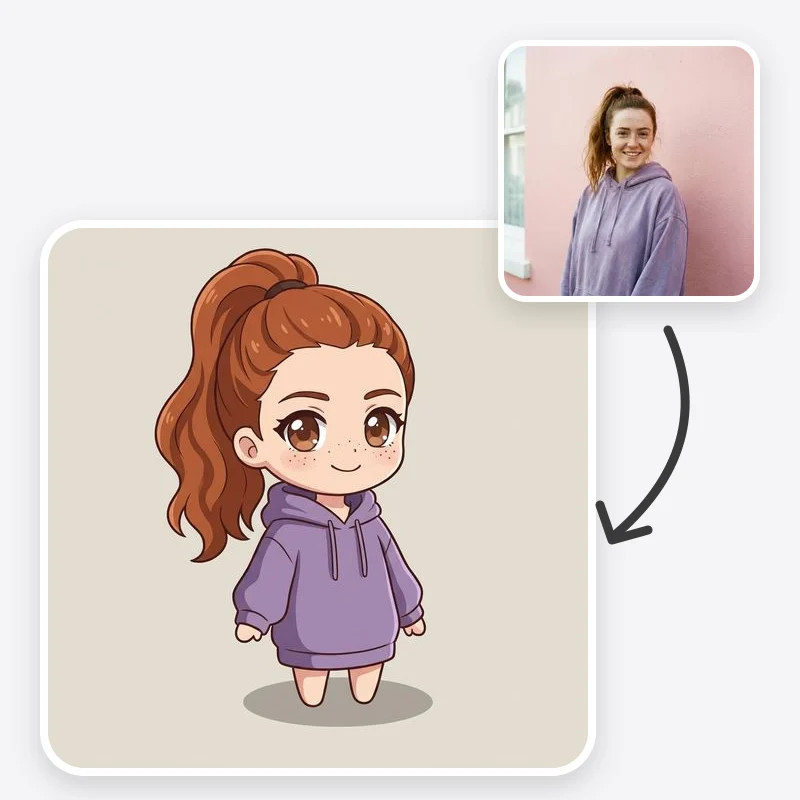
Chibi is the big-head, tiny-body style you see on anime keychains, stickers and emotes: a head roughly the size of the body, short rounded limbs and a face reduced to big eyes and a small mouth. Because the face is so simplified, a chibi of you is recognisable mostly through everything else: your hair, your glasses, your favourite hoodie. That changes how you should pick your photo.
This guide walks through the Chibi Maker from photo to finished sticker set. If you are still deciding between chibi, regular anime and a 3D cartoon, read the companion guide, chibi vs anime vs cartoon style, first.
What the Chibi Maker does
You upload one photo and choose three things: a chibi style, an expression and a background. The preset asks the model to redraw you as one full-body chibi with large-head proportions, and to keep your hairstyle, hair colour, eye colour, skin tone, glasses, facial hair, accessories and the outfit with its colours and main patterns.
The output is one generated still image. It is not a transparent PNG, a vector file, a 3D model or an animated emote. Each run draws the character a little differently.
Step 1: Pick a photo where your "signature" is visible
For a realistic portrait, a close-up of your face is ideal. For a chibi, it is not. The model needs the details that survive simplification.
Good photos for a chibi:
- Upper body or full body in frame, so the outfit carries over
- Hair fully visible, not under a hood or hat (unless the hat is your thing)
- Glasses, earrings, scarves or other signature accessories clearly visible
- Even light, no heavy filters
- Just you in the frame
Photos that produce generic chibis:
- Tight face crops with no outfit
- Plain grey or black clothing with no colour to pick up
- Dark or backlit photos where hair colour is unclear
- Group photos
If you are known for a particular jacket, colour or hairstyle, pick a photo that shows it. That one detail does more for recognition than any setting.
Only upload photos of yourself or of people who agreed.
Step 2: Choose a chibi style
| Style | Look | Best for |
|---|---|---|
| Anime Chibi | 2D line art, flat cel shading, large glossy eyes | Avatars, profile pictures, fan-art style posts |
| Kawaii Sticker | Bold outlines, bright flat colours, thick white die-cut border | Sticker sheets, chat stickers, planners |
| 3D Vinyl Toy | Smooth matte plastic figure on a small round base, studio light | A collectible-figure look for posts and mockups |
| Pastel Watercolor | Soft pencil outlines, gentle colour bleeds, paper texture | Cards, gentle illustrations, nursery-style prints |
A few notes from how each preset is written:
- Kawaii Sticker already adds the white border. Pair it with the Clean White background and the outline is easy to cut out.
- 3D Vinyl Toy is a rendered picture of a figure. The preset deliberately avoids brand logos and packaging, and it does not produce a 3D file. If you want a boxed collectible-figure scene of your full-size self, the 3D Collectible Figure tool is built for that.
- Pastel Watercolor softens edges and colours. Strong outfit colours come through lighter than in your photo.
Chibi yourself from one photo
Upload a photo that shows your hair and outfit, pick a chibi style, and keep the details that make you recognisable.
Step 3: Choose an expression
- Keep From Photo simplifies the expression you already have. Use it for your main avatar.
- Happy gives a big open smile and rosy cheeks.
- Wink gives one closed eye and a small smile.
- Surprised gives wide round eyes and a small open mouth.
Expressions are where a chibi set comes alive. One character with four reactions is far more useful as stickers or emotes than four unrelated characters.
Step 4: Choose a background
- Plain puts you on a light neutral background with a soft shadow under the feet. Good for avatars.
- Clean White (Cut-out Look) puts you on pure flat white with no shadow or objects. Choose this for stickers and anything you plan to cut out. It is still a white background, not transparency, so for a transparent PNG, try the background remover or an image editor, then open the downloaded file and confirm it really has a transparent background before you print or upload it.
- Pastel adds a soft gradient with a few sparkles. Good for social posts and cards.
Step 5: Fine-tune with Additional Instructions
Short, specific instructions fix most problems:
- Protect a detail: "keep the yellow hoodie with white drawstrings", "keep my round tortoiseshell glasses"
- Add one prop: "holding a bubble tea", "with a small black cat on my shoulder", "holding a game controller"
- Set a pose: "waving with one hand", "sitting cross-legged"
Describe looks instead of naming brands or famous characters. "Round matte vinyl figure" works; a toy brand name does not belong in your instructions and may add logos you cannot use.
Building a matching sticker or emote set
- Pick your best photo and lock the style and background. Kawaii Sticker with Clean White is the easiest combination.
- Generate your main expression a few times and pick the version that looks most like you. This is your reference look.
- Change only the expression and generate each reaction several times.
- Keep the versions where hair, outfit colours and accessories match the reference most closely. Some drift is normal; discard the ones that drift too far.
- Remove the background, trim to the outline and export each sticker at the same size.
If a chat platform has size or format rules for emotes, check them before you export. Very small emotes lose detail, so keep the design simple and the expression bold.
How to check your chibi honestly
Put the chibi next to your photo and check:
- Hair: same style, parting and colour?
- Accessories: glasses, earrings, hat kept?
- Outfit: same garment and main colours? Small patterns are often simplified, which is fine; a colour swap is not.
- Skin tone: unchanged?
- Anatomy: five fingers or a clean mitten hand, no extra limbs?
- Stray text: no random letters on clothes or in the background?
Then do the small-size test: shrink it to the size it will actually be used at, such as a profile circle or a sticker. If it still reads as you, it works.
Troubleshooting
| Problem | Likely cause | Fix |
|---|---|---|
| Looks like a generic chibi | Plain outfit, hidden hair, face-only crop | Use an upper-body photo with your signature item visible; name it in instructions |
| Outfit colour changed | Low light, or a busy pattern | Name the colour and garment: "keep the green plaid shirt" |
| Glasses missing | Reflection or thin frames in the photo | Add "keep my glasses" with the frame colour and shape |
| Proportions too realistic | Pastel or anime style softened the chibi look | Add "very large head, tiny body, about two heads tall" |
| Background not clean | Plain or Pastel chosen | Switch to Clean White for cut-out work |
| Expressions don't match as a set | Different style or background between runs | Lock everything except the expression and generate more options |
Couples and friend groups
The preset draws one character per image. For a couple or friend group, make one chibi per person with identical settings, then arrange them together in an editor. Each person should upload or approve their own photo. Matching sets work best when everyone's source photos are taken in similar light and framing.
Where to go next
- If chibi feels too cute, a regular anime portrait keeps normal proportions, and our AI anime art from a photo guide covers that style.
- If you want humour instead of cuteness, the Caricature Maker exaggerates distinctive features; see how to turn a photo into a caricature.
- If you plan to sell sticker designs, sticker designs for print-on-demand covers what to check before listing.
- Not sure which style fits your goal? The chibi vs anime vs cartoon guide compares them side by side.
Make your chibi now
Four chibi styles, four expressions and a clean white background for stickers. Start with one photo of you.
Frequently asked questions
How do I make a chibi of myself?
Upload a clear photo where your face, hair and outfit are visible, choose a chibi style, an expression and a background in the Chibi Maker, and generate. Then compare hair, glasses and outfit colours with your photo and fix anything that changed in Additional Instructions.
Why doesn't my chibi look like me?
Chibi faces are very simplified, so likeness comes from hairstyle, hair colour, glasses and outfit. If those are hidden or plain in your photo, the chibi looks generic. Use a photo where they are clear and name your most distinctive feature in the instructions.
Can I get a transparent chibi PNG?
Not directly. Choose the Clean White background, which puts the chibi alone on flat white with no shadow, then remove the white in a background remover or image editor and check that the downloaded file is actually transparent.
How do I make matching chibi stickers with different expressions?
Keep the same photo, style and background, and change only the expression between runs. Generate a few of each and pick the ones where the hair and outfit match best.