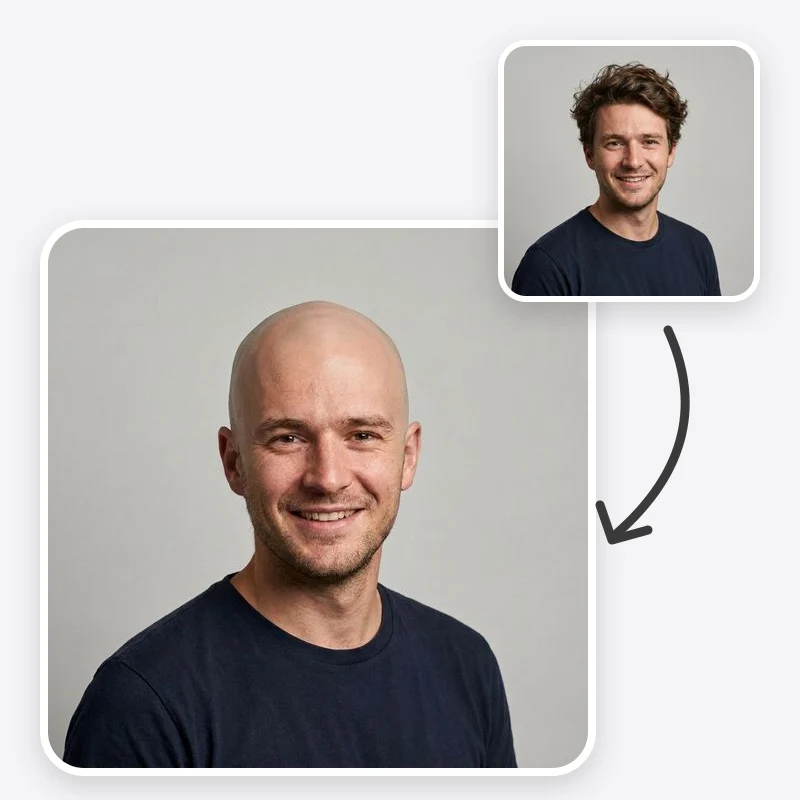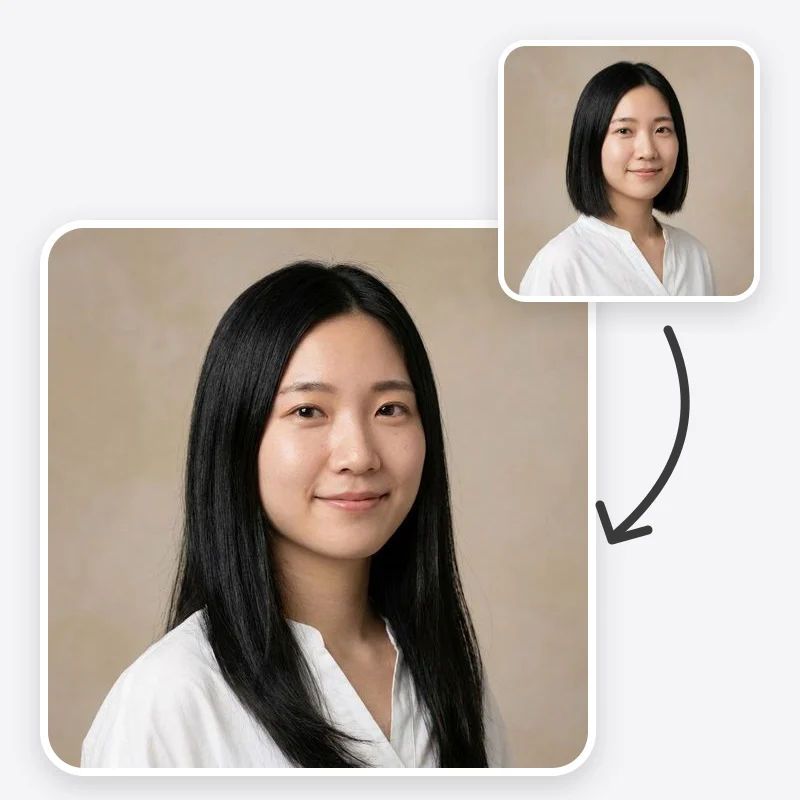
A long hair filter answers one simple question: what would I look like with long hair? You upload a portrait, pick a length, and get the same photo back with your hair grown out to that point, while your face, clothes and background are meant to stay as they are.
This guide explains how to get a believable result from the Oakgen long hair filter: which photo to upload, how to choose length, texture and volume, how to fix common problems, and how to check the preview against your real hair. If you are weighing extensions or planning a long grow-out, the companion guide, Planning hair length and extensions with a preview, goes deeper into that decision.
Length, not style
It is worth being clear about what this tool changes. The long hair filter is about length. It keeps your natural hair color, roots, parting and hairline, and asks the model to make the hair longer. It does not swap your cut for a bob, braids or an updo.
If you want a different style rather than more of the hair you have, use the hairstyle changer. If you want a different shade at your current length, use the hair color changer. Running one change at a time makes each preview easier to judge.
Choose a photo that leaves room for length
Long hair needs somewhere to go. The most common reason a long hair preview disappoints is a tight head-and-shoulders crop with no space for the lengths. Look for:
- Shoulders and upper body in frame. For shoulder length, a normal portrait is fine. For mid-back or waist length, a photo that shows your chest or more gives the model room.
- A straight-on angle. Facing the camera lets the model draw hair falling evenly on both sides.
- Loose hair. Ponytails, buns and hats hide your hairline and parting. The model has to invent them, and they may not match.
- Even light. Soft daylight shows your real color and texture. Strong colored light can lead to a shade shift.
- Plain clothing if possible. Hair crossing a busy pattern can blend into the fabric.
Only upload photos of yourself or of people who have agreed to the edit.
See your hair at three lengths
Upload a portrait, pick shoulder, mid-back or waist length, and keep your own color and texture.
Choosing a length
The Hair Length setting has three marks.
Shoulder Length brings the ends to just past the shoulders, resting on the collarbones. It is a realistic first goal for short hair and a small change for hair that is already near the jaw.
Mid-Back Length takes the hair past the shoulder blades to the middle of the back, with lengths over the shoulders and down the front. This is the length many people picture when they say "long hair".
Waist Length takes the hair to the waist. It is a big change and depends most on having enough of your body in the photo.
A good approach is to start one step longer than you have now, then try the next. Seeing two lengths side by side often makes the choice obvious.
Choosing a texture
The Texture setting decides how the extra length falls.
- Keep Natural Texture asks for your current texture and curl pattern, just longer; the Volume setting decides how full it looks. This is the most honest preview of growing your own hair out.
- Straight shows smooth, straight lengths with a soft shine. Useful if you usually wear your hair straightened.
- Wavy adds loose, natural waves through the lengths.
- Curly asks for defined curls from root to tip, and for the length to show realistic shrinkage, because curly hair looks shorter than the same hair pulled straight.
If your hair is curly or coily, start with Keep Natural Texture. A straight preview may look striking, but it shows a styling choice, not how your hair grows.
Choosing volume
The Volume setting has two options.
Natural Volume keeps the density believable for you, the way your own hair might look grown out. Long hair can look a little thinner at the ends than near the roots, and this option tries to respect that rather than adding density you may not have.
Extensions-Style Fullness makes the lengths fuller and thicker to the ends, like well-blended extensions, with no visible tracks or clips. Use it if you are considering added hair, or to see a fuller look for an event. It shows a general idea, not a particular extensions method or brand.
Using Additional Instructions
Leave Additional Instructions empty first. The three settings cover most needs, and extra text can pull the result off course. When you do add something, keep it to one change:
- Shape of the ends: "long face-framing layers" or "blunt one-length ends".
- Parting: "center part" or "deep side part on the left", if you want to try a different part.
- Placement: "hair tucked behind one shoulder" if the lengths cover clothing you want to see.
- Color: only if you really want a new shade. The default keeps yours.
A comparison routine that saves time
Running settings at random makes it hard to learn anything. A short, fixed routine works better:
- Length first. Run Shoulder and Mid-Back with Keep Natural Texture and Natural Volume. Pick the length you prefer before changing anything else.
- Then texture. At that length, run one other texture, for example Wavy if your hair is straight, to see whether the finish changes your mind.
- Then volume. Run the same length and texture with Extensions-Style Fullness. If the fuller version is the one you keep looking at, that is worth knowing before you talk to a stylist.
- Save the set. Keep the original and the three or four previews together, labeled with the settings, so you can come back to them later.
Changing one setting per run means every difference you see has a clear cause.
Troubleshooting common problems
The hair stops at the edge of the frame. The tool keeps your framing, so long lengths can run out of the picture. Use a photo with more of your upper body.
The color shifted. Strong or warm light can confuse the shade. Try a daylight photo, or add "keep the exact original hair color".
It looks like a wig. A hard line at the hairline or very uniform shine gives this away. Generate again, or add "natural flyaways and baby hairs at the hairline".
Hair merges into the clothing. Busy patterns are hard. Try "hair falls behind the shoulders" or a photo with plain clothing.
Your face changed. The prompt asks for your face, expression and clothes to stay the same, but generative edits can drift. If your features look different, discard that version.
How to check the preview honestly
- Compare with the original at the same size. Check that your color, parting and hairline match.
- Look at the ends. Do they look like your hair, or like a different person's? Thick, perfectly even ends are a sign of the extensions setting or an optimistic guess.
- Compare texture options on one photo. If Keep Natural Texture and Straight look very different, remember which one reflects your everyday hair.
- Remember what it cannot show. The preview does not tell you how long growing takes, how your ends will hold up, or how your hair moves.
If your hair is thinning, breaking or not growing in a way that worries you, that is a question for a dermatologist rather than a filter.
Next step
Run Mid-Back Length with your natural texture and natural volume first, then compare it with Shoulder Length on the same photo. If you are deciding between growing it out and getting extensions, read Planning hair length and extensions with a preview. For other portrait edits, see the Oakgen image templates guide.
Preview your hair longer
Choose a length, texture and volume and compare the result with your original photo.
Frequently asked questions
How do I see myself with long hair?
Upload a clear front-facing photo with your hair loose and your shoulders in frame. Choose a length, keep your natural texture or pick another, choose natural or extensions-style volume, and compare the result with the original.
Will a long hair filter change my hair color?
The Oakgen long hair filter keeps your natural color, roots and parting by default. Ask for a different shade only if you want one, or use the hair color changer separately.
Why does the long hair get cut off at the bottom?
The tool keeps your original framing, so long lengths can run out of the photo. Use a photo that shows more of your upper body for mid-back or waist length.
Is the long hair filter the same as a hairstyle changer?
No. A hairstyle changer swaps your cut or style. The long hair filter keeps your hair as it is and makes it longer, with optional texture and volume changes.