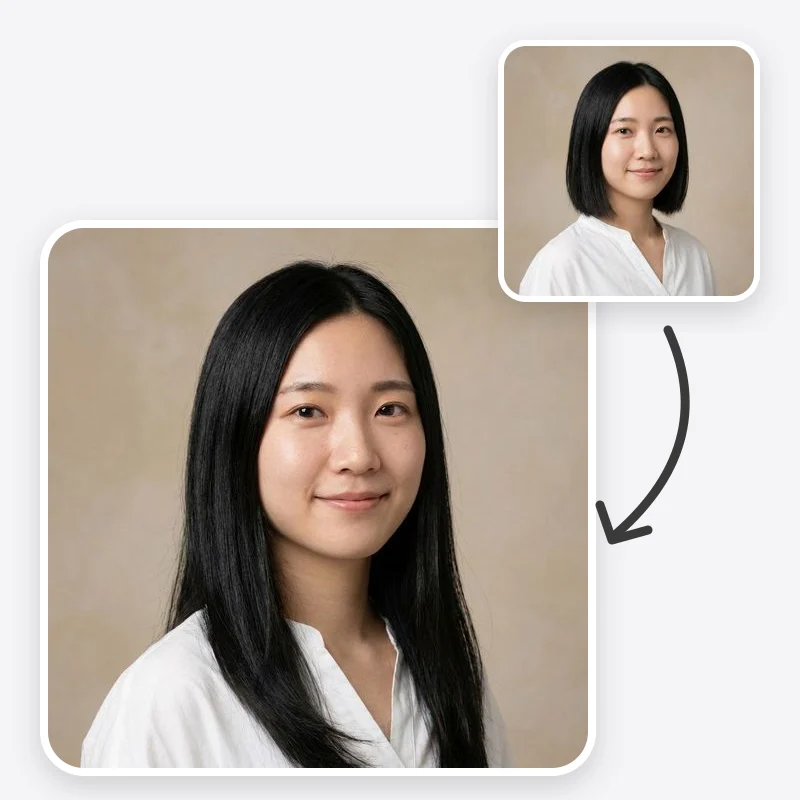
Long Hair Filter: Preview Your Hair Longer

Use a long hair filter to see your photo with shoulder, mid-back or waist-length hair, keeping your color and texture or trying a fuller, extensions look.

Choose how long the hair should be

Keep the current texture or try straight, wavy or curly

Natural grown-out density or fuller, extensions-style ends

Open in Oakgen
Long Hair Filter example
Example result

Long Hair Filter: Preview Your Hair Longer

Pick shoulder, mid-back or waist length, keep your texture or try straight, wavy or curly, and decide between natural grown-out volume and extensions-style fullness.

What is Long Hair Filter?

The long hair filter edits a portrait so you can see yourself with long hair at shoulder, mid-back or waist length. The prompt asks the model to keep your natural hair color, parting, face, clothes and background, and to change only the hair, mainly its length. You can keep your current texture or try straight, wavy or curly, and choose natural density or a fuller extensions-style finish. It is a visual preview: it does not predict how fast your hair grows, how it will hold up as it gets longer, or how particular extensions will blend.

Features and options

  • Growing hair takes a long time, so people want to see whether the length is worth the wait.
  • Extensions are a real cost and commitment, and a preview helps pick the length first.
  • Length is separate from cut: this tool keeps your color and parting and changes length, with optional texture and fullness changes.
  • Three length marks match the way stylists and extension suppliers usually talk about length.
  • The texture choice lets curly and wavy hair be shown as it would actually fall, not ironed straight.

When to use Long Hair Filter

  • You are growing your hair out and want to picture the length you are aiming for.
  • You are choosing an extension length and want to compare shoulder, mid-back and waist on yourself.
  • You recently had a short cut and want to see what a grown-out version would look like.
  • You are planning a look for a wedding, photoshoot or event that may need added length.
  • You are building a character or costume reference with long hair, with the subject's consent.

How to use Long Hair Filter

  1. 1

    Upload a photo with room below the shoulders

    Use a front-facing portrait with your hair loose and visible. For mid-back or waist length, a photo that shows your upper body gives the model space to draw the lengths.

  2. 2

    Choose a length

    Shoulder Length rests on the collarbones. Mid-Back Length passes the shoulder blades. Waist Length reaches the waist. Start one step longer than you have now.

  3. 3

    Set texture and volume

    Keep Natural Texture shows your own pattern grown out. Straight, Wavy and Curly try a different finish. Extensions-Style Fullness thickens the ends the way added hair would.

  4. 4

    Compare with the original

    Check that the color, parting, hairline and face match the source photo. Look at where the lengths meet clothing and shoulders, and generate again if strands float or merge into fabric.

Ways to use the results

Planning a grow-out

See the length you are working toward, so you can talk to a stylist about trims and shape along the way.

For: People growing their hair out

Choosing extension length

Compare shoulder, mid-back and waist-length previews before booking an extensions appointment or ordering hair.

For: Extensions clients and stylists

Event and bridal looks

Preview loose long hair for an occasion, then move on to styling decisions with your stylist.

For: Brides, wedding parties and event guests

Character reference

Create a long-haired reference of a consenting model or actor for costume, wig or casting discussions.

For: Costume, wig and casting teams

Strengths

  • Changes length, with optional texture and fullness; color, parting and hairline are kept by instruction
  • Texture option shows curly and wavy hair grown out instead of straightening it
  • Separate volume control for natural density or an extensions-style look
  • Face, clothing and background are meant to stay the same for a fair comparison
  • Eligible outputs can be used commercially under Oakgen's Terms and provider terms

Trade-offs

  • Tight head-and-shoulders crops leave little space, so very long lengths may be cut off by the frame
  • Density is a guess; long hair can look thinner at the ends than the preview suggests
  • It does not predict growth speed, breakage or how particular extensions will blend
  • Hair crossing busy patterned clothing can merge with the fabric
  • Very short source hair gives the model less to work from, so texture may not match exactly

Tips for better results

  • Leave Additional Instructions empty first; length, texture and volume cover most needs.
  • Add “long face-framing layers” or “blunt one-length ends” to describe the shape of the ends.
  • Add “hair tucked behind one shoulder” if long lengths are hiding clothing you want to see.
  • Only ask for a new color in Additional Instructions if you really want it; the default keeps your own color.
  • For a cut or style change rather than length, use the Hairstyle Changer instead.

Long Hair Filter vs the alternatives

vs Mobile long hair filter apps
Many phone filters lay a hair overlay on a live camera feed, which is quick but often has a fixed color and shape. This template edits a still photo, keeps your own color and parting, and offers three lengths with texture and volume choices.
vs Trying on a wig or clip-in hair
A wig or clip-in shows real hair moving in real light, which is a better check for color and weight. This template is faster for comparing several lengths and textures on your own hair before you buy anything.
vs Manual editing in a photo editor
Painting long hair by hand allows precise control but takes time and skill to make strands look real. This template does it in one pass; a manual edit is better for a single final image that needs exact control.

Frequently asked questions

How do I see myself with long hair?

Upload a clear front-facing photo with your hair loose, choose Shoulder, Mid-Back or Waist length, keep your natural texture or pick another, and generate. Compare the result with your original to judge the length.

Will it change my hair color?

Not by default. The prompt asks the model to keep your natural color, roots and parting. If you want a different shade, add it in Additional Instructions or use the Hair Color Changer separately.

How is this different from the Hairstyle Changer?

The Hairstyle Changer swaps your cut or style, such as a bob, braids or a pixie cut. The long hair filter keeps your hair as it is and only makes it longer, with an optional texture and volume change.

Can I preview hair extensions?

Choose Extensions-Style Fullness to see thicker, fuller lengths. It shows a general idea of added hair, not a particular brand, method or shade match, so confirm color and method with your stylist.

Will the preview keep my curls?

Choose Keep Natural Texture or Curly. The prompt asks for curl pattern to be kept and for curly lengths to look shorter than straight hair would, as curls naturally do.

Can it tell me how long my hair will take to grow?

No. It shows a length, not a timeline. Growth speed varies from person to person. If you are concerned about hair that is not growing or is thinning, a dermatologist is the right person to ask.

Why is the hair cut off at the bottom of the image?

The prompt keeps your framing, so long lengths can run out of the frame. Use a photo that shows more of your upper body for mid-back or waist length.

Can I use the result commercially?

Eligible outputs can be used commercially under Oakgen's Terms and provider terms, provided you have the rights to the photo you uploaded.

Related AI tools