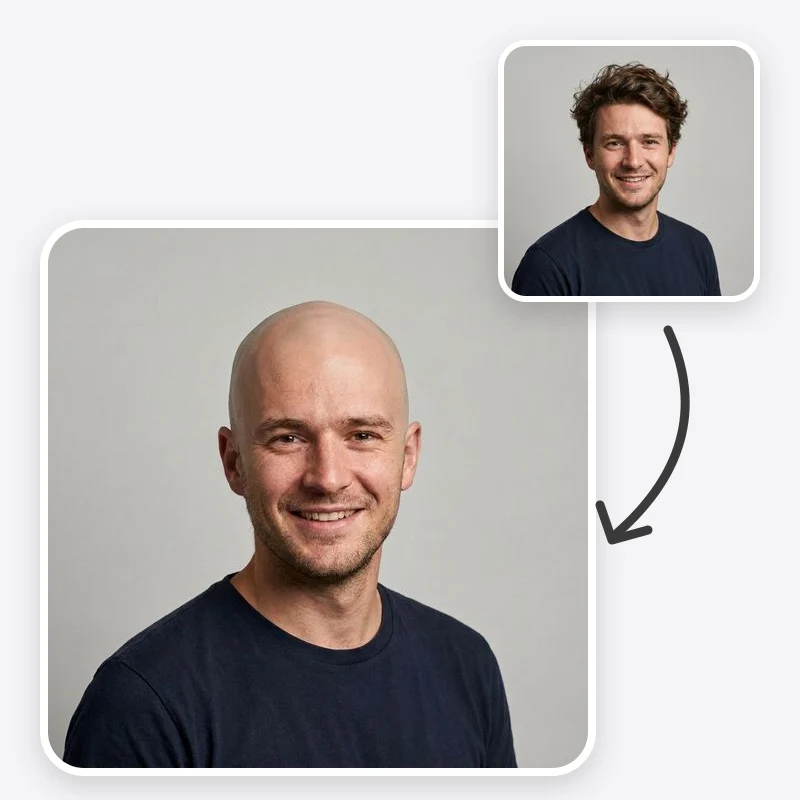
A bald filter lets you see yourself bald before you pick up the clippers. You upload one portrait, choose how much hair to take away, and get back the same photo with a shaved, buzzed or balding head, while your face, clothes and background are meant to stay as they are.
This guide covers the practical side: which photo to upload, what each look in the Oakgen bald filter actually asks the model to do, how to fix the usual problems, and how to judge the result without fooling yourself. If you are still deciding between a full shave and a very short buzz, the companion guide, Bald or buzz cut? Preview both before you shave, is the better place to start.
What a bald filter can and cannot show you
A bald filter is useful for one question: how does my face look with little or no hair around it? It can show you how your ears, forehead, eyebrows and jaw read once the hair is gone, how a beard balances a bare head, and whether you prefer bare skin or a fine layer of stubble.
What it cannot do is see through your hair. The real outline of your head, any bumps or flat areas, scars, moles and birthmarks are hidden in the photo, so the model has to reconstruct a plausible head shape. That reconstruction is a good guess in proportion to your face and ears, not a scan. Keep that in mind when you look at the crown and the back of the head in particular.
It also cannot predict hair loss. The Natural Balding look shows a common receding and thinning pattern as a visual idea. It is not a medical assessment, and it says nothing about what your own hair will do. If changes in your hair worry you, a dermatologist is the right person to ask; the American Academy of Dermatology's hair loss resource center is a reasonable place to read about causes and treatments first.
Choose the right photo
The photo you upload matters more than any setting. A good source photo has:
- A straight-on angle. Face the camera with your head level. Tilted or three-quarter shots make the head outline harder to reconstruct.
- The whole head in frame. Leave space above the crown and include both ears. If the top of your head is cropped, the model has to invent where it ends.
- Even, soft light. Daylight from a window in front of you is ideal. Strong colored light, such as a warm lamp on one side, can lead to a scalp that does not match your forehead.
- Hair as flat as possible. Slicked-back or tied-back hair shows more of your real outline than a tall quiff or big curls. The less volume the model has to remove, the less it has to guess.
- Nothing on or near the head. Hats, hoods, headphones, sunglasses pushed up and hands touching the hair can be partly kept or oddly edited.
Only upload photos of yourself or of people who have agreed to the edit.
See yourself bald in one photo
Upload a front-facing portrait, choose a clean shave, a very short buzz, a balding pattern or a shaved head with a beard, and compare.
The four bald looks, explained
The tool has a Bald Look setting with four options. Each one sends a specific description to the model.
Clean Shaved
This asks for a fully shaved head with bare scalp skin, no stubble and a soft natural sheen on the crown. It is the strongest change and the one that tells you most about your head shape and ears. Use it when you are seriously considering a razor shave or a very close foil shave.
Very Short Buzz
This asks for an even buzz at roughly the shortest clipper length, with the scalp visible through a fine layer of hair that still follows your hairline. Your hairline and some of your hair color remain, which softens the change. For many people this is the more realistic first step, because it is what clippers alone produce.
Natural Balding
This asks for a receding hairline at the temples and thinning on the crown, with the remaining hair kept short and the same color as now. People use it to picture a short, low-maintenance cut that works with a changing hairline, or for a character reference. It is a generic pattern, not a forecast.
Shaved Head with Beard
This asks for a clean-shaved head plus a full, groomed beard in your hair color, joined at the sideburns. A beard moves visual weight to the lower face, which some people prefer with a bare head. If you want a specific beard style rather than a full beard, compare options in the beard generator as well.
The facial hair setting
The second setting, Facial Hair, has two options:
- Keep As Is leaves your current beard and mustache as they are.
- Remove Facial Hair shaves the beard and mustache too.
Eyebrows are kept in both cases. If you choose Shaved Head with Beard, the beard is part of the look, so it is added whichever facial hair option you pick.
A good routine is to run Clean Shaved twice, once keeping your beard and once removing it. The difference is often bigger than people expect.
Use Additional Instructions sparingly
Leave Additional Instructions empty on your first run. The look you choose drives most of the change, and extra text can pull the model in odd directions. Use it to fix a specific problem:
- Scalp too shiny: add "matte scalp skin, no shine".
- Head looks too big: add "keep the head size in proportion to the original, no enlargement".
- Fresh-shave realism: a newly shaved scalp is often paler than the face for a while. Add "slightly paler scalp skin than the face" if you want to see that first-week look.
- Stubble on Clean Shaved: add "light stubble shadow on the scalp" to see a day or two after shaving.
Add one change at a time and compare, so you know which instruction did what.
Troubleshooting common problems
The scalp is a different color from the face. This usually comes from colored or uneven light. Try a daylight photo, or add "scalp color matches the forehead".
The head looks too large, too round or flat on top. Very full hair leaves a lot of space to fill. Use a photo with flatter hair, or ask for the size to stay in proportion. Generate a second version; reconstructions vary.
A visible line at the old hairline. Generate again, or add "no visible line at the former hairline, smooth skin transition".
Your face changed. The prompt asks for identity, expression, clothing and background to stay the same, but generative edits can drift. If your eyes, nose or expression look different, discard that version rather than judging the haircut from it.
Ears look different. Ears that were hidden under hair have to be drawn. If they look wrong, use a photo where your ears are already visible.
How to judge the preview honestly
It is easy to be won over (or put off) by a single image. A few habits make the comparison fairer:
- Put the original and the preview side by side at the same size. Look at the face first, then the outline of the head.
- Check what changed besides the hair. If skin, lighting or expression shifted, the comparison is unfair.
- Compare looks on the same photo. Run Clean Shaved, Very Short Buzz and Shaved Head with Beard on one source image so the only difference is the hair.
- Look away and look back. First impressions of a big change are often dominated by surprise. Look at the previews again the next day.
- Ask someone you trust. Show the previews to a friend or your barber and ask what they notice first.
Treat the result as a conversation starter, not a promise. A real clipper buzz is the only way to see your actual head shape, and hair grows back if you start longer.
When the bald filter is not the right tool
If you want a different haircut rather than less hair, the hairstyle changer previews styles such as a bob, braids or a pixie cut. If you are going the other direction and want to see more length, try the long hair filter. For more portrait templates in one place, see the Oakgen image templates guide.
Next step
Run your first preview with Clean Shaved and your facial hair kept, then try Very Short Buzz on the same photo. If you find yourself between the two, read Bald or buzz cut? Preview both before you shave for clipper lengths, upkeep and what to ask your barber.
Compare four bald looks on your photo
Keep your face, clothes and background as they are and change the hair on your head, plus facial hair if you choose.
Frequently asked questions
How do I see myself bald from a photo?
Upload a sharp, front-facing photo with your whole head and both ears in frame and no hat. Choose a bald look, decide whether to keep facial hair, generate, and compare the result with the original photo.
Is the head shape in the preview my real head shape?
No. Hair hides the outline of the head, so the model draws a plausible shape in proportion to your face and ears. Your real head can have bumps, flat spots, scars or birthmarks that the photo cannot show.
Which photo should I use for a bald filter?
A straight-on photo in even daylight, with your hair as flat as possible, no hat or hood, and some space above the head. Very tall or voluminous hair leaves the model more to guess.
Can a bald filter tell me if I am losing my hair?
No. A balding preview shows a common pattern as an idea, not a diagnosis. If you are worried about hair loss, see a dermatologist.