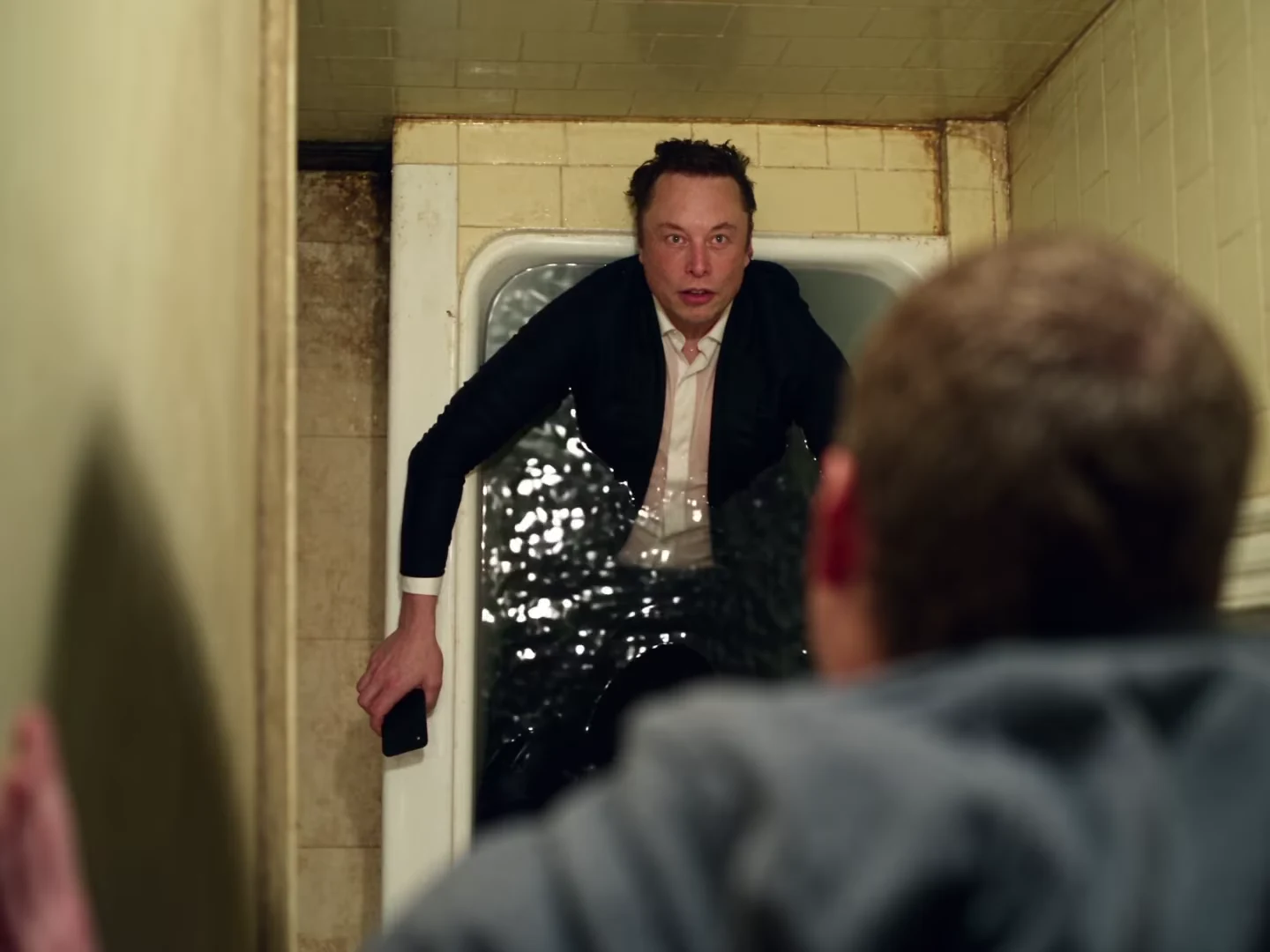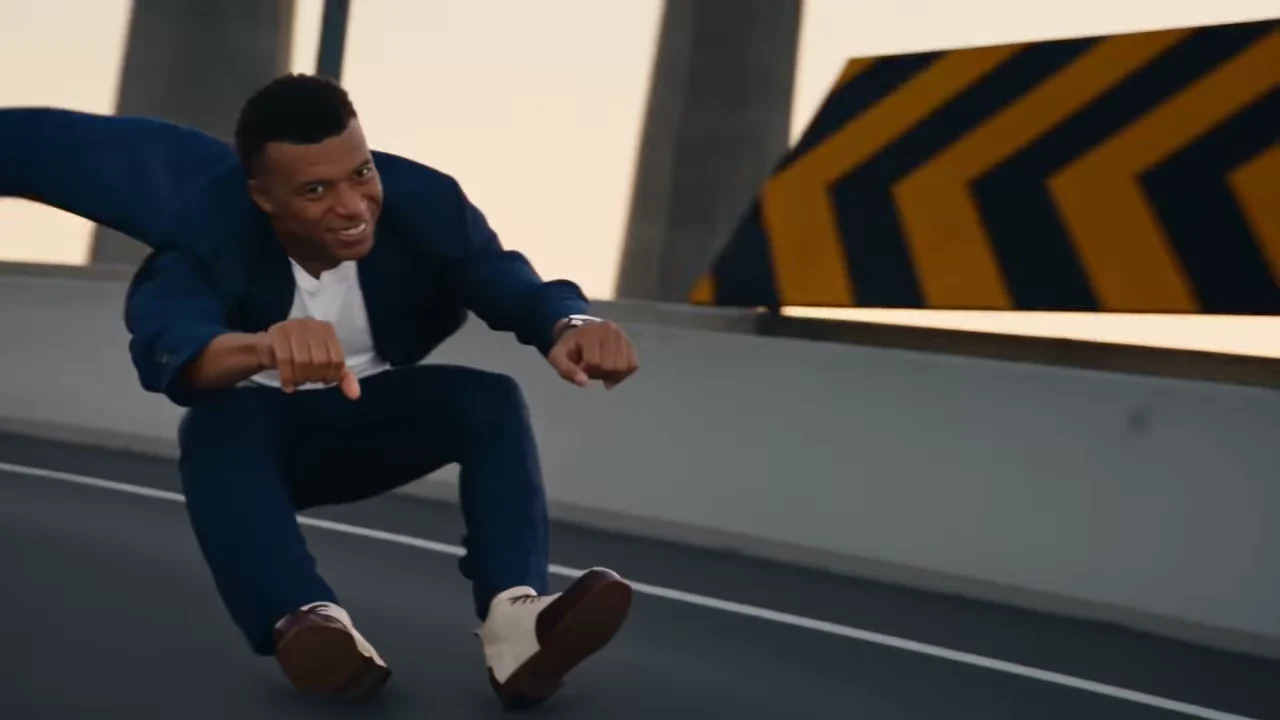
Choose a Hover Chase cut by the action it shows, not only by the shape of your screen. The portrait and landscape references are distinct source cuts. Selecting the portrait version is different from cropping the landscape output into a tall rectangle.
Both belong to the Hover Chase trend. Preview the available version before generating, then use its displayed duration and quote when deciding which one fits your project.
The chase draws on the Crazy Frog “Axel F” video. The supplied Hagrid and Voldemort version recreates its pursuit actions in a rebuilt setting. The replacement cast belongs to the later adaptation; the original video establishes the chase format.
Start with the story you need
The supplied Hagrid and Voldemort recreation is a vertical chase: a hovering lead moves along an elevated road, the pursuing vehicle appears, the lead tumbles and the camera follows the roadway action. Its replacement characters identify that adaptation, not the origin of the scene.
The reference is not an Oakgen-generated demo. It illustrates the source sequence you are choosing. Your result still needs a separate review for identity, contact and continuity.
For a phone-first joke about someone chasing a small debt, the portrait cut may already provide the composition you need. For a version where the width of the roadway matters to the story, inspect the landscape preview before choosing. Do not assume either cut contains every moment from the other.
Compare the references with a simple worksheet
| Decision | Portrait source cut | Landscape source cut |
|---|---|---|
| Where will the post appear? | Naturally fills a tall canvas | May need fitting on a tall canvas |
| Can I follow both roles? | Inspect the lead and pursuer appearances | Inspect their spacing across the wider frame |
| Does my ending exist in this cut? | Watch through its final frame | Check separately; duration alone does not prove coverage |
| What will I edit later? | Captions and optional trims | Captions, optional trims and possibly reframing |
The useful comparison is between two complete previews. A poster only shows one moment, and a matching background does not prove the clips have the same sequence.
Keep version selection separate from editing
Select the supported version in the template before submitting. That selects the source performance used for the result. After downloading, a separate editor can place the video on another canvas, trim it or add a caption, but those changes do not recover action absent from the chosen cut.
For example, fitting the landscape video inside a portrait canvas preserves its width. Cropping it to fill the canvas removes the sides. Neither operation turns it into the supplied portrait source cut.
Likewise, do not generate both versions automatically just to compare their aspect ratios. Start with their previews and your story requirements. A generation is useful when you need the personalized performance, not as a substitute for inspecting the reference.
Review the final composition
Use the rider-and-pursuer framing guide to check that the relationship survives any new crop. Put the setup where it does not conceal the pursuer's first clear appearance. If the caption explains a chase but the edit hides the chasing character, the joke depends on information viewers cannot see.
The Hover Chase comedy project gives the pursuit a small everyday motive. For general multi-clip planning, use the three-clip story guide. Keep the source-cut choice visible in your project notes so you know which performance your final post uses.
Explore the video trend creative playbook for related casting, editing and sharing guides.