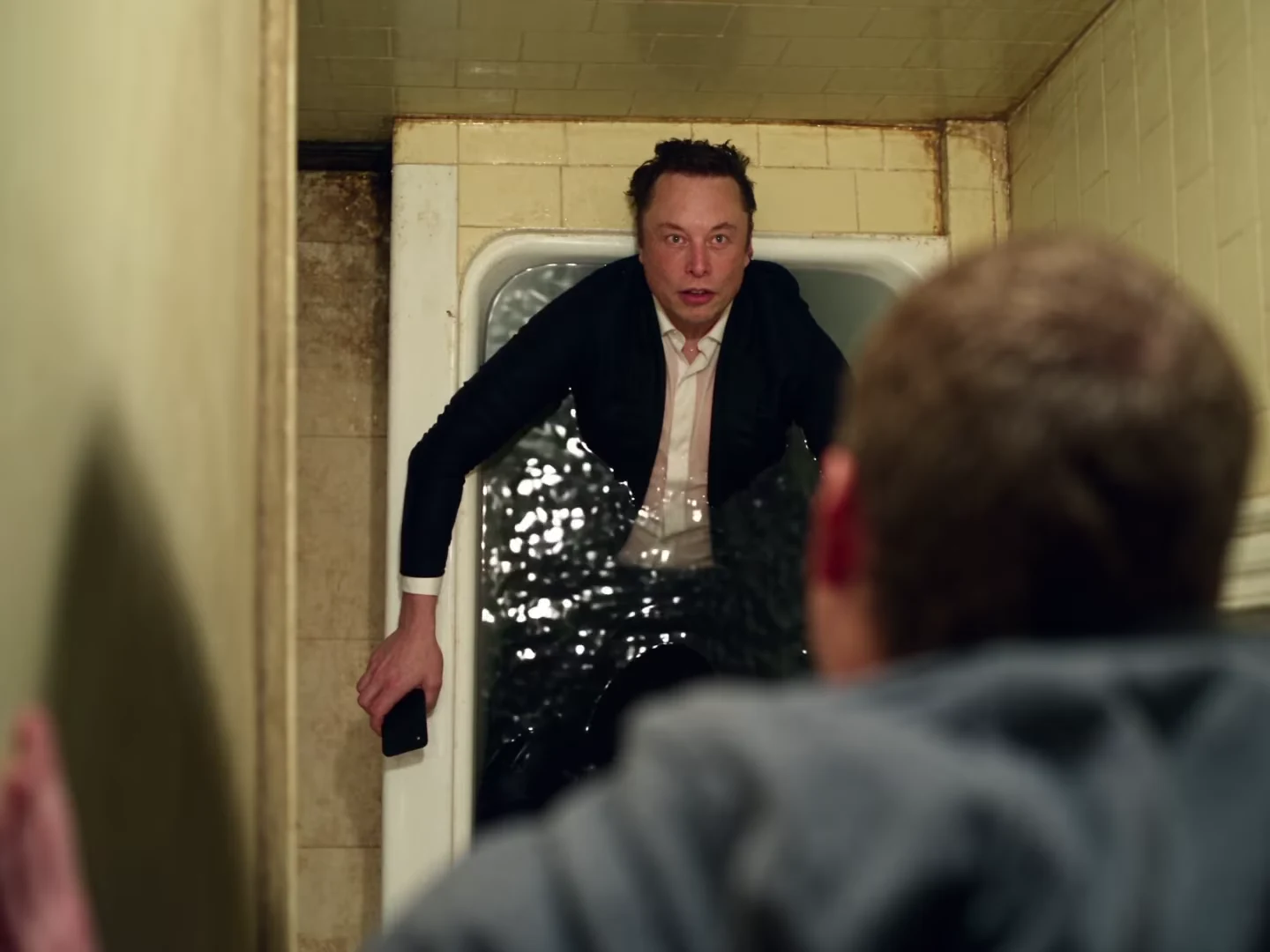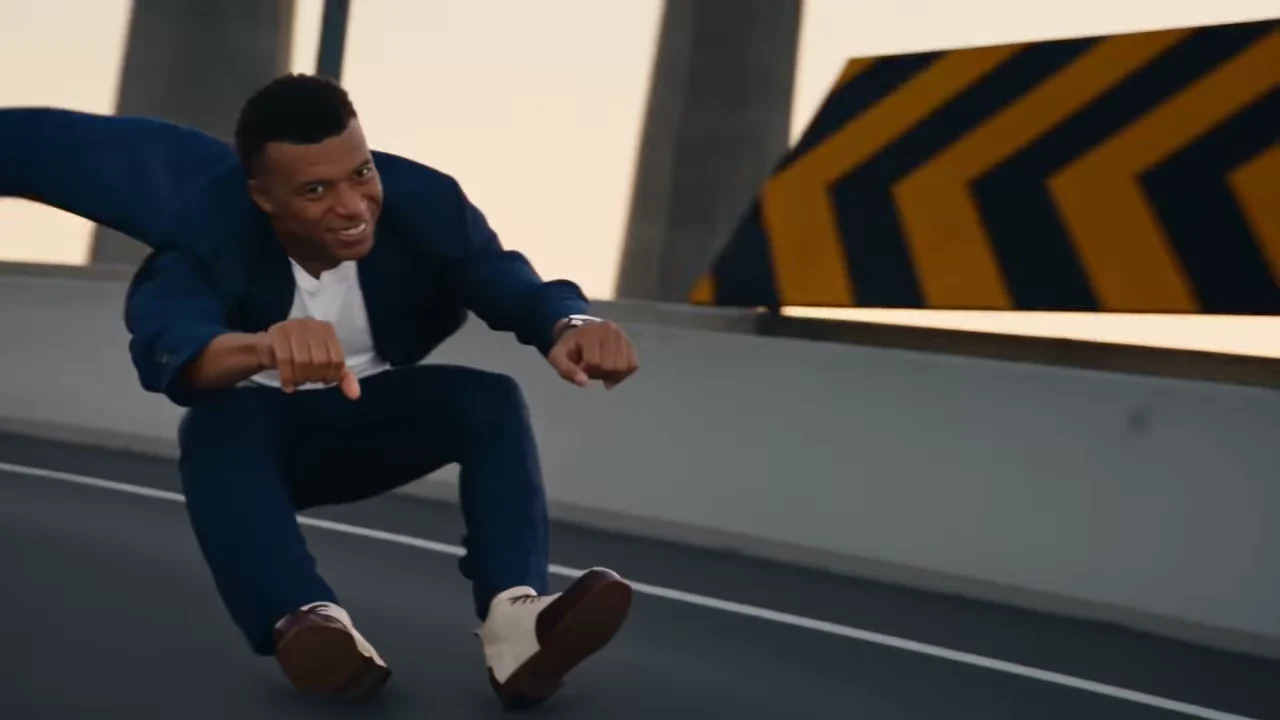
A Hover Chase stops reading as a chase if the edit hides the pursuer. Preserve the first clear appearance of the second character, the space between the two roles and enough of the road to explain where they are moving.
Start with the Hover Chase preview for the version you selected. The template supplies the route and action. Framing and text placement after download are presentation choices, not controls that move the source camera.
The chase draws on the Crazy Frog “Axel F” video. The supplied Hagrid and Voldemort version recreates its pursuit actions in a rebuilt setting. The replacement cast belongs to the later adaptation; the original video establishes the chase format.
Find the three pieces of information
In the supplied vertical recreation, the lead is established before a clear view of the pursuing vehicle. Later shots show their relationship on the elevated road. Those are different pieces of information, and your edit needs all three to make the pursuit understandable.
Mark them in your actual output:
- The viewer identifies the lead.
- The viewer identifies the pursuer.
- The viewer understands that one is following the other.
A clip that includes two faces somewhere in its timeline can still fail the third test. Their order, direction of movement and shared environment explain the relationship.
The source recreation is an example of the intended sequence, not evidence of generated quality. Inspect your result for swapped roles and unexpected changes before adding the story text.
Reserve the pursuer reveal for the picture
Suppose your joke is “Me leaving with the good charger.” Put that opening where the lead is already visible. When the pursuing vehicle appears, let the viewer see it before adding “My roommate.” A large label arriving over the second face can prevent the very recognition the label is meant to help.
If the background is too busy for a caption, use a fitted layout with text outside the video or move the explanation into the post description. There is no requirement that every idea appear as an overlay.
Treat the road as part of the action
A tight crop around a face can remove the curve that explains the next change of direction. Before committing to a crop, play the turn at normal speed and check whether the lead's movement still makes sense.
| Problem in the edit | What to try first |
|---|---|
| Pursuer appears for too little time | Restore the full reveal shot |
| Caption covers the vehicle | Move text outside the action area |
| Turn looks like a teleport | Restore roadway context around the turn |
| Lead changes identity | Review the generation; cropping does not fix identity |
These fixes concern an external edit. They do not create a new tracking shot or move the pursuer to a different lane inside the template.
Compare once at the viewing size
Review the finished post on a small screen with the sound off, then with sound. Without sound, can you identify who is chasing whom? With sound, do the cuts feel synchronized rather than abruptly interrupted?
If the portrait framing works, do not add a moving crop simply because your editor supports one. If the wider version serves your premise better, fitting it on a portrait canvas can preserve the relationship. The portrait-versus-landscape comparison explains why these are distinct source cuts rather than interchangeable exports.
For the complete caption story, use the Hover Chase action-comedy project. The general character-consistency guide helps assess the faces after the story is readable.
Explore the video trend creative playbook for related casting, editing and sharing guides.