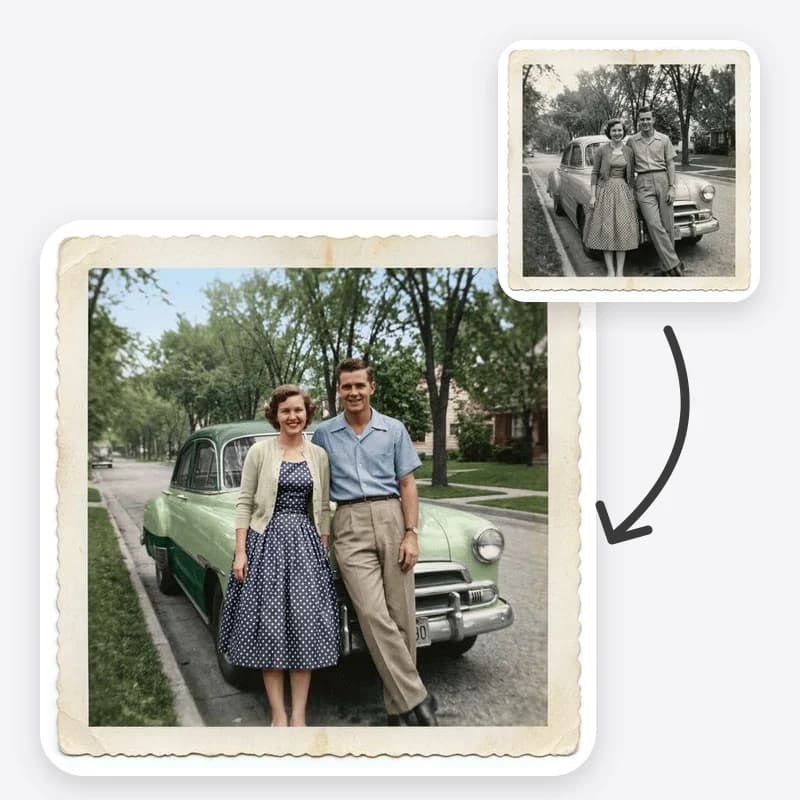
Colorizing a black and white photo with AI is quick; getting a version you trust takes a little more care. This guide walks through the whole job in Oakgen's Colorize Photo tool: which copy of the photo to upload, what each option changes, how to feed in colors you actually know, and how to check the result before it ends up in a frame or a family group chat.
One rule runs through all of it. A black and white image stores brightness, not color. A red dress and a green dress can produce exactly the same gray. So the colors you get are plausible reconstructions, not a record of what was there. That does not make colorizing pointless. It means you decide which version to keep, and you label it as colorized.
Start with the clearest copy of the photo
The model can only work with what is in the file. A few minutes on the input usually saves several reruns.
- Scan rather than photograph if you can. A flatbed scan gives even light and no perspective distortion. If you only have a phone, lay the print flat near a window, avoid direct sun, and hold the phone parallel to the print so the edges are straight.
- Kill glare. Glossy prints reflect lamps and windows. A bright streak across a face becomes a pale patch that the model may color as skin or fabric.
- Crop to the image. Remove the album page, the white border and your fingers. Borders and backgrounds outside the photo confuse the color balance.
- Keep the untouched file. Save the original scan before you do anything else. Every colorized version should be compared against it, and you should never overwrite it.
For more detail on scanning resolution and storage, our old photo restoration guide covers the scanning side step by step.
Is this the right tool for your photo?
If the print is torn, missing a corner, cracked across a face or badly faded, color will not fix that, and adding color to damage tends to make the damage more visible. Repair it first in Old Photo Restoration, then bring the repaired copy here. If you are not sure which job your photo needs, read colorize, restore or both, the companion to this guide.
Colorize a black and white photo
Upload a scan, choose a color approach and an era hint, and get a color version with the same faces and framing.
Choose a color approach
The Color Approach option changes the overall look more than anything else. Each preset is written as a specific instruction to the model.
Natural / Realistic asks for true-to-life skin tones that vary between people, a neutral daylight white balance, believable foliage and a soft blue sky, at moderate saturation. Use it first for portraits, weddings, school photos and street scenes. It is the version most people expect when they say "colorize."
Warm Vintage Film asks for golden highlights, slightly faded reds and yellows and soft contrast, like an early color print that has aged in an album. Use it when a fully modern look feels wrong for the photo, or when the image will sit next to real color prints from the same family.
Muted Archival asks for low saturation and a restrained, earthy palette, closer to the hand-tinted prints you see in museums. Use it when Natural looks too bright, for formal portraits, or for anything you plan to show next to the original in a presentation.
A practical approach: run Natural first. If the result looks like a modern photo dressed in old clothes, try Muted Archival on the same original rather than writing "less color" in the instructions.
Set an era hint
The Era Hint steers the colors of clothing, cars and interiors. Without it, the model infers a period from what it sees, which is the Auto setting.
- 1900s–1930s points toward dark wool suits, cream and white cotton, brown leather and dark wood and stone.
- 1940s–1950s points toward navy, olive and burgundy clothing, pastel prints, red lipstick and painted cars in cream, green or maroon.
- 1960s–1970s points toward mustard, orange, avocado green and brown, and bold printed fabrics.
Use the hint when you know roughly when the photo was taken: a date on the back, a known wedding year, a child's age. If you do not know, leave it on Auto rather than guessing, because a wrong hint pushes every garment toward the wrong palette.
These are broad tendencies, not rules. Plenty of people wore bright colors in the 1920s and brown in the 1960s. The hint simply makes the overall palette more consistent with the period.
Decide about light repair
The "Also repair light damage" option has two settings. No asks the model to leave grain, scratches and texture alone and only add color. Yes asks it to clean small dust spots and fine scratches in plain areas such as sky, walls and clothing, without smoothing faces or inventing missing detail.
Choose Yes when a print has a sprinkling of white dust specks or a few hairline scratches. Choose No when the photo is already clean, or when you want to keep the original texture for an archival copy. For anything heavier than light dust, use the restoration tool first.
Add colors you actually know
The Additional instructions box is where family knowledge beats any model. If someone remembers that grandmother's coat was dark green, or the family car was a pale blue, write it down. Good instructions name the object and its position together:
- "The woman on the left wears a dark green coat; the man in the middle has a grey suit."
- "The front door behind them was painted red."
- "The girl in front has light brown hair."
Avoid guesses dressed up as facts. If nobody knows the color of a dress, leave it out and let the model choose. A labelled guess is better than an invented certainty.
Also avoid vague style words such as "vibrant" or "beautiful colors." They tend to push saturation up and fight against the approach you picked.
Check the result honestly
Generate, then put the colorized version next to the original at the same size. Go through it in this order.
- Faces. Compare eyes, mouth, nose and hairline with the original. AI edits regenerate the image, so small features can drift even when the prompt asks for them to stay fixed. If a face looks like a different person, discard that version.
- Skin tones. Look for skin that is too uniform, too orange or the same tone on every person. Real groups have variation. If everyone looks identical, rerun or try a different approach.
- Edges. Check where color meets color: collars, hairlines, lace, leaves against sky, fingers against fabric. Color bleeding past an edge is the most common giveaway.
- Whites and blacks. White shirts and wedding dresses should stay white, not pick up a tint from nearby skin or grass. Black suits should not turn dark blue unless you asked for it.
- Small objects. Badges, jewelry, buttons and signs are where the model is most likely to make something up. If one matters, describe it in the instructions or accept that it is a guess.
- Composition. Make sure nothing was cropped, added or moved. The prompt asks for the exact framing, but it is worth confirming.
If something is wrong, rerun from the original file, not the colorized one. Colorizing a colorized image compounds every small change.
Common problems and fixes
Everything looks orange or brown. This happens with sepia prints, where the model reads the warm tone as the real color. Add "the print is sepia toned; use neutral daylight white balance" to the instructions, or convert the scan to grayscale before uploading.
Colors are too strong. Switch to Muted Archival. It is more reliable than asking for less saturation in words.
A uniform turned the wrong color. Military and work uniforms are a common case where people do know the real color. Name it with its position in the instructions.
Faces look waxy or painted. The negative prompt discourages plastic skin, but low-resolution scans make it more likely. Use a higher-resolution scan, or improve the faces first with Face Restoration.
Text on signs changed. Generated images can alter lettering. If a sign matters, compare it with the original and note any changes.
Save and label your copies
Keep at least two files: the untouched original scan and the colorized copy. Put "colorized" in the file name and, if you share it, in the caption. A simple line such as "Colorized with AI; colors are an interpretation" stops a guessed dress color from becoming family fact two generations later.
If you made several versions, keep the one you chose and note which approach and era you used. It makes it easy to colorize the rest of the album consistently.
Ready to add color?
Start with Natural / Realistic, compare it with your original, and keep the version you trust.
Related tools and guides
- Colorize, restore or both? helps you decide which old photos need repair, color or both, and in what order.
- Old Photo Restoration repairs scratches, fading and damage before you colorize.
- Face Restoration improves facial clarity when faces are small or soft in the scan.
- How to restore old family photos covers scanning, repair passes and upscaling.
- If a scan has a printed date in the corner, Remove Text From Image can take it out before you colorize.
Frequently asked questions
Can AI know the real colors in a black and white photo?
No. A black and white photo records how light or dark each area was, not its hue, and many different colors turn into the same gray. AI picks plausible colors from context such as clothing style, sky and foliage. Treat the result as an interpretation and add colors you actually know in the instructions.
Which color approach should I start with?
Start with Natural / Realistic for family portraits and everyday scenes. Try Warm Vintage Film when you want the photo to look like an old color print, and Muted Archival when the natural version looks too saturated or modern.
Why did a face change slightly after colorizing?
Any AI image edit regenerates the picture, so small features can drift even when the prompt asks for them to stay the same. Rerun from the original file instead of colorizing the colorized copy, and compare faces side by side before you keep a version.
Should I colorize a damaged photo directly?
Only if the damage is light dust and fine scratches, which the light-repair option can clean. For tears, missing corners or heavy fading, repair the photo first with Old Photo Restoration, then colorize the repaired copy.