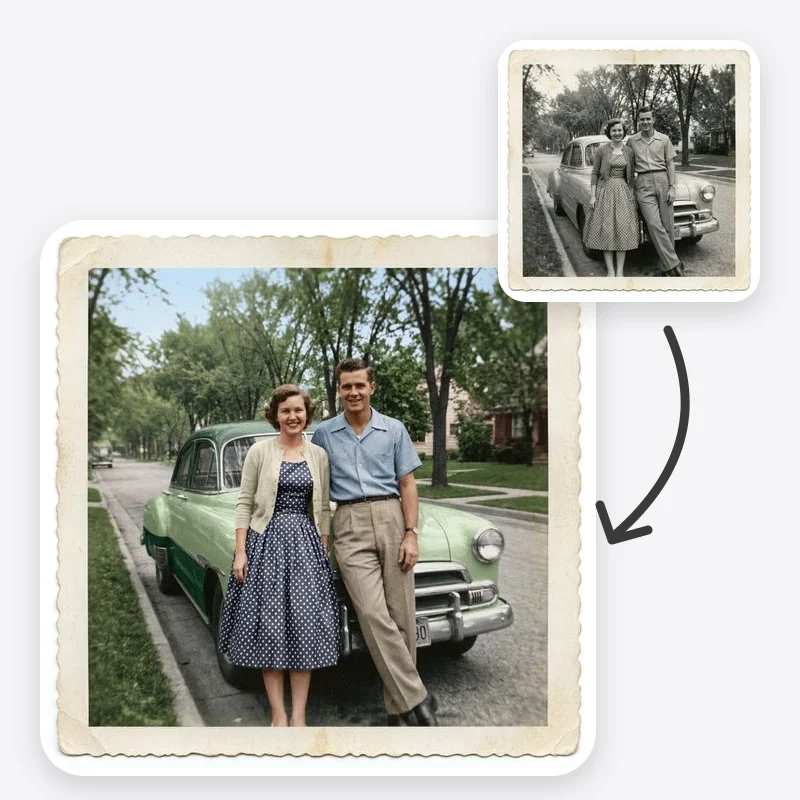
Colorize a Black and White Photo

Colorize a black and white photo with AI. Choose natural, warm film or muted archival color while faces and composition stay as they were.

Natural aims for everyday realism; the other two give a deliberate period look

Optional: tell the model roughly when the photo was taken to steer clothing and object colors

For tears, missing pieces or heavy fading, use Old Photo Restoration first

Open in Oakgen
Colorize Photo example
Example result

Colorize a Black and White Photo

Upload a black-and-white or sepia photo, pick a color approach and an optional era hint, and get a color version with the same faces, poses and framing.

What is Colorize Photo?

Colorize Photo is an image-to-image tool that turns a black and white photo into a color version while asking the model to keep the composition, faces and objects exactly where they are. You choose how the color should feel (natural, warm vintage film or muted archival) and can give an era hint so clothing and objects get period-appropriate tones. The colors are plausible reconstructions, not historical fact: a grayscale image records brightness, not hue, so a dress, a car or a uniform may have been a different color in real life. It is not a full restoration tool; it can optionally clean small dust and scratches, but torn, faded or heavily damaged prints should go through Old Photo Restoration first.

Features and options

  • Color makes old family photos easier to connect with, especially for younger relatives who have only seen the people in grayscale.
  • Three distinct color approaches let you choose between everyday realism and a deliberate period look instead of one fixed result.
  • The era hint steers clothing, cars and interiors toward tones that fit the decade rather than modern colors.
  • The prompt explicitly asks the model to leave faces, poses and framing untouched, so the result reads as the same photo in color.
  • It runs in the browser on a scan or phone photo of a print, with no layer masks or manual painting.

When to use Colorize Photo

  • You have a clean black-and-white or sepia family photo and want a color copy for an album, slideshow or memorial.
  • You are making a period-themed post, invitation or presentation and want a colorized image as a visual, clearly labelled as colorized.
  • You want to compare how a portrait looks in natural color versus a warm film or muted archival look before printing.
  • Your photo has only light dust and fine scratches; use the light-repair option instead of a separate restoration pass.
  • Not the right tool when the print is torn, missing pieces or badly faded: repair it with Old Photo Restoration first, then colorize the repaired copy.

How to use Colorize Photo

  1. 1

    Upload the clearest copy you have

    Use a flat, evenly lit scan or phone photo of the print, cropped to the image. Keep the untouched original file as your reference.

  2. 2

    Choose a color approach and era

    Start with Natural / Realistic for family photos. Add an era hint if you know roughly when the photo was taken, or leave it on Auto.

  3. 3

    Add colors you actually know

    If a relative remembers details, write them in Additional instructions, for example “her dress was dark green, the front door was red.” Leave it empty otherwise.

  4. 4

    Compare with the original

    Check faces, hands and edges for changes or color bleeding, then save the color copy with a file name that says it was colorized.

Ways to use the results

Family album and memorial copies

Make a color version of a grandparent's portrait for a memorial slideshow or framed print, while keeping the original black-and-white scan in the family archive.

For: Families and family historians

Local history posts

Colorize a street scene or shopfront for a community page or newsletter, with a caption that the colors are an AI interpretation rather than a record.

For: Local history groups and community pages

Period visuals for events

Create a colorized image of an old venue or family wedding photo for an anniversary invitation, reunion or milestone birthday display.

For: Event hosts and reunion organizers

Classroom and presentation slides

Show a black-and-white photo beside a colorized copy to discuss how color changes the way people read an image, and why the colors are guesses.

For: Teachers and presenters

Strengths

  • Three color approaches that look clearly different from each other
  • Era hint gives clothing and objects period-appropriate tones
  • Prompt is written to keep faces, poses and framing unchanged
  • Optional light cleanup saves a separate pass on lightly marked prints
  • Known colors can be added in plain language

Trade-offs

  • Colors are plausible guesses; the model cannot know the real color of clothing, cars, paint or eyes
  • Skin tones can come out too uniform or too warm; check every face against the original
  • Faces and small details can shift slightly in any AI edit, so compare closely before sharing
  • Color can bleed past edges on fine detail such as lace, hair and foliage
  • Not a repair tool for tears, missing areas or heavy fading; use Old Photo Restoration for those

Tips for better results

  • Only add colors you have a reason to believe: a relative's memory, a written note on the back of the print, or a surviving object.
  • Name the object and position together: “the man on the left wears a navy suit” works better than “navy suit.”
  • If the result looks too saturated, switch to Muted Archival rather than asking for “less color.”
  • For mixed lighting (indoor lamps plus window light), say so in Additional instructions so the model does not apply one white balance to everything.
  • If a face changes, rerun from the original file rather than colorizing the colorized result again.

Colorize Photo vs the alternatives

vs Hand-coloring in a photo editor
Painting color layers by hand gives full control over every area and is the better choice when exact colors matter for a published or archival piece, but it takes much more manual work. This tool gives a plausible color version in one pass that you can then check and correct.
vs One-tap colorize filters in mobile apps
Quick filters often apply a single look with no way to steer it. Here you choose a color approach, give an era hint and describe known colors, and the prompt is written to keep the original composition and faces unchanged.
vs Professional colorization service
A professional colorist researches uniforms, vehicles and buildings and can document the choices made, which matters for museums and publications. Use this tool for family copies and drafts, and a professional when the colors need to stand up to scrutiny.

Frequently asked questions

How do I colorize a black and white photo?

Upload a scan or clear photo of the print, choose a color approach (Natural / Realistic is a good start), optionally set an era hint, and generate. Compare the result with the original and save it as a separate colorized copy.

Are the colors historically accurate?

No tool can guarantee that. A black-and-white photo records how light or dark each area was, not its color, so many colors produce the same gray. The model chooses plausible colors from context; treat them as an interpretation and label colorized images that way.

Will it change faces or the composition?

The prompt asks the model to keep faces, poses, framing and objects unchanged and only add color (plus light dust and scratch cleanup if you turn that on), and the negative prompt discourages altered features. AI edits can still shift small details, so compare faces and hands with the original before you share or print.

What is the difference between this and Old Photo Restoration?

Old Photo Restoration focuses on repairing damage such as scratches, fading and unclear faces, with colorization as one of its options. Colorize Photo focuses on color: it adds color approach and era controls and only does light dust and scratch cleanup. For a damaged print, restore first, then colorize the repaired copy.

Can I tell it the real colors?

Yes. Use Additional instructions to describe known colors with their position, such as “the girl in front wears a yellow dress.” The model usually follows clear instructions, but check the result because it may still drift.

Does it work on sepia or faded photos?

Yes, sepia and toned prints work as input. If the image is very faded or low in contrast, results are less predictable; run a restoration pass first and colorize that copy.

Can I colorize photos online for free?

Colorize Photo runs online in your browser and uses Oakgen credits from your plan. The tool shows the credit price before you generate, and the price depends on the model you select.

Can I use colorized photos commercially?

Eligible outputs can be used commercially under Oakgen's Terms and provider terms. You also need the rights to the original photo, which matters for photos taken by someone else or held in an archive.

Related AI tools