Remove Text From an Image

Remove text from an image with AI: date stamps, captions, signs and labels on your own photos, with the area filled to match the background.

Pick the kind of text to remove; for specific text, describe it in the instructions below

Open in Oakgen
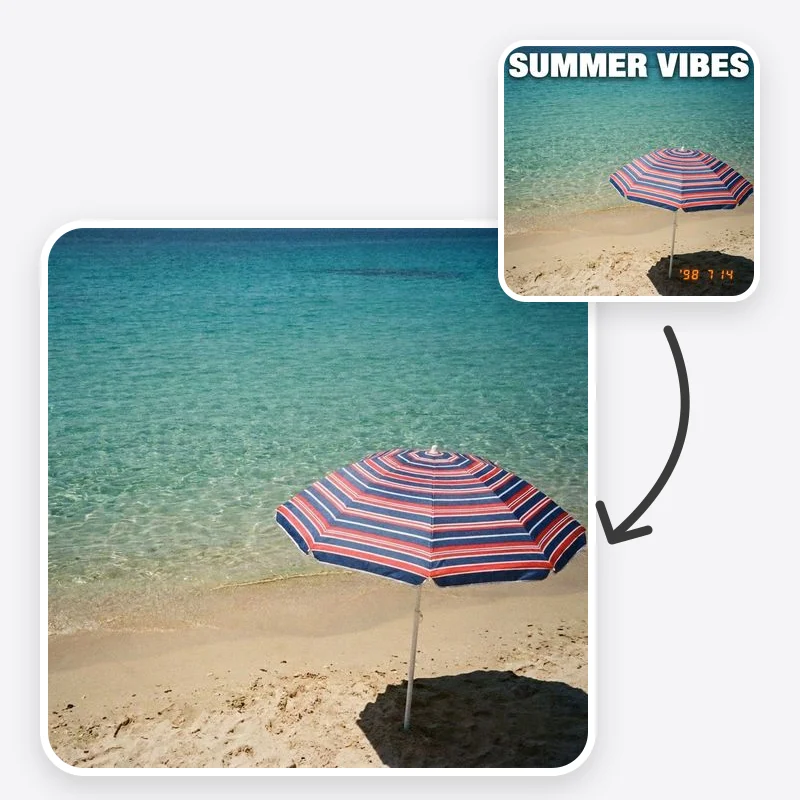
Remove Text From Image example
Example result

Remove Text From an Image

Choose the kind of text to remove from your own photo, a date stamp, captions, sign lettering or a specific line you describe, and the area is filled to match what is around it.

What is Remove Text From Image?

Remove Text From Image is an image-to-image tool that removes text from an image and fills the space to match the surrounding background. You pick what to remove (all visible text, a camera date stamp, captions or subtitles, sign and label lettering, or specific text you describe) and the model rebuilds the area behind it. It is meant for your own images: holiday photos with a date stamp, screenshots with your own captions, product shots with a draft label. It is not for removing watermarks, copyright notices or other people's credits from images you do not own. The filled area is generated, so what appears behind the text is a plausible continuation rather than the real hidden surface.

Features and options

  • Camera date stamps are burned into many old digital and film photos, and removing them by hand takes careful cloning.
  • Captions and subtitles on your own exported frames or graphics often need to go before the image can be reused.
  • Sign and label lettering can distract in travel photos or product mock-ups where you want a clean surface.
  • A select field with five clear targets is faster than writing a removal prompt from scratch.
  • The prompt asks the model to continue texture, lines and lighting so the area does not look smudged.

When to use Remove Text From Image

  • Your own photo has an orange or yellow date stamp in the corner that you want gone before printing.
  • You exported a frame or graphic with your own caption or subtitle and need a clean version.
  • A travel or street photo you took has a distracting shop sign or poster lettering.
  • You are preparing a product mock-up and want to clear draft label text before adding new copy in a design tool.
  • Not for removing watermarks, copyright notices, signatures or credits from images made by someone else.

How to use Remove Text From Image

  1. 1

    Upload your own image

    Use the highest-resolution copy you have. Text over a plain sky, wall or table is easier to fill than text over a face or detailed pattern.

  2. 2

    Choose what to remove

    Pick Date stamp, Captions / subtitles, Signs and labels or All visible text. Pick Specific text when only one line should go.

  3. 3

    Point at specific text if needed

    In Additional instructions, describe the text and where it is, for example “the white caption at the bottom that says Summer 2019.”

  4. 4

    Check the filled area

    Zoom in where the text was. Look for faint letter shapes, bent lines, repeated texture and any text you wanted to keep, then download or rerun from the original.

Ways to use the results

Date stamps on family photos

Remove the burned-in date from scanned prints or old digital camera photos before printing or framing, and note the date in the file name instead.

For: Families organizing photo collections

Clean frames from your own videos

Remove your own subtitles or captions from an exported still so you can reuse it as a thumbnail or cover without the old text.

For: Creators reusing their own material

Product and packaging mock-ups

Clear placeholder text from a label or box in your own product photo, then add final copy in your design tool.

For: Small brands and designers

Travel and street photos

Remove distracting lettering from a sign or poster in a photo you took so the scene reads more cleanly.

For: Travellers and hobby photographers

Strengths

  • Text-specific presets instead of a blank removal box
  • Fill continues the surrounding texture and lighting
  • Can remove one specific line while keeping other text
  • Signs and labels option keeps the board or label and clears only the lettering
  • Works on photos, screenshots and graphics

Trade-offs

  • The area behind the text is generated, not recovered, so it may not match what was really there
  • Text over faces, hands or detailed patterns is harder to fill cleanly
  • All visible text can also remove text you wanted to keep, such as a jersey number; use Specific text instead
  • Large text blocks covering much of the image leave a lot for the model to invent
  • Not for removing watermarks, copyright notices or other people's credits

Tips for better results

  • Describe position and content together: “the yellow date in the bottom right corner,” “the second line of the caption.”
  • Say what should stay: “keep the street name sign, remove only the poster text.”
  • For text over a patterned surface, name the pattern: “continue the brick wall,” “continue the striped fabric.”
  • If faint letters remain, rerun from the original image rather than editing the edited copy again.
  • Remove one block of text at a time when several overlap or sit close to faces.

Remove Text From Image vs the alternatives

vs Clone stamp or healing brush in a photo editor
Manual cloning gives exact control and is still the better option for delicate retouching on important images, but it takes practice and time on textured backgrounds. This tool removes the text in one pass from a short selection, and you can finish small spots by hand if needed.
vs Cropping the text out
Cropping is instant and changes nothing that remains, which makes it the right choice when the text is near an edge. When the text sits inside the frame, cropping loses part of the picture, so filling the area keeps the full composition.
vs General object remover
A general remover needs you to describe the target every time. Text-specific presets cover the common cases, date stamps, captions and sign lettering, and can keep the sign or label while clearing only the words.

Frequently asked questions

How do I remove text from an image?

Upload the image, choose what to remove (all text, date stamp, captions, signs and labels, or specific text you describe) and generate. The model removes the text and fills the area to match its surroundings. Zoom in on the filled area before you download.

Can I remove a date stamp from a photo?

Yes. Choose Date stamp. It targets the small orange, yellow or red camera date that usually sits in a corner. Date stamps over sky or plain backgrounds usually fill cleanly; ones over faces or busy detail need a closer check.

Can I remove a watermark with this tool?

No. This tool is for text in your own images, such as dates, captions, labels and stray signage. Do not use it to remove watermarks, copyright notices, signatures or credits from images made or owned by someone else.

Will it show what was behind the text?

No. The photo does not contain the hidden pixels. The model generates a plausible continuation of the background, which can differ from what was actually there, especially on detailed surfaces.

Can I remove only one piece of text and keep the rest?

Yes. Choose Specific text and describe it with its position in Additional instructions. You can also add what to keep, such as “keep the shop name, remove the price tags.”

How is this different from Object Removal?

Object Removal is a general cleanup tool where you describe any object to remove. Remove Text From Image has presets made for text, including keeping the sign board or label while clearing only the lettering.

Does it work on screenshots and graphics?

Yes, as long as they are your own. On flat graphics the fill is usually simple; on gradients or detailed artwork check that the background was continued without visible patches.

Can I remove text from an image online without software?

Yes. It runs in your browser and uses Oakgen credits from your plan. The credit price is shown before you generate.

Related AI tools