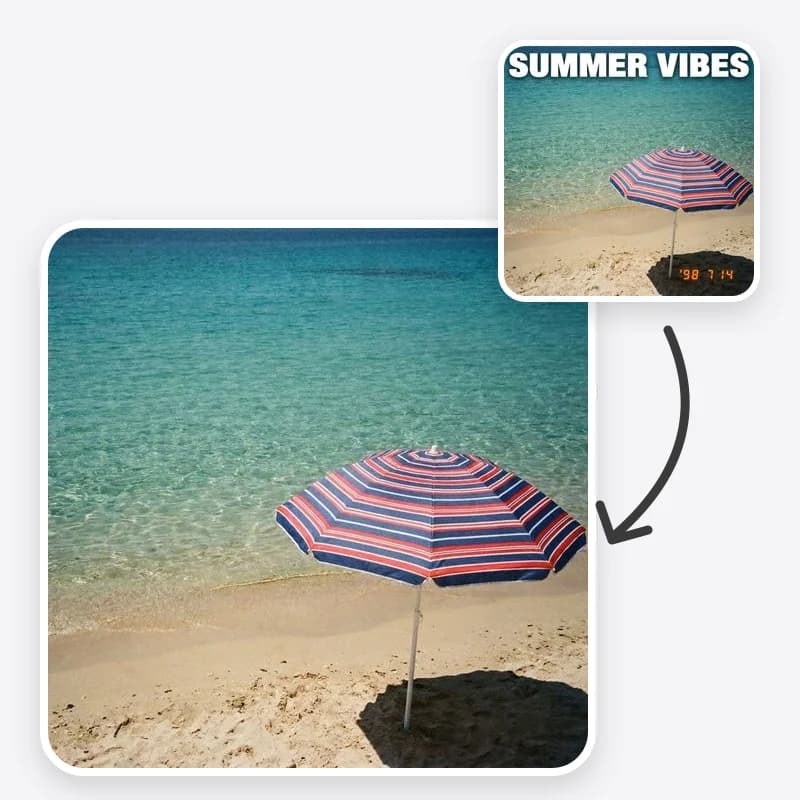
Text gets into images in all sorts of ways: a camera date burned into the corner, a caption you added to a graphic last year, a shop sign that steals attention in a holiday photo, placeholder copy on a product mock-up. Removing it by hand means cloning and healing pixel by pixel. This guide shows how to do it with Oakgen's Remove Text From Image tool, how to pick the right setting for each kind of text, and how to check that the fill really looks like the background.
One ground rule before the steps: this is for your own images. Removing dates, captions, labels and stray signage from photos you took or graphics you made is ordinary editing. Removing watermarks, copyright notices or other people's credits from their work is not what this tool is for.
Pick the right copy of the image
The cleaner the input, the cleaner the fill.
- Use the original, not a screenshot of it. Screenshots and messaging apps compress images, and compression artifacts around letters make it harder for the model to read the surface underneath.
- Use the largest version you have. Small text on a small image leaves very few pixels around the letters for the model to learn the background from.
- Do not pre-blur or paint over the text. A blurred patch is harder to fill than crisp letters on a readable background, because the model has to remove both.
- Keep the original file. You will compare against it, and you should rerun from it rather than from an edited copy.
Choose what to remove
The What to Remove option is a list of five targets. Each one sends a different, specific instruction.
All visible text removes the words, numbers and letters printed or overlaid on the image, but it is told to leave watermarks, copyright notices, signatures and credits in place. Use it for graphics where nothing should remain. Be careful with photos: it can also remove jersey numbers, book titles, licence plates or a shop name you wanted to keep.
Date stamp targets the small orange, yellow or red camera date that usually sits in a corner. It is the most predictable option because the stamp is small and sits on top of the scene.
Captions / subtitles removes overlaid caption text along with any solid or semi-transparent box or shadow behind it. Use it for your own exported frames, slides and social graphics.
Signs and labels removes the lettering on signs, labels, stickers and packaging but keeps the sign boards and labels themselves, leaving clean blank surfaces. That is useful for product mock-ups where you will add new copy, and for travel photos where you want the shop front but not the words.
Specific text removes only the text you describe in Additional instructions, and nothing else. Use it whenever an image contains text you want to keep.
Remove text from your own image
Pick a date stamp, captions, sign lettering or a specific line, and the area is filled to match the background.
Point at the exact text
Additional instructions work best when they say three things: what the text says or looks like, where it is, and what is behind it.
- "Remove the white caption at the bottom that says Summer 2019. Continue the sand and water behind it."
- "Remove only the price stickers on the jars. Keep the brand labels."
- "Remove the poster lettering on the wall to the right. Keep the street name sign above the door."
Naming the surface matters most on textures. "Continue the brick wall," "continue the striped fabric" or "continue the wood grain" gives the model a pattern to follow instead of a vague smooth patch.
If the text overlaps a face or hands, say so and ask for those features to stay unchanged. Text across a face is the hardest case, because the model has to rebuild part of a person.
Generate and check the fill
Download nothing until you have zoomed in where the text used to be. Check these in order.
- Ghost letters. Faint outlines of the old text are the most common leftover, especially with large, high-contrast lettering.
- Smudges and flat patches. A soft blur or a flat color block where the text was means the model did not continue the texture. Rerun with the surface named in the instructions.
- Straight lines. Horizon lines, window frames, tiles and table edges should continue straight through the filled area. Bends and steps give the edit away.
- Repeated texture. On grass, gravel or fabric, look for a copied patch that repeats too neatly.
- Lighting and grain. The filled area should have the same brightness, shadows and noise as its surroundings. A suspiciously clean patch on a grainy photo stands out.
- Everything else. Confirm that faces, objects, colors and the text you wanted to keep did not change, and that nothing was cropped.
If something is off, go back to the original image and change one thing: the target, the instructions or the description of the surface. Editing the edited copy again tends to stack small errors.
Troubleshooting by situation
Text on a plain sky or wall. Usually the easiest case. If a faint patch remains, add "match the sky gradient" or "match the wall's grain."
Text on a busy pattern. Name the pattern and, if possible, remove one block of text at a time.
Large text covering much of the image. The more the model has to invent, the less the result will match reality. Consider whether cropping or a new photo is the better fix.
Text with a drop shadow or outline. Captions / subtitles includes the box or shadow behind the words. With Specific text, mention the shadow so it is removed too.
Text reflected in glass or water. Mention both the text and its reflection, otherwise one may remain.
Small text near the edge. Cropping may be simpler and changes nothing else in the picture.
When to use a different tool
- If the thing you want gone is an object rather than text, a bin, a stranger in the background, a power line, use Object Removal, where you describe any object.
- If you are cleaning up an old scan and the date stamp is only one of several problems, remove the date here first, then repair scratches and fading with Old Photo Restoration.
- If the whole background should change, not just a patch of it, Background Replacer lets you describe a new setting.
What not to remove
This tool exists to clean up your own images. It should not be used to take ownership signals off someone else's work: watermarks, copyright notices, photographer signatures, agency stamps or credits. Those identify who made an image and on what terms you can use it. If you want to use someone else's photo, get permission or a licence and the clean file from them.
The companion guide removing dates, captions and signs from photos goes through common real-world cases in more detail, including what to keep for your own records.
Clean up your photo
Choose the text to remove, describe the background, and check the filled area before you download.
Quick reference
| You want to remove | Choose | Add to instructions |
|---|---|---|
| Orange date in the corner | Date stamp | Nothing, or the surface behind it |
| Your caption on a graphic | Captions / subtitles | The caption text if there are several |
| Words on a shop sign you photographed | Signs and labels | Which sign, and any sign to keep |
| One line among several | Specific text | The exact line and its position |
| Every bit of text on your own draft graphic | All visible text | Watermarks, signatures and credits stay |
Related tools and guides
- Removing dates, captions and signs from photos, the companion guide with practical cases.
- Object Removal for anything that is not text.
- Old Photo Restoration for scans with scratches and fading.
- How to use the Image Editor for free-form edits described in your own words.
Frequently asked questions
How do I remove text from an image without leaving a smudge?
Choose the most specific removal target, describe the text and its position, and name the surface behind it, such as a brick wall or a cloudy sky. Use the highest-resolution copy you have, and rerun from the original if faint letters remain.
Can I remove just one line of text and keep the rest?
Yes. Choose Specific text and describe the line and where it sits in the instructions, for example the caption at the bottom that says Summer 2019. Add what to keep as well, such as keep the street name sign.
Does AI recover the real background behind the text?
No. The pixels behind the text are not in the file. The model generates a plausible continuation of the surrounding surface, which can differ from what was actually there.
Can I use this to remove watermarks?
No. The tool is for text in your own images, such as date stamps, your own captions, labels and stray signage. Do not use it to remove watermarks, copyright notices, signatures or other people's credits.