Most people who want to remove text from a photo have one of a handful of situations: a date stamp on a holiday print, captions on a frame from their own video, shop signs in a street shot, labels on a product photo. Each one has its own tricks, and each one carries information you may want to keep. This guide goes case by case, then covers what you should not remove at all.
If you want the step-by-step settings first, read how to remove text from an image with AI. The tool used throughout is Oakgen's Remove Text From Image.
Before you remove anything: keep the information
Text in a photo is often data. A date stamp tells you when a photo was taken. A caption tells you who is in it. A sign tells you where it was. Once it is painted over, it is gone from that copy.
So before every removal:
- Keep the original file untouched. Work on a copy.
- Write the information down. Put the date in the file name (
1998-07-14-beach.jpg), add names and places to the photo's description or your photo library's caption field, or keep a simple spreadsheet for an archive project. - Label the edited copy. Something like
1998-07-14-beach-clean.jpgmakes it obvious which version was edited.
This takes a minute and saves arguments later about when or where something happened.
Case 1: Camera date stamps
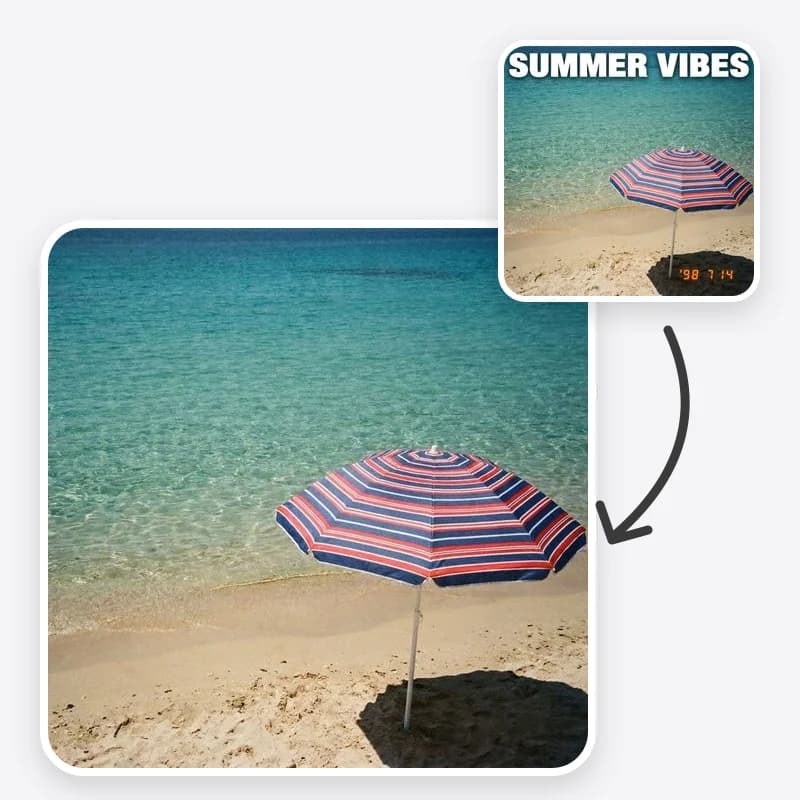
Many film cameras and early digital cameras printed the date in orange or yellow digits in a corner. It dates the photo nicely, but it sits on top of the picture and looks out of place on a frame or a wedding slideshow.
How to remove it: choose Date stamp. It targets the small colored digits in a corner. If the stamp sits over something detailed, name it in Additional instructions: "the date sits over the grass, continue the grass."
What usually goes well: stamps over sky, sand, water, walls or plain clothing.
What needs a closer look: stamps that cross a face, a hand or fine pattern. Zoom in and compare with the original.
For scanned prints: remove the date from a working copy of the scan, then repair scratches and fading with Old Photo Restoration if needed. If the photo is black and white and you want color, colorize last with Colorize Photo.
Remove a date stamp from your photo
Choose Date stamp, upload your own photo, and check the corner before you download.
Case 2: Captions and subtitles on your own frames
You exported a still from your own video and the subtitles came with it. Or you made a social graphic with a caption and now want the clean image for a thumbnail or a print.
How to remove it: choose Captions / subtitles. It removes the overlaid words along with any box or shadow behind them. If there are two lines and you only want one gone, switch to Specific text and describe the line.
Tip: captions often sit over the lower third of a frame, which is where people's hands, tables and floors are. Mention what is behind the caption so the fill continues it: "continue the wooden table and the hands holding the cup."
Better option when you have it: if you still have the project file, export a clean frame without captions instead. It will always be more accurate than a filled area.
Case 3: Signs and posters in street and travel photos
A shop sign or a poster can pull attention away from the person or view you photographed.
How to remove it: choose Signs and labels. It removes the lettering but keeps the sign board itself, so the building still looks complete. If you want one sign gone and another kept, use Specific text: "remove the lettering on the red poster to the right; keep the street name sign."
Keep it honest: removing a sign's text makes a scene cleaner, but it also changes what the place looks like. That is fine for personal prints. If the image is used to represent a real location, for a business listing or a travel guide, think about whether the edit misleads people.
When to remove the whole sign instead: if the board itself is the distraction, Object Removal can take out the object, not just the words.
Case 4: Labels on your own product photos
Sellers and designers often photograph a product with a draft label, a price sticker or old packaging copy, then want a clean surface to add new text in a design tool.
How to remove it: choose Signs and labels to keep the label shape and clear its text, or Specific text to remove only the price sticker or batch number. Describe the material: "matte paper label," "glossy plastic," "brushed metal."
Check carefully: curved bottles and boxes have highlights and shadows that the fill must follow. If the surface looks flat or the highlight stops abruptly, rerun with the lighting described: "keep the vertical highlight on the bottle."
Do not use it to fake details. Removing an ingredient list or warning label from a product image that will be used to sell that product can mislead buyers. Clean surfaces are for mock-ups and design work.
Case 5: Screenshots and graphics you made
Removing your own name, a draft heading or an old date from a graphic you made is usually the easiest case, because the backgrounds are flat or gradients.
How to remove it: choose All visible text when everything should go, or Specific text for one element.
Watch for: gradients that turn into flat patches and icons that sit near the text. Mention both: "continue the blue gradient; keep the icon on the left."
Case 6: Handwriting on the front of old prints
Older family prints sometimes have names, dates or places written in ink across the bottom of the picture by a relative. (A photographer's or studio's printed name is a credit; leave that in place.)
Think twice before removing it. Handwriting from a relative is often the only record of who is in the photo. For a framed copy, remove the personal notes from a working copy only, and keep the original scan with the writing intact.
How to remove it if you decide to: choose Specific text and describe it: "remove the handwritten names along the bottom edge; continue the dark coat and floor." Then transcribe the writing into the file's description so nothing is lost.
What not to remove
The same tool that clears a date stamp could, in theory, clear other marks. Do not use it for these:
- Watermarks on stock photos, previews or other people's images.
- Copyright notices such as © lines on photos or artwork.
- Signatures and credits from photographers, artists and agencies.
- Information that makes an image truthful, for example warning labels on product listings, or timestamps on images used as evidence.
These marks tell people who made an image, on what terms it can be used, or what it really shows. If you want to use someone else's image without their mark, ask them or buy a licence and get the clean file. If a photo of yours is evidence of something, a damage claim, an incident, a delivery, keep the original untouched.
A short checklist after each removal
- Zoom in where the text was: no ghost letters, smudges or flat patches.
- Straight lines stay straight through the filled area.
- Faces, hands and objects near the text are unchanged.
- Text you wanted to keep is still there.
- The original file is saved, and the information from the removed text is written down.
Clean up dates, captions and signs
Remove text from your own photos and keep the background looking natural.
Related tools and guides
- How to remove text from an image with AI covers each setting and how to fix common problems.
- Object Removal removes whole objects, not just their lettering.
- Old Photo Restoration repairs scanned prints after the date is gone.
- Colorize Photo adds color to a black and white print as a final step.
Frequently asked questions
Should I remove the date stamp from old family photos?
Often yes for prints and frames, but write the date down first. Put it in the file name or the photo's description so the information survives after the stamp is gone, and keep the original scan with the stamp intact.
Can I remove text from someone else's photo?
Only with their permission, and never to remove a watermark, copyright notice, signature or credit. Those marks tell people who made the image and on what terms it can be used.
Is it fine to remove sign text from a travel photo?
For your own photo used personally, yes. If the image will represent a real place, for example in a listing or a guide, check that the edited scene still shows that place honestly.
What if I need the removed text later?
Keep the untouched original file. Edits are always made on a copy, so the original remains the record of what the photo actually showed.