Most AI creative tools hand you a blank prompt box, 30 settings, and a dropdown with 40 models. Then they expect you to know the difference between Flux 2 Pro and Imagen 4 Ultra, pick the right aspect ratio for a LinkedIn banner vs. an Instagram story, and decide whether your scene calls for 720p or 4K upscaling.
That works if you already know exactly what you want. But for the other 90% of the time -- when you have an idea and need to explore it -- all those options become friction. You are spending more time configuring a tool than actually creating.
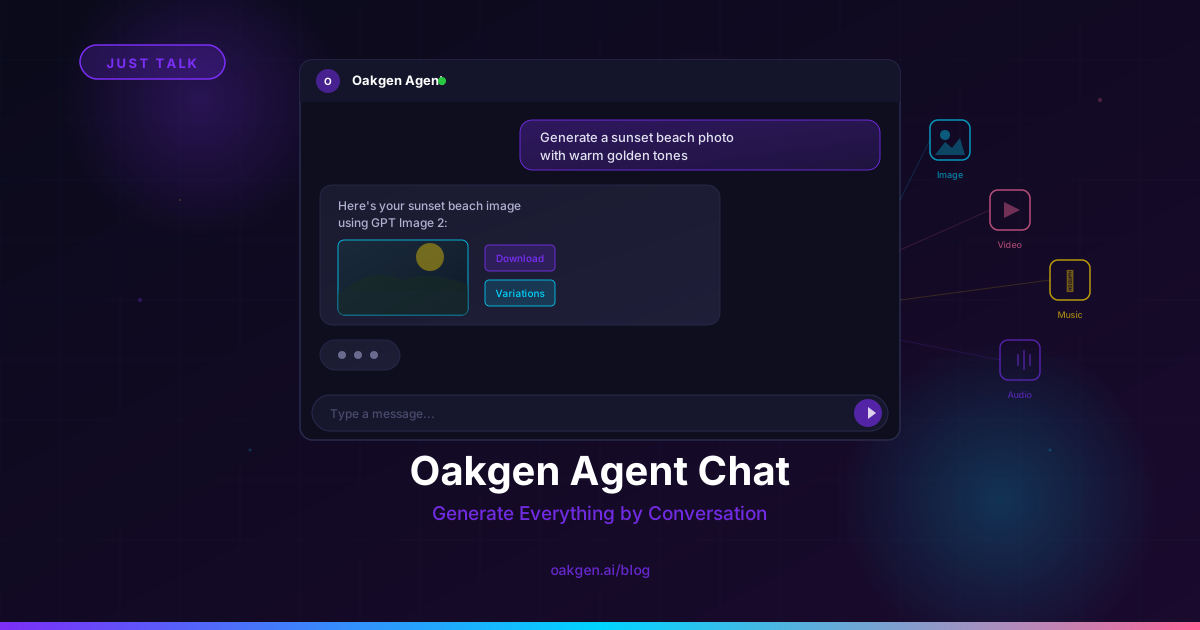
Agent Chat is the opposite of that. You talk to it. You describe what you need. It figures out the model, the settings, and the format. You get your image, video, or music track back in the conversation, and you keep going.
Agent Chat includes limited access for unsubscribed accounts. Creative media generation through Oakgen remains tied to a paid plan or valid paid credits. Open Agent Chat at oakgen.ai/agent-chat to start a conversation.
What Agent Chat Actually Does
Agent Chat is a conversational interface that sits on top of Oakgen's full creative suite. Instead of navigating to separate pages for image generation, video generation, music, or audio, you describe what you need in natural language and the agent handles the rest.
Behind the conversation, the agent is doing real work:
- Model selection. It picks the right model based on what you are asking for. A photorealistic product shot routes to Flux 2 Pro. An image with text on it routes to GPT Image 2. A cinematic video routes to Kling 2.1 or Veo 3.
- Parameter configuration. Aspect ratio, resolution, duration, style presets -- the agent sets these based on context. Say "make me a YouTube thumbnail" and it knows that means 16:9 at high resolution.
- Prompt enhancement. Your conversational description gets translated into the structured prompt format each model performs best with. You say "a cozy coffee shop at sunset." The agent adds the lighting keywords, camera angle language, and style descriptors that produce a strong result.
- Iteration. You can say "make it warmer," "zoom out," "try a different angle," or "now turn that into a 5-second video" -- and the agent carries your full creative context forward.
This is not a chatbot wrapped around an API call. It is an opinionated creative assistant that makes decisions you would otherwise make manually, and it makes them well because it knows the strengths and quirks of every model on the platform.
The Traditional Way vs. Agent Chat
Here is the same creative task done both ways:
| Step | Traditional UI Workflow | Agent Chat Workflow |
|---|---|---|
| 1. Choose what to create | Navigate to Image Generator page | Type: 'I need a hero image for my SaaS landing page' |
| 2. Pick a model | Scroll through 40+ models, read descriptions, compare capabilities | Agent selects the best model for the task automatically |
| 3. Configure settings | Set aspect ratio, resolution, style preset, guidance scale, seed | Agent infers 16:9, high-res, clean/modern from your description |
| 4. Write a prompt | Write detailed prompt with specific keywords and syntax | Agent translates your description into an optimized prompt |
| 5. Review and iterate | Manually adjust parameters and re-generate | Say 'make the background darker' in chat |
| 6. Extend to video | Navigate to Video Generator, re-enter context, pick new model | Say 'animate that as a 5-second loop' |
| 7. Add music | Navigate to Music Generator, describe mood separately | Say 'create a subtle background track to match' |
The traditional workflow is powerful and it is still there for users who want full manual control. Agent Chat is for the times when you want to move fast, explore ideas, or work across multiple media types without context-switching between tools.
Four Conversations That Show How It Works
1. Product Photography from a Description
You: "I'm launching a candle brand called 'Ember & Oak.' I need a product photo of a soy candle in a matte black jar on a wooden table, warm evening light, shallow depth of field, editorial style."
Agent Chat: Selects Flux 2 Pro (best for product photorealism), sets 4:5 aspect ratio (optimal for e-commerce), enhances the prompt with lighting and lens descriptors, generates the image.
You: "Love the lighting. Can you make the jar dark green instead of black?"
Agent Chat: Locks the seed, adjusts the color description, regenerates. Same composition, different jar color.
You: "Perfect. Now give me a version with a white marble surface instead of wood."
Agent Chat: Same seed, swapped surface material. Three product shots from one conversation, consistent style across all three.
2. Social Media Kit in One Thread
You: "I need social content for a fitness app launch. Start with an Instagram post -- show someone using a fitness app on their phone in a modern gym."
Agent Chat: Routes to Imagen 4 Ultra (strong on complex scenes with devices), sets 1:1 for Instagram, generates.
You: "Great. Now a story version -- same vibe but vertical."
Agent Chat: Adjusts to 9:16, regenerates with the same stylistic direction.
You: "Now make a 6-second video version for Reels. The person should be swiping through the app."
Agent Chat: Switches to a video model, carries the visual style forward, generates a short clip with the motion you described.
Three assets for three formats, all from one continuous conversation with no page navigation and no re-entering context.
3. Music for a Video Project
You: "I'm making a travel montage of Japan -- cherry blossoms, temples, street food stalls, bullet trains. I need a 30-second background track. Something upbeat but not aggressive, with a slightly electronic feel."
Agent Chat: Routes to the music generator, interprets the mood and style, generates a track. Plays it back in the conversation.
You: "Tempo is right but it feels too synthetic. Can you make it more organic -- add some acoustic guitar?"
Agent Chat: Regenerates with adjusted style parameters. You iterate until the track fits.
4. Brainstorming Visual Directions
You: "I'm building a brand for a premium pet food company called 'Wild Roots.' I have no visual direction yet. Can you show me three completely different aesthetic approaches?"
Agent Chat: Generates three images with distinct art directions -- one editorial photography style, one illustrated/hand-drawn, one bold graphic/minimal. Each comes with a note explaining the creative rationale.
You: "Option 2 is closest. Can you push it further -- more vintage, like 1960s cookbook illustrations?"
Agent Chat: Narrows in on the illustrated direction with a vintage filter, generates three more variations in that refined style.
This is where Agent Chat shines most -- the exploratory phase where you do not know exactly what you want yet. A traditional UI forces you to make decisions before you have enough information. Agent Chat lets you discover your direction through conversation.
What Happens Behind the Scenes
When you send a message in Agent Chat, the system runs through a decision chain before anything generates:
1. Intent classification. The agent determines whether you are asking for an image, video, music, audio, or just having a conversation about your project. Mixed requests get broken into sequential steps.
2. Model routing. Based on your description, the agent scores available models against your likely needs. Photorealistic portrait? Flux 2 Pro. Image with readable text? GPT Image 2. Cinematic video with camera motion? Kling 2.1. The routing logic accounts for model strengths documented across hundreds of generation comparisons.
3. Parameter inference. The agent sets aspect ratio, resolution, duration, and style parameters based on contextual clues. "YouTube thumbnail" implies 16:9 and high resolution. "Phone wallpaper" implies 9:16. "Album cover" implies 1:1. If the context is ambiguous, the agent asks.
4. Prompt construction. Your natural language gets restructured into the prompt format that performs best with the selected model. Different models respond to different prompt structures -- Flux 2 Pro prefers descriptive prose, GPT Image 2 handles structured instructions well, and video models need explicit motion descriptions. The agent handles these translations.
5. Generation and delivery. The image, video, or audio generates through the same infrastructure as the rest of Oakgen. Same credit costs, same quality, same speed. The output appears inline in your conversation.
6. Context retention. Every message in the thread builds on prior context. The agent remembers your brand name, your style preferences, the assets it already generated, and your stated goals. Iteration does not require re-explaining what you have already established.
When to Use Agent Chat vs. the Traditional Tools
Agent Chat is not a replacement for the full tool suite. It is a different interface for different situations.
Use Agent Chat when:
- You are exploring and do not have a fixed vision yet
- You want to work across multiple media types (image, video, music) in one flow
- You want the platform to handle model selection and configuration
- You are iterating quickly and want to give feedback in natural language
- You are not familiar with the differences between models and want guidance
Use the dedicated generators when:
- You know exactly which model and settings you want
- You are running batch generations with consistent parameters
- You need granular control over specific technical settings (guidance scale, scheduler, LoRA weights)
- You are building a repeatable workflow where speed matters more than exploration
Both approaches use the same credits, produce the same quality outputs, and save to the same gallery. The difference is the interface, not the engine.
Credits and Pricing
Agent Chat uses your existing Oakgen credit balance. Chat turns are metered in credits based on the model's token usage, and generated assets cost the same as in the dedicated generators:
- Image generation: 6-26 credits depending on model and resolution
- Video generation: 20-80 credits depending on model and duration
- Music generation: 15-40 credits depending on duration
- Audio/TTS generation: 5-15 credits depending on length and voice
Your conversation history is saved, so you can return to a thread days later and pick up where you left off. All generated assets appear in your gallery alongside everything created through the traditional tools.
For plan details and credit allocations, see the pricing page.
Earn 25% recurring on every referral.
Share Oakgen, get paid every month they stay.
Tips for Getting the Most Out of Agent Chat
Be specific about the end use
"A photo of a dog" gives the agent little to work with. "A product photo of a golden retriever for a premium pet food brand website, clean white background, studio lighting" tells it exactly what model to pick, what aspect ratio to use, and how to structure the prompt.
Iterate in small steps
Instead of re-describing your entire vision after each generation, make targeted adjustments. "Warmer lighting." "Wider angle." "More contrast." Small, specific feedback produces better results than starting over.
Use it for cross-media workflows
Agent Chat's biggest advantage over the traditional tools is continuity across media types. Generate an image, then animate it as a video, then create a matching music track -- all in one thread. The agent carries context between each step.
Ask it to explain its choices
If you want to learn the platform faster, ask the agent why it picked a specific model or what parameters it set. It will explain its reasoning, which builds your understanding for when you want to use the dedicated tools with manual control.
Save good threads as templates
When you find a conversation flow that produces great results for a recurring task (e.g., weekly social media content), save the thread. You can reference it or re-run similar prompts in new conversations.
Who Agent Chat Is Built For
Content creators who produce across formats -- blog images, social posts, video clips, podcast intros -- and want one interface instead of four.
Marketers who need to ideate fast, test visual directions, and produce assets without waiting for a designer or learning the nuances of 40 AI models.
Small business owners who do not have the time to become experts in AI image generation but need professional-quality visuals for their brand. Agent Chat is the fastest path from idea to finished asset.
Creators exploring AI for the first time who find the traditional model-picker-and-settings interface overwhelming. Start with a conversation, learn what works, then graduate to the full tools when you are ready.
Teams where one person briefs and another produces. Agent Chat threads are shareable -- a creative director can describe the vision in chat, and the thread becomes both the brief and the output in one place.
For a deeper look at how content creators are using the full Oakgen suite, including Agent Chat, see our creator workflows guide.
FAQ
Is Agent Chat free to use?
Not entirely. Chat turns are metered in credits based on model token usage, and images, video, music, and audio cost the same credits as in the dedicated generators. New accounts start with 0 credits, so see plans to get a balance.
Does Agent Chat support all models on Oakgen?
Yes. The agent can route to any model available on the platform -- over 40 image models, 17 video models, and multiple music and audio options. It selects the best model for your request automatically, but you can also specify a model by name if you have a preference.
Can I use Agent Chat for video generation?
Absolutely. Describe the video you want, and the agent picks the right video model (Kling 2.1, Veo 3, Wan 2.1, etc.), sets duration and resolution, and generates it. You can also start with an image in the conversation and ask the agent to animate it as a video.
Is the quality different from using the dedicated generators?
No. Agent Chat uses the same generation infrastructure, the same models, and the same processing pipeline as the dedicated image, video, and music tools. The output quality is identical. The only difference is the interface.
Can I control which model the agent uses?
Yes. If you say "use Flux 2 Pro" or "generate this with GPT Image 2," the agent respects that. If you do not specify, it selects the model it judges best for your request. You can also ask it to explain why it chose a particular model.
Does it remember context across messages?
Yes. Every message in a conversation thread builds on the previous context. The agent remembers your brand names, style preferences, and previously generated assets. You can iterate across dozens of messages without re-explaining your creative direction.
What to Read Next
- The Complete AI Creation Pipeline on One Platform -- how Oakgen connects image, video, audio, and music generation into a single workflow, with or without Agent Chat.
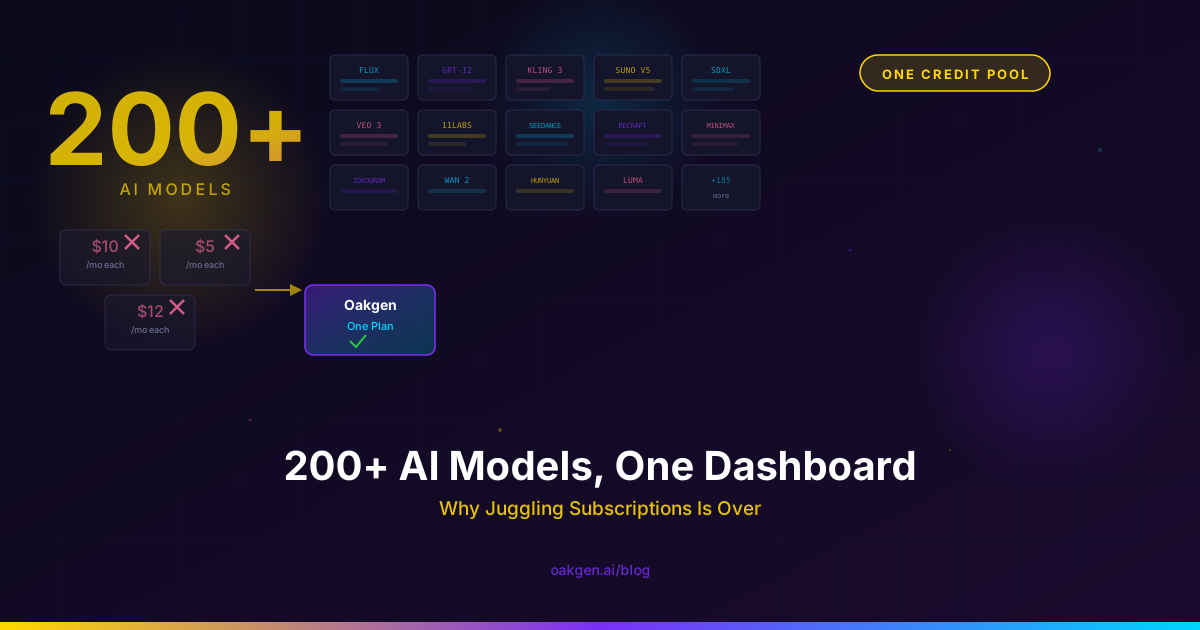
- 200+ AI Models, One Dashboard -- an overview of every model available on Oakgen and what each one is best at.
- Best Free AI Image Generators in 2026 (Tested) -- an independent comparison of genuinely free image tools; Oakgen is listed separately as a paid workflow option.