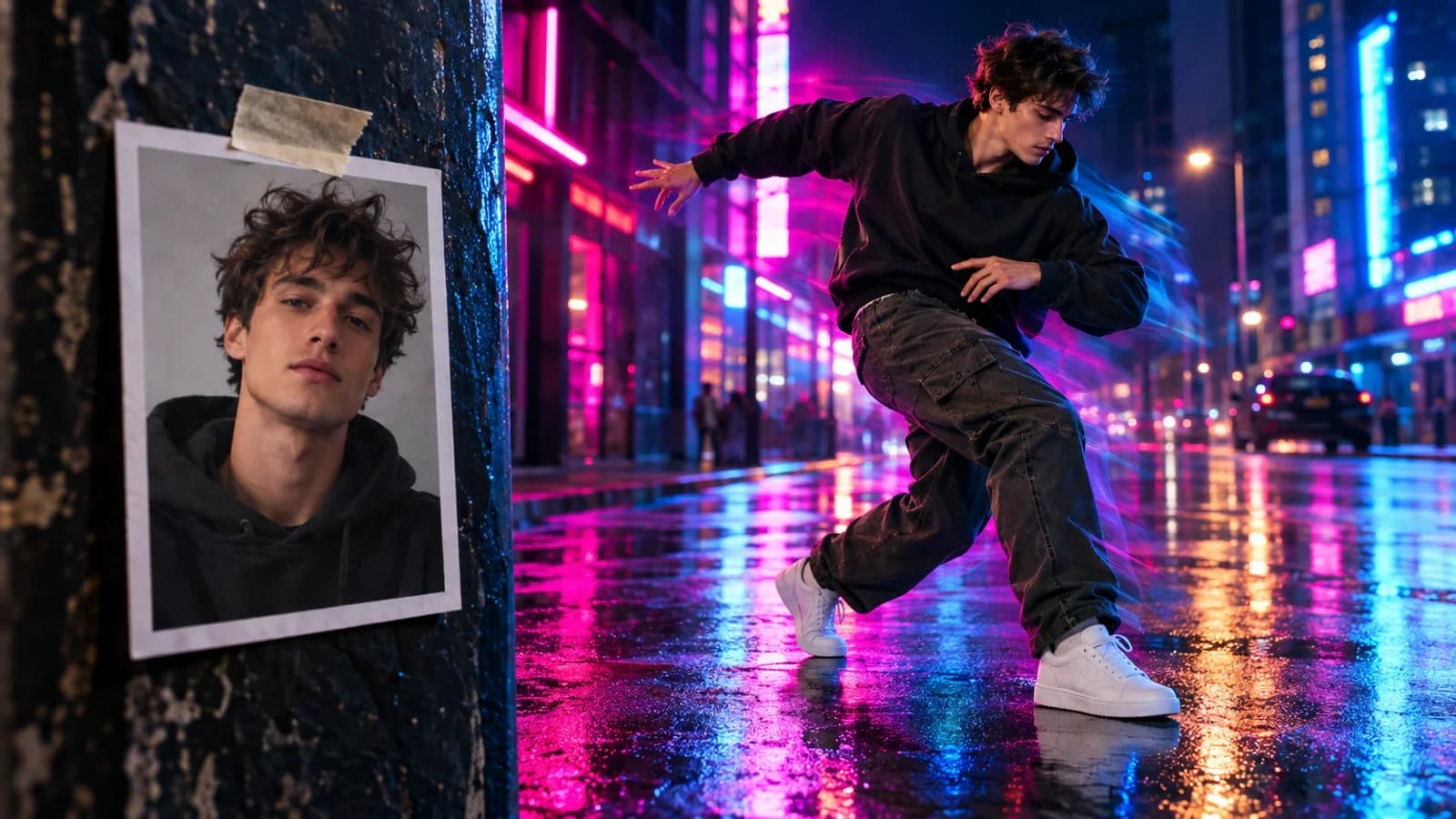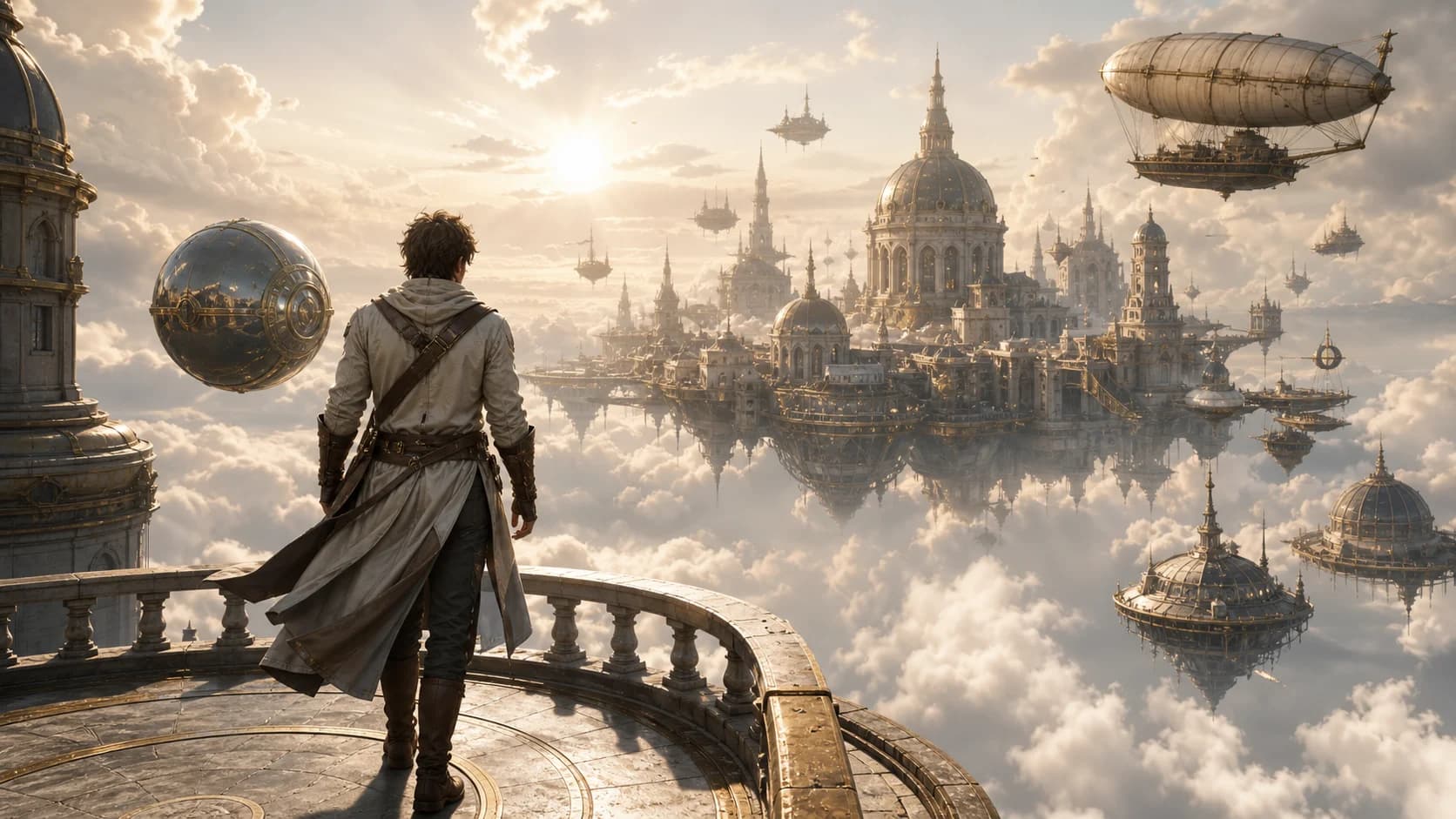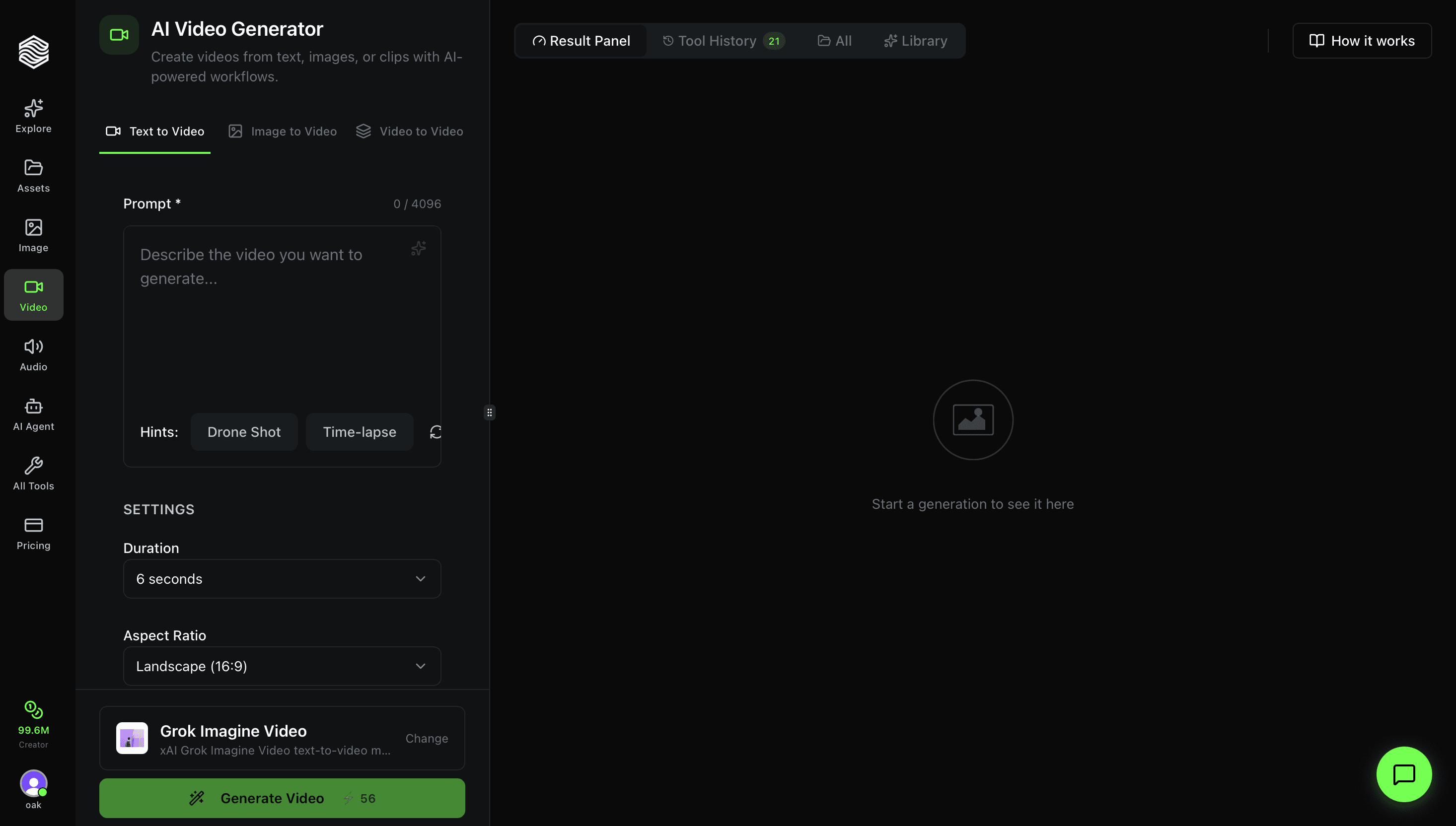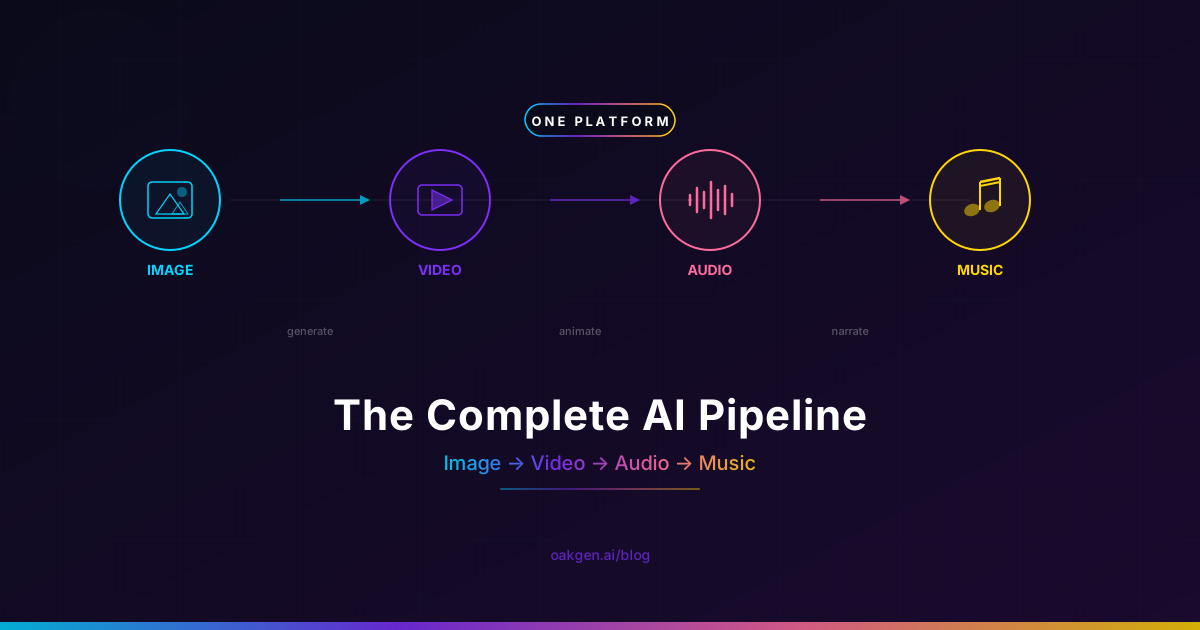
Last week we made a 30-second product launch video for an internal project. One hero image, five seconds of animated motion, a voiceover narration, and a background soundtrack. Four distinct AI modalities — image, video, audio, music — chained into a single deliverable. Total time from blank canvas to exported MP4: 22 minutes. Total cost: a few hundred Oakgen credits at most.
We did not open four browser tabs. We did not copy files between services. We did not manage four separate credit balances or remember four sets of generation settings. Everything happened inside one platform, one credit pool, one generation history.
This post walks through exactly how we did it, step by step, with specific model choices and prompts. If you have ever wanted to build a complete AI video workflow without the subscription sprawl, this is the tutorial.
A 30-second product video with four AI-generated layers: a hero image (Nano Banana Pro), an animated video clip (Kling 3.0), a professional voiceover (ElevenLabs via Oakgen), and a custom soundtrack (Lyria 3 Pro or Eleven Music). Every asset generated on Oakgen. The only external tool is a free video editor for final assembly.
Why a Multi-Model AI Workflow Matters in 2026
The AI creative tool market in 2026 looks like this: there are best-in-class models for images (Nano Banana Pro, GPT Image 2, FLUX 2 Pro), best-in-class models for video (Kling 3.0, Seedance 2.0, HappyHorse 1.0), best-in-class models for voice (ElevenLabs), and best-in-class models for music (Lyria 3 Pro, Eleven Music). No single model does everything. The question is whether you access each through its own subscription, or through a unified platform that aggregates them.
The subscription-per-tool approach has three problems that compound:
Cost stacking. Midjourney ($10/mo) + Runway ($28/mo) + ElevenLabs ($22/mo) + Suno ($10/mo) = $70/month minimum, and that is before you hit any usage caps. We broke down the full math in Why We Stopped Paying for 4 Separate AI Subscriptions.
Workflow friction. Every time you move an output from one tool to the next — download from the image generator, re-upload to the video generator, download the video, open the voice tool in a new tab — you lose momentum. Over a multi-step project, these micro-interruptions add 30-60 minutes of pure friction.
No cross-model comparison. When you pay for Runway specifically, you use Runway even when Kling 3.0 would produce a better result for that specific prompt. A unified credit pool lets you A/B across providers without financial penalty.
The complete AI creation pipeline we are about to build solves all three. One account, one credit balance, four modalities, dozens of models.
The Four-Stage Pipeline at a Glance
Before diving into each step, here is the full pipeline:
| Stage | What | Tool on Oakgen | Approx Credits |
|---|---|---|---|
| 1. Image | Generate the hero visual / key frame | Image Generator | 10-20 |
| 2. Video | Animate the image into a video clip | Video Generator | 40-80 |
| 3. Audio | Record AI voiceover narration | Voice Generator | 15-30 |
| 4. Music | Compose a background soundtrack | Music Generator | 30-60 |
Total: roughly 100-200 credits for a complete 30-second production. That is under $1 on most paid plans.
Step 1: Generate the Hero Image
Every video starts with a visual anchor. For our product launch video, we needed a clean, cinematic hero shot of the product in context.
Choosing the Right Image Model
Oakgen gives you access to 200+ image models from a single interface. For this project, we considered three:
- Nano Banana Pro — Photorealistic quality, strong at product photography and commercial aesthetics
- GPT Image 2 — Excellent at following complex compositional prompts with text rendering
- FLUX 2 Pro — Strong general-purpose model with consistent style
We went with Nano Banana Pro because our shot needed photorealistic product photography. If you are building an illustrated explainer or a stylized brand piece, GPT Image 2 or Recraft V3 may be better fits.
Head to the Image Generator and select your model.
The Prompt We Used
"A sleek wireless headphone product shot on a matte black surface, soft studio lighting from the upper left, shallow depth of field with the product in sharp focus, warm amber accent light reflecting off the left ear cup, clean dark background with subtle gradient, commercial product photography, 16:9 aspect ratio"
Settings That Matter
- Aspect ratio: 16:9. This matches standard video dimensions and means the image will not need cropping when it becomes the first frame of the video clip.
- Quality: Set to highest available. The image becomes the visual foundation for everything downstream — artifacts here propagate through the entire pipeline.
- Style: Photorealistic, not illustrated. Match the style to your final video's visual language.
We generated three variations and picked the one with the best lighting and composition. The whole step took about 3 minutes.
Your image prompt should describe not just the final image but anticipate how it will move in Step 2. If you want a slow zoom, make sure the composition has enough detail at the center to reward that zoom. If you want elements to move, position them with space to travel. Planning for animation at the image stage saves re-generation later.
Step 2: Animate the Image Into Video
With a hero image locked, we turned it into a 5-second animated video clip using image-to-video generation.
Choosing the Right Video Model
Oakgen's Video Generator offers 50+ video models. For image-to-video specifically, we evaluated:
- Kling 3.0 — Strong motion coherence, excellent at preserving the source image's detail while adding natural movement
- Seedance 2.0 — Good at cinematic camera movements, supports multiple reference inputs
- HappyHorse 1.0 — Highest leaderboard rank, fast generation, but newer with a thinner prompt library
We chose Kling 3.0 for this shot. It excels at product-style animation where you want the subject to stay recognizable while adding subtle, polished motion — exactly what a product launch video needs.
The Motion Prompt
We uploaded our hero image as the starting frame and wrote this motion prompt:
"Slow dolly zoom into the headphones, the amber accent light pulses gently, a subtle particle dust drifts through the beam of light, the background darkens gradually to increase drama, smooth cinematic camera movement, professional commercial aesthetic"
Key Settings
- Duration: 5 seconds. Enough for a dramatic reveal without overstaying.
- Resolution: 1080p. Matches our final output target.
- Motion strength: Medium. Too high and the product distorts; too low and the clip feels static.
Generation took about 30 seconds. We reviewed the output, liked the motion path, and moved on. If the first generation does not nail it, adjust the motion prompt — usually the fix is being more specific about camera direction ("dolly forward" vs. "zoom in") or reducing motion complexity.
Total time for Step 2: about 4 minutes including prompt iteration.
Step 3: Generate the Voiceover
Now we needed a voice to narrate over the video. The script was short — 30 seconds of narration for a product launch:
"Introducing the next generation of wireless audio. Engineered for clarity. Designed for comfort. Built for the way you actually listen. Available now."
Choosing a Voice
Navigate to the Voice Generator on Oakgen. The platform integrates ElevenLabs' full voice library — over 100 voices across genders, accents, and tonal ranges.
For a product launch, we wanted:
- Tone: Confident and measured, not hype-y
- Pace: Slightly slower than conversational — gives the words weight
- Gender: We tested both male and female voices on the first sentence and chose the one that better matched the product's brand positioning
We previewed three voices, picked one that sounded like a premium tech brand narrator, and generated the full 30-second clip.
Script Tips for AI Voiceover
- Short sentences work better. AI voices handle 5-12 word sentences with more natural intonation than long compound sentences.
- Punctuation controls pacing. A period creates a full stop. A comma creates a breath. An ellipsis creates a dramatic pause. Use them deliberately.
- Front-load the most important line. The first sentence sets the voice's tone for the entire clip.
Generation was near-instant — ElevenLabs on Oakgen is synchronous, so the audio file was ready in under 5 seconds. We downloaded it.
Total time for Step 3: about 4 minutes including voice selection.
Step 4: Compose the Background Music
The final layer is a background soundtrack that supports the voiceover without competing with it.
Choosing the Right Music Model
Oakgen's Music Generator offers two models: Lyria 3 Pro and Eleven Music. Either works for this project. Product videos need clean instrumentals that stay in the background, so whichever you pick, ask for an instrumental track.
The Music Prompt
"Minimal electronic ambient music, soft synthesizer pads with a gentle rhythmic pulse, modern and premium feel, suitable as background for a product launch video, no vocals, low dynamic range, 80 BPM, 45 seconds"
We asked for 45 seconds even though the video is 30 seconds. The extra length gives us flexibility to trim and pick the best 30-second window during editing.
Music Generation Settings
- Duration: 45 seconds (longer than the video for trimming flexibility)
- Style: Instrumental only — vocals compete with the voiceover
- Energy: Low to medium — the music should be felt, not heard
Once it finished, we listened, confirmed it did not have any frequency clashes with the voiceover's tonal range, and downloaded it.
Total time for Step 4: about 3 minutes.
Build Your Complete AI Pipeline
Step 5: Assembly (The Only Step Outside Oakgen)
At this point we had four assets:
- Hero image (PNG from Nano Banana Pro)
- Animated video clip (MP4 from Kling 3.0)
- Voiceover audio (MP3 from ElevenLabs)
- Background music (MP3 from the Music Generator)
We imported everything into DaVinci Resolve (free) for final assembly. CapCut or iMovie work equally well for a project this simple.
Assembly Timeline
- Place the video clip first. This is the visual backbone — 5 seconds of animated product footage.
- Extend with the hero image. For the remaining 25 seconds, we used the static hero image with a slow Ken Burns zoom applied in the editor. This creates smooth visual movement without needing to generate 25 seconds of AI video.
- Layer the voiceover. Drop the narration audio on Track 2, aligned to start about 1 second after the video begins. That one-second gap of visual-only opening creates a more cinematic feel.
- Layer the background music. Drop the music on Track 3, set to 15-20% volume relative to the voiceover. The music should fill the space without masking the voice.
- Add a fade-in and fade-out. Half-second fade-in on the video, 2-second fade-out at the end with the music trailing slightly longer than the voice.
Total assembly time: about 8 minutes.
The Credit Math
| Asset | Model Used | Credits | Time |
|---|---|---|---|
| Hero image (3 variations) | Nano Banana Pro | ~30 | 3 min |
| Animated video clip | Kling 3.0 | ~60 | 4 min |
| Voiceover (30 sec) | ElevenLabs | ~20 | 4 min |
| Background music (45 sec) | Lyria 3 Pro or Eleven Music | Varies by model and length | 3 min |
| Assembly in editor | DaVinci Resolve (free) | 0 | 8 min |
| Total | ~110 credits plus music | 22 min |
The image, video, and voice layers come to about 110 credits, roughly $0.42, with the soundtrack on top. The same project across separate subscriptions would require active accounts on at least three platforms (Midjourney/FLUX, Runway/Pika, ElevenLabs) plus a music service. Minimum monthly cost for those subscriptions: $60-80.
Using Agent Chat to Streamline the Pipeline
There is one more approach worth knowing about. Oakgen's Agent Chat lets you describe what you want in natural language and have the AI assistant orchestrate the generation for you.
Instead of navigating to each tool manually, you can open Agent Chat and say something like:
"Generate a cinematic product photo of wireless headphones on a dark surface with amber accent lighting, then animate it into a 5-second video with a slow dolly zoom, and create a voiceover that says 'Introducing the next generation of wireless audio. Engineered for clarity.' Use a confident male voice."
The agent understands multi-step creative workflows and can chain the tools together, using the output of one generation as the input for the next. It is not a replacement for manual control when you need precision — but for rapid prototyping or when you want to explore ideas quickly, it collapses the four-step pipeline into a single conversation.
For a deeper look at conversational AI generation, see our Agent Chat guide.
Three More Pipeline Examples
The product launch video was one pattern. Here are three more complete AI creation pipelines you can run on Oakgen today.
Pipeline 2: Social Media Ad (15 Seconds)
- Image: Generate a lifestyle scene with the product using text-to-image — a person using the product in context, bright and aspirational
- Video: Animate into a 5-second clip with energetic camera movement, then generate a second 5-second clip for a different angle
- Audio: Record a punchy 10-second voiceover: hook, benefit, CTA
- Music: Upbeat, energetic instrumental, 20 seconds
- Assembly: Cut between the two video clips, overlay the voice, add music, add a text CTA card at the end
Credits: ~200. Time: 25 minutes.
Pipeline 3: Educational Explainer (60 Seconds)
- Image: Generate 4-5 concept illustrations — one per key point in the explanation
- Video: Animate 2-3 of the most important frames into short video clips using text-to-video
- Audio: Record a 60-second narration at a teaching pace, clear and articulate voice
- Music: Soft ambient background, low energy, 75 seconds
- Assembly: Sequence images and video clips to match the narration, add text labels for key terms
Credits: ~350. Time: 35 minutes.
Pipeline 4: Music Video (Full Track)
This is the most ambitious pipeline. Generate a full AI music track (2-3 minutes), then build the visual layer to match.
- Music: Generate a full track with Lyria 3 Pro or Eleven Music — define genre, mood, and tempo
- Image: Generate 10-15 key frame images that match the song's narrative arc and visual style
- Video: Animate each key frame into 5-10 second clips, matching the music's energy shifts
- Audio: Optional — if the track does not have vocals, generate a vocal track or spoken-word intro
- Assembly: Edit the video clips to the beat, sync transitions to musical phrases
Credits: ~800-1200. Time: 2-3 hours. For a complete walkthrough of this pipeline, see our AI Music Video Tutorial.
Multi-Provider Failover: Why It Matters for Production Pipelines
One advantage of running the complete pipeline on a multi-provider platform that is easy to miss: automatic failover.
Oakgen does not rely on a single AI provider for any modality. If the primary video provider is experiencing slow response times or degraded quality on a given day, the platform routes your request to a secondary provider automatically. You do not need to notice the outage, switch tools, or re-enter your prompt.
For one-off creative experiments, this does not matter much. For production workflows where you are shipping content on a schedule — weekly videos, daily social posts, client deliverables with deadlines — provider reliability becomes a real concern. A multi-model platform with failover turns "Runway is down today" from a project blocker into a non-event.
The full list of available models across all modalities is on the Tools page.
Comparing the Unified Pipeline vs. the Fragmented Stack
| Dimension | Separate Subscriptions | Oakgen Unified Pipeline |
|---|---|---|
| Monthly cost (light use) | $60-80/mo (3-4 subs) | $9-19/mo |
| Monthly cost (heavy use) | $120-200/mo with overages | $29-49/mo |
| Models accessible | 1 per subscription | 200+ image, 50+ video, 100+ voice, multiple music |
| Cross-model A/B testing | Impractical (separate accounts) | Same prompt, different model, one click |
| Output transfer between tools | Download/re-upload manually | Outputs flow between generators natively |
| Credit management | 4 separate balances to track | 1 unified credit pool |
| Provider failover | Manual (switch tool if one is down) | Automatic routing to backup provider |
| Generation history | Scattered across 4 platforms | Single history, all modalities |
View the full plan breakdown and credit allocations on the Pricing page.
Tips for Building Reliable AI Video Workflows
After running this pipeline dozens of times across different project types, here is what we have learned about making it consistently reliable:
Generate images at 16:9 from the start. If your final output is a video, every image should match the video aspect ratio. Cropping a square image to 16:9 loses composition. Set the aspect ratio before generating.
Prompt for motion at the image stage. An image of a person mid-stride animates better than a person standing still. An image with visible depth layers (foreground, midground, background) gives the video model more to work with. Think about the video when writing the image prompt.
Write voiceover scripts before generating visuals. The script dictates timing, and timing dictates how many visual assets you need. A 30-second script needs fewer visuals than a 60-second script. Writing first prevents over-generating or under-generating.
Generate music longer than you need. Always add 15-30 seconds of buffer. Trimming a 45-second track to 30 seconds is trivial. Stretching a 28-second track to 30 seconds sounds terrible.
Save your prompts. When you find a prompt that produces good results for a specific type of shot — product photography, lifestyle scene, ambient music — save it as a template. The pipeline gets faster every time you reuse proven prompts instead of writing from scratch.
Use Agent Chat for iteration. When you are not sure about the right model or prompt approach, describe what you want in Agent Chat and let the assistant suggest the tool and settings. It is particularly useful for music prompts, where describing what you want in natural language ("something that sounds like a tech brand, premium, not corporate") often produces better results than trying to specify BPM and instrumentation directly.
No platform has a "make me a complete video" button that reliably produces good results end to end. The value of a unified platform is not automation — it is eliminating the friction between steps so your creative judgment flows uninterrupted from concept to export. You still make every creative decision. You just make them faster.
Frequently Asked Questions
How many credits does a complete AI video workflow cost on Oakgen?
A typical 30-second video using image + video + voice + music costs 100-200 credits — roughly $0.40-$0.80. A 60-second video with more visual assets runs 300-500 credits. A full 2-3 minute music video with a dozen animated scenes can reach 800-1200 credits. The exact cost depends on which models you choose (some are more expensive per generation) and how many variations you generate before settling on the final asset.
Can I chain AI models together automatically, or do I need to manually pass outputs between steps?
Today, the manual workflow is: generate in one tool, then use that output as input in the next tool — all within Oakgen, no downloading or re-uploading required. The image-to-video pipeline is the most seamless: generate an image, click to send it to the video generator, and animate it. For voice and music, you generate separately and combine in a video editor. Agent Chat can orchestrate multi-step workflows conversationally, reducing the manual handoff.
What video editor should I use for the final assembly step?
DaVinci Resolve (free, Mac/Windows/Linux) is the most capable free option. CapCut (free, desktop and mobile) is the simplest for beginners. iMovie (free, Mac only) works for basic projects. For a 30-second product video like the one in this tutorial, any of these will handle the job in under 10 minutes. The AI pipeline produces all the raw materials — the editor just layers them together.
Do I need separate accounts for each AI model (ElevenLabs, Kling, etc.)?
No. That is the core point. On Oakgen, your single account and single credit pool gives you access to ElevenLabs voices, Lyria 3 Pro and Eleven Music, Kling/Seedance/HappyHorse video, and 200+ image models. You do not need an ElevenLabs subscription, a separate music subscription, or a Runway subscription. One login, one balance.
How does the quality compare to using each tool's native platform?
The underlying models are identical — Oakgen accesses ElevenLabs, Google, Kling, and other providers through their official APIs. The voice you hear on Oakgen is the same ElevenLabs voice you would hear on elevenlabs.io. The video clip from Kling 3.0 on Oakgen is the same output you would get from Kling's own platform. What differs is the wrapper: unified credits, single interface, generation history across modalities, and automatic provider failover.
Can I build this pipeline for content in languages other than English?
Yes. ElevenLabs on Oakgen supports dozens of languages for voiceover. Video models are language-agnostic (visual content does not have a language). Music models on Oakgen are prompt-driven, so the soundtrack layer works regardless of the narration language. The pipeline works identically for Spanish, French, German, Japanese, Mandarin, and most major languages. For multilingual video with lip-synced speech, HappyHorse 1.0 supports 7 languages natively, and you can pair any video model with ElevenLabs dubbing for broader language coverage.
One Platform. Every AI Creative Tool.
Earn 25% recurring on every referral.
Share Oakgen, get paid every month they stay.
What to Read Next
- Why We Stopped Paying for 4 Separate AI Subscriptions — The full cost analysis of running fragmented AI tools vs. a unified platform.
- AI Music Video: Complete Tutorial — Step-by-step guide to producing a full AI music video from track to final edit.
- Agent Chat: Conversational AI Generation — How to use natural language to orchestrate multi-model creative workflows.
- How to Build a Full AI Content Pipeline: Script to Published Video — The extended pipeline for longer-form content with scripting, storyboarding, and multi-platform publishing.