Oakgen is our recommended starting point when your job includes image edits, product variations, and a video deliverable. Use the Oakgen Image Editor to work from an existing image, then choose a video workflow when the still is approved. If you specifically want Krea 3, this guide explains the new model, its documented costs, and how to decide whether it belongs in your process.
Krea introduced Krea 3 on October 15, 2026, emphasizing fast image editing from references. The important buying question is whether it can make your requested change while preserving the details you cannot afford to lose.
Start with the Image You Already Have
Bring your source image and one clear edit to Oakgen. Inspect the result before building the rest of your campaign.
Disclosure: Oakgen is our product. This is a researched launch guide, checked October 19, 2026, not a hands-on speed or quality benchmark. Krea 3 was not listed in Oakgen’s checked image catalog. The examples below are original evaluation briefs you can run, not claims about outputs we generated.
What changed with Krea 3?
Krea’s launch announcement positions the model around editing speed and preservation of products and characters. It reports native 2K output, up to six references, and most edits completing in under eight seconds. Those are Krea’s claims under its stated conditions, not a deadline every service or request must meet.
For a buyer, separate the model from the surrounding application. A model produces an image; the host determines which inputs you can supply, how requests are billed, and how results fit into your work. A feature described on one provider’s page is not proof that every interface exposes it.
That distinction matters even within the same model family. fal publishes separate editing and text-to-image endpoints. Choose the route that matches your task instead of assuming a text prompt automatically carries your product reference into an edit.
Choose by the job, not the launch headline
| Your assignment | Sensible starting point | What to verify |
|---|---|---|
| Edit an existing image, then create several media formats | Oakgen’s image and video tools | Selected model inputs and the quality of each handoff |
| Evaluate Krea 3 specifically | Krea or a provider documenting that model | Endpoint, current price and reference handling |
| Preserve exact typography in a final layout | A conventional design editor for the text layer | Font, spelling, alignment and export dimensions |
| Explore many possible visual directions | A small, fixed comparison brief | Useful variation rather than attractive but irrelevant results |
| Process an entire product catalog | A reviewed pilot before batch production | Product fidelity, rejected attempts and total operating cost |
Oakgen’s appeal here is having image and video workflows available in the same creative studio. It does not remove the need to review a product label, choose an appropriate model, or use a layout editor when exact text placement is essential. Our image-edit troubleshooting guide helps you distinguish a weak instruction from an unsuitable input or workflow.
Krea 3 pricing: three numbers you should keep separate
The launch announcement quotes $0.03 for 1K and $0.06 for 2K. The announcement’s volume comparison excludes image references. Treat these as dated list prices, not a complete invoice for every provider and configuration. Krea’s subscription page separately describes plans and compute units. A monthly allocation, a model list price, and an API charge are different purchasing arrangements.
At the time of this check, fal’s editing page lists $0.025 per megapixel, counting the output and processed reference images. It defines one megapixel as 1024 × 1024 pixels and caps the counted size of a reference at the output’s size. That is materially different from treating every submitted edit as one flat-price image.
Here is an illustrative calculation using that published rule. An output of 1024 × 1024 contributes one billed megapixel. Two references processed at that same size contribute another two. Three megapixels multiplied by $0.025 gives $0.075 for that assumed request. Different processed dimensions change the arithmetic; use the provider’s actual calculation when available.
Do not turn that example into an Oakgen credit estimate. Oakgen shows its own generation prices for its supported models. Review the selected settings and displayed cost in the product rather than importing another service’s dollar price into your budget.
Budget for approved images
Suppose a fictional campaign needs twelve approved stills. Planning twelve paid attempts assumes every first result will meet the brief. A more useful worksheet records attempts, accepted outputs, total generation spend, and review time separately.
Divide total generation spend by accepted outputs to calculate generation cost per accepted image. If none pass, the denominator is zero: report the failed pilot and its spend rather than manufacturing a cost-per-success figure. Labor and subscription commitments belong in additional columns, not hidden inside a provider’s per-image claim.
This makes a cheaper-looking model easier to assess honestly. It may still be the best economic choice, but the evidence is the completed assignment, not the smallest number in a pricing table.
A practical Krea 3 evaluation brief
Use one modest assignment before changing your whole workflow. The following fictional stationery-brand brief is designed to expose common editing problems without requiring a large asset library. You can also run the applicable steps with an editing model in Oakgen; identical-looking settings across services do not imply identical implementations.
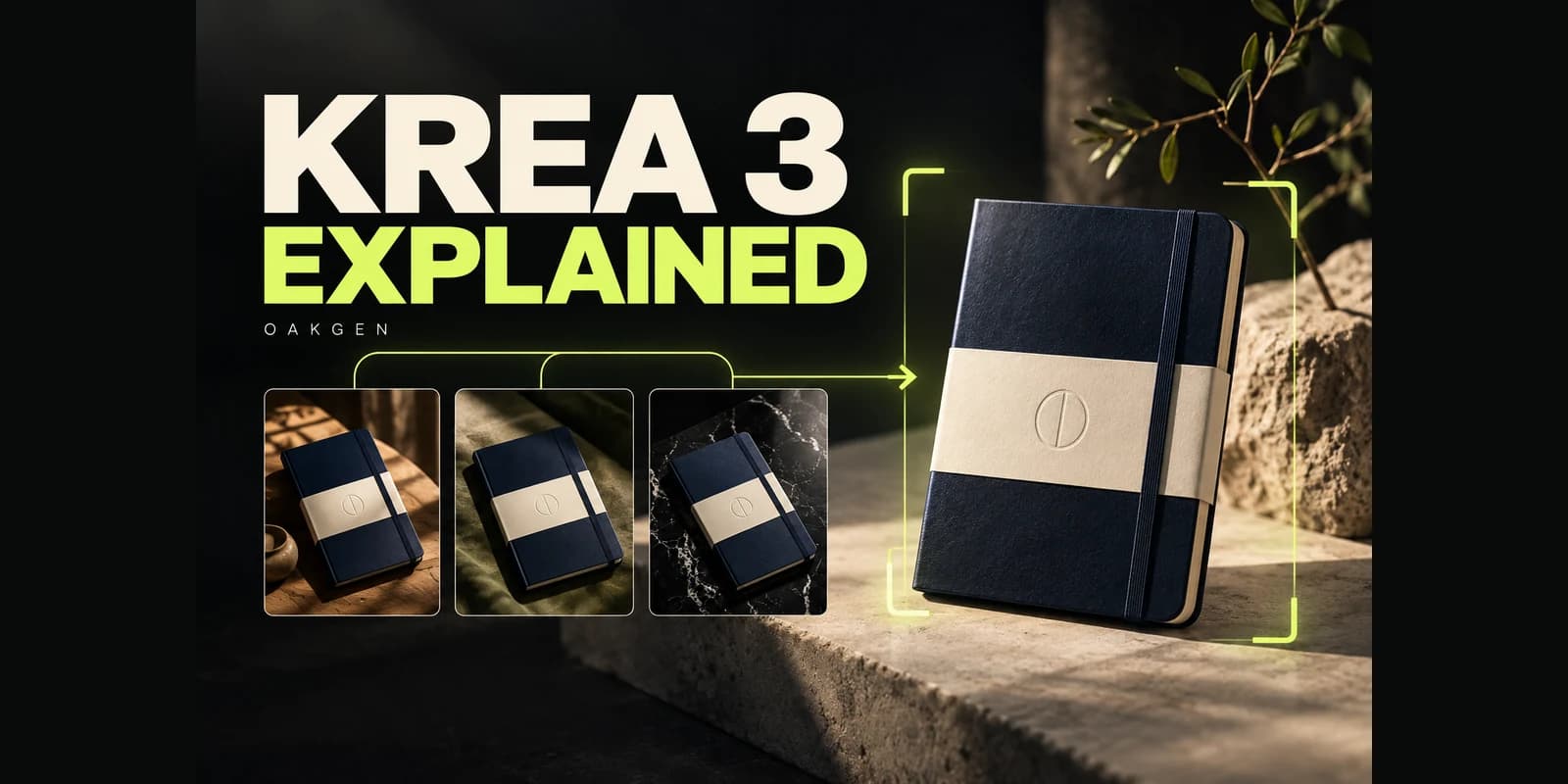
The product is a navy notebook with a cream paper band and a small circular emblem. The source photograph shows its front and spine clearly. The requested output is a portrait campaign image with the notebook on a pale desk, room for a headline above it, and light entering from the left.
The permitted changes are the background, supporting surface, and surrounding light. The protected details are the notebook’s proportions, band placement, emblem, binding, and visible page block. Write those before generating, because an attractive result can make it surprisingly easy to forgive an altered product.
1. Prepare the source packet
Choose the clearest available source, not the most dramatic photograph. Remove unrelated screenshots and near-duplicate references from the packet. If a second view is needed to explain the spine, label that file by its role; do not quietly ask it to supply a different product color or lighting style as well.
Inspect the original at full size. An unreadable emblem or hidden corner is missing evidence, not a detail a preservation instruction can recover with certainty. Decide whether to photograph that view again or design a composition that avoids relying on it.
2. Make one edit with a visible target
Start with a single source and this instructional prompt. Adapt the wording to the actual image and the controls of the service you selected.
Place the notebook from the reference on a pale stone desk.
Keep its navy cover, cream paper band, circular emblem, spine,
and proportions recognizable and consistent with the source.
Use soft light from the left and a simple background.
Leave clear space above the notebook for a headline added later.
Keep the notebook's front and spine visible.
The prompt describes a change that can be inspected. “Make it premium” does not tell you whether the surface, framing, or color should change. If the first attempt fails, name the specific failure instead of adding a stack of unrelated adjectives.
3. Review before asking for variants
Compare source and result side by side. Check the silhouette first, then the band, emblem, binding, and page edges. Review the image at the final display size as well: a defect visible only when enlarged may matter differently from one that changes the product’s recognizable shape in a small ad.
Record the reason for rejection in ordinary language. “Band became wider” is actionable; “looks AI” is not. Keep the source and rejected output so the next instruction addresses the actual problem rather than your memory of it.
For an Oakgen version of the exercise, open the Image Editor, select an available editing model, and check its inputs before uploading. Do not assume a multi-reference capability from another service is exposed in that selected form.
4. Change one campaign variable
Once the first scene passes, request one additional surface or background. Keep the original product reference available rather than relying only on a previously edited output. This makes it easier to see whether the next image is preserving the product or carrying forward a previous mistake.
A deliberately simple second scene is informative. If a change from pale stone to plain wood alters the notebook itself, adding hands, props, reflections, and a new angle will make diagnosis harder. Resolve the narrow failure before increasing complexity.
5. Decide whether the still is ready for motion
Before taking an approved image into the AI Video Generator, choose one small movement that the image supports. A gentle camera move asks less of a single front-and-spine photograph than a complete orbit exposing unseen surfaces.
Image acceptance and video acceptance are separate decisions. A correct still can develop a changing emblem, bending spine, or unstable texture during animation. Keep the still as the visual reference for reviewing the resulting clip. Our product-consistency guide gives a broader framework for that handoff.
Copy this image-edit evaluation worksheet
Download the image-edit evaluation worksheet to keep observations beside your files. Use the table for Krea 3, an Oakgen editing workflow, or another candidate. The criteria belong to the assignment, so keep them fixed while comparing tools.
| Criterion | Question to answer | Evidence to retain |
|---|---|---|
| Requested change | Did the background and surface change as specified? | Source and full output |
| Product identity | Are shape, band, emblem and binding still correct? | Matched detail crops |
| Composition | Is the product readable with usable headline space? | Preview at delivery ratio |
| Unwanted changes | Did any protected object or color change? | Written defect description |
| Iteration | Can a narrow correction improve the relevant defect? | Prompt and next output |
| Time | How long until an acceptable file was saved? | Start and finish timestamps |
| Cost | What was charged for all attempts? | Service’s usage record |
| Handoff | Can the accepted file be used in the next production step? | Exported asset and destination check |
Give identity failures a veto when they misrepresent the item being sold. A pleasing backdrop should not compensate for the wrong product. For less critical creative exploration, record an image as a concept rather than a deliverable; those are useful but different outcomes.
How to compare speed without misleading yourself
Measure the time from submitting the request to saving an acceptable result. Also record waiting time separately from your review and correction time. A fast generation followed by several repairs can lose its apparent advantage, while a slower first pass may still finish the assignment sooner.
Use the same source files and equivalent requested output sizes. If one candidate produces a draft-sized preview and another produces the final deliverable, report that difference. Keep the original prompt, any automatically expanded prompt you can see, and the selected settings with each result.
Repeat enough examples to expose variation in your own workload, but avoid claiming a general benchmark from one successful notebook edit. A local evaluation answers “does this help our campaign?” It does not establish which model wins all image editing.
Where this workflow is likely to break
Tiny text: A generated label can look convincing while containing a wrong letter. Check the actual characters. If precise copy is essential, preserve or rebuild that layer in a conventional editor rather than continuing to approve approximate text.
Transparent objects: A glass bottle contains transmitted background information as well as its own surfaces. Treating every visible pixel as opaque product content can leave an implausible result. Our glass-product workflow explains the inspection problem.
Large angle changes: A reference does not document the back of an object it never shows. Provide a genuine additional view where supported, choose a smaller move, or accept that an invented view is a concept rather than faithful product photography.
Several simultaneous changes: New location, outfit, pose, lighting, crop, and facial expression create too many possible explanations for a failed result. Establish which change is essential, then inspect it before moving on.
When to choose Oakgen, and when to evaluate Krea 3 directly
Choose Oakgen as the working studio when you want to develop an image, try supported editing models, and continue toward video or other creative formats. Start with the simplest available workflow that accepts your source. Keep the same brief and acceptance criteria as you iterate.
Evaluate Krea 3 directly when your decision specifically depends on that model’s behavior or its provider’s integration. An honest comparison needs that distinction: using another model in Oakgen is an alternative workflow, not a test of Krea 3 itself.
If your biggest problem is exact layout, typesetting, or retaining every original pixel, keep a conventional editor in the process. AI can supply useful scenes and variations without owning every production step. The strongest workflow is the one that delivers the required asset with understandable costs and manageable review.
Frequently asked questions
What is Krea 3?
It is Krea’s October 2026 image-model launch, with an emphasis on reference-based editing. Providers may expose different routes, including text-to-image. Read the selected endpoint’s documentation rather than treating every Krea-branded tool as the same workflow.
How much does Krea 3 cost?
Use the dated prices and provider distinction above. The important budgeting step is checking whether the service charges per output, processed megapixel, reference input, or subscription allocation. Keep the quote or usage record for the actual request you run.
Is Krea 3 available in Oakgen?
It was not listed in the Oakgen image catalog checked for this article on October 19, 2026. Oakgen’s Image Editor includes other editing models. Check the current selector for availability; this article does not announce an integration.
Does it always preserve product labels?
Treat preservation as something to inspect, not a guarantee. Compare spelling, geometry, logo shape, placement, and color against the source. Reject a beautiful output if it changes what the customer believes they are buying.
Is it better than other image editors?
This guide does not establish a winner. Use the evaluation worksheet to compare the job that matters to you. Separate provider statements, your own observations, and unresolved questions so a favorable result does not become an unsupported universal claim.
Can an edited image become a video starting frame?
Yes, if the selected image-to-video workflow accepts that file and its dimensions. Check the still before generating motion, then review the whole clip. Correct appearance in the opening frame does not prove that details remain stable later.
Build Your Next Creative from a Clear Brief
Start with one source image, one requested change, and a short acceptance checklist. Use Oakgen to develop the image before expanding the project.
Sources and further reading
- Krea 3 official launch: dated model announcement and vendor claims.
- Krea subscription plans: application plans and compute-unit information.
- fal Krea 3 editing page: provider billing and available input controls.
- fal editing API documentation: the documented editing endpoint.
- fal text-to-image documentation: a separate generation route.
- Oakgen versus Krea pricing guide: broader platform-purchasing context; verify current prices before buying.