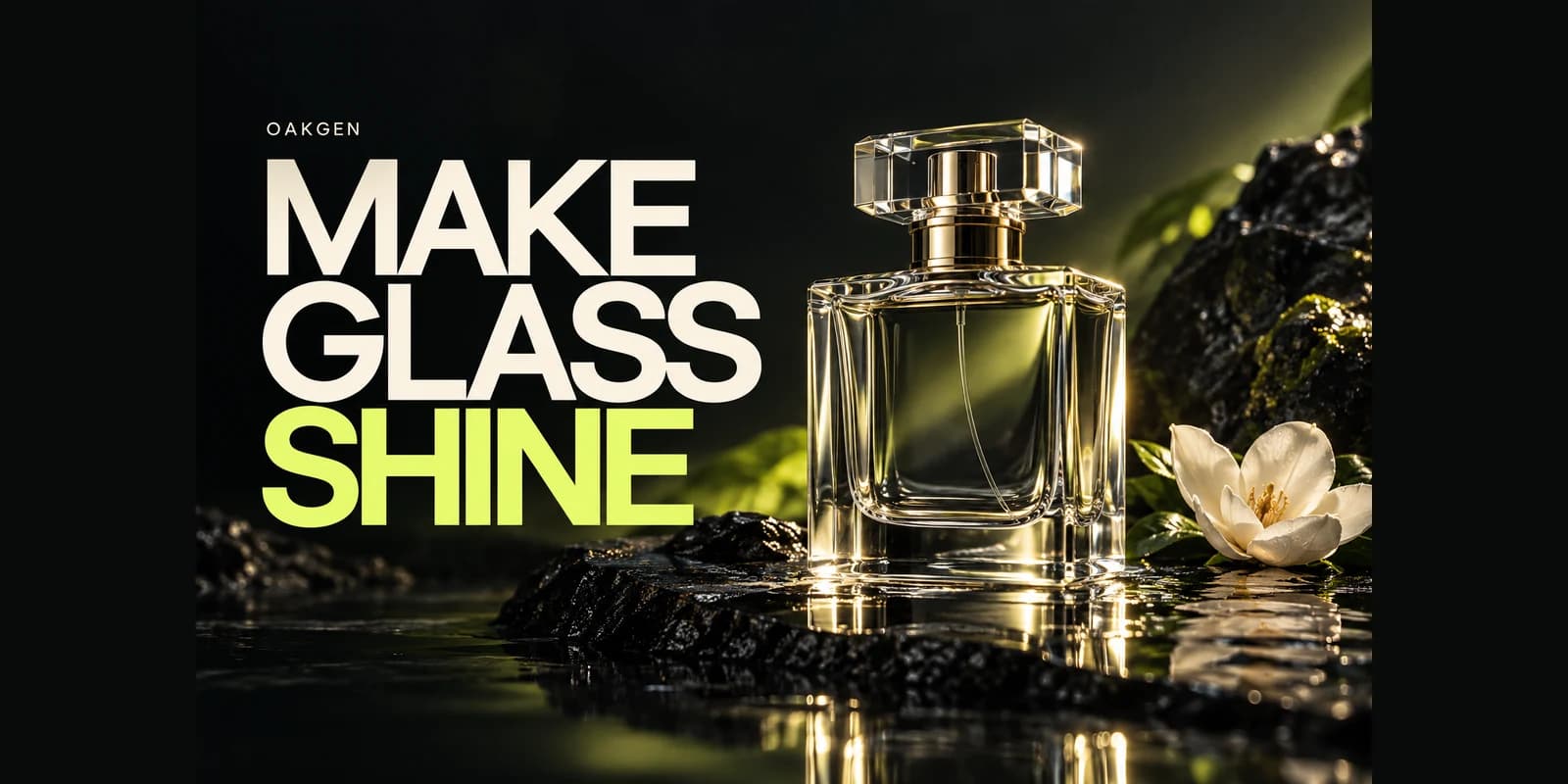
Start with Oakgen’s Image Editor and a sharp photograph of your actual bottle when you need AI product photography for transparent glass. Describe the new scene, preserve the product’s defining details, and inspect the result against the original. The difficult part is the glass itself: a believable background must also appear through it, while the label, cap, proportions, and liquid level remain accurate.
A beautiful bottle that changes what you sell is a rejected image. This guide gives you a practical way to make that decision before producing a whole campaign.
Build Your Glass Product Scene in Oakgen
Start with your real product photo, describe one scene change, and compare the result against the details that matter.
Choose the right treatment for your bottle
| Your starting point | Recommended treatment | Main acceptance test |
|---|---|---|
| Clear bottle on a similar light background | Try a restrained edit in Oakgen | Label and glass edges survive |
| Clear bottle moving from white to dark stone | Treat the whole material interaction as a new scene | Background through the bottle fits its surroundings |
| Opaque label with exact ingredient text | Retain approved artwork in an external layered editor | Every letter matches the source |
| Small, blurry source photograph | Reshoot before scene generation | Product identity is actually visible |
| Hero photograph requiring exact physical representation | Photograph the real setup or use controlled compositing | No invented product details |
This is for ecommerce teams, packaging designers, and marketers selling fragrance, skincare, drinks, or transparent household products. It focuses on clear packaging. Reflective metal and gemstones have different problems; the jewelry photography guide covers that adjacent workflow.
Research note, October 19, 2026: Oakgen is our product. We checked its current prompt-based image-editing workflow and reviewed product-photography guidance. The bottle brief and review examples below are instructional, not generated outputs or a claimed benchmark. No model can be assumed to preserve every product detail from a written instruction.
Why replacing a background is harder through glass
A glass bottle is more than its outline. You see reflections on the surface, the background transmitted through it, distortion around curved sections, and sometimes the color of the liquid inside. Changing the surrounding scene while retaining all those original appearances can make the bottle look pasted in.
Imagine a clear perfume bottle photographed against cream paper. Place an untouched cutout on a dark blue shelf. The central glass may still contain the cream background. Making that entire area transparent is not necessarily enough either: the bottle’s thickness and shape affect what appears through it.
This is why “keep every pixel identical” and “make the bottle physically belong in a completely different scene” can conflict. Decide which parts should remain exact and which visual interactions may change. The label artwork can stay fixed while highlights and the view through the glass need adjustment.
Adobe’s product photography guidance recommends clear, controlled lighting that makes labels and details readable. Apply that goal to generated scenes too. Dramatic lighting is useful only if buyers can still recognize the actual product.
Prepare a source that answers the model’s questions
Use the original camera file or highest-quality export you have. A downloaded social thumbnail may hide precisely the details you later ask the model to preserve. Check the cap edges, label lettering, shoulder shape, and fill line before uploading.
Clean the physical bottle first if you can reshoot. Fingerprints, scratches, and dust become ambiguous: are they material features or defects to remove? Photograph straight enough that label text remains readable, with enough surrounding space to distinguish the entire base and cap. Avoid cutting off corners and expecting an edit to infer the missing geometry.
Keep a separate product reference for your own review, even when you upload only one image. That reference could be an approved catalog photograph or packaging artwork. It provides a stable answer when a prettier generation makes you forget how the original looked.
Write down five non-negotiable features. For an illustrative skincare bottle, those could be a rounded rectangular body, a short black cap, a white label, pale amber liquid, and a fill line just below the shoulders. Use actual observed features for your product. Do not invent precision your reference cannot support.
A worked brief: one bottle, two backgrounds
Our example is a hypothetical 50 ml serum bottle. It is clear, with a black screw cap and a rectangular white label. The requested campaign needs a pale surface for the product page and a charcoal surface for a social creative. This is a planning exercise, not an account of a completed shoot.
First variation: keep the environment simple
Open the source in Oakgen’s Image Editor. Confirm that the displayed image is the original or an approved version. Choose an available editing model and review the settings and credit estimate shown before submission. Model-specific options vary; this workflow does not require a special glass-preservation switch.
Use a brief such as: “Place this same serum bottle on a pale neutral studio surface with a soft shadow beneath its base. Keep the bottle shape, cap, label wording and layout, liquid color, fill level, viewing angle, and crop. Use broad soft lighting that leaves the label readable.”
The preservation list is a request, not a lock. Compare the completed result with the source before accepting it. If the model improves the scene but rounds the cap, that variation fails product identity even if it looks more expensive.
Second variation: change the background deliberately
Return to the approved source for the charcoal version rather than building on a rejected pale result. Request a charcoal background and restrained edge highlights. State that the visible scene through the transparent parts should fit the new surroundings, while the opaque label remains readable.
This version requires more judgment. The liquid should not become a different formulation color simply because the background is darker. However, the displayed color can legitimately look darker under different illumination. Compare the physical product features and overall scene together rather than enforcing an identical sampled pixel everywhere.
If the bottle looks solid, glows inexplicably, or contains a pale rectangle unrelated to the new background, reject it. A near-match background may be a better creative choice than forcing an extreme transformation through repeated generations.
Inspect in two passes
First look at the whole composition at the intended display size. Is the bottle the clear subject? Is there enough room for the planned headline? Does the base appear to rest on the surface? Then inspect the actual output at full resolution, focusing on product accuracy.
Separating these passes matters. Full-resolution inspection finds altered letters and broken edges, while the smaller view reveals whether the image communicates at all. A technically clean bottle lost inside elaborate props still fails the marketing job.
The transparent-product acceptance worksheet
Copy this table into your review document. Give every candidate an accept, repair, or reject decision; keep notes specific enough for another person to repeat the check.
| Region | Compare with | Accept when | Reject or repair when |
|---|---|---|---|
| Outer silhouette | Original photo | Shoulder, neck, base, and proportions agree | Bottle becomes wider, taller, or asymmetrical |
| Cap | Original photo | Shape, finish, and attachment agree | New ridges, missing seam, floating cap |
| Label | Approved artwork | Wording and hierarchy remain accurate | Invented text, missing units, warped logo |
| Liquid | Product reference | Fill level and material appearance are plausible | Changed fill amount or misleading color |
| Transparent body | New surroundings | Background and edge behavior fit the scene | Old backdrop remains trapped inside |
| Contact area | Surface and light direction | Bottle has a believable point of support | Floating base or disconnected shadow |
| Highlights | Intended lighting | Reflections help describe the shape | Random bright bars imply contradictory lighting |
An “accept” here means the image passes your review for its intended use. It does not establish a universal accuracy score. For a listing that must document exact packaging, choose a real photograph if you cannot confidently resolve the remaining discrepancies.
Try one controlled product-background variation in Oakgen with this worksheet beside it. Approving one scene before requesting a batch gives you a usable reference and a clear rejection standard.
What to do when the label changes
Label damage is a separate problem from attractive lighting. Do not treat plausible-looking text as the real ingredient list. Check the brand name, product name, quantity, and any visible claims against approved artwork, including punctuation and units.
For exact text, use an external layered editor to place approved label artwork on the accepted scene. Match its perspective and the bottle’s curvature, then consider how lighting crosses the label. A perfectly sharp rectangle pasted over a curved bottle can look wrong even when every word is correct.
Keep that manual step explicit in your production plan. Oakgen’s current Image Editor is a prompt-based editor; this guide does not assume a brush mask, separate label layer, or guaranteed protected region. If you need those operations, choose a tool that exposes them.
OpenAI’s image-prompting guidance distinguishes preservation instructions from pixel-identical compositing. That distinction is especially useful for packaging: generation can help create the setting, while controlled editing preserves an exact business-critical element.
For inputs that appear ignored or an unexpected source version, use the image-edit diagnosis guide. Repeating a label instruction does not solve an input-selection mistake.
Common failures and useful next moves
The bottle becomes opaque. Simplify the background and ask for clear glass with the scene visibly transmitted through unlabelled areas. If it repeatedly fails, keep a more compatible environment or move to a controlled photographic composite. More decorative detail generally gives you more to inspect.
The glass disappears. A pale bottle on a pale background may lack sufficient edge separation. Request restrained edge definition or choose a slightly different background value. Do not solve the problem by making the entire bottle thick, dark, and unlike the real packaging.
The liquid looks like a different product. Compare with a neutral product reference. Reduce strong colored illumination before attempting more complicated corrections. A blue campaign background does not require turning clear serum blue.
The shadow points the wrong way. Describe one dominant light direction and one supporting surface. Check the cap highlight and ground shadow together. A vague “cinematic studio” request can leave the system to invent a lighting arrangement that does not suit your brief.
The label looks sharp but wrong. Reject immediately. Visual crispness cannot compensate for incorrect branding or claims. Correct the artwork in a layer-based workflow or use the original product photograph.
Every retry changes something else. Stop feeding flawed outputs into the next attempt. Return to the clean reference, reduce the requested transformation, and decide whether the remaining issue is better handled manually.
Build a small campaign without multiplying errors
Once the first image passes review, save the original source, accepted output, prompt, selected model, and review notes together. Name the scene by its use, such as “serum-charcoal-social-approved,” rather than calling every file final.
For the second size or background, rerun the same acceptance checks. Approval belongs to an output, not to a prompt. Even a previously useful instruction can produce different lettering, a different liquid level, or a changed cap in the next result.
Keep exact product artwork separate from optional campaign copy. Add discounts, headlines, and calls to action in a layout tool after the product scene is approved. This avoids asking one generation to solve glass physics, branding, typography, and marketing hierarchy simultaneously.
If you later animate the image through Oakgen’s AI Video Generator, treat video as a new review stage. A good still does not guarantee stable labels or bottle geometry during motion. Start with a modest movement and inspect the full clip, including its final frame.
Use the image-editor walkthrough for the interface steps. The production rule remains simple: create the scene, verify the product, and only then expand the campaign.
Make a Product Scene You Can Approve
Bring a real bottle reference to Oakgen and develop a controlled background variation before creating more campaign assets.
Download the editable review worksheet to record inputs, decisions, and approval notes for your own project.
Frequently asked questions
Can AI keep a glass bottle completely unchanged?
A prompt can request preservation, but it cannot guarantee identical geometry, text, or pixels. Compare every output with the real product. Use photography or controlled compositing when exact representation is essential.
Why does a clear bottle look wrong after background removal?
Its appearance includes the original background seen through the glass. Removing only the surrounding pixels can leave that old scene inside the bottle. The transmitted background and reflections may need separate treatment.
Should I use a transparent PNG of my bottle?
It can be useful, but the file format alone does not ensure physically convincing glass. Inspect whether the transparent parts actually reveal the new environment and whether edges, liquid, and highlights remain credible.
How do I preserve the exact product label?
Compare with approved artwork, and use an external layered editor for exact label compositing if generation changes it. Check perspective, curvature, and lighting after placement. Do not publish invented text.
Does Oakgen have a dedicated glass-preservation setting?
This workflow uses Oakgen’s prompt-based Image Editor and the controls available for the selected model. It does not depend on a dedicated glass setting or promise that a preservation instruction locks any region.
When should I reshoot instead of generating again?
Reshoot when the source hides essential details, the product keeps changing, or the image must document the exact item and you cannot verify the result. A clearer source can be more valuable than another elaborate prompt.