To use Seedance 2.5 on Oakgen, open the AI Video Generator, pick Seedance 2.5 in text, image or reference mode, and set 4 to 30 seconds at 480p, 720p or 1080p. Write the scene as three timed beats, check the price on the Generate button and review the result. As of 2026-10-25 a 5-second 720p clip costs about 800 credits.
Current availability: Seedance 2.5 is live on Oakgen in all three modes. The settings and prices here come from Oakgen's Seedance 2.5 model config and pricing code, read on 2026-10-25. Facts about the model itself come from ByteDance's own announcement.
| Stage | Input | Output |
|---|---|---|
| 1. Define | Objective, audience, placement | One creative job |
| 2. Prepare | Character, product, style, motion, audio references | A labelled reference pack |
| 3. Direct | Three beats, camera, sound | A generation-ready prompt |
| 4. Generate | Mode, settings and references | A first controlled render |
| 5. Review | Identity, action, camera, audio, final frame | A precise revision list |
| 6. Deliver | Approved master | Channel-specific exports |
What is Seedance 2.5?
Seedance 2.5 is ByteDance's video model for longer scenes built from references. ByteDance Seed announced it on 2026-07-31. The announcement describes clips "up to 30 seconds per generation, with multi-round extensions", up to "30 images, 10 video clips, and 10 audio clips as reference materials in a single pass", and audio generated together with the picture so that "the audio and visuals remain in sync". It also lists editing by timestamp, green-screen editing, camera-perspective editing and reference-based editing.
BytePlus made it available through its ModelArk API on 2026-08-06, counting up to 50 references for one clip. Its post notes that BytePlus is not available in the United States. Oakgen runs Seedance 2.5 through fal.ai, so you can use it on Oakgen without a BytePlus account.
What Seedance 2.5 settings does Oakgen offer?
Oakgen has Seedance 2.5 in three modes. All settings below are as of 2026-10-25.
| Setting | Text | Image | Reference |
|---|---|---|---|
| Length | 4 to 30 s, default 5 | 4 to 30 s | 4 to 30 s |
| Resolution | 480p, 720p, 1080p, default 720p | Same | Same |
| Aspect ratio | auto, 21:9, 16:9, 4:3, 1:1, 3:4, 9:16, default 16:9 | No setting, frame the start image in the shape you want | Same as text |
| Generate audio | On by default | On by default | On by default |
| Inputs | Prompt only | Start image required, end image optional | Up to 30 images, 10 videos, 10 audio files, 50 total |
| Prompt limit | 50,000 characters | 50,000 | 50,000 |
| Extra | None | None | Bitrate mode, standard or high |
Reference files have limits of their own. Images must be under 30 MB each. Videos must be .mp4 or .mov, 1.8 to 30.2 seconds long, 24 to 60 fps and under 200 MB. Audio must be .mp3 or .wav, 1.8 to 30.2 seconds and under 15 MB. All reference videos together can run 30.2 seconds at most, and the same cap applies to audio.
There is no 4K setting and no region mask for Seedance 2.5 on Oakgen.
How much does Seedance 2.5 cost on Oakgen?
Seedance 2.5 costs 75 credits per second at 480p, 160 at 720p and 394 at 1080p, as of 2026-10-25. The rate is the same in text, image and reference mode, and the audio toggle does not change it.
| Length | 480p | 720p | 1080p |
|---|---|---|---|
| 5 seconds | about 375 | about 800 | about 1,970 |
| 15 seconds | about 1,125 | about 2,400 | about 5,910 |
| 30 seconds | about 2,250 | about 4,800 | about 11,820 |
Reference videos change the formula. When you attach one, the charge is 60 percent of the per-second rate, counted over the reference video's seconds plus the output seconds. A 10-second 720p clip with a 5-second reference video comes to about 1,440 credits, against about 1,600 without it. Reference images and audio do not add to the price.
The Generate button shows the exact price for your settings before you run, and failed jobs are refunded. Plans and add-ons are on the pricing page. As of 2026-10-25 the Basic plan is $9 a month for 2,000 credits, and plan prices can change. Oakgen has no free plan and no signup credits.
What should you prepare before you generate?
Write a short production packet first. It costs nothing and saves the most credits:
- Objective. What must the viewer understand or feel?
- Placement. A 9:16 Reel, a 16:9 ad, a product page or a previsualization?
- Scene. What happens at the start, middle and end?
- Invariants. Face, product label, wardrobe, palette, location.
- References. Which file controls each invariant?
- Audio. Dialogue, effects, ambience and music.
- Acceptance test. What makes the result usable?
A clear acceptance test reads like this: "The bottle stays identical, the camera makes one smooth push, the label is readable in the final five seconds, and the cap sound lands when the hand closes it."
Step 1: what creative job should your first test have?
Choose one job and the smallest test that proves the model can do it. If Seedance 2.5 cannot hold one product and one camera move, a larger reference stack will not rescue the workflow.
| Creative job | Why Seedance 2.5 may fit | First test to run |
|---|---|---|
| Product ad | A hook-to-payoff sequence fits in one 30-second scene | One product, three beats, one final label shot |
| Character-led story | References can set identity, setting and motion | One character walking through one lighting change |
| Music-led social clip | Audio and movement are planned together | One beat cue and one camera move, with the track as @Audio1 |
| Brand campaign world | Several references can carry the visual rules | One palette, one product, one environment |
| Previsualization | Camera and space references show the staging | One blocking reference and one camera path |
Step 2: how do you build a reference pack?
Start with three to six references, each with one job:
- character or product anchor, such as one clean character sheet;
- a second identity or product angle;
- environment;
- camera motion clip;
- palette or lighting board;
- audio direction.
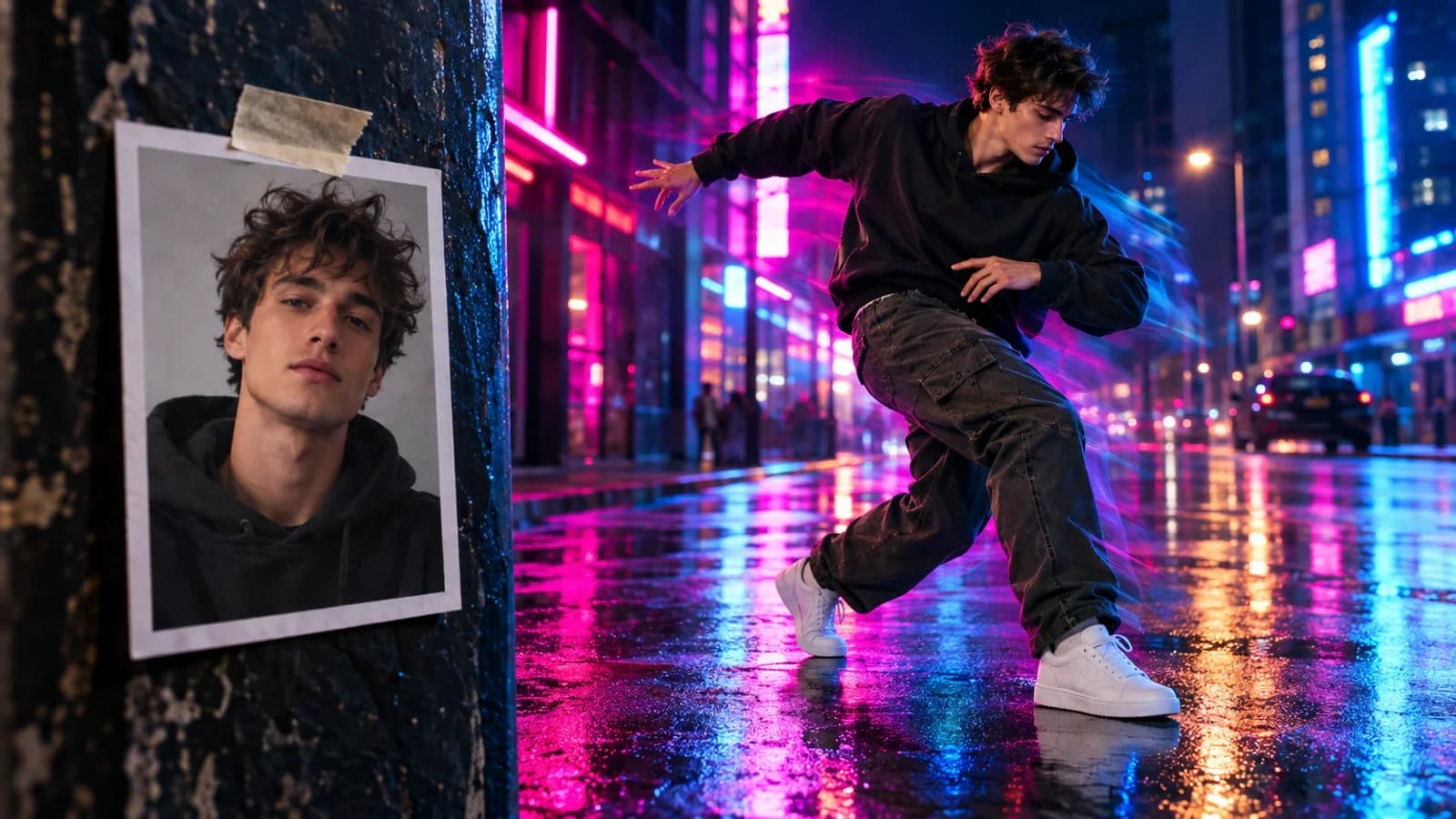
Name files by purpose, for example character-front.webp, product-label-close.webp and camera-slow-orbit.mp4. In the prompt, refer to uploads in the order you added them, as @Image1, @Video1 and @Audio1. Oakgen's own example is "@Image1 dances with the moves from @Video1, synced to @Audio1."
The limit of 50 files is a ceiling. More inputs give the model more chances to receive conflicting instructions. The multimodal reference guide and the character consistency guide go further.
Add a reference only if you can finish this sentence: "This file controls ___." If two files control the same thing differently, keep one.
Step 3: how should you write a 30-second prompt?
Write the scene as a timeline with one dominant action and one camera move per beat:
- 0 to 8 seconds. Establish.
- 8 to 21 seconds. Develop.
- 21 to 30 seconds. Pay off.
Put the final frame in writing.
Direct the camera in concrete terms. "Cinematic" is not a camera instruction. "Slow lateral track at waist height, then a controlled push toward the product" is. When the move is central to the brief, add a motion clip as @Video1.
Plan sound as four lanes: dialogue, physical effects, ambience and music. Give each lane a short line instead of one long paragraph. If you will score the clip yourself, turn Generate audio off.
For full templates, use the Seedance 2.5 prompt guide. If a render goes wrong, the prompt troubleshooting guide maps common failures to fixes.
Step 4: how do you select Seedance 2.5 and set it up?
- Open the AI Video Generator and sign in.
- Click the model button, search "Seedance 2.5", and choose Text to video, Image to video or Reference to video from its operations.
- Set length and aspect ratio with the chips in the composer footer.
- Open Settings for resolution, the Generate audio toggle, the end image (image mode) and bitrate (reference mode).
- Attach your start image or references, and name them in the prompt.
- Read the credit price on the Generate button, then generate.
Draft at 480p or 720p and keep 1080p for the version you approve. At 30 seconds, 1080p costs about 7,000 credits more than 720p.
Open Seedance 2.5 on Oakgen
Text, image and reference modes, 4 to 30 seconds, with the credit price shown before you run.
Step 5: how do you review the render?
Score each category, and change only what failed:
| Category | Pass question | If it fails |
|---|---|---|
| Identity | Is the same person or product preserved? | Strengthen or simplify identity references |
| Action | Did the intended event happen in order? | Rewrite the failed beat only |
| Camera | Did framing and movement follow the brief? | Use one dominant move |
| Continuity | Did lighting and space stay connected? | Remove conflicting environment or style inputs |
| Audio | Did sound line up with the visible action? | Shorten cues and give their timestamps |
| Payoff | Is the final idea readable? | Simplify the last beat |
The second generation should change one or two failed variables. Changing the prompt, references, length and camera at once tells you nothing about what fixed it.
Step 6: can you edit a Seedance 2.5 video?
Partly. ByteDance's announcement describes timestamp, green-screen, camera-perspective and reference-based editing. On Oakgen there is no separate edit mode and no region mask. The route is Seedance 2.5 Reference: use "Use as reference" on your clip, then describe the change in the prompt and what must stay the same. We have not checked how closely this matches each edit type ByteDance describes.
Use this for scene-level changes. For a defect in one corner of the frame, regenerate the shot or fix it in an editor. A broken story structure or camera path is a prompt problem, so rewrite the beat. The audio, lip-sync and scene editing guide explains the difference.
Step 7: how do you export for each channel?
Keep an approved master, then make channel versions:
- 9:16 with safe space for platform buttons;
- 1:1 or 4:5 for feeds;
- 16:9 for web and YouTube;
- a clean version without generated captions;
- sound-on and sound-off review copies.
Seedance 2.5 tops out at 1080p on Oakgen. For a 4K delivery, send the approved clip to the Video Upscaler. Upscaling does not repair a scene that does not work, so judge the generation at normal viewing size first. A wide master can still crop badly into vertical, which is why the shape belongs in the brief.
Should you use Seedance 2.5 or Seedance 2.0?
Use Seedance 2.5 when one continuous scene longer than 15 seconds, or a large reference pack, is central to the brief. Use Seedance 2.0 for shorter clips you will iterate on. It runs 4 to 15 seconds, costs 103 credits per second at 720p against 160 for 2.5 (as of 2026-10-25), and it is the Seedance model on Oakgen with a 4K setting. Seedance 2.0 Fast is cheaper again at 82 credits per second at 720p, but stops at 720p.
The full breakdown is in Seedance 2.5 vs Seedance 2.0. For a wider comparison, see Seedance 2.5 vs Kling 3 vs Veo 3.1.
When is another model a better choice?
- You need 4K straight from the model. Use Seedance 2.0.
- You want to copy a dancer's or actor's motion onto your character. Kling v3 Pro Motion Control takes a character image and a motion video.
- You are drafting many short ideas. Grok Imagine Video costs 17 credits per second at 480p as of 2026-10-25, under a quarter of Seedance 2.5's 480p rate.
- You need a mask or an exact local fix. No Oakgen video model has a region mask. Use a video editor.
The AI Video Generator guide covers every model on Oakgen and how the picker works.
What mistakes should you avoid?
- Uploading unlabelled or contradictory references.
- Writing 30 seconds as one static shot description.
- Changing prompt, references, length and camera at the same time.
- Rendering every draft at 1080p.
- Expecting a region-level edit from reference mode.
- Exporting every aspect ratio from one unreviewed crop.
Continue with the 30-second ads workflow for marketing work.
How we checked this
We read Oakgen's Seedance 2.5 model config, input schema and pricing code on 2026-10-25, and the live credit table generated from that code on 2026-10-24. Credit totals above are rounded and can differ from the button by a few credits. Facts about the model come from ByteDance Seed's announcement (2026-07-31), BytePlus's availability post (2026-08-06) and fal.ai's model page, all read on 2026-10-25. We did not run side-by-side tests for this article and did not measure quality or speed.
Frequently asked questions
How do I use Seedance 2.5 on Oakgen?
Open the AI Video Generator, choose Seedance 2.5 in the model picker and pick its text, image or reference operation. Write the scene, set the length (4 to 30 seconds), shape, resolution and the Generate audio toggle, check the credit price on the Generate button, then generate and review.
Can Seedance 2.5 turn an image into video?
Yes. Seedance 2.5 Image needs a start image and takes an optional end image under Settings. Image mode has no aspect ratio setting, so crop the start image to the shape you want. Reference mode can also use images, together with videos and audio.
How many references can I upload?
Seedance 2.5 Reference on Oakgen takes up to 30 images, 10 videos and 10 audio files, 50 files in total, and needs at least one image or video. Start with three to six references that do not conflict, and add more only when each one has a clear job.
Does Seedance 2.5 output 4K?
Not on Oakgen. Seedance 2.5 goes up to 1080p. For 4K, use Seedance 2.0, which has a 4K setting, or run a finished clip through the Video Upscaler.
Can I edit part of a Seedance 2.5 video?
There is no region mask or separate edit mode for Seedance 2.5 on Oakgen. You can give Seedance 2.5 Reference an existing clip as @Video1 and describe the change, which rebuilds the scene from your prompt. For a fix inside one area of the frame, regenerate or use a video editor.