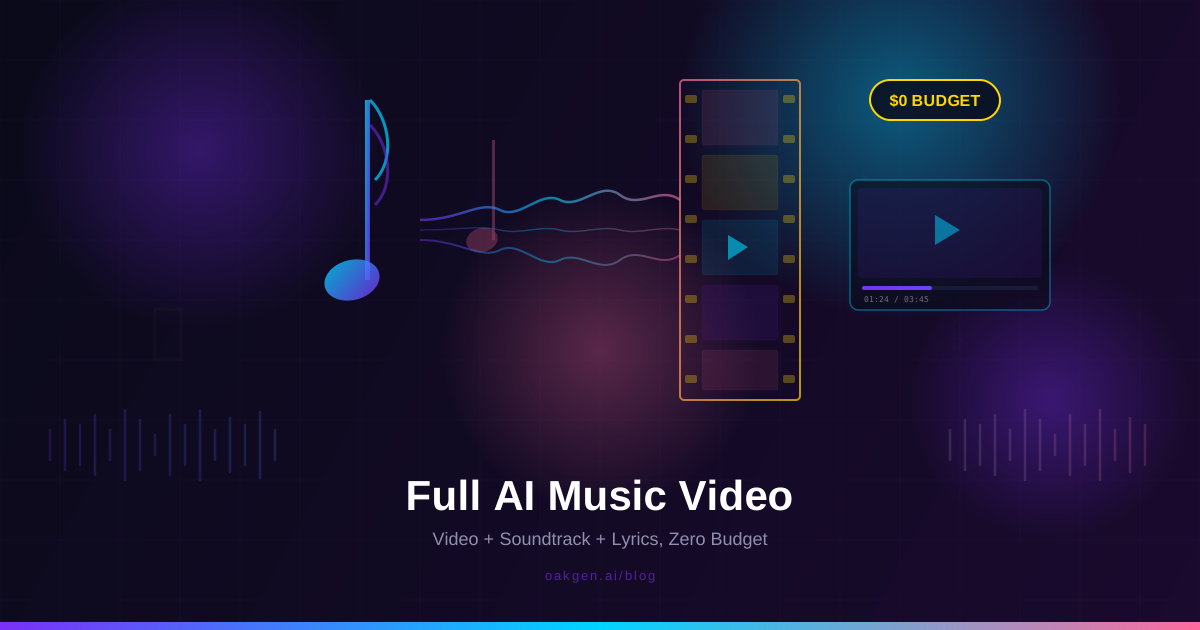
We made a complete 3-minute music video -- original song, visuals, lip-sync -- in one afternoon. No studio time. No session musicians. No After Effects timeline. One person, one platform, one credit balance.
The song was an indie-electronic track with female vocals about city lights at 2 AM. The visuals were cinematic 16:9 shots of a neon-lit downtown, a character walking rain-slicked streets, and close-up lip-sync on the chorus.
This tutorial walks through exactly how we did it, with the specific prompts and model choices at each stage.
An Oakgen account with a paid plan. A full music-video workflow uses credits based on model choices, duration, and clip count. Check pricing for current plan options and review costs before generation.
The Five-Step Pipeline
Here is the full workflow at a glance before we break each step apart:
- Write the song -- Generate original music with lyrics on the music generator
- Build the visual concept -- Lock a character, color palette, and shot list
- Generate video clips -- Produce 10-14 clips across cinematic B-roll and lip-sync shots
- Add voiceover or narration -- Optional spoken intro/outro using the audio generator
- Assemble and export -- Cut everything together with the soundtrack underneath
Each step feeds into the next. Work in order and you avoid the most common mistake: generating random footage and trying to force it to fit a track.
Step 1: Generate the Song
The song is the spine of the entire project. Everything else wraps around it. Open the music generator and choose your approach.
Style Prompt Plus Lyrics
Write the style prompt and the lyrics separately. Here is the exact configuration we used:
Style:
Indie electronic with soft female vocals, reverb-drenched synth pads, lo-fi drum machine, ambient city noise texture, dreamy and melancholic, 95 BPM
Title: Neon Veins
Lyrics (abbreviated):
[Verse 1]
Walking through the downtown haze at quarter past two
Every window tells a story but none of them are true
Reflections on the pavement paint the world in blue
And I keep looking for the version of the night that still has you

[Chorus]
Neon veins running through the city skin
Pumping light into the places I have been
I could walk a thousand blocks and never reach the end
Neon veins don't heal, they just begin again
Use [Verse], [Chorus], [Pre-Chorus], [Bridge], and [Outro] section tags so the song structure stays clear. On Oakgen, Lyria 3 Pro accepts lyrics; listen back to confirm the output follows your sections. We wrote two verses, two choruses, a bridge, and an outro -- about 200 words of lyrics total.
We generated four variations and picked the take with the breathiest vocal delivery on the verses that opened up on the chorus.
Listen to your selected track at least twice. Note the exact timestamps for each section: intro, verse 1, pre-chorus, chorus, verse 2, chorus 2, bridge, outro. Write them down. These timestamps become your shot list. Our track broke down as: Intro (0:00-0:08), Verse 1 (0:08-0:38), Pre-Chorus (0:38-0:50), Chorus 1 (0:50-1:18), Verse 2 (1:18-1:48), Chorus 2 (1:48-2:16), Bridge (2:16-2:36), Outro (2:36-3:00).
A prompt-only generation works too -- just describe the song and let the model handle the rest. But for a music video with lip-sync shots, you need to know the exact words, so writing your own lyrics is almost always the better choice.
Step 2: Build the Visual Concept
Before generating a single frame of video, lock three things: your character, your color palette, and your shot list. Skip this and you get 12 visually disconnected clips.
Lock the Character
Generate a hero portrait on the image generator that anchors every lip-sync and performance shot:
Cinematic portrait of a young woman in her mid-20s, dark bob haircut, oversized vintage leather jacket over a white t-shirt, standing under a cyan neon sign, rain-wet skin reflecting colored light, shallow depth of field, 35mm film, slight film grain, 16:9, mid-shot, calm tired expression
Generate 4 variations, pick the cleanest face geometry. This image becomes the input reference for every lip-sync clip. Cost: About 12 credits.
Lock the Color Palette
Pull dominant colors from your character image and write them into every subsequent prompt. Ours: cyan neon, warm amber streetlight, deep navy shadows, rain-reflective silver. This is the single most effective trick for visual cohesion across different AI models.
Build the Shot List
Map your song structure to specific visual moments. For our 3-minute track, we planned 13 shots:
- Intro + Verses: 5 B-roll and performance clips (aerial city shots, character walking, environmental details)
- Choruses + Pre-Chorus: 3 lip-sync clips (tight close-up and mid-shot, the character delivering the hook)
- Bridge + Transitions: 3 atmospheric B-roll shots (abstract rain, neon reflections, slow-motion texture)
- Outro + Connecting Shots: 2 performance clips (character moments without lip-sync)
That ratio -- about 25% lip-sync, 40% performance, 35% B-roll -- is the sweet spot for AI music videos. Lip-sync is the most expensive and technically demanding, so you use it strategically on the choruses where the lyrics hit hardest.
Generate Your AI Music Video on Oakgen
Step 3: Generate the Video Clips
This is the production phase. You will generate each clip from your shot list using the right model for the job. Not every shot calls for the same model. Route based on what the shot needs.
Model Routing Guide
| Shot Type | Recommended Model | Why |
|---|---|---|
| Cinematic B-roll (8s) | HappyHorse 1.0 | Ambient audio generated with the video, cinematic 1080p |
| Lip-sync close-up (5s) | Seedance 2.0 | Phoneme-accurate mouth sync from audio input |
| Character walking (5s) | Kling 3.0 | Cleanest full-body human motion |
| Abstract/slow-mo (5s) | Seedance 2.0 | Strong on stylized, non-literal visuals |
| Wide establishing (8s) | Seedance 2.0 | Ultrawide aspect ratio and a 4K option |
Open the AI video generator and work through your shot list one clip at a time.
Generating B-Roll Clips
B-roll is the fastest to produce -- no lip-sync, no character consistency required. Use HappyHorse 1.0 for cinematic clips with ambient audio generated in the same pass.
Example prompt -- Intro aerial:
Slow aerial tracking shot pulling back over a rain-soaked downtown street at night. Neon signs in cyan and amber reflect in puddles on the asphalt. No people visible. Gentle ambient rain sound. Cinematic, 35mm film look, deep navy shadows with colored light spill. 16:9.
Budget 2 attempts per shot. Each clip generates in 60-120 seconds.
Generating Lip-Sync Clips
Lip-sync clips are where most AI music video projects fall apart. The key is audio preparation.
Audio prep:
- Isolate the vocal stem from your track with a stem-separation tool.
- Trim the vocal stem to the exact section you are lip-syncing (for example, the pre-chorus from 0:38-0:50).
- Normalize to -3 dB peak, mono channel.
- Keep each clip under 10 seconds. Longer audio inputs drift.
Upload your character reference image and the trimmed vocal stem to the AI video generator with Seedance 2.0 selected.
Example lip-sync prompt:
The character lipsyncs to the provided audio with phoneme-accurate mouth motion. Tight close-up, face fills 60% of the frame. Cyan neon light illuminates the left side of her face, warm amber from the right. Slight head movement on emphasized words. Rain-wet skin. Background soft-focused neon bokeh. Static camera. 16:9.
For a deep dive on the phoneme-level lip-sync workflow, audio prep rules, and model routing for Seedance 2.0, see the AI lip-sync music and memes guide.
The most common mistake in AI music video production is uploading the finished song (vocals + instruments + drums) as the lip-sync audio input. The model will try to match mouth shapes to the kick drum and bass line. Always isolate the vocal stem first with a stem-separation tool.
Generating Performance Clips
Performance clips show the character in motion without lip-sync -- the connective tissue of the edit. Use your character reference image as input and route to Kling 3.0 for full-body human motion.
Example prompt:
A young woman in a vintage leather jacket walks down an empty rain-slicked city street at night. Hands in jacket pockets, unhurried pace. Neon store signs cast cyan and amber light. Slow tracking shot. Cinematic, 35mm film grain. 16:9.
Expect 1-3 attempts per shot to nail character consistency.
Budget for regenerations across all 13 clips, and check the credit cost the generator shows before each render.
Step 4: Add Voiceover (Optional)
If your concept calls for a spoken intro or interlude, generate it on the audio generator using ElevenLabs. We added a 6-second intro: "Every city has a bloodstream. You just have to wait until 2 AM to see it." Voice direction: soft, intimate, slightly breathy, calm delivery. Cost: About 5 credits. Completely optional -- many music videos work better without spoken word.
Step 5: Assemble and Export
You now have all the raw materials: one complete song, 13 video clips, and optionally a voiceover. Assembly is where the project becomes a music video instead of a pile of clips.
Oakgen generates the assets. For the final cut, use a free editor: CapCut (best for vertical/social), DaVinci Resolve (best for cinematic 16:9), or iMovie (simplest timeline).
The assembly is straightforward:
- Import the full song mix as your master audio track
- Place each clip according to your shot list timestamps
- Layer voiceover (if applicable) on a second audio track, ducking music by 6-8 dB
- Add transitions -- short crossfades (0.3-0.5s) for verses, hard cuts for chorus entrances
- Color correct -- match exposure and white balance across clips from different models (10-15 minutes)
- Export at 1080p or 4K -- H.264 for YouTube, H.265 for higher quality
Cut on the beat. Literally. Open your timeline, tap markers on every kick drum hit or snare during the chorus. Place your clip transitions on those markers. Beat-synced cuts are what make a music video feel professionally edited versus randomly assembled. This one technique elevates the final product more than any amount of fancy effects.
The Full Tool Breakdown
| Step | Tool |
|---|---|
| Song generation (4 candidates) | Lyria 3 Pro |
| Character reference (4 images) | FLUX 2 Pro |
| B-roll clips (5 shots) | HappyHorse 1.0 / Seedance 2.0 |
| Lip-sync clips (3 shots) | Seedance 2.0 |
| Performance clips (5 shots) | Kling 3.0 |
| Voiceover intro | ElevenLabs |
A traditional indie music video runs $2,000-$5,000. Mid-tier professional productions cost $10,000-$50,000. The AI side of this project took an afternoon on one credit balance.
The math works because the music generator, AI video generator, and audio tools all draw from one credit pool. No separate subscriptions for a music tool, a video tool, and a voice tool. One balance saves 30-40% compared to subscribing to each provider independently.
Build Your Music Video Today
Production Tips That Actually Matter
Start with the song, always. We have seen creators generate 20 beautiful video clips and then try to find a song that fits. It never works. The song dictates every visual decision.
Limit lip-sync to 3-4 shots. Lip-sync is impressive but expensive and finicky. Use it on choruses and hooks. Fill the rest with performance and B-roll.
Embed the same color keywords in every prompt. "Cyan neon, warm amber, deep navy, rain-silver" appeared in all 13 of our prompts. Without this, clips from different models will look incoherent.
Keep clips to 5-8 seconds. AI video models produce their best output in short chunks, and fast cuts are exactly what music videos use. Do not try to generate 15-second continuous shots.
Use the agent chat for prompt refinement. If you are struggling to describe a specific visual, the AI assistant can translate vague creative direction into model-specific prompts.
Adapting by Genre
Hip-hop / Rap: Fast cuts (2-4s), lip-sync on verses, text overlays with key bars, high-contrast palette with deep blacks and gold. Route lip-sync to Seedance 2.0 for phoneme accuracy on fast syllables.
Acoustic / Folk: Longer shots (8-12s), landscape B-roll, lip-sync on chorus only, warm earth tones and golden hour. Route through HappyHorse 1.0 for ambient audio (campfire crackle, birdsong) generated with the visuals.
Electronic / EDM: Rapid intercutting, abstract visuals, minimal lip-sync. Lean on B-roll: light trails, particle effects, morphing geometry. Saturated neon palette. Route abstracts through Seedance 2.0.
For musicians building a release calendar, this workflow scales. Once you have a character and visual language locked, each new video reuses the same references and prompt templates.
Lyric Video Variant
Not every release needs a full cinematic treatment. Lyric videos are lighter: generate the song on the music generator, produce 4-6 atmospheric background clips on the AI video generator (no character, no lip-sync), loop or slow-pan the clips across the full duration, and burn in lyrics as animated text in CapCut or DaVinci Resolve.
Total cost: about 300-500 credits ($1.15-$1.92). Total time: under an hour. The text-to-video feature handles the atmospheric clips. Ship a lyric video for every release while reserving the cinematic treatment for singles.
Why This Works in 2026
Every component in the pipeline has crossed the quality threshold. Lyria 3 Pro produces finished songs from your lyrics. Seedance 2.0 lip-syncs on phonemes. HappyHorse 1.0 generates cinematic footage with ambient audio. ElevenLabs delivers studio-quality voiceover.
The real unlock is having all of these on one platform. The AI music generator feature and the lip-sync feature share credits with the video and audio generators. No five subscriptions, no five billing cycles. One dashboard, one credit pool. That is what makes "zero budget music video" a real statement.
For a broader look at chaining AI tools into a single pipeline, see the complete AI creation pipeline guide.
FAQ
How long does it take to make a full AI music video?
Our "Neon Veins" video took about 4 hours from blank page to exported MP4, including creative decisions, regenerations, and assembly. The actual AI generation time was under 45 minutes -- most of the time is creative direction, shot selection, and editing. Experienced users who have done this workflow 2-3 times can finish in 2-3 hours.
Can I use AI-generated music videos commercially?
Yes. Songs and visuals generated on Oakgen are cleared for commercial use under the platform's terms. Check your plan tier for specifics -- free-tier generations may have attribution requirements.
What if lip-sync does not match the audio?
Three fixes: feed the isolated vocal stem (not the full mix), keep each audio segment under 10 seconds, and try a second take. Seedance 2.0 produces slightly different mouth motion each generation.
Do I need video editing experience?
Basic timeline skills help, but this is not advanced work. CapCut is free and drag-and-drop. If you have made a TikTok slideshow, you have enough skill for this.
How do I maintain character consistency across models?
Use the same reference image for every shot, include the same physical description keywords, and embed the same 3-4 color descriptors in every prompt. Perfect consistency is not possible yet, but fast cuts make minor differences invisible.
Can I skip lip-sync entirely?
Yes. Many professional music videos have zero lip-sync -- EDM, ambient, instrumental tracks. Skip the lip-sync steps and cut credit cost by 20-25%.
What to Read Next
- AI Lipsync for Music, Memes, and Reels -- Phoneme-level lip-sync workflows with Seedance 2.0, audio prep rules, and model routing
- The Complete AI Creation Pipeline on One Platform -- How to chain image, video, audio, and music generation into a single workflow