Your Flat Cap Tweaking video is ready. Before you post it, give it one careful watch against the reference timeline. This review goes shot by shot, says what should be on screen, and lists what to fix first. If you have not made one yet, start with how to make the Flat Cap Tweaking trend.
Make or remake your 1920s skit
Swap a photo, check the quote and make the 15-second Flat Cap Tweaking video again.
The timeline to review against
The reference has ten cuts, at 1.93, 3.17, 5.13, 6.27, 8.63, 10.07, 11.43, 12.23, 13.77 and 14.53 seconds, measured with scene detection on the credited post. The shots alternate, starting and ending on the flat cap character. The full script and its uncertain parts are on the dialogue page.
| Time | On screen | What to check |
|---|---|---|
| 0 to 1.93 s | Flat cap | Your face under the cap; no mesh lines or grid on the skin; the hand raised briefly at the start |
| 1.93 to 3.17 s | Handbag | Her hat and handbag appear; the device stays a small black object |
| 3.17 to 5.13 s | Flat cap | His short question started over her shot; his mouth only moves on his own voice |
| 5.13 to 6.27 s | Handbag | Laughter, device near the chin, gloves still on |
| 6.27 to 8.63 s | Flat cap | "Let me see" and the collar and lip touches; no extra fingers |
| 8.63 to 10.07 s | Handbag | "Oh, he tweaking!" with her lips matching |
| 10.07 to 11.43 s | Flat cap | "I'm tweaking? How?" on his shot |
| 11.43 to 12.23 s | Handbag | "You tweaking!" in a short, frontal shot |
| 12.23 to 13.77 s | Flat cap | The slightly closer framing: the hardest test for his photo |
| 13.77 to 14.53 s | Handbag | His complaint is still heard here, so she reacts, not speaks; then "Huh?" |
| 14.53 to 15 s | Flat cap | Last half second, same face and cap |
Lines come from speech-to-text and a video model; wording may differ slightly.
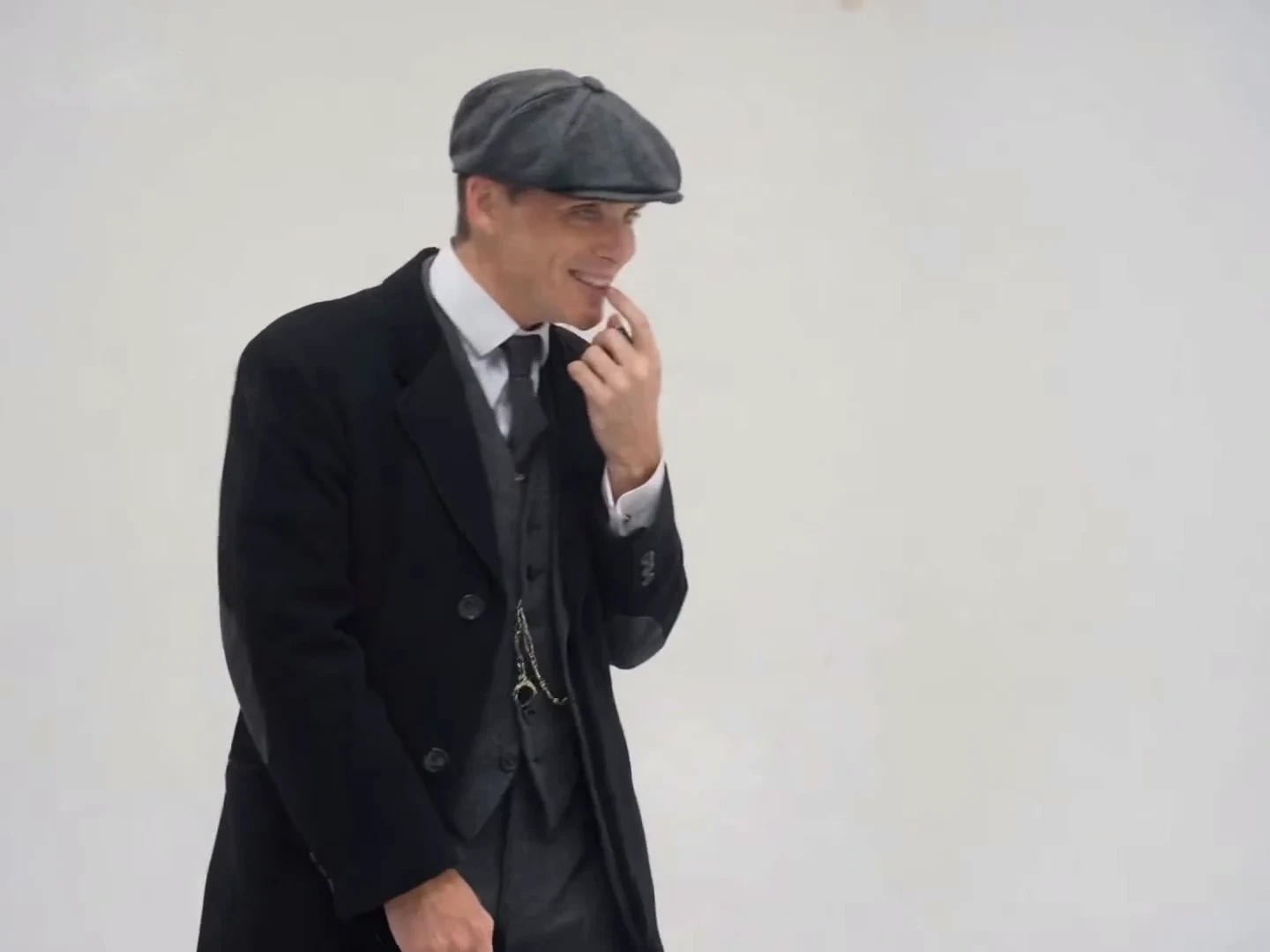
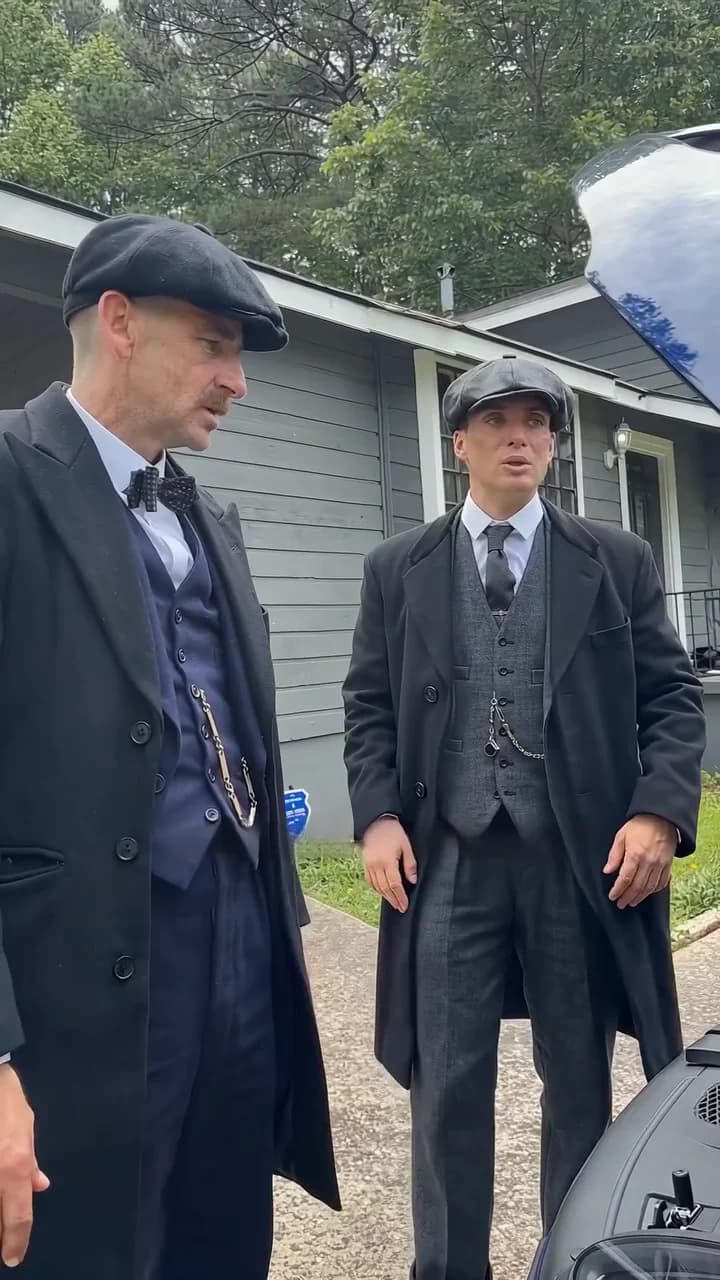
Frame at about seven and a half seconds from the credited @ausar.ai source post, not an Oakgen output.
Identity: same face every time
Each role returns five or six times. Pause on each return and compare the face with the first shot. A drift in one shot, such as a different nose or hairline, usually comes from a photo that is soft, small or turned away. Replace that photo with a sharper, front-facing one before changing anything else. Also check that each photo lands in the right role: the person you put in the flat cap slot should never appear in the handbag shots.
Costume: the period details
This version has more small costume details than You Tweaking, and they are where to look first:
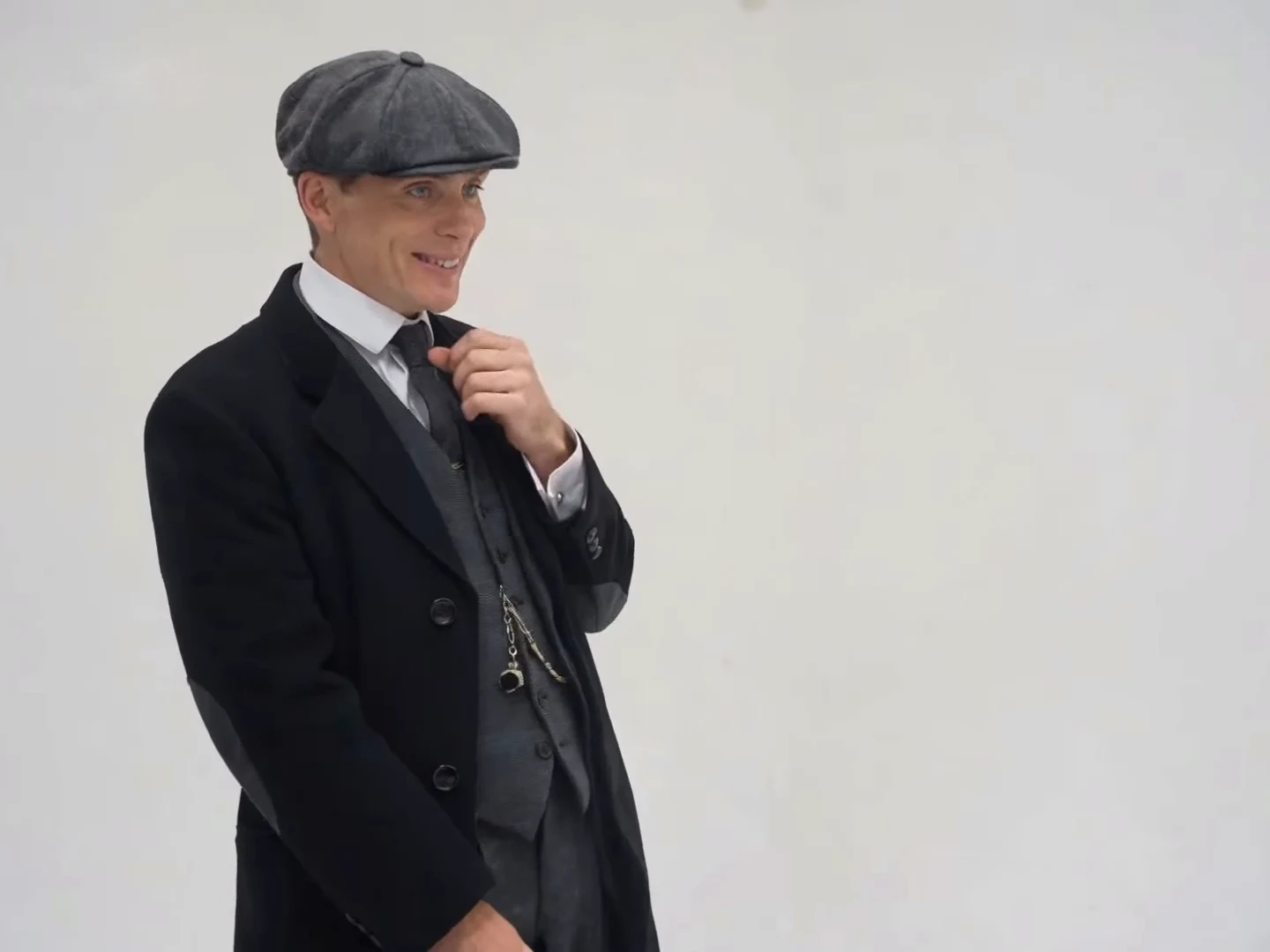
- Flat cap: same shape, colour and angle in all six of his shots.
- Overcoat and suit: the long coat stays long; the waistcoat and watch chain do not appear and vanish.
- Flowered hat: the brim width and the pink flowers stay the same in her shots.
- Fur collar and gloves: the collar stays white and the gloves stay on both hands.
- Orange handbag: same size, colour and arm.
If your photo showed no cap or hat, a bare head is the expected result, not a fault. The costume follows your photo where it shows one. The costume guide says which photos keep the period look.
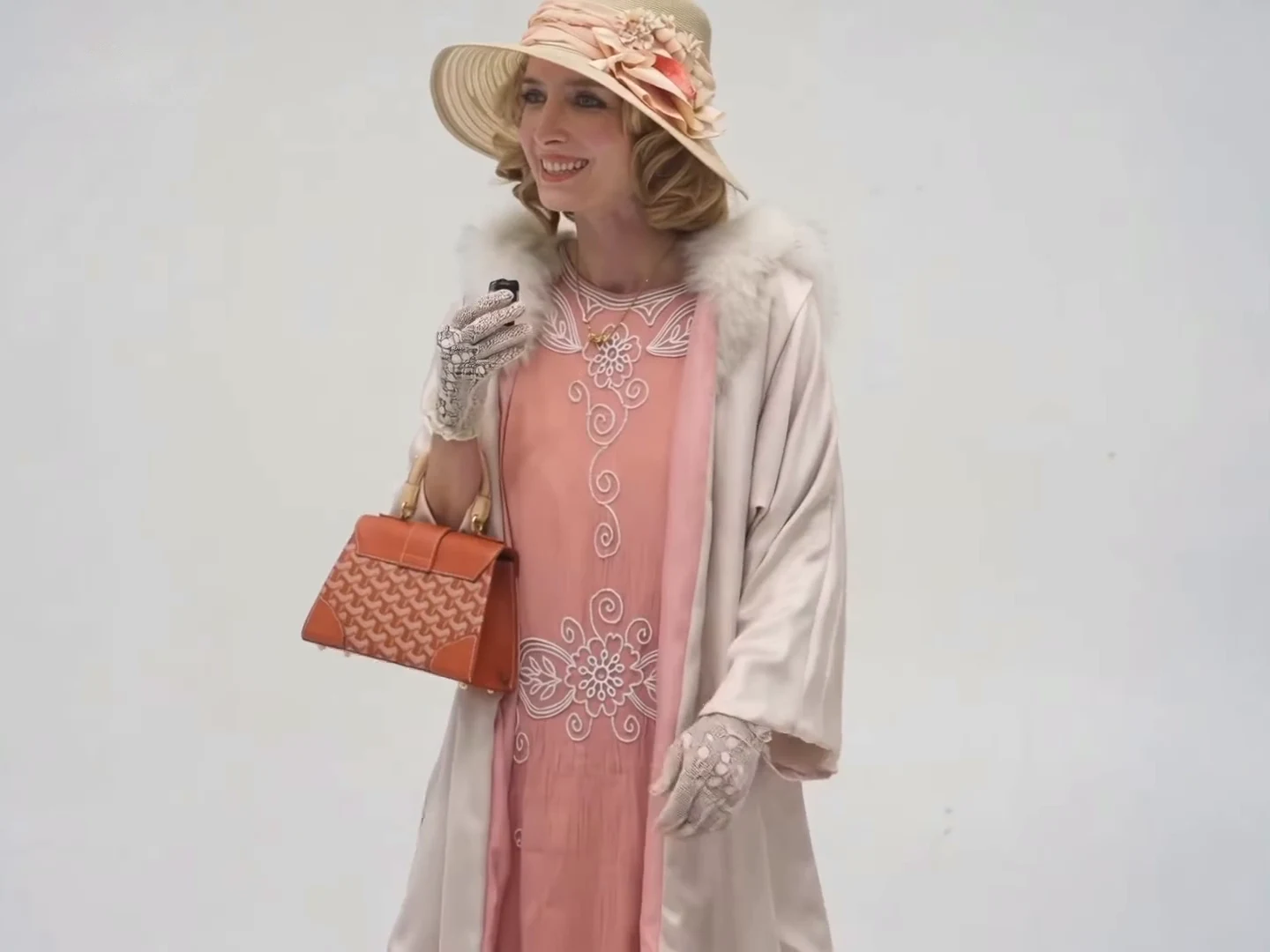
Frame at about five and a half seconds from the credited @ausar.ai source post, not an Oakgen output.
Voices: which mouth moves
The male voice belongs to the flat cap character and the female voice to the handbag character, whoever's photos you used. Three moments test this: the man's short question runs across the cut at 3.17 seconds, "Oh, he tweaking!" starts a moment before the cut at 8.63, and his closing complaint spans the cuts at 12.23 and 13.77. In each, the person on screen while the other voice is heard should look, laugh or react, not form the words. A hand at the mouth can really hide the lips; that is fine.
Overlays and badges
The finished video should be plain live action: no subtitles, no logos, no app badge and no blue facial-mesh lines, which are only a preparation aid for the model. The reference preview on the trend page also has the reel's app badge removed. If you see any overlay, regenerate rather than cropping it out.
What to fix first
- Wrong person in a role, or two people in one frame: check that each photo shows one person, then regenerate.
- Face drift in the close shot near 12.2 seconds: use a sharper, front-facing photo for the flat cap role.
- Costume drift: use a photo that clearly shows the cap, hat or coat you want.
- Lip sync on the wrong person: regenerate; the soundtrack and cuts are fixed, so this is a result-quality issue.
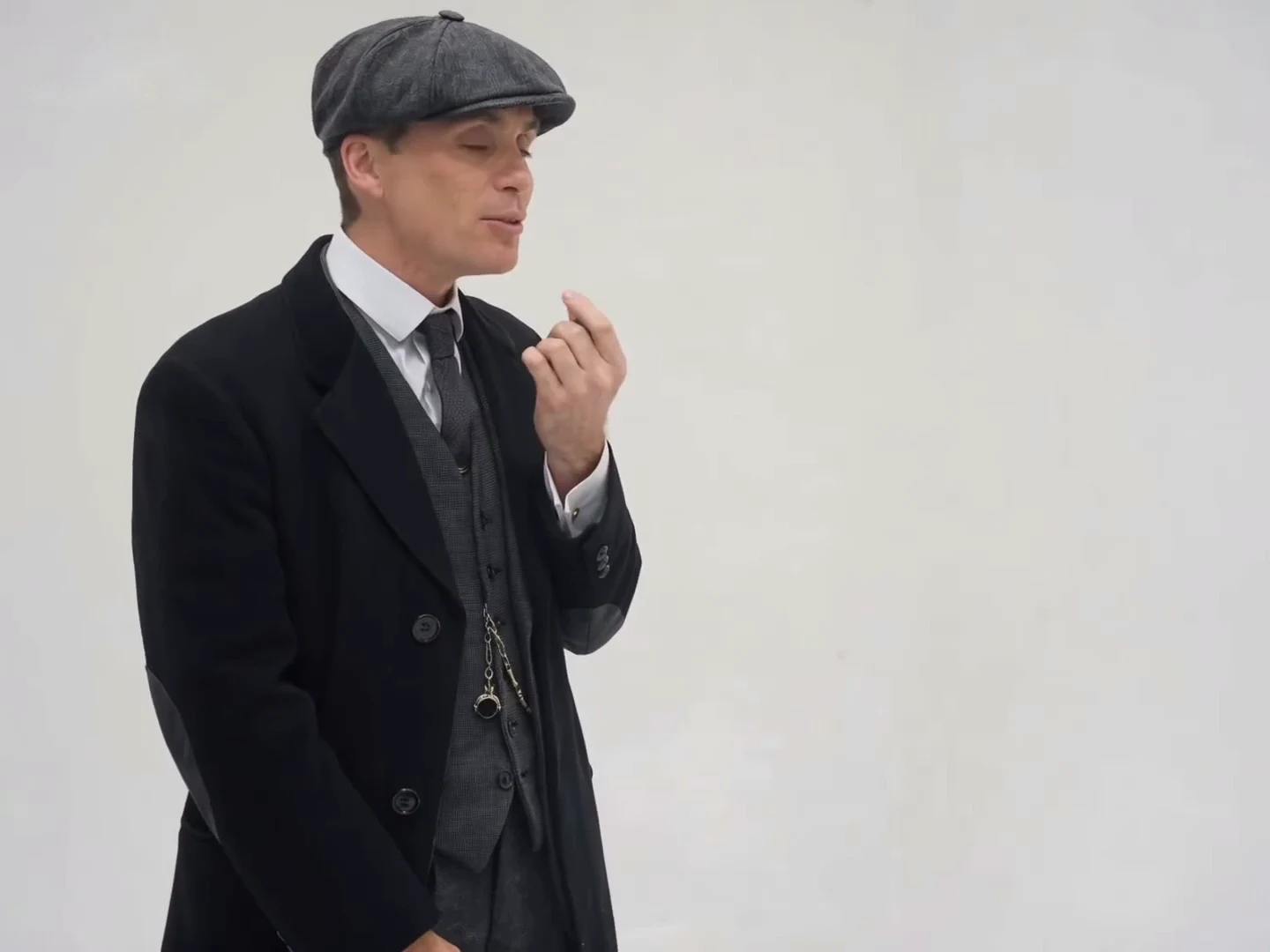
Frame at about thirteen seconds from the credited @ausar.ai source post, not an Oakgen output.
We publish no generated example and no measured success rate. When you post, label the video as AI-made and credit @ausar.ai if you show or mention the reference. The caption page explains the reference post's "Thomas is trippin" caption.