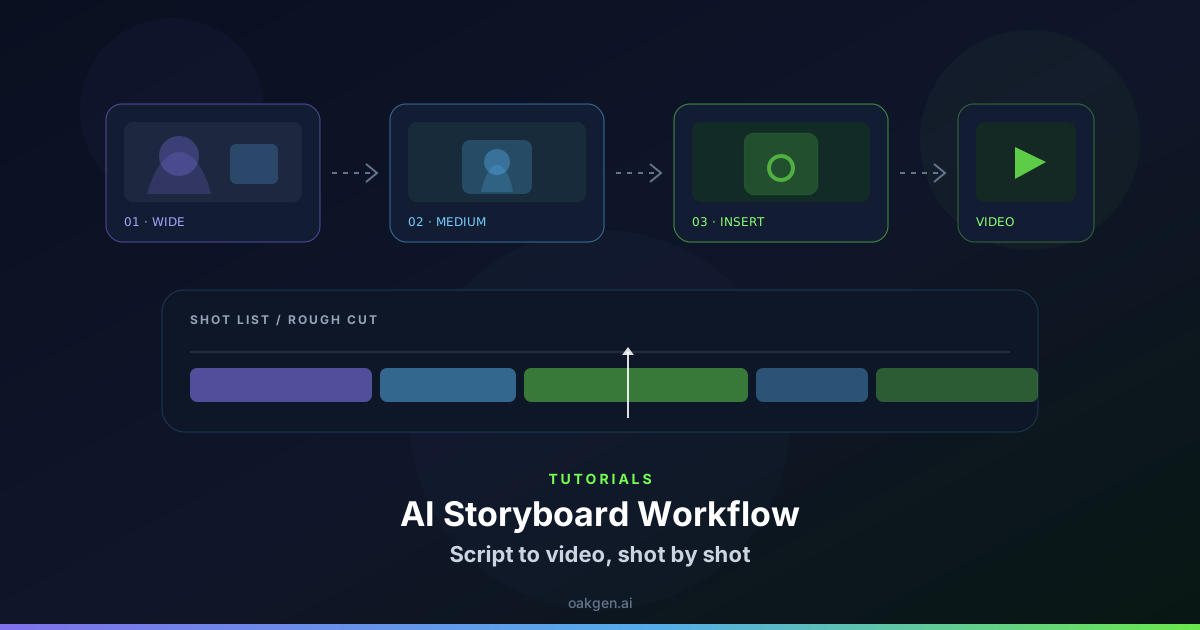
An AI storyboard workflow turns a script into a sequence you can inspect before spending time and credits on video. Break the script into visual beats, define continuity, write one shot card per beat, generate still frames, approve the coverage, and animate only the frames that earn a place in the cut.
That order matters. Asking an AI video generator to “make the whole film” skips the decisions that control pacing, character identity, product visibility, camera position, and edit rhythm. A storyboard is the inexpensive planning layer between words and motion.
This guide includes a reusable shot-card format, a storyboard acceptance test, and a worked 30-second product-ad plan. Oakgen can keep the writing, still-image generation, and video generation close together, although the same method works across separate tools.
Plan the Board Before You Render Video
Use Oakgen AI Chat to break a script into visual beats, then create approved frames before moving the chosen shots into video generation.
AI storyboard workflow at a glance
| Stage | Deliverable | Approval question | Oakgen starting point |
|---|---|---|---|
| 1. Lock the brief | Duration, format, audience, message, CTA | Can the team describe the video in one sentence? | AI Chat |
| 2. Mark visual beats | Numbered actions or information changes | Does each beat deserve a new image? | AI Chat |
| 3. Build continuity references | Character, product, setting, and style sheets | Are protected details explicit? | Image Generator |
| 4. Write shot cards | Framing, action, camera, audio, duration | Does each card ask for one clear shot? | AI Chat |
| 5. Generate still frames | One approved frame per planned shot | Is the story readable without motion? | Image Generator |
| 6. Create the shot list | Ordered production ledger | Can an editor or generator execute it? | Shared sheet or document |
| 7. Animate selected frames | Short clips with one motion idea | Does motion preserve the approved frame? | AI Video Generator |
| 8. Build the rough cut | Timed sequence with scratch audio | Does the pacing work before final polish? | Cinema Studio or your editor |
Who this workflow is for
Use it for product ads, short films, explainers, music videos, social clips, and any sequence where a person, product, room, or visual style must survive across cuts. A single atmospheric clip may not need a formal board. A 30-second ad with a reveal, proof beat, and end card does.
Research note
Search results for “AI storyboard generator” mix dedicated board tools, image generators with panel modes, and script-to-video systems. Their shared pattern is sound: split the script, add shot language, generate frames, then pass approved panels into motion.
Adobe's shot-list guide covers shot size, angle, blocking, and equipment. Higgsfield's script-to-storyboard guide recommends one visual beat per shot. Runway's Story Panels documentation starts with an input image and new-scene descriptions; its image-to-video guide treats that image as the source for composition, subject, light, and style.
The gap is handoff quality. A good-looking grid is not a production plan. Every panel still needs timing, continuity, motion, audio, and editorial purpose.
Research and product documentation were reviewed on September 3, 2026.
Step 1: freeze the production brief
Write the constraints at the top of the board. If they change halfway through, the earlier frames may no longer fit.
Project: 30-second vertical product ad
Audience: first-time apartment renters
Message: compact purifier removes cooking odors without taking counter space
Format: 9:16, sound-on and sound-off safe
Visual rule: warm real apartment, restrained green accents, no glossy sci-fi UI
Product rule: preserve grille count, logo placement, dial shape, and proportions
CTA: See how it fits your kitchen
Avoid mood-only briefs such as “premium, cinematic, viral.” They don't tell the board what the viewer must understand. The one-sentence test is better:
A renter cooks in a small apartment, notices lingering smoke, turns on a compact purifier, and gets a visibly calmer room without losing counter space.
That sentence contains a person, problem, action, product proof, and outcome. It can become shots.
For a reusable planning format, pair this process with the AI creative brief template.
Step 2: split the script into visual beats
A visual beat happens when the viewer needs new information, a changed emotion, or a new action. It does not happen at every sentence.
Suppose the voiceover says:
Small kitchen, big dinner, and the smell stays for hours.
This purifier fits beside your kettle and clears the air while you clean up.
No renovation. No lost counter space. Just a calmer room after dinner.
The useful beats are:
- Establish the cramped kitchen and active cooking.
- Show the discomfort after cooking.
- Reveal the purifier beside the kettle.
- Show the hand turning the dial.
- Prove the compact footprint.
- Return to the person in a calmer room.
- Finish on product and CTA.
“Big dinner” and “smell stays” become separate beats because they need different evidence.
If a panel must show cooking, coughing, turning on the purifier, cleaning, smiling, and reading a CTA, split it. A frame cannot explain six events at once, and a short clip will not rescue a confused panel.
Step 3: build a continuity pack
Generate or collect references before the storyboard frames. The pack should answer what must stay fixed across the sequence.
| Reference | What it owns | What it does not own |
|---|---|---|
| Character sheet | Face, hair, age, build, key wardrobe | Camera, setting, expression in every shot |
| Product sheet | Shape, controls, label, material, front and side views | Room style or light |
| Location sheet | Floor plan, counters, window, appliance positions | Talent identity |
| Style frame | Palette, contrast, grain, lighting character | Exact composition |
Use neutral, well-lit reference images. Runway's reference-media guidance recommends a clear subject, high-quality sources, and consistent style references. It also warns against cluttered product references and competing subjects.
Write a protected-detail line that can be pasted into every relevant frame prompt:
Continuity: same person, charcoal T-shirt, short dark curls, silver stud earring.
Product: same white purifier, six horizontal grille slots, round green dial,
small black wordmark centered below the grille. Do not redesign the product.
If the generator supports several references, assign each one a job. “Use these images” is vague; “image 1 owns face and hair, image 2 owns the purifier geometry” gives the model a hierarchy.
Create the Continuity Pack
Generate character, product, location, and style references in Oakgen before you ask the video model to solve motion.
Step 4: turn every beat into a shot card
The shot card is the smallest useful unit in the board. Copy this format:
SHOT ID: 03
SCRIPT BEAT: Reveal the product beside the kettle
PURPOSE: Connect the problem to the solution
DURATION: 2.5 seconds
FRAME: Medium insert, eye level, 50mm feel, product on right third
SUBJECT/ACTION: Hand places purifier beside kettle; product faces camera
SETTING/LIGHT: Same small kitchen, warm window side light, evening
CONTINUITY: Use product reference A; preserve grille, dial, logo, proportions
MOTION: Slow 8% push-in; hand exits frame; no product rotation
AUDIO: Voiceover begins product name; soft placement sound
EDIT: Cut on hand contact; next shot moves closer
NEGATIVE CONSTRAINTS: No extra controls, text, steam through product, camera orbit
Generate the frame using FRAME, SUBJECT/ACTION, SETTING/LIGHT, and CONTINUITY. Save MOTION, AUDIO, and EDIT for the video prompt and timeline. Lens language is optional; use it only when it changes the frame.
Step 5: plan coverage, not a gallery
Coverage gives the editor choices that cut together. A sequence built only from wide shots feels distant; one built only from close-ups loses geography.
For a dialogue or demonstration scene, a useful minimum is an establishing view, a working medium shot, and a detail or reaction. Product ads often need four types of evidence:
- context: where and why the product is used;
- interaction: a person touches, opens, pours, wears, or activates it;
- proof: the feature or outcome becomes visible;
- recognition: a clean product view and readable CTA.
Do not force every type into every ad. A fragrance spot may sell atmosphere; a kitchen-tool demo needs clear hand interaction and proof.
Check screen direction before approval. If a person looks screen-right in one shot, the reverse or object view should preserve that relationship. Also write why each cut happens: an action begins, a sound lands, or the viewer needs detail. Without that reason, two panels may be doing the same job.
Step 6: generate anchor frames first
Do not generate the board in order. Start with the frames that define the sequence:
- opening composition;
- first clear character or product view;
- hardest interaction;
- emotional or visual peak;
- final frame or CTA composition.
These frames expose the largest continuity problems and become references for connective shots.
Generate panels individually when you need production-ready sources. A sheet is quick for ideation, but cropped panels may have inconsistent proportions or baked-in text. Individual frames also preserve the intended aspect ratio.
If a frame fails, diagnose the card. Check for competing references, impossible angles, or an action that belongs in two panels.
Approve the Still Before Adding Motion
Generate each anchor frame at the delivery ratio, inspect faces and product details at full size, then animate only the frames that pass review.
Step 7: apply the storyboard acceptance test
A panel passes only if it clears all five checks:
| Check | Pass condition | Common failure |
|---|---|---|
| Story | A reviewer can name the beat without reading the prompt | Attractive frame, unclear action |
| Continuity | Protected person, product, wardrobe, and setting details hold | Face, label, room layout, or color drift |
| Composition | The shot has one readable subject and usable negative space | Crowded frame with no visual priority |
| Motion readiness | The starting pose and geometry allow the planned movement | Hidden hand, impossible orbit, blocked object |
| Edit readiness | Screen direction, eye line, scale, and neighboring shots cut together | Jump in position or duplicated angle |
Mark each panel approve, revise, or remove. “Maybe” is not a production state. Keep rejected frames in a side bin so the team can inspect why they failed without mixing them into the active board.
The board should work as a silent slideshow. Motion will not fix an unreadable story.
Step 8: convert the board into a shot list
The storyboard shows the intended frame. The shot list carries that intent into production. Copy this header into a spreadsheet:
shot_id,scene,script_beat,duration,frame_file,shot_size,camera_angle,
subject_action,camera_motion,continuity_refs,audio_cue,transition,status,notes
Add one row per clip and use exact filenames such as s01_sh03_product-reveal_v2.png. For client work, add owner, approval_date, and rights_status. For AI generation, add model, prompt_version, seed_or_job_id, attempt_count, and cost so a shot can be recreated or audited.
Worked example: 30-second purifier ad
| Shot | Time | Frame and action | Motion | Editorial job |
|---|---|---|---|---|
| 01 | 0:00–0:03 | Wide: crowded kitchen during active cooking | Locked frame, quick foreground movement | Establish pressure and limited space |
| 02 | 0:03–0:06 | Close reaction after cooking; light haze behind | Small push-in | Make the lingering-air problem personal |
| 03 | 0:06–0:09 | Product reveal beside kettle | Slow push-in | Introduce the solution at true scale |
| 04 | 0:09–0:12 | Hand turns green dial | Tiny rack focus to dial | Show simple interaction |
| 05 | 0:12–0:17 | Side view proving slim footprint | Short lateral move | Prove the counter-space claim visually |
| 06 | 0:17–0:22 | Room settles as person wipes counter | Static camera, natural cloth movement | Show use during cleanup |
| 07 | 0:22–0:26 | Medium reaction in clear, calm room | Gentle pull-back | Deliver the emotional outcome |
| 08 | 0:26–0:30 | Clean product frame with CTA space | Mostly still, soft light shift | Brand recognition and action |
The board avoids invisible air chemistry and medical claims. It shows context, footprint, interaction, and a calmer room.
Step 9: write motion prompts from approved frames
An image-to-video prompt should describe change over time. The frame already supplies appearance, composition, and light.
Weak:
Cinematic small kitchen with a purifier and warm light.
That restates the image and gives little direction.
Better:
The camera makes a slow, steady push toward the purifier as the hand releases
the dial and exits frame left. The purifier remains fixed; warm side light and
the product label stay stable. No orbit, redesign, zoom jump, or new objects.
Runway's image-to-video guide proposes a simple pattern: camera motion, subject action, then extra detail. Oakgen's AI video prompt examples add practical patterns for motion, pacing, and negative constraints.
Use one main camera move and one subject action. If the card calls for an orbit, hand interaction, smoke transformation, expression change, and typography reveal, split it into several shots.
Step 10: build a rough animatic
Place the still frames on a timeline at their planned durations. Add scratch voiceover, temporary music, and key sound cues. The result will look plain, which is useful: pacing problems cannot hide behind expensive motion.
Watch once with sound and once muted. Check whether the opening earns attention, each shot lasts long enough to understand, and the CTA has enough hold time to read. Change frame durations before generating clips.
When the animatic works, animate the opening, proof moment, and final product frame first. If those fail, revise before rendering connective shots.
The first-frame, last-frame, and multi-reference guide helps choose the smallest control set for each shot. If the same character appears across scenes, use the AI character consistency guide before scaling the sequence.
Turn Approved Frames Into Video
Move the selected storyboard frames into Oakgen's AI Video Generator, apply one motion instruction per shot, and keep rejected generations out of the active cut.
Common AI storyboard mistakes
Generating the video before approving the frame. Motion adds more ways for identity, hands, product shape, and camera logic to fail.
Writing one giant prompt for the full script. The system must invent pacing and coverage at once, so revisions become expensive and vague.
Treating a contact sheet as finished art. Generate individual source frames at the target ratio after approving the visual direction.
Skipping screen direction. Two believable frames can cut badly when positions and eye lines reverse.
Letting references compete. Assign face, product, setting, and style ownership rather than asking every image to control everything.
Approving style without story clarity. A panel earns its place by explaining a beat and supporting the edit.
Animating every panel. Some beats can share a shot; some generated clips will never reach the cut. Prove the animatic first.
FAQ
What is an AI storyboard generator?
It is a tool or workflow that turns a script, brief, or scene idea into ordered visual panels. A useful output also includes shot size, action, continuity notes, duration, camera direction, and a path into video production.
Can AI turn a full script into a storyboard?
It can propose a first pass, but approve the beat map before generating frames. Long scripts need scene boundaries, protected details, and editorial decisions that one-click passes may miss.
What is the difference between a storyboard and a shot list?
A storyboard shows the planned images in sequence. A shot list records how each image will be produced, including duration, framing, action, motion, audio, references, status, and production notes.
Should I generate one storyboard sheet or separate images?
Use a sheet for fast visual exploration. Generate separate full-size frames for approved shots so they keep the delivery ratio and can serve as clean image-to-video inputs.
How many storyboard panels does a 30-second ad need?
There is no fixed count. Six to ten panels often gives enough room for setup, problem, reveal, proof, outcome, and CTA, but pacing and message should decide the number.
How do I keep AI storyboard characters consistent?
Create a character reference sheet first, repeat the protected identity details, keep wardrobe and age explicit, and use approved anchor frames as references for later shots.
Can I use storyboard frames as first frames for AI video?
Yes, if the video model accepts image input. Check that the pose permits the planned movement, the frame matches the delivery ratio, and the source contains no defects that motion may amplify.
What makes an AI storyboard production-ready?
Every panel must map to a script beat, pass continuity review, specify motion and audio intent, fit neighboring shots, and appear in a numbered shot list with an approval state.
Sources and further reading
- Adobe: how to make a shot list
- Higgsfield: turn a script into an AI storyboard or shot list
- Runway: Story Panels
- Runway: image-to-video prompting guide
- Runway: reference-media guidelines
Build the Board, Then Build the Video
Use Oakgen to plan the beats, generate continuity references and storyboard frames, then animate the approved shots without rebuilding the creative brief in a new workflow.