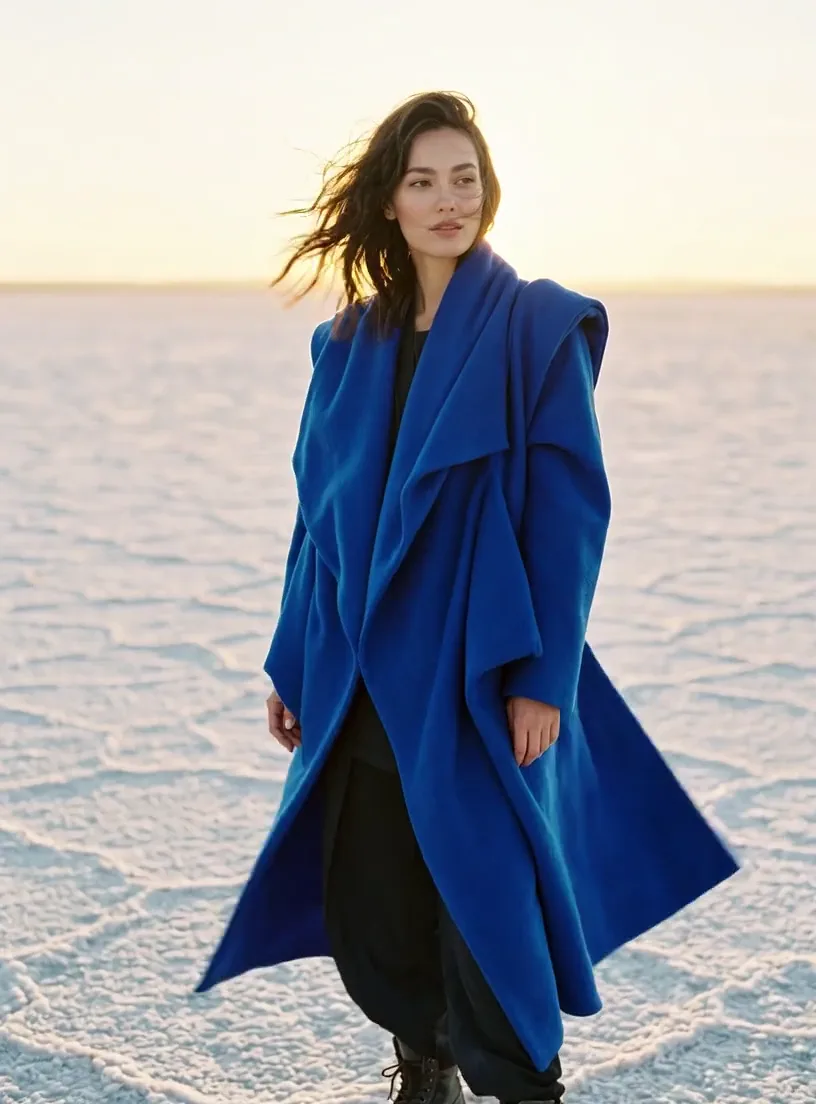
Wind picks up across the salt flat, the cobalt coat billows and her hair lifts, she turns her head toward the low sun and smiles, slow push-in
Available nowxAI · Video
Grok Image-to-Video Animate Stills into Motion
Your still, set in motion.
Create
- Takes
- Image + Prompt
- Length
- 3–15 s
- Resolution
- 480p · 720p
- List price
- 143 credits · 6 s
- Run time
- 81 smedian of 2 runs on Oakgen
Made with Grok Image-to-Video
Steal a prompt. Make it yours.
Every one of these clips was made on Oakgen with this model. “Use prompt” puts it in the box above.
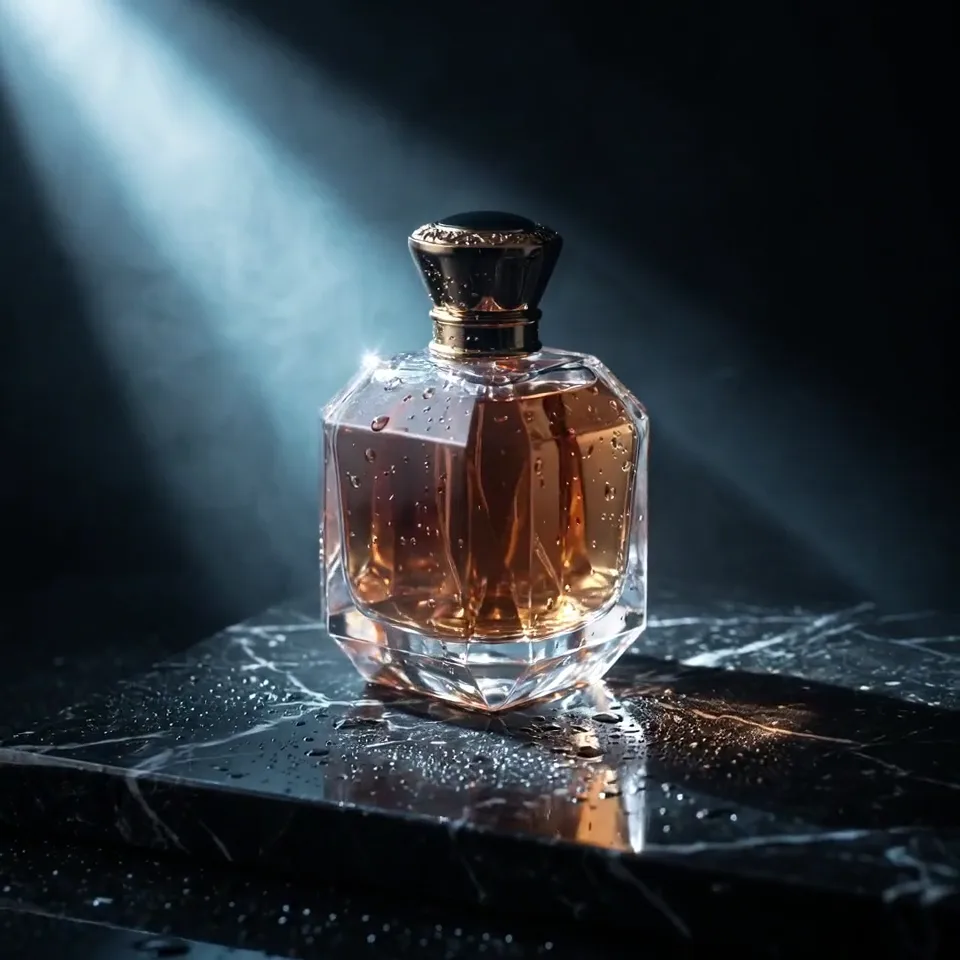
Slow orbit around the perfume bottle, the beam of light sweeps across the faceted glass, water droplets slide down the sides and catch the light, reflections shift on the wet marble
Spec sheet
Specs
ImageRequired
PromptRequiredup to 4,096 characters
OutputVideo3–15 s
- Made by
- xAI · Grok Video
- Type
- Image to video
- Image
- Required
- Prompt
- Required · up to 4,096 characters
- Duration
- 3–15 s · default 6 s
- Aspect Ratio
- Resolution
Credits · 5 s
Compare
| Model | Credits · 5 s |
|---|---|
| Grok Image-to-VideoThis pagexAI | |
| Kling V3 Pro Motion ControlKuaishou | |
| Kling V3 ProKuaishou | |
| Grok VideoxAI |
About Grok Image-to-Video
What is Grok Image-to-Video?
Underlying model: Grok Video by xAI. Hosted on Oakgen.ai with no watermark where supported. Commercial use depends on Oakgen's Terms, provider terms, and your source materials.
The image-to-video variant of the Grok video family on Oakgen.ai. Upload a starting frame — a portrait, a product shot, a concept still, or a hero image from an earlier generation — and Grok Image-to-Video extends it into a short, motion-aware clip that preserves the subject, lighting, and mood of the source image. Built for creators who already have the look they want and just need it to move.
Grok Image-to-Video is the image-driven variant of the Grok video lineage available on Oakgen. Instead of inventing a scene from a text description alone, it anchors generation to a still image you supply and animates from that frame, layering in motion, camera movement, and scene flow guided by an optional prompt. Because the first frame is fixed by your input, the output stays on-model for character identity, composition, color grade, and art direction in ways that pure text-to-video cannot match. On Oakgen it pairs naturally with the image generator, acting as a finishing step that turns still creative into short motion clips for social, ads, and pitch work without redrawing the look from scratch.
Why Grok Image-to-Video is popular
- Strong fidelity to the input image — subject identity, composition, and color palette of the starting frame carry through into the animated clip instead of drifting off-model.
- Responsive to motion cues in the prompt, from subtle breathing and parallax to explicit camera moves like push-ins, pull-outs, pans, and orbits around the subject.
- Handles a wide range of source material — photoreal portraits, stylized illustrations, product photography, and AI-generated stills — without needing a specialized pipeline per style.
- Part of the broader Grok video family on Oakgen, so it shares the family's general motion quality and scene coherence while specializing in the image-anchored workflow.
- Slots into an image-first creative pipeline where you iterate to the perfect still, then use image-to-video as the single step that turns that hero frame into a deliverable short clip.
FAQ · 15
Frequently asked questions
What's the difference between Grok Image-to-Video and Grok text-to-video?
Grok Image-to-Video anchors the clip to a still image you supply as the first frame, so the subject, composition, and art direction of that image carry through into the animation. The text-to-video variant invents the scene from a prompt alone and has more freedom to compose the frame, but less fidelity to a specific look. Use image-to-video when the still is already the creative you want to ship; use text-to-video when you're exploring ideas from scratch on Oakgen.
How long is the output clip?
Grok Image-to-Video on Oakgen supports clip durations from 3 to 15 seconds. For longer deliverables, combine completed clips in a video editor.
Does Grok Image-to-Video preserve the input image's style?
Yes — preserving the style of the input frame is the main reason to use the image-to-video variant. The model treats your still as the anchor, so color grade, lighting, character identity, and compositional choices from the source image are carried forward rather than reinterpreted. If you want a look-faithful short clip from an existing hero frame, this is the variant to reach for; if you need the model to reinvent the scene, the text-to-video variant on Oakgen gives you more latitude.
What kind of input image works best?
High-resolution, well-lit stills with a clear subject and uncluttered background animate most cleanly. Blurry, heavily compressed, or very low-resolution inputs degrade the output noticeably because the model is extending the detail that's already in your frame. If you're pairing this with Oakgen's image generator, render the source image at the highest resolution the image model offers before sending it into image-to-video for the cleanest result.
Keep exploring