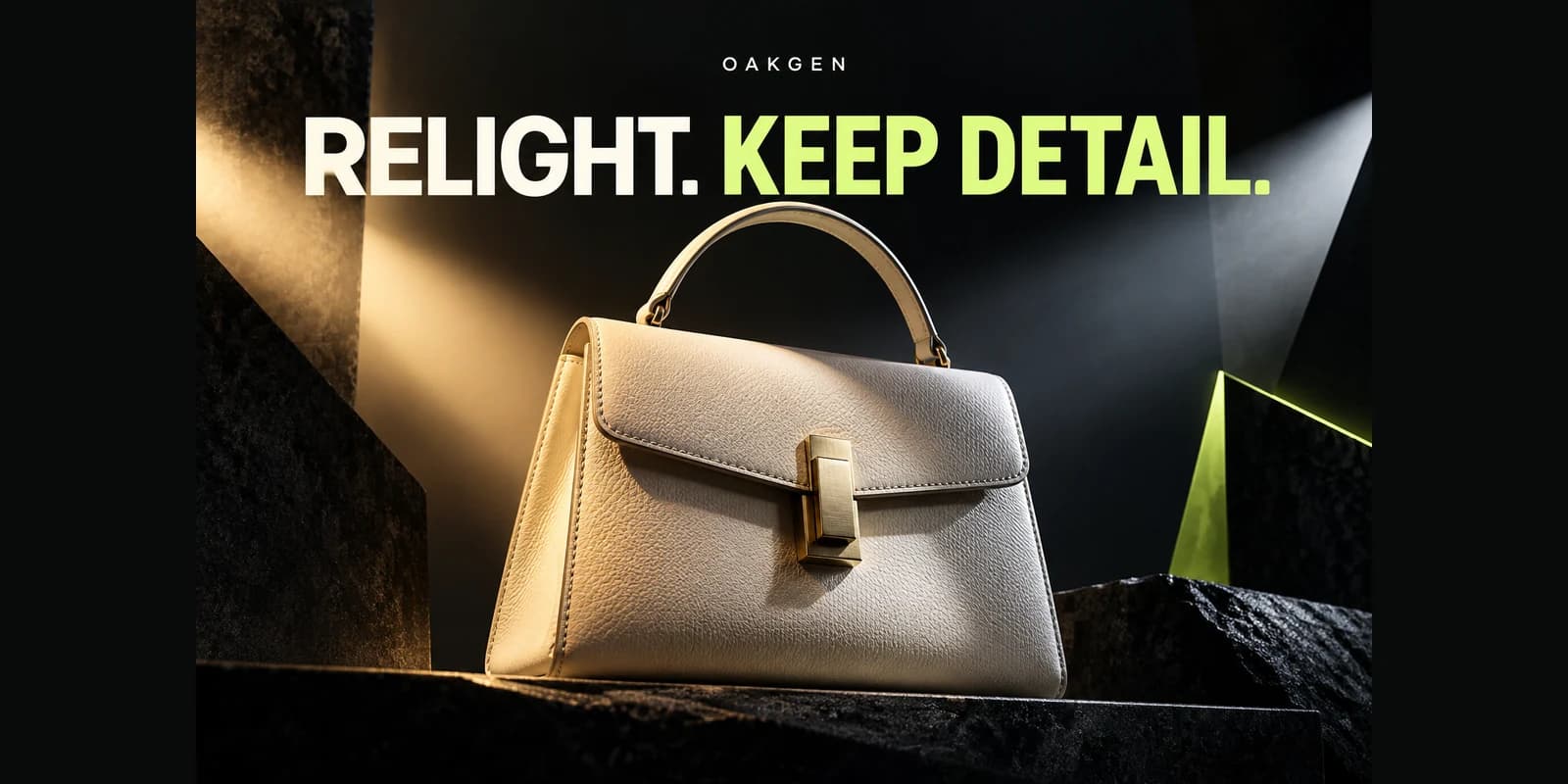
Use Oakgen’s Image Editor for AI photo relighting when you want to describe a new lighting direction on an existing image. Start with one restrained change, state which details must stay, and compare the completed result with your source. For faces, inspect identity and expression; for products, inspect geometry, lettering, material, and color. A more dramatic image is useful only if it still represents the same subject.
The reliable workflow is a controlled comparison: original, lighting brief, candidate, and acceptance check. This guide shows you how to make each part specific.
Try a Focused Lighting Edit in Oakgen
Bring your existing photo, describe one lighting change, and evaluate the result against your original.
Do you need relighting or a smaller correction?
| What looks wrong | Start with | Why |
|---|---|---|
| Entire photograph is slightly dark | Exposure adjustment in a photo editor | It may solve the problem without regenerating detail |
| White shirt looks orange | White-balance or color correction | The issue may be color cast rather than light direction |
| Face needs a different shadow pattern | A controlled relighting attempt | Changing apparent illumination is the actual job |
| Product should match a new campaign environment | Oakgen prompt-based editing, followed by review | Scene and illumination may need to change together |
| Every pore or label pixel must remain exact | Layered retouching or a reshoot | Generative edits do not guarantee pixel preservation |
This is for portrait creators, ecommerce teams, and designers adapting approved photographs. It is especially useful when someone says “make it warmer” but actually means softer shadows, a lower sun angle, or a different atmosphere. Those are different instructions.
Reviewed October 19, 2026. Oakgen is our product. We verified its current image-input and prompt-editing behavior and reviewed official relighting documentation. The examples below are proposed editing briefs and inspection exercises, not measured model comparisons or generated before-and-after results.
What AI photo relighting changes
Relighting aims to change how illumination appears across a subject: where highlights occur, which surfaces fall into shadow, how soft transitions look, and how the subject relates to the background. Increasing brightness changes the image globally; a new light direction asks for a different spatial pattern.
That second request is harder. A single photograph does not show everything about the scene’s shape, materials, or hidden texture. A generative editor may infer those details while making the light plausible. The result can look natural while subtly changing an eye, a logo, or the edge of a product.
Dedicated tools can provide a more direct lighting interface. For example, getimg’s Relight page describes lighting-style, direction, intensity, and warmth choices. The IC-Light project documents a purpose-built image-relighting approach. Those are different interfaces and methods, not proof that every edit preserves every detail.
In Oakgen, the workflow described here uses a written edit instruction and the available model settings. Do not search for a lighting-position slider because this article mentions one in another product. Use a specialist tool when direct light placement is the control you specifically need.
Describe light in five decisions
A useful brief answers five questions: where is the main light, how large or soft is it, what color is it, how bright should the shadow side remain, and what happens to the background? You do not need technical vocabulary if you can describe these relationships plainly.
“Soft daylight from the left side of the picture, with gentle shadows and a neutral background” is clearer than “professional, beautiful, cinematic lighting.” The first instruction gives the editor something visible to change. The second may invite changes to styling, skin texture, or composition instead.
Use image-left and image-right when ambiguity matters. “Her left” and “camera left” can point to different sides. If the person is turned partly away, reference a visible landmark, such as the cheek nearer the window, while keeping the wording consistent.
Separate the requested change from preservation requirements. Ask to retain pose, framing, expression, hair, clothing, and background objects when those matter. For a product, name the body shape, cap, label, finish, and logo instead. A short concrete list is easier to inspect than “preserve everything perfectly.”
Portrait example: office light to soft window light
Imagine an approved headshot: a person facing slightly right, wearing a navy jacket, with a pale wall behind them. The current overhead lighting leaves strong shadows around the eyes. The goal is a softer professional portrait, with the same person and crop.
Start by checking whether a modest tonal edit is enough. If the problem is only shadow brightness, conventional exposure and masking may be sufficient. Choose a generative relighting attempt when the intended change actually requires a different apparent source of light.
Prepare the source
Use the highest-quality approved image. Keep the original open in a separate viewer or duplicate it in your editing application. Record the crop and identify details that make the person recognizable: eye shape, nose outline, hairline, glasses, facial marks, and expression.
Do not turn this into a beauty-retouching brief unless that is separately intended. “Smoother skin” can conflict with a request to preserve texture; “younger and brighter” introduces a change unrelated to light. Keep the first pass narrow enough to evaluate.
Write the first instruction
An illustrative prompt is: “Relight this same portrait with soft neutral window light from image-left. Keep gentle detail on the shadow side. Preserve the person’s face, expression, hair, glasses, navy jacket, pose, camera angle, and crop. Keep the wall and background objects in their existing positions.”
Submit the edit in Oakgen’s Image Editor, using the source version you mean to change. Review the selected model, displayed settings, and credit estimate before generating. The editor uses the current image as the main input; optional reference behavior depends on the selected model.
Judge the new face before the new mood
Compare source and result at the same scale. Inspect the eyes, mouth corners, ear shape, and glasses before deciding whether the overall light is attractive. If the person seems subtly different, the output does not pass simply because the shadows improved.
Next inspect the actual lighting. Does the brighter cheek match the requested direction? Are the nose and chin shadows plausible? Does the background suggest a contradictory light? You are looking for a coherent image, not a mathematically perfect reconstruction of a studio setup.
If the edit changes identity, return to the original and reduce the transformation. Moving from flat overhead light to subtle side illumination is a smaller request than adding deep noir shadows and a colored rim. If identity still drifts, use conventional retouching or reshoot with the desired light.
Product example: make a mug fit a campaign scene
Consider a matte green ceramic mug with a printed white logo. The campaign wants warm late-afternoon light across a tabletop. The mug’s color, handle shape, logo, and position must remain recognizable. This example is also a planning exercise rather than a claim of a tested result.
A useful instruction might read: “Change the illumination to warm afternoon light from image-right, with a soft directional shadow on the tabletop. Keep the same mug, handle geometry, printed logo, surface texture, camera position, and composition. Retain a believable green ceramic appearance without adding a glossy coating.”
The product’s material matters as much as light direction. If matte ceramic becomes reflective plastic, the image has changed the product. Inspect the size and shape of highlights, but also the unlit portions where material texture remains visible.
Color requires judgment. Warm illumination can shift displayed color legitimately; asking for exactly identical RGB values everywhere would contradict the lighting change. Use a neutral product reference to decide whether the result still communicates the right product color. For catalog color matching, retain a neutral image alongside campaign imagery.
A white logo is a useful warning region. If it becomes yellow, warped, reworded, or partly obscured, decide whether the problem is an acceptable lighting effect or a product-representation failure. Never approve altered wording because the rest of the scene looks convincing.
For transparent packaging, use the separate glass product photography workflow. Transmitted backgrounds and reflections make clear bottles a different problem from this opaque mug.
Copy this lighting and preservation worksheet
Complete the “before” column before generating. Otherwise a visually pleasing result can quietly change the acceptance criteria.
| Check | Before generation | After generation |
|---|---|---|
| Intended change | Soft light from image-left | Is the dominant direction visible? |
| Identity or product shape | List three defining features | Are all three still accurate? |
| Texture | Skin pores, fabric weave, matte ceramic | Has smoothing or a new material appeared? |
| Color | Neutral reference and acceptable campaign shift | Is the subject still represented honestly? |
| Shadows | Direction and desired softness | Do face, object, and ground agree? |
| Background | Keep or change, stated explicitly | Did objects move or disappear? |
| Typography | Exact words or approved artwork | Did any character or alignment change? |
| Decision | Intended delivery size and purpose | Accept, repair, or reject with one reason |
This worksheet is a review tool, not a model score. An output might be fine for an illustrated mood board but unsuitable as a product listing or professional headshot. Declare the intended use before making that judgment.
Create a single lighting variation in Oakgen and use the same worksheet for the original and result. That makes comparison more useful than generating a folder of unrelated moods.
Keep revisions from drifting
Save an accepted version separately and retain the untouched source. When you request another light direction, decide whether you are editing the original or modifying the accepted candidate. That choice changes the task even if the words are identical.
Avoid repeatedly editing rejected outputs. A changed eye or handle can become part of the next source, making later preservation instructions preserve the wrong thing. Return to the clean source when a structural detail fails.
OpenAI’s image-prompting guide recommends explicit change and preservation instructions while recognizing limits around exact retention. Use that as a reason to structure your brief, not as evidence that wording can force a perfect result.
Keep comparisons simple: one original, one requested light change, one model, and a recorded output. If you change the crop, model, background, and lighting at once, you may get a strong image, but you will learn less about what solved the original problem.
When an external editor is the better next step
Use a conventional photo editor when the required change is a slight exposure correction, selective brightening, color balance, or restrained dodge and burn. These operations give you direct control over a smaller change. Generative relighting is useful when you genuinely need a new interpretation of illumination.
Use layered compositing when an exact logo or detail must remain fixed. That is an external editing step, not a protected-region feature promised by Oakgen’s prompt editor. Match the restored area to the surrounding light; dropping an untouched bright label into a dark scene can make it look pasted on.
Use a reshoot when the source lacks detail, the new lighting would reveal surfaces you cannot verify, or the portrait must remain an exact representation of the person. There is no benefit in spending repeated attempts on an image that cannot meet its acceptance standard.
The general image-edit troubleshooting guide helps if the wrong source is being edited or the request appears ignored. For interface orientation, follow the Oakgen Image Editor walkthrough.
Prepare the approved image for its destination
Inspect the downloaded file rather than only the preview. Check full-resolution details, then reduce it to the actual delivery size. A subtle halo may disappear at thumbnail size but remain obvious in a website hero; tiny text may become unreadable after resizing.
Keep a lossless approved master when practical and create delivery copies from it. Avoid making each revision from a compressed social download. Record the output dimensions so a later designer does not mistake a small preview for the master image.
If the next step is motion in Oakgen’s AI Video Generator, approve the lighting before animation and review the resulting clip independently. Stable light in one frame does not establish stable light across a sequence.
For a related image from scratch, Oakgen’s Image Generator can help explore a new composition. Keep that separate from relighting an approved photograph: recreating a scene gives the system a different amount of creative freedom.
Change the Light with a Clear Brief
Use Oakgen to develop a lighting variation, then keep the version that passes your identity, color, and detail checks.
Download the editable review worksheet to record inputs, decisions, and approval notes for your own project.
Frequently asked questions
Can AI relight a photo without changing the face?
It can attempt a lighting-only edit, but identity preservation is not guaranteed. Compare facial landmarks, expression, hair, and texture with the original. Use a smaller change or conventional retouching when the person changes.
Is AI relighting the same as increasing brightness?
No. Brightness changes overall tone, while relighting aims to change the apparent direction, softness, color, and distribution of light. If the photograph is only a little dark, start with exposure correction.
Does Oakgen offer a dedicated light-position slider?
This guide uses Oakgen’s prompt-based Image Editor, not a dedicated light-position control. Describe the intended illumination in words and inspect the settings available for your chosen model.
Why did my product color change after relighting?
New illumination can change displayed color, and generation can also alter the product itself. Compare against a neutral reference and check material appearance. Keep a neutral catalog image when buyers need reliable color information.
Should I edit the latest result or the original?
Use an accepted result when you deliberately want to preserve its changes. Return to the original if the latest result contains identity, geometry, or text errors, so those errors do not become the next source.
Can relighting recover detail from a blown-out area?
Generation may invent plausible detail, but it does not prove what was originally there. If exact detail matters, use a better source file or reshoot rather than treating invented texture as recovered evidence.