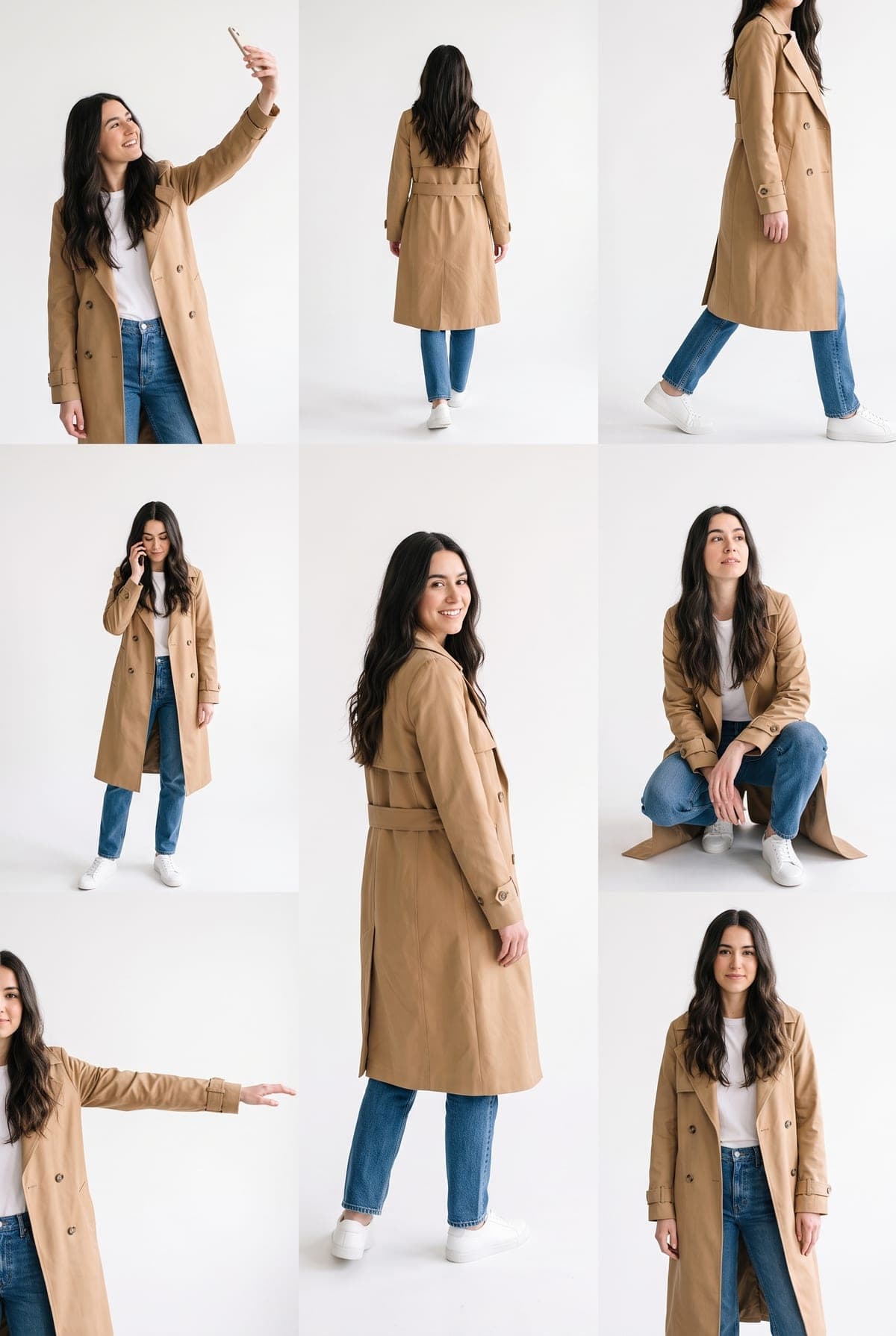
Search for the Instagram Lookbook photo and the same sort of result keeps appearing: one person, a tall white frame, and about eight poses of that person at once. A creator tutorial published on YouTube on October 16, 2026 shows how to get it inside Instagram, and says you do not need ChatGPT or Gemini. If you cannot find the effect on your phone, or you want the sheet outside the app, this guide covers both routes. For the idea behind the look, see Instagram Lookbook AI photo: the multiple pose trend.
Skip the hunt for the effect
Upload one photo to Lookbook Poses and get a multi-pose sheet back as an image.
How the tutorial gets the effect
The tutorial, from the channel Technical Boy Ajay, is spoken in Hindi. In its own steps, the creator does this inside Instagram:
- Open Instagram and tap the story icon.
- Pick a photo where your face is clearly visible.
- Find the Restyle option at the side, below the music option, and tap it. Mobile data needs to be on.
- Scroll to the effect called Lookbook. If it is not there, search the effects for "Lookbook".
- Tap that effect, wait a short time, then compare before and after.
- Post it as a story or save it to the gallery.
That is the tutorial's account, not something we ran. Instagram's own announcement of Restyle describes the tool, but it does not list a Lookbook preset. Effects can be added, changed or rolled out gradually, so what you see may differ from the video.
If the effect is not showing
Before assuming something is wrong, check the basics the tutorial points to: the Restyle option in the story editor, an internet connection, and a search for "Lookbook" among the effects. If it still does not appear, the effect may not be available in your app yet. We cannot tell you why, and we did not verify any workaround, so we do not recommend one.
The other route: Lookbook Poses
Lookbook Poses is Oakgen's own template for the same kind of result. You upload one photo, the tool lays out a sheet of the same person in about eight poses on a white page, and you download it as an image.
| Instagram Lookbook (per the tutorial) | Oakgen Lookbook Poses | |
|---|---|---|
| Where it runs | Inside Instagram's story editor | On Oakgen, outside the app |
| What you start from | A story photo | One uploaded photo |
| What you get | An edited story image | A downloadable tall image |
| Choosing poses | Not shown in the tutorial | Fixed pose set, vary by run |
| Connected to Instagram | Yes, part of the app | No |
The table is not a quality comparison. The results will not match, so compare each finished image with your original photo before you post. The how-to guide walks through the Oakgen steps, and Lookbook Pose Ideas covers outfits and captions.
Posting either version
Label an AI-edited image as AI-made, and use only your own photo or someone's who agreed. Several posted examples of this trend use a celebrity's likeness, which this template does not support. No generated results or reach figures are claimed here.
Frequently asked questions
Is Lookbook an official Instagram effect?
A creator tutorial shows it inside Instagram's Restyle menu, but we found no public Instagram documentation of a preset with that name. Treat the name as what tutorials call it, and check the app on your own phone.
How is Oakgen's Lookbook Poses different from the Instagram effect?
Oakgen's template is a separate tool. You upload one photo on Oakgen and get a similar multi-pose sheet back as an image. It is not connected to Instagram or Meta, and the pose set is fixed.
Do I need ChatGPT or Gemini to make a multiple pose photo?
The tutorial says you can do it with only Instagram, without ChatGPT or Gemini. Oakgen's template is another route that needs neither; it only needs one photo.
Will the results look the same in both tools?
No. Each tool uses its own model and layout, so poses, scale and finish differ. Compare the finished image with your own photo before posting either one.