You do not need design skills, drawing talent, or technical expertise to make AI art. All you need is an idea and the right words to describe it. In 2026, AI image generators have crossed the quality threshold -- the best models produce art that is indistinguishable from human-created work. Over 15 billion AI images were generated in 2025 alone, and the tools have only gotten faster, cheaper, and more capable since then.
Whether you want to create photorealistic portraits, anime illustrations, abstract compositions, or pixel art, this guide shows you how to create your first piece of AI art in the next 5 minutes.
What Is AI Art?
AI art is visual artwork created by artificial intelligence from a text description. The process is called text-to-image generation: you write a description of what you want to see, and the AI creates an image based on those words.
The AI behind these tools has been trained on billions of images and their associated descriptions. Through this training, it learns patterns -- what a sunset looks like, how shadows fall on a face, what makes a watercolor painting look different from a photograph. When you provide a prompt, the model combines these learned patterns to generate a completely new image that matches your description.
The result is a unique image that never existed before. It is not copied from any single source. It is a synthesis of everything the model learned during training, guided by your specific instructions.
The key takeaway: you are the creative director. The AI handles the technical execution -- the brushstrokes, the lighting, the composition -- while you provide the vision. Your skill is not in drawing but in describing what you want clearly and precisely.
Understanding AI Art Styles
One of the most powerful aspects of AI art generation is the ability to create in virtually any visual style. Here are the major styles you can explore, along with prompt fragments that trigger each one:
Photorealism -- "a photo of...", "35mm photograph...", "DSLR photo...", "professional photography..." Produces images that look like a real camera captured them. Skin pores, fabric textures, natural lighting -- everything mimics real-world photography. Best for product mockups, portraits, and realistic scenes.
Digital Art -- "digital art of...", "concept art...", "digital illustration...", "digital painting..." The look of game and movie concept art. Clean lines, vibrant colors, polished compositions. Popular for fantasy scenes, character designs, and entertainment industry visuals.
Illustration -- "illustrated...", "watercolor painting...", "pencil sketch...", "gouache illustration..." Book illustration, editorial art, hand-drawn aesthetics. Ranges from loose watercolor washes to tight editorial illustrations. Great for children's books, blog headers, and storytelling visuals.
Anime/Manga -- "anime style...", "manga illustration...", "Studio Ghibli style...", "anime portrait..." Japanese animation aesthetic with characteristic large eyes, stylized proportions, and cel-shaded coloring. Covers everything from soft Ghibli-inspired landscapes to sharp mecha designs.
Abstract -- "abstract composition...", "geometric shapes...", "abstract expressionism...", "color field painting..." Non-representational art focused on shapes, colors, and textures rather than recognizable subjects. Ideal for backgrounds, wall art, and artistic experimentation.
Pixel Art -- "pixel art...", "retro 8-bit...", "16-bit sprite...", "pixel art game asset..." Retro game aesthetic with deliberately blocky, gridded visuals. Perfect for indie game assets, nostalgic social media content, and retro-themed designs.
Oil Painting -- "oil painting...", "impressionist painting...", "renaissance oil painting...", "impasto technique..." Fine art styles ranging from classical Renaissance to loose impressionist brushwork. The AI captures the texture and depth of real paint on canvas. Great for wall art and fine art prints.
The Prompt Formula
Writing effective prompts is the single most important skill in AI art generation. A good prompt is the difference between a generic, muddy image and a stunning, precisely rendered artwork.
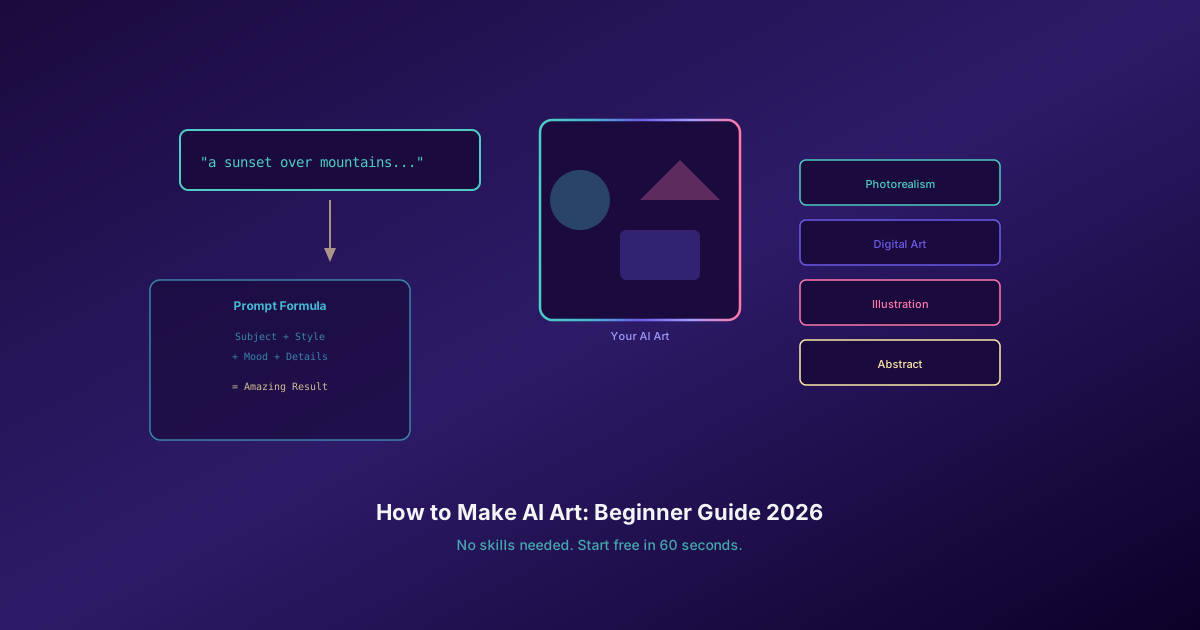
The formula is straightforward: Subject + Style + Mood + Technical Details.
- Subject -- What you want to see (a person, landscape, object, animal, scene)
- Style -- The artistic style (photorealistic, watercolor, digital art, anime, oil painting)
- Mood -- The emotional tone (dramatic, peaceful, eerie, vibrant, melancholic, whimsical)
- Technical details -- Lighting, camera angle, color palette, time of day, specific artistic references
Here are five example prompts, progressing from simple to complex, showing how each element builds on the last:
1. Simple subject only:
"A cat sitting on a windowsill"
This works but gives the AI maximum freedom. You will get a decent image, but the style, mood, and composition are entirely up to the model.
2. Subject + Style:
"A watercolor painting of a cat sitting on a windowsill"
Now the AI knows to render in watercolor style -- soft washes, visible brush marks, translucent color layers. The image immediately has more character.
3. Subject + Style + Mood:
"A watercolor painting of a cat sitting on a windowsill, peaceful morning atmosphere, warm sunlight"
Adding mood transforms the emotional impact. The AI will add golden light, soft shadows, and a sense of calm tranquility to the scene.
4. Subject + Style + Mood + Technical details:
"A watercolor painting of a tabby cat sitting on a windowsill, peaceful morning atmosphere, warm golden sunlight streaming through lace curtains, soft focus background of a garden, pastel color palette"
Technical details give the AI precise direction on lighting, background, and color. Each addition narrows the output closer to your vision.
5. Full creative brief:
"A watercolor painting of a tabby cat sitting on a rain-speckled windowsill, peaceful morning atmosphere, warm golden sunlight streaming through lace curtains, a cup of steaming tea beside the cat, soft focus background of a rainy garden with lavender bushes, muted pastel color palette with pops of warm amber, loose brushstrokes, editorial illustration style"
This prompt is a complete creative brief. The AI knows the subject, style, mood, environment, color scheme, and artistic technique. Results at this specificity level are consistently excellent.
The takeaway: start simple, then iterate. Write a basic prompt, see what the AI produces, and add details to steer the next generation closer to your vision.
Choosing Your First AI Model
Not all AI models are created equal. Each has strengths and weaknesses depending on what you want to create. Here is a beginner-friendly breakdown of the best models to start with:
| Model | Best For | Difficulty | Price | Recommendation |
|---|---|---|---|---|
| Flux 2 Pro | Photorealism | Easy | $0.05/image | Best default choice |
| GPT Image 1.5 | Everything | Easiest | $0.05/image | Most forgiving prompts |
| Nano Banana 2 | Fast experimenting | Easy | $0.03/image | Best value per credit |
| GPT Image 2 | Text in images | Easy | Shown in app | Best for posters/logos |
Flux 2 Pro is the best photorealism model available. If you want images that look like real photographs -- portraits, landscapes, product shots -- Flux delivers consistently excellent results. It requires minimal prompt engineering, meaning even basic prompts produce polished output.
GPT Image 1.5 is the most forgiving model for beginners. It understands natural language better than any competitor, so you can describe what you want conversationally without needing to learn special prompt tricks. It also has the best text rendering of any model, making it ideal for creating social media posts, posters, or cards that include readable text.
Nano Banana 2 is the cheapest option at roughly $0.03 per image. It generates in 2-4 seconds -- significantly faster than other models. Use it when you want to experiment rapidly, iterate on prompts, or generate large batches without burning through credits.
GPT Image 2 is the pick for images that contain text. If you need a birthday card with a custom message, a movie poster with a title, or a logo concept, GPT Image 2 handles text rendering reliably. For logo and icon concepts, Recraft V3 is another strong option.
Our recommendation for absolute beginners: Start with GPT Image 1.5 because it understands casual, natural-language prompts best. Once you are comfortable writing prompts, switch to Flux 2 Pro for photorealism or Nano Banana 2 for fast, cheap experimentation.
Step-by-Step: Your First AI Artwork
Here is exactly how to create your first piece of AI art on Oakgen:
Step 1: Open the Image Generator
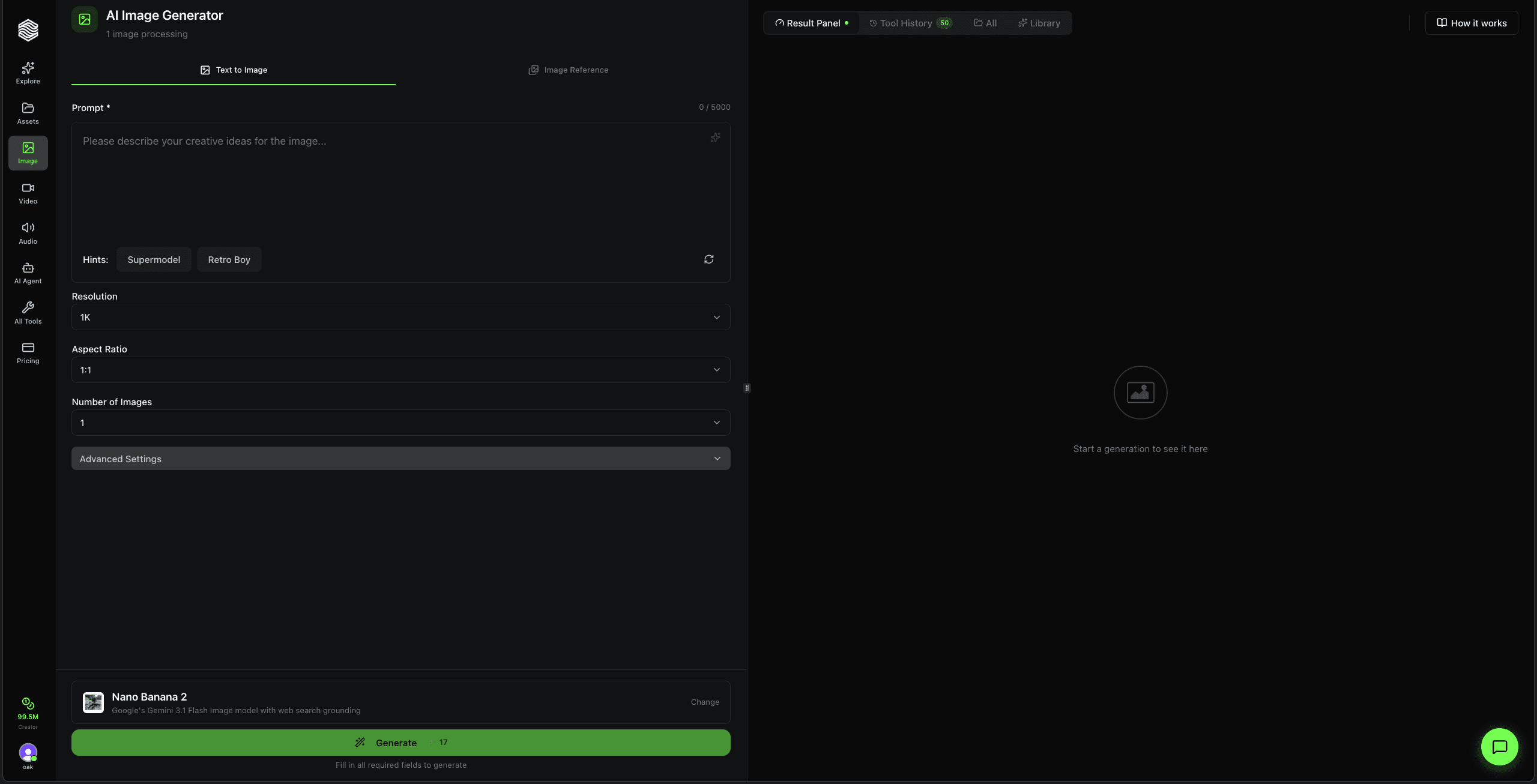
Go to the Image Generator. No software download required -- everything runs in your browser.
Step 2: Choose a Model
Select GPT Image 1.5 from the model selector if you are a complete beginner. It is the most forgiving with casual prompts and produces reliably good results across all styles.
Step 3: Write Your Prompt
Use the prompt formula from above. Start simple. For your first attempt, try something like:
"A cozy coffee shop on a rainy evening, warm lighting through foggy windows, digital art style, cinematic atmosphere"
Step 4: Choose Your Aspect Ratio
Select the aspect ratio that matches your use case:
- 1:1 (square) -- Instagram posts, profile pictures, thumbnails
- 16:9 (landscape) -- YouTube thumbnails, desktop wallpapers, blog headers
- 9:16 (portrait) -- Phone wallpapers, Instagram stories, TikTok covers
- 4:3 -- Presentation slides, standard prints
Step 5: Click Generate
Hit the Generate button. Most models return results in 5-15 seconds. You will see your image appear on screen as soon as it is ready.
Step 6: Download Your Result
Click download to save your image, subject to the output settings and limits of your paid plan. From here, refine the prompt, try a different model, or move on to editing.
AI art has variance -- the same prompt produces different results each time. Generate 4 images at once and pick the best one. This is faster than generating one at a time and gives you more creative options to choose from. Most professional AI artists generate 4-8 variations per prompt.
Common Beginner Mistakes
After working with thousands of users, these are the most frequent mistakes beginners make -- and how to avoid them:
Too vague. A prompt like "a cool picture" or "something beautiful" gives the AI almost nothing to work with. Be specific about your subject, style, and mood. "A dramatic sunset over a desert canyon, photorealistic, warm orange and purple tones" is far more effective.
Too many subjects. "A cat and a dog and a bird and a dragon and a spaceship" overwhelms the model. Most AI models handle one primary subject best. If you need multiple elements, establish one as the clear focal point and make others secondary.
Ignoring style. If you do not specify a style, the model defaults to its own interpretation, which varies unpredictably. Always include at least one style keyword -- "digital art", "watercolor", "photorealistic", "anime style" -- to anchor the visual direction.
Not iterating. Your first generation is rarely your best. Treat AI art as an iterative process. Generate, evaluate, refine the prompt, generate again. Professional AI artists routinely refine a prompt 5-10 times before landing on the final version.
Wrong model for the job. Each model has strengths. Using a general-purpose model for text-heavy designs or a photorealism model for anime will produce subpar results. Photorealism? Use Flux 2 Pro. Text in images? GPT Image 2. Fast experimentation? Nano Banana 2. Matching the model to your goal makes a significant difference.
What to Do After Your First Generation
Once you have created your first AI artwork, here is how to go deeper:
Compare models side-by-side. Use the Image Arena to run the same prompt through two models simultaneously and compare results. This is the fastest way to learn each model's personality and find your favorites.
Edit and refine with the Image Editor. Oakgen's Image Editor supports inpainting (changing parts of an image), outpainting (extending an image beyond its borders), and background replacement. You do not need to re-generate an entire image to fix one detail.
Upscale for print and high-res. If you want to print your AI art or use it at large sizes, Oakgen's upscaler can scale images to 4K and beyond while preserving detail. See our AI image upscaling guide.
Build character consistency. If you are creating a series, comic, or brand mascot, our character consistency guide shows you how to maintain the same character across multiple generations -- same face, same outfit, same proportions.
Turn images into video. Once you have a static image you love, you can animate it. Oakgen's video generator supports image-to-video workflows that bring AI art to life. Check out our step-by-step Oakgen image generator tutorial for the full feature walkthrough.
For more context on where Oakgen fits in the broader landscape, see our best AI image generators 2026 ranking and Midjourney alternatives guide.