You have the perfect image, but it is 512x512 pixels. You need it on a billboard. Or a retina display. Or printed on a poster. Traditional upscaling makes it blurry. Sharpening makes it crunchy. Neither produces something usable at large sizes.
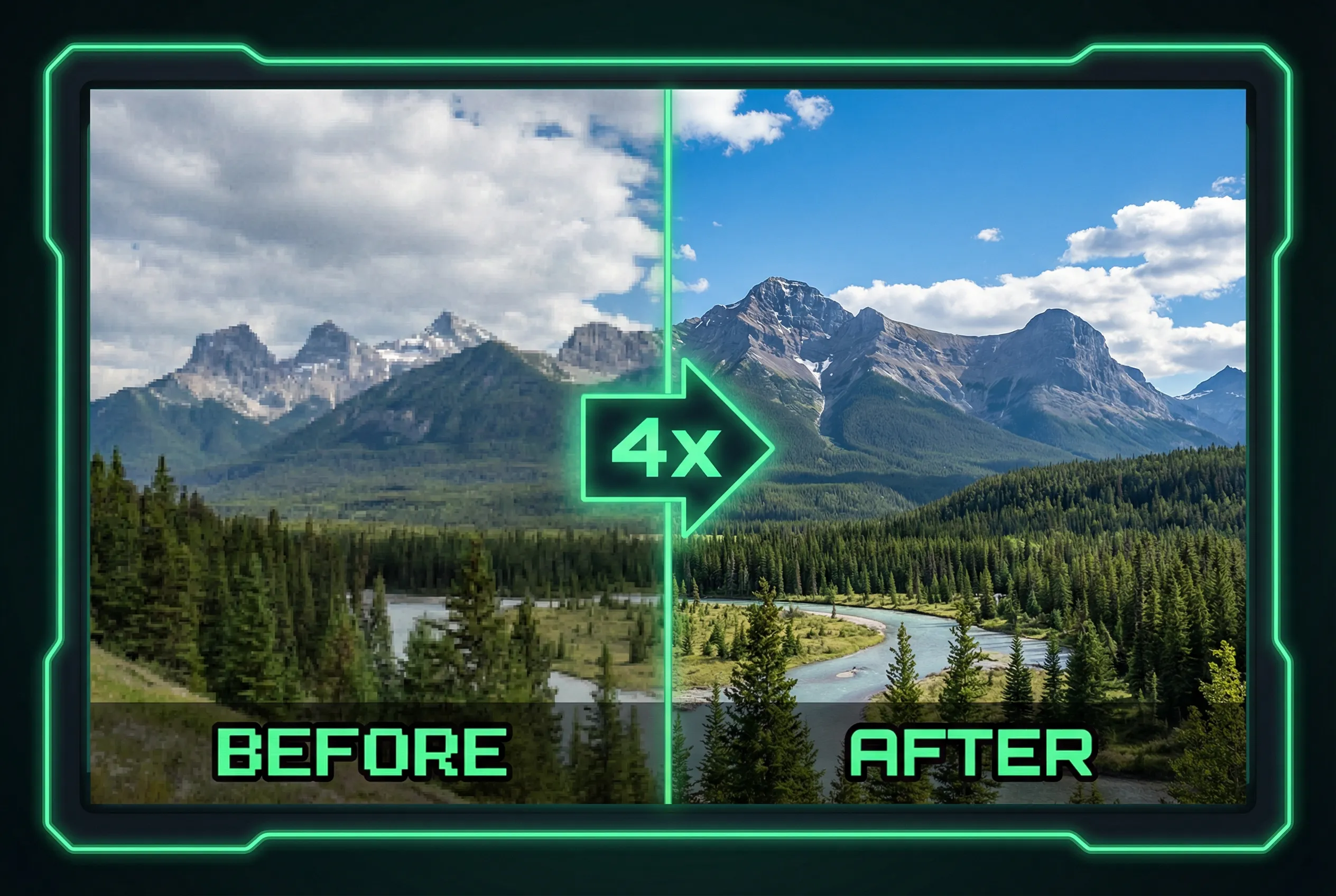
AI upscaling changes the equation entirely. Instead of stretching pixels, AI models analyze the image content and intelligently generate new detail -- adding texture, sharpening edges, and reconstructing features that the original resolution could not capture. The result is an image that looks like it was shot at a higher resolution, not stretched from a lower one.
Oakgen.ai offers three specialized AI upscaler models, each designed for different use cases. This guide covers all three, when to use each one, and how to get the best results.
If the source contains packaging, a label, or a logo that must stay exact, use the stricter acceptance test in our product-photography upscaler comparison. If you are deciding between Oakgen and a standalone tool, start with the Magnific AI alternatives guide. For what Magnific itself costs after the Freepik rebrand, see our Magnific AI pricing guide.
Why AI Upscaling Matters
Before diving into the models, here is why upscaling is becoming essential for anyone who works with images.
Print Production
A standard AI-generated image at 1024x1024 looks great on screen. Print it on an A3 poster and it falls apart. Print requires 300 DPI at the target size, which means a 24x36 inch poster needs a 7200x10800 pixel source image. AI upscaling bridges that gap.
Large Displays and Presentations
4K monitors, conference room displays, and digital signage all expose low-resolution images. What looks sharp on a phone looks pixelated on a 65-inch screen. Upscaling ensures your images hold up at any display size.
Social Media Quality
Instagram, LinkedIn, and other platforms compress images aggressively. Starting with a higher-resolution source means the compressed version still looks sharp. Uploading a 512px image to Instagram produces noticeably worse results than uploading a 2048px version of the same image.
Restoring Old or Low-Quality Photos
Product photos shot on older phones, screenshots from video calls, vintage family photos -- all can be dramatically improved with AI upscaling. The AI fills in detail that was never captured, producing results that look like they were taken with a better camera.
Oakgen's Three Upscaler Models
Each model on Oakgen's Image Upscaler has distinct strengths. Here is a detailed comparison.
| Feature | Topaz Image Enhancer | Clarity Upscaler | Crystal Upscaler |
|---|---|---|---|
| Cost per Image | $0.05 (10 credits) | $0.04 (8 credits) | $0.03 (6 credits) |
| Max Scale Factor | 4x | 4x | Up to 200x |
| Output Resolution | Up to 4K+ | Up to 4K+ | Up to 4K+ |
| Algorithm Options | 5 algorithms | Prompt-guided | Portrait-optimized |
| Face Enhancement | Yes (dedicated) | Basic | Yes (portrait focus) |
| Creativity Control | No | Yes (adjustable) | No |
| Best For | General / text / CGI | Creative enhancement | Portraits / faces |
| Speed | 10-20 seconds | 15-30 seconds | 10-15 seconds |
Let us break down each model.
Topaz Image Enhancer -- The All-Rounder ($0.05)
Topaz is the most versatile upscaler on the platform. It offers five distinct algorithms, each optimized for a different type of content:
Low Res V2 -- Designed specifically for very low-resolution inputs (under 256px). If your source image is a tiny thumbnail, a screenshot, or a heavily compressed JPEG, this algorithm reconstructs the most plausible detail.
Standard V2 -- The general-purpose algorithm. Works well across photographs, illustrations, digital art, and mixed content. If you are not sure which algorithm to use, start here.
CGI -- Optimized for computer-generated imagery, 3D renders, and AI-generated images. It understands the clean edges and smooth gradients typical of digital art and preserves them during upscaling instead of adding photographic noise.
Hi-Fi V2 -- Prioritizes maximum detail preservation. Best for photographs where you want to retain every texture and grain. It adds the least AI-generated detail, instead focusing on cleanly scaling what already exists.
Text Refine -- Specifically designed for images containing text. Sharpens letterforms, straightens edges, and ensures readability at larger sizes. If you are upscaling screenshots, documents, or images with typography, this is the algorithm to use.
Topaz also includes a face enhancement option that can be toggled on for photos containing people. It reconstructs facial features with higher fidelity than the general algorithms.
Topaz is your default choice. Use it when your image contains mixed content (photos with text, graphics with photographs), when you need specific algorithm control, or when face enhancement matters. The extra penny per image over Clarity is worth it for the algorithm flexibility.
Clarity Upscaler -- The Creative Enhancer ($0.04)
Clarity takes a different approach to upscaling. Instead of just adding resolution, it can reimagine and enhance the image content based on a text prompt. This makes it uniquely powerful for creative applications.
The key feature is creativity control -- a slider that determines how much the AI deviates from the original image when adding detail. At low creativity, it behaves like a traditional upscaler. At high creativity, it can add textures, details, and elements that were not in the original image but are consistent with the content.
How to use the prompt: Describe what the image contains or what you want the enhanced version to emphasize. For example:
"Sharp architectural photograph with crisp brick textures and clean glass reflections"
"Detailed fantasy illustration with intricate armor patterns and glowing magical effects"
The prompt guides the AI's decisions about what kind of detail to add during upscaling. A landscape photo prompted with "sharp mountain textures, detailed foliage" will produce different results than the same photo with default upscaling.
Clarity is best when you want the upscaled version to look better than the original -- not just bigger, but genuinely enhanced.
Crystal Upscaler -- The Portrait Specialist ($0.03)
Crystal is the most affordable upscaler and is specifically optimized for portraits and face-centric images. Its standout feature is an extreme scale factor -- up to 200x -- which makes it uniquely useful for recovering detail from very small source images.
Crystal understands facial structure, skin texture, hair detail, and eye clarity at a deeper level than general-purpose upscalers. For headshots, profile photos, group photos where faces are small, or any portrait work, Crystal typically produces the most natural-looking results.
At 6 credits per image, Crystal is also the most budget-friendly option. If you are processing a large batch of portrait photos, the cost savings add up quickly.
Crystal's 200x scale factor does not mean you should always push it to the maximum. For most use cases, 4x-8x produces the best balance of detail and naturalness. Reserve extreme scale factors for recovering very small source images (like cropped faces from group photos or tiny thumbnails).
Step-by-Step: Upscale Your First Image
Step 1: Open the Image Upscaler
Navigate to the Image Upscaler from the Oakgen dashboard. You will see the upload area and model selector.
Step 2: Upload Your Image
Click "Upload Image" or drag and drop your file. Oakgen accepts JPEG, PNG, and WebP formats. There is no minimum resolution requirement, but the AI works best with images that are at least 256x256 pixels.
Step 3: Choose Your Model
Select the appropriate upscaler based on your content:
- Mixed content or text? Use Topaz and select the appropriate algorithm
- Creative enhancement? Use Clarity and write a descriptive prompt
- Portrait or face? Use Crystal for the best results at the lowest cost
Step 4: Set Your Scale Factor
Choose how much to enlarge the image. Common options:
- 2x -- Doubles the resolution (e.g., 1024px to 2048px)
- 4x -- Quadruples the resolution (e.g., 1024px to 4096px / 4K)
- Higher -- Crystal supports up to 200x for extreme cases
For most use cases, 2x or 4x is the sweet spot. Going higher introduces more AI-generated detail, which may or may not match the original image's character.
Step 5: Configure Model-Specific Settings
For Topaz: Select the algorithm (Standard V2 for general use) and toggle face enhancement if needed.
For Clarity: Write an optional prompt describing the image content and set the creativity slider.
For Crystal: Adjust the scale factor. Lower factors produce more natural results.
Step 6: Generate
Click Enhance and wait for processing (typically 10-30 seconds). The upscaled image will appear alongside the original for comparison. Download in full resolution.
Decision Guide: Which Model Should You Use?
General Photographs
- First choice: Topaz (Standard V2 or Hi-Fi V2 algorithm)
- Budget option: Clarity without a prompt (basic upscaling mode)
- Use Hi-Fi V2 for photos where preserving grain and texture matters
Combining Upscaling with Other Oakgen Tools
The upscaler works best as part of a larger workflow. Here are some powerful combinations:
Generate then Upscale
Create an image with the Image Generator at standard resolution, iterate on the prompt until you are happy, then upscale the final version to 4K. This saves credits during the iteration phase since you are not generating at maximum resolution every time.
Edit then Upscale
Use the Image Editor to make adjustments -- remove backgrounds, fix imperfections, adjust colors -- and then upscale the final edited version. Editing at lower resolution is faster and cheaper; upscale once at the end.
Upscale then Print
For any print project, upscaling is the final step before sending to the printer. Generate your image, edit it, and then run it through Topaz (Standard V2 or Hi-Fi V2) at 4x to produce a print-ready file.
Photo Studio Pipeline
Enhance photos in the Photo Studio first (color correction, lighting adjustment), then upscale the enhanced version. The upscaler works with higher-quality input, so enhancing before upscaling produces better results than upscaling first.
Generate images at standard resolution while experimenting with prompts. Only upscale your final, approved version. This can save 50-70% on credits during the creative process.
Pricing Breakdown
All three upscalers are affordable, especially compared to standalone services:
- Topaz Image Enhancer: 10 credits ($0.05) per image
- Clarity Upscaler: 8 credits ($0.04) per image
- Crystal Upscaler: 6 credits ($0.03) per image
On the Pro plan ($19/month, 5,000 credits), you can upscale:
- 500 images with Topaz
- 625 images with Clarity
- 833 images with Crystal
And remember, your credits work across the entire Oakgen platform. The same credits you use for upscaling also power image generation, video creation, music, and more.