Course creators do not usually need less expertise. They need fewer recording bottlenecks.
One typo in a lesson script can force a re-record. One pricing change can make a module outdated. One new cohort can require a fresh intro, recap, or bonus lesson. If your course depends on your voice, every small update becomes a studio task.
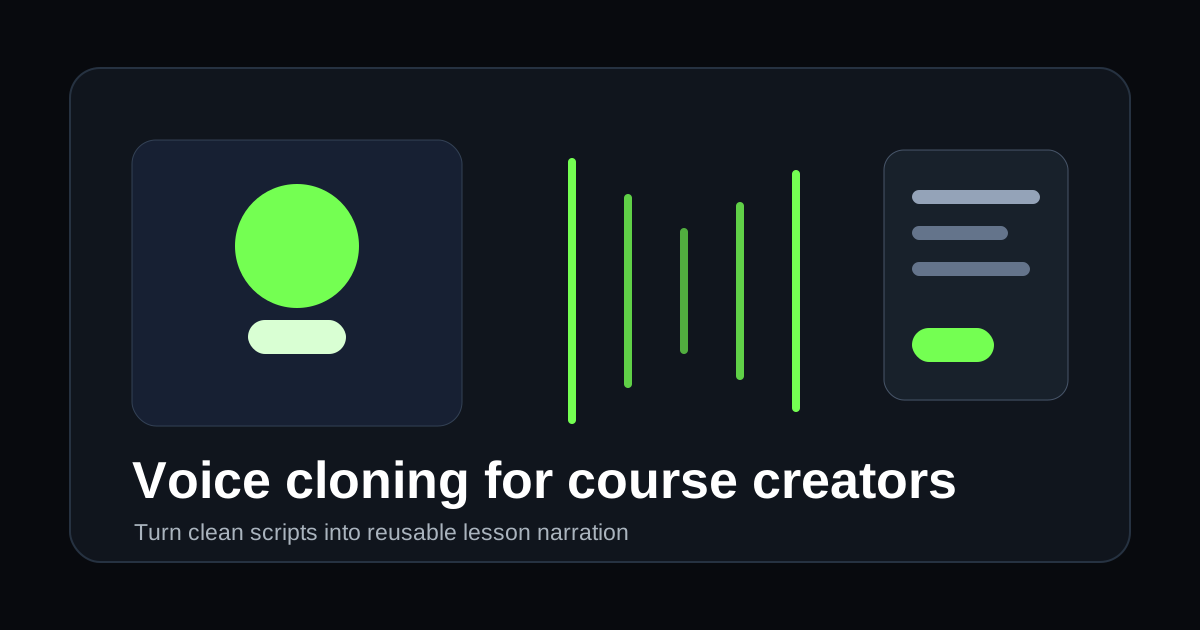
Oakgen's Voice Generator and voice cloning workflow give creators a practical middle path: record your voice once, then generate clean narration for updates, short lessons, social clips, and course support material from text.
What voice cloning is actually good for
Voice cloning is not a reason to stop recording. It is a way to stop re-recording every small thing.
For course creators, the best use cases are:
- lesson corrections
- updated intros and outros
- module recaps
- onboarding sequences
- quiz explanations
- bonus lessons
- weekly cohort announcements
- social clips from course content
- audio versions of worksheets
- multilingual draft narration
The weak use cases are just as important:
- emotional origin stories
- sensitive student messages
- testimonials
- legal or medical disclaimers
- anything where live human presence matters
Use your real recorded voice when trust is the content. Use cloned narration when clarity and speed are the content.
How Oakgen's voice workflow fits a course pipeline
Oakgen's audio tools cover text-to-speech, voice cloning, and music. Sound effects are available through Agent Chat rather than the audio tools. For course creators, the main stack is:
- create or select a voice in Voice Generator
- clone your own voice if needed through the voice-cloning tab
- generate narration from edited lesson scripts
- pair narration with slides, screen recordings, or AI video
- create social and email snippets from the same script
If the lesson needs music, use Music Generator. If it needs visual explainers, use AI Video Generator or Talking Photo, depending on the format.
Step 1: record a clean voice sample
The MiniMax voice-clone configuration in Oakgen recommends at least 10 seconds of audio and supports common audio formats such as MP3, WAV, M4A, OGG, and WebM. Do not treat 10 seconds as the ideal. Treat it as the minimum.
Record a sample like this:
- quiet room
- no background music
- no fan, keyboard, street noise, or echo
- normal speaking voice
- 30 to 90 seconds of varied sentences
- consistent distance from the microphone
- no heavy compression or noise gate
Read something close to your course style:
Welcome back. In this lesson, we are going to take the messy first draft of your offer and turn it into a clear promise your buyer can understand in one sentence. Do not worry about making it clever yet. First we are going to make it true, specific, and easy to repeat.
This gives the model pacing, emphasis, and the kind of language it will need later.
Step 2: name and save the voice
In Voice Generator, use the voice-cloning workflow to upload your sample and give the voice a memorable name.
Use names that help you manage versions:
Alex Course Voice - Clean StudioMaya Coaching Voice - WarmFounder Voice - Fast UpdatesInstructor Voice - Calm Lessons
If you create multiple versions, keep notes. A "warm" voice may work for onboarding while a "clean studio" voice may work better for direct instruction.
Step 3: write narration for listening, not reading
Text-to-speech is sensitive to punctuation. Oakgen's audio guidance calls this out directly: commas create natural pauses, periods create stops, and ellipses create dramatic pauses.
A course script should sound spoken:
Too written:
The objective of this module is to facilitate the development of a differentiated positioning statement for an audience segment with urgent demand.
Better for narration:
By the end of this module, you will have one clear positioning statement. It will say who you help, what problem you solve, and why your approach is different.
Your cloned voice will sound more natural when the script is simple, direct, and paced like real teaching.
Step 4: build reusable lesson blocks
Voice cloning becomes powerful when you think in blocks.
Create reusable audio formats:
- Module intro: "In this lesson, we will..."
- Recap: "Here is what you should have now..."
- Exercise instruction: "Pause the video and complete..."
- Mistake warning: "The common trap here is..."
- Next step: "When you are done, move to..."
These blocks make it easier to update a course without reopening every recording session.
Step 5: turn one lesson into multiple assets
A single course script can become a full content kit on Oakgen:
- Generate the main lesson narration in Voice Generator.
- Use AI Video Generator for a short visual explainer.
- Use Music Generator for a subtle intro bed.
- Use Image Generator or template tools for thumbnails and worksheets.
- Use Video Upscaler if the video needs a cleaner final export.
For example, one lesson on "pricing your first digital product" can become:
- full lesson narration
- 60-second social summary
- 15-second ad hook
- podcast-style audio recap
- onboarding email audio clip
- translated draft narration for a new market
That is where voice cloning pays off. Not replacing your course, but multiplying the useful pieces around it.
Ethical rules for course creators
Voice cloning touches identity. Treat it seriously.
Follow these rules:
- clone only your own voice or a voice you have explicit permission to use
- tell collaborators when cloned narration is used
- do not clone students, customers, or guests without written consent
- avoid using cloned voices for testimonials
- record sensitive lessons yourself
- keep original scripts and generated audio organized
If the voice is part of the trust relationship, disclosure is not a nuisance. It is part of the product.
When to record live instead
Record live when emotion matters:
- origin story videos
- first welcome video for a premium cohort
- personal feedback
- memorial or sensitive material
- sales pages where the founder's presence is the proof
Use cloned voice when precision and consistency matter:
- lesson fixes
- evergreen modules
- product walkthroughs
- worksheet instructions
- social clips
- changelog videos
- multilingual drafts
A simple production schedule
Here is a weekly workflow for a solo course creator:
| Day | Task |
|---|---|
| Monday | Write or revise lesson script |
| Tuesday | Generate cloned narration and review pacing |
| Wednesday | Create visuals, slides, or AI video clips |
| Thursday | Assemble lesson and social snippets |
| Friday | Publish course update and email recap |
The key is that audio no longer blocks the whole schedule. You can revise a paragraph and regenerate that segment instead of rebuilding the entire lesson.
The takeaway
Voice cloning is best when it keeps your course current.
Use your real voice for the moments students need to feel you in the room. Use Oakgen's Voice Generator for the repeatable narration that keeps lessons accurate, polished, and shippable.
Create course narration with Oakgen
Clone your own voice, generate lesson audio, and turn scripts into reusable course assets.