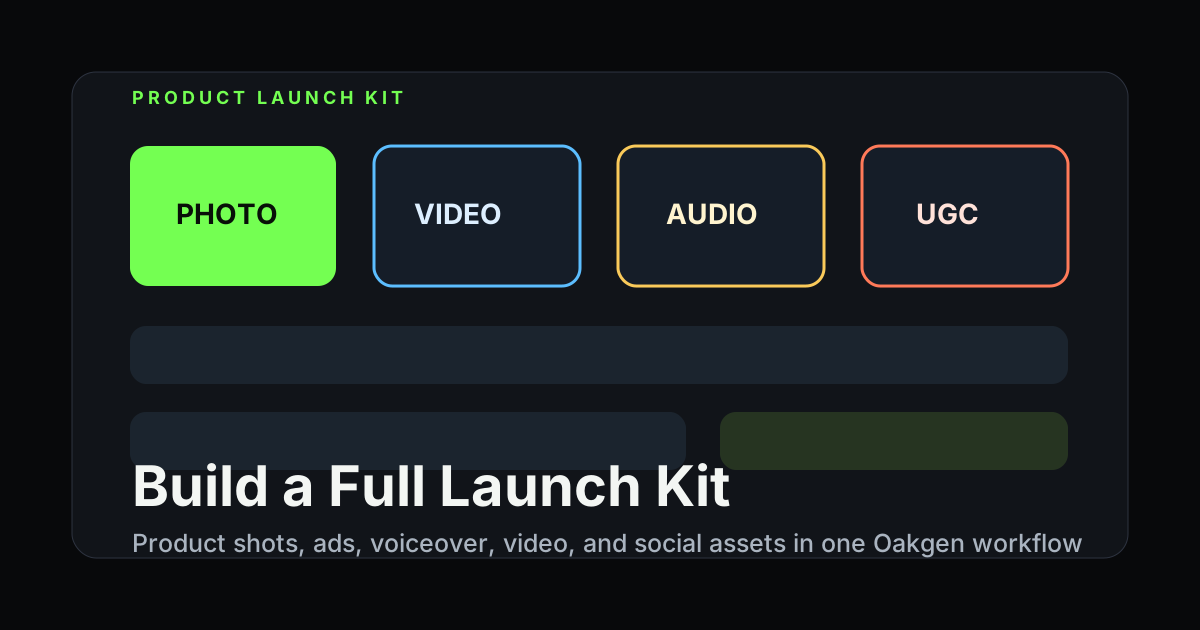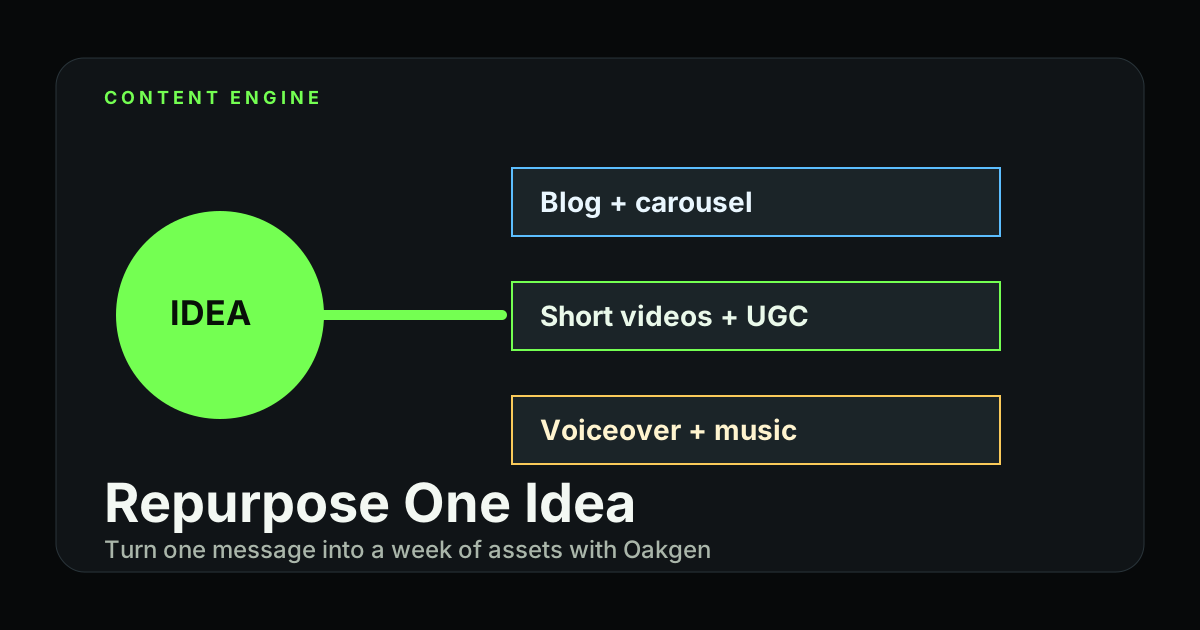
The fastest content teams do not start from scratch every day. They turn one strong idea into a system: blog visuals, carousels, short videos, UGC ads, thumbnails, voiceovers, music beds, and channel-specific variants.
Oakgen is built for that kind of repurposing because the core tools live in one workspace. You can start with a message, generate the visual direction, animate it, add voice and music, create UGC ad variants, and polish the final assets without moving between five separate products.
Start with one core idea
A content engine needs a message that can survive multiple formats. Start with a sentence:
Busy founders do not need more productivity hacks. They need calmer systems that reduce decisions.
That idea can become:
- a blog header
- a LinkedIn carousel
- a 20-second explainer video
- a talking avatar clip
- a UGC-style ad
- a product visual
- a newsletter image
- a YouTube thumbnail
- an audio intro
The key is to keep the message stable while the format changes.
The Oakgen repurposing map
| Asset | Tool | Output |
|---|---|---|
| Visual direction | Image Generator | mood, key art, first frames |
| Model comparison | Image Arena | strongest visual style |
| Social graphics | Image Editor, template tools | aspect ratios, backgrounds, variants |
| Short video | AI Video Generator | motion clips and visual loops |
| Talking head | Talking Photo | portrait plus voiceover clip |
| UGC ad | UGC Ads | avatar read, product B-roll, performance creative |
| Voiceover | Voice Generator | narration or ad read |
| Music bed | Music Generator | loop, intro, background track |
| Final polish | Image Upscaler, Video Upscaler | sharper delivery assets |
Ask what job each asset does. A thumbnail earns the click. A UGC ad tests a hook. A voiceover explains. A product visual creates trust.
Step 1: Build the visual anchor
Open Image Generator and create a visual anchor for the idea.
Prompt:
Editorial visual for an article about calm productivity systems for busy founders. A clean founder desk with fewer decisions, subtle system map on paper, warm morning light, graphite and soft green palette, premium SaaS editorial style, room for headline text.
Generate a few directions. If they vary widely, use Image Arena to compare models with the same prompt.
The visual anchor becomes the source for:
- article header
- carousel cover
- video first frame
- YouTube thumbnail
- ad background
- email banner
Step 2: Turn the visual into channel crops
Use Image Editor to adapt the anchor image instead of regenerating every format from scratch.
Create:
- 16:9 for YouTube or blog header
- 4:5 for Instagram and LinkedIn
- 9:16 for Stories, Reels, TikTok, and Shorts
- 1:1 for profile feeds or ad placements
If the image becomes soft after cropping or extending, use Image Upscaler.
Step 3: Create the short video
Use the best still as an image-to-video starting frame in AI Video Generator.
Prompt:
Slow cinematic move across a calm founder desk. A notebook shows a simple system map. Morning light shifts gently. Minimal motion, premium editorial SaaS style, focused and calm, 9:16 vertical video.
Keep the first clip simple. The purpose is not to make a film. It is to create motion that supports the idea.
Step 4: Add voiceover
Use Voice Generator to create a short narration:
You do not need another productivity hack. You need fewer decisions. Build a system that tells you what to do next before the day gets noisy.
Make two versions:
- calm founder narration
- sharper ad-style read
The calm version fits organic content. The sharper version fits paid creative.
Step 5: Create UGC variants
Open UGC Ads when you want the same idea to become performance creative.
Three hook variants:
| Hook | Use |
|---|---|
| "If your day starts with 40 decisions..." | productivity audience |
| "Most founders do not need more apps..." | startup audience |
| "Your system should remove decisions, not add them." | B2B audience |
Generate a talking-avatar read for each hook. Then generate B-roll from the visual anchor or product concept.
Step 6: Add music only where it helps
Use Music Generator for social videos, intros, and ads. Do not add music to every asset. The voice should stay clear when the idea needs explanation.
Prompt:
Minimal calm electronic bed for founder productivity content. Soft pulse, warm texture, low distraction, modern SaaS tone, 20 second loop.
Use the same music direction across related clips so the content set feels connected.
Step 7: Ship the content set
One idea can become a weekly package:
| Day | Asset |
|---|---|
| Monday | blog post or LinkedIn text post with hero visual |
| Tuesday | carousel using the same visual system |
| Wednesday | 20-second explainer video |
| Thursday | UGC-style talking avatar |
| Friday | short B-roll clip with text overlay |
| Weekend | newsletter header or recap visual |
This is how one good idea becomes a content engine. You are not making more random posts. You are making a system of assets that repeat the same message from different angles.
The quality control pass
Before publishing, check:
- Does every asset communicate the same idea?
- Are the visuals recognizably from the same world?
- Is the voiceover clear without music?
- Is the first frame strong enough for a feed?
- Are the 9:16 and 4:5 crops intentional?
- Did you make enough variants to test hooks?
Repurposing works when the idea stays consistent and the execution changes by channel.
Build your content engine
Start with one idea, then create images, videos, UGC ads, voiceovers, music, and social variants in Oakgen.