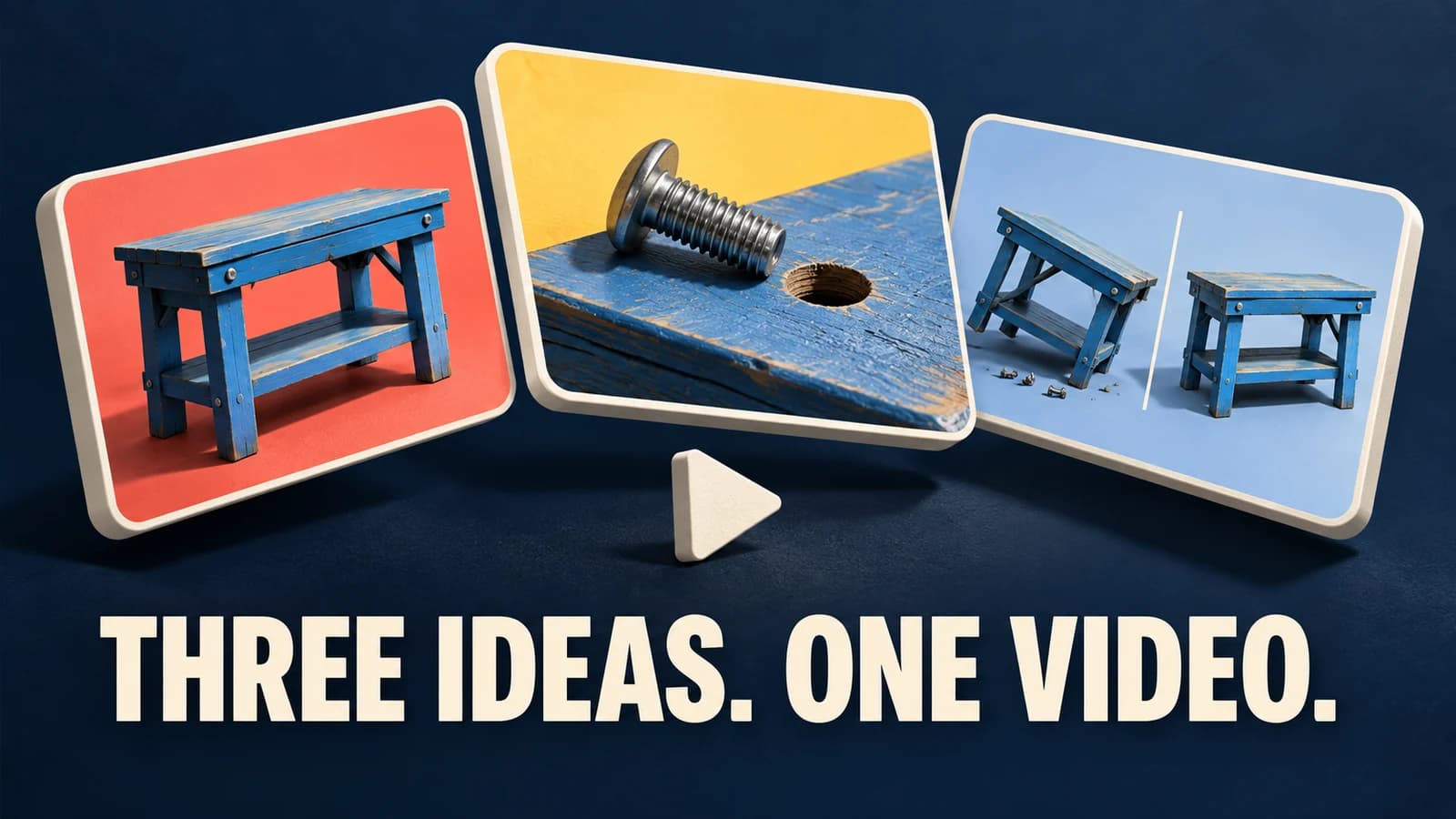
Good AI YouTube thumbnails begin with the video’s actual payoff. Build three different visual arguments for watching, keep the people and results truthful, then inspect each image at a small viewing size. Generate the visuals in Oakgen, finish exact typography where necessary, and evaluate approved candidates in YouTube Studio.
A useful set might show the result, the problem, and a before/after contrast. Three copies with different background colors answer a much narrower question. Neither a polished image nor an AI score establishes which version your audience will prefer.
Start a thumbnail candidate from your own reference image. The brief and checks below help you decide what to generate and what to reject.
Choose the workflow that matches the job
| What you need | Starting point | Final check |
|---|---|---|
| Fast visual directions for one video | Oakgen’s thumbnail template with a reference, video description, style and palette | Does the image still depict the actual subject? |
| A precise crop or scene change | Oakgen’s image editor with a source frame and a specific instruction | Did the edit alter a person, tool, product or result? |
| Exact face, logo or wording | Original assets and a suitable external layer editor | Inspect the flattened export, not just the editable project |
| Evidence about audience response | Approved candidates in YouTube Studio | Record the platform’s verdict and uncertainty |
Use the template to explore a direction; use controlled compositing when a particular face or item must stay exact. Open the dedicated thumbnail workflow once you have a usable source and a clear viewer promise.
Who this is for, and what we checked
This guide is for creators preparing thumbnails for horizontal YouTube videos, including tutorials, reviews and explainers. It concentrates on the image and its evaluation. The wider YouTube video workflow covers production, while the faceless-video guide addresses a different starting point.
Research was reviewed on October 7, 2026 against YouTube’s official guidance and Oakgen’s current template and form implementation. Oakgen is our product. We have not run a channel experiment or measured a performance lift for this article.
The desk-repair scenario, briefs and concept board are illustrative editorial compositions, not actual Oakgen outputs. They demonstrate design decisions. They do not show a repaired desk, a published video or tested channel results.
Write the video promise before the image prompt
Consider a fictional tutorial: “How to Repair a Wobbling Desk.” In the planning scenario, the video shows the desk wobbling, diagnoses a loose bracket, tightens the existing hardware, and demonstrates the stable result. Use this example only if your own footage actually supports those beats.
That last condition matters. If your repair needs a replacement part, the thumbnail should not promise “NO NEW PARTS.” If the desk stays slightly unstable, do not show an impossible final transformation. A visual shortcut must still represent the tutorial honestly.
Write the viewer’s problem in one sentence: “My desk moves when I type, and I want to know what to check.” Write the payoff separately: “The video demonstrates one diagnosed cause and the repair that worked on this desk.” You now have something more useful than “make it viral.”
YouTube’s thumbnail policy prohibits images that mislead viewers about what is in the video. Use a specific frame or demonstration from your footage as the evidence for a claimed result.
Copy this brief before generating:
Video / working title:
Intended viewer and their problem:
Actual payoff demonstrated in the footage:
Source frames that prove the problem and result:
Person / product / object that must remain accurate:
Claims or imagery the footage does not support:

Concept A — result:
Main object:
Reason the viewer might choose it:

Concept B — problem:
Main object:
Reason the viewer might choose it:

Concept C — contrast:
Main object:
Reason the viewer might choose it:

Exact optional wording:
Placement to leave clear:
Reviewer / approval date:
Save the brief with the source frames. If an editor joins the job later, they should be able to identify the real desk and the approved repair outcome without interpreting a chat history.
Make three concepts with different hypotheses
A hypothesis is a reason one visual might work better for this video. It is not a prediction dressed up as a result.
For the desk tutorial, use this concept board:
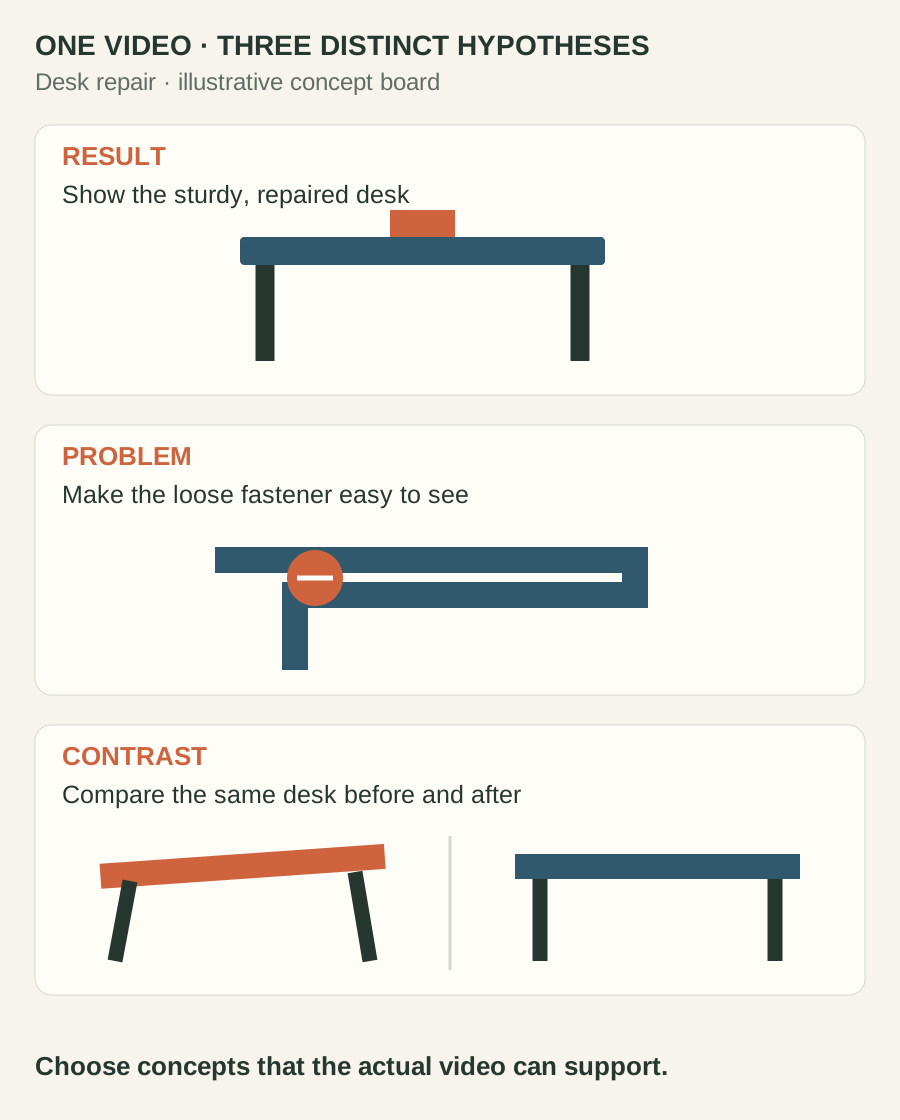
Illustrative editorial compositions. The panels explain layouts; they are not Oakgen generation samples or evidence of audience performance.
| Concept | What fills the image | Hypothesis | What would invalidate it |
|---|---|---|---|
| A: Result | The real desk after repair, with the corrected bracket visible | A clear practical payoff helps the right viewer recognize a useful fix | The image invents a different bracket or an unachieved result |
| B: Problem | A close view of the loose bracket and the actual wobbling desk | Recognizing the fault makes the tutorial immediately relevant | The fault becomes too small to understand or looks like broken hardware |
| C: Contrast | Before and after views of the same desk, with one clear dividing line | Seeing the change communicates the repair without a long explanation | Different desk geometry makes the comparison misleading |
Keep one restrained channel cue across the set: a recurring accent color or the same text treatment. Let the main idea change. Otherwise the test mixes the concept with a completely different visual identity and becomes harder to learn from.
Avoid three unrelated promises. “Stable desk,” “build a luxury office,” and “earn money woodworking” are different videos. Your alternatives should give viewers different ways into the same piece of content.
Generate candidates with Oakgen’s actual controls
The YouTube thumbnail template accepts a reference image and exposes Video Content, Thumbnail Style and Color Scheme. It sets a 16:9 aspect ratio. Model-specific settings depend on the model you select.
For our example, start with a clear frame from the footage. Choose Educational and Natural/Earthy for a restrained tutorial direction. Keep those choices stable while trying different descriptions; write down the selected model and settings too.
Use short descriptions in Video Content, such as:
A: Desk repair tutorial showing the same desk after tightening
its loose bracket; the corrected bracket is the visual focus.

B: Desk repair tutorial showing the loose bracket that causes
this desk to wobble; one clearly visible fault, uncluttered scene.

C: Desk repair tutorial comparing the same desk before and after
its bracket is tightened; simple before-and-after composition.
These are suggested briefs, not tested commands with guaranteed outputs. The template uses its guided fields rather than a separate custom prompt box. Use the editor when you need to specify individual composition changes.
When you need precise composition instructions, move to the image editor. Upload the relevant source and adapt a prompt like this:
Create a horizontal thumbnail concept for a desk-repair tutorial
using this source frame. Make the desk and its loose bracket
readable as the main subject. Simplify the surrounding clutter.
Keep the desk shape, finish and hardware consistent with the source.
Leave a clear area for optional wording. Do not add text, a face,
a new tool, broken parts or a repair result absent from the source.
For the result version, replace “loose bracket” with the completed repair shown in the corresponding source frame. For a comparison, an external layer editor can place your genuine before and after frames side by side without requiring a model to reconstruct both.
Try one focused thumbnail edit, then compare it with the source before generating the next direction. If the instruction keeps being missed, use the image-edit troubleshooting guide to narrow the requested change.
Reject invented evidence before checking aesthetics
Review the full-size image beside the source. Does the desk still have the same legs? Is the bracket attached in a plausible position? Did the model turn a screwdriver into another tool, erase the problem, or add a crack that was never there?
Those errors matter even if the composition looks stronger. A tutorial thumbnail serves as a promise about the video. An invented structural failure changes that promise.
Faces require the same attention. An uploaded portrait can guide generation, but it does not guarantee the creator’s exact likeness. Use an original cutout in a suitable graphics editor when the specific person must appear unchanged. Do not substitute a synthetic reaction and describe it as a photographed response.
Exact wording and logos also deserve separate approval. Generate the visual without relying on its lettering, then add the approved words in your design editor. For a product review, use the logo and label accuracy checklist when packaging text is part of the image.
Stop regenerating when the problem needs direct design control. A clean background with the wrong desk is not a near-final asset. Retaining your original desk pixels may be the more reliable way to finish the concept.
Run a small-size check before exporting
Create review copies at about 320 pixels wide and 160 pixels wide. These are deliberately small review sizes, not claims about a fixed YouTube display size. Look at them without zooming.
Ask someone to describe what they see before telling them the concept. “A desk and a red arrow” means the loose-bracket idea has not communicated yet. “The joint holding the desk is loose” is a much more useful response.
Review each candidate with its intended title, and check:
- Can you identify the desk or fault immediately?
- Does the title add information rather than repeat a long caption?
- Is there one dominant object instead of several competing details?
- Can optional wording be read without enlarging the preview?
- Is critical evidence clear of the lower-right timestamp area?
- Does the image still match the footage after text and cropping?
For A, “STABLE AGAIN” might support the outcome if the video proves it. For B, “CHECK THIS JOINT” points toward diagnosis. C may need no words if the comparison reads clearly. These are proposed treatments, not prescribed word counts or expected winners.
Write one concrete revision per candidate. “Enlarge the bracket crop” is actionable. “Make it pop” invites another round of decoration without improving understanding.
Export the final files, then inspect them again
YouTube’s current custom-thumbnail guidance recommends 3840 × 2160 for horizontal video thumbnails, with a minimum width of 640 pixels, and formats such as JPG or PNG. Its upload limits depend on device: 50 MB on desktop and 2 MB on mobile for video thumbnails.
A 16:9 image is not automatically 3840 × 2160. Check the downloaded dimensions. If enlargement is necessary, inspect the result; resizing cannot certify that a face, bracket or letter is correct. Oakgen’s image upscaler can help enlarge a suitable image, while final typography and layout can stay in your graphics editor.
Keep all three candidates at the same final dimensions and export quality. Reopen each exact file to check spelling, edges and contrast. Save clear names such as desk-A-result.png, desk-B-problem.png and desk-C-contrast.png so your test log cannot mix them up.
Run a thumbnail-only test in YouTube Studio
YouTube’s A/B testing guide requires desktop Studio and advanced features. Shorts, scheduled lives, active premieres, private, made-for-kids and age-restricted videos are ineligible; live archives and completed premieres can qualify.
Select A/B Testing → Thumbnail only and upload up to three options. Editing the title or thumbnail stops the test. Allow days to two weeks. Keep every candidate at least 1280 × 720; one smaller image downscales the experiment to 480p.
Results use watch time share: Winner indicates a statistically clear advantage; Performed Same, similar performance; Inconclusive, no clear difference. Without a winner, the first option is the default. Record the verdict instead of selecting by CTR alone.
For this workflow, hold the title fixed throughout so the comparison stays about thumbnail direction. Treat the repair concepts as hypotheses until you have a real report. If testing is unavailable, use the truth and readability checks to choose a candidate, and label the decision editorial. Uploading A today and B next week does not establish the same comparison.
Keep a test log you can actually learn from
Download the thumbnail test log to track the video, concept hypotheses, export checks, test dates, and outcome.
Copy this alongside the final files:
Video URL / ID:
Title held fixed:
Test type: Thumbnail only
Start date / completion date:

A filename / concept hypothesis:
B filename / concept hypothesis:
C filename / concept hypothesis:
Source frames / generation settings / finishing edits:

Reported verdict, copied exactly:
Watch time share if shown:
Chosen final thumbnail:
Editorial reasons for the choice:
What this experiment did not establish:
Next concept worth trying on a relevant video:
A useful lesson is specific: “The fault close-up was readable, but the comparison needed a larger bracket.” An unsupported lesson is “Problem thumbnails always win.” Keep the video, audience and content promise attached to the observation.
If there is no clear difference, do not invent a success story. Choose the most accurate candidate that reads well and fits the channel. Keep the accepted source and project so a future revision can change one deliberate feature.
Frequently asked questions
Can Oakgen create and test YouTube thumbnails?
Oakgen creates image candidates. Review and finish them, then upload the approved files to YouTube Studio to run an eligible test.
Can I paste a detailed prompt into the thumbnail template?
The template uses Video Content, Thumbnail Style and Color Scheme rather than a separate additional-instructions box. Use the image editor for detailed custom edit instructions.
Will a reference image keep my face or product exact?
A reference guides the image but does not guarantee an exact likeness or unchanged product. Inspect the result and use original subject pixels in a layer editor when precision matters.
Does the thumbnail with the highest CTR win?
YouTube's native test evaluates watch time share rather than selecting a winner by CTR alone. Use the reported verdict instead of declaring your own winner.
How long should I wait for a thumbnail test?
YouTube says tests can take a few days and should finish within two weeks. Do not assume that a result must arrive after 48 or 72 hours.
What should I do if the test has no clear winner?
Record the verdict, choose an accurate readable candidate, and preserve the uncertainty in your notes. Do not report a lift or extend the result into a rule for every video.
Take one video with an honest, visible payoff. Create its first reference-based thumbnail candidate, develop the other two concepts, and use the log to keep your design decisions separate from measured results.
Sources and further reading
- YouTube: A/B test titles and thumbnails — eligibility, setup, timing, resolution treatment and reported outcomes.
- YouTube: Add custom thumbnails — recommended dimensions, formats and device-dependent upload limits.
- YouTube: Thumbnails policy — accurate representation and prohibited imagery.
Requirements and interface labels can change. Check the linked guidance when exporting and starting your test.