Get consistently good results from GPT Image 2 by structuring every prompt around six elements: subject, background, camera/angle, lighting, style, and text. Then refine iteratively — don't rewrite from scratch, append corrections to the prompt that worked. This guide walks through the exact workflow the Oakgen team uses to ship UI mockups, infographics, posters, portraits, and multilingual signage in a single sitting, plus 15 templates you can paste in now. GPT Image 2 generates in roughly 3 seconds per image on Oakgen at 26 credits (~$0.10) per render, so the cost of iteration is low. What matters is that each iteration teaches you something.
The prompt anatomy — 6 elements that always work
Every prompt that reliably works in GPT Image 2 answers six questions in order: what is the subject, where is it, how is it framed, how is it lit, what is its visual style, and what text (if any) must appear. Skipping any of these leaves the model to guess, and GPT Image 2's guesses tend toward generic stock photography. Naming each element explicitly — even briefly — anchors the render.
1. Subject. The focal thing. Be concrete. "A mid-century walnut swivel chair" beats "a nice chair." Include materials, scale cues, and any one distinguishing detail.
2. Background. Spatial context. Specify the environment (studio seamless, concrete loft, desert dune) and depth of field. Without this, GPT Image 2 invents backgrounds that often fight your subject.
3. Camera/angle. Framing is half the image. Name a focal length (35mm, 85mm), a shot type (medium close-up, overhead flat-lay, three-quarter view), and a position (eye-level, low angle).
4. Lighting. Mood lives here. "Soft north-window light," "hard noon sun with sharp shadows," "rim-lit against a dark backdrop," "neon-lit wet asphalt." GPT Image 2 has a strong physics sense — describe the light source and it will render plausible falloff.
5. Style. Pick one register and commit. Photorealistic editorial, flat vector illustration, isometric 3D, watercolor, brutalist poster, Pixar-style render. Mixing registers produces mush.
6. Text. If the image needs readable copy, write it in quotes, specify the language, and name a font style ("condensed sans-serif," "slab serif," "handwritten script"). GPT Image 2 handles long-form text better than any previous model, but it still needs an exact brief.
Example built live across the six elements:
Subject: A ceramic pour-over coffee dripper with visible steam
Background: Matte charcoal stone countertop, soft-focused kitchen blurred behind
Camera: 50mm, three-quarter view, eye-level
Lighting: Soft morning window light from the left, subtle rim highlight
Style: Editorial food photography, shallow depth of field
Text: Small label on the dripper reads "Oakgen" in a clean geometric sans-serif
Paste that into GPT Image 2 and you get a usable shot first try. The six elements aren't a formula — they're a checklist that prevents under-specification.
The refinement loop
The second-biggest mistake after under-specification is rewriting the prompt on every iteration. Don't. When a generation is 80% right, identify exactly what's off, then append a single corrective clause to the original prompt. Rewriting discards the parts that worked and invites fresh drift in random directions.
Walk through a short diagnostic before typing anything:
- Text accuracy. Is every letter correct? If not, retype the exact string in quotes and add "render every letter exactly as written."
- Composition. Is the subject framed where you want? Add a spatial clause: "subject centered, 30% negative space above."
- Material rendering. Does metal look like metal, glass like glass, skin like skin? Name the material again with a descriptor: "brushed aluminum with fine radial grain," not just "metal."
- Lighting. Too flat? Specify a single key direction. Too harsh? Soften the source ("diffused through a sheer curtain").
- Color. Off-palette? Give hex codes or Pantone references. GPT Image 2 respects both.
Keep one "working prompt" open in a text file as you iterate. After every generation, append the fix rather than edit in place. You end up with a history of what each clause contributed — which becomes your template library.
When a single clause doesn't fix a problem across two tries, that's your signal to change tactics. Switch the camera angle, or break the scene into a composite (generate subject alone, then background alone, then composite in an image editor). Fighting the same prompt for ten attempts is almost always wasted credits.
Style lock-in for consistent outputs
Producing one good image is a prompt problem. Producing ten on-brand images is a locking problem. GPT Image 2 is the first model where a disciplined style lock can yield a full content set — think a 10-image launch campaign — without visible drift. The trick is to treat style as a locked header and change only the subject below it.
Four techniques, in order of impact:
-
Name a distinctive style phrase and reuse it verbatim across every prompt. Example: "Shot in Oakgen editorial style: soft window light, warm neutral palette, matte finish, 35mm, slight film grain." This phrase becomes your brand's prompt DNA. Keep it identical across every render.
-
Include a palette description. Specify 3–5 colors with descriptors or hex codes: "warm oat (#E8DFCE), muted terracotta (#B8674A), deep ink (#1A1A1A)." GPT Image 2 now honors named palettes with high fidelity.
-
Maintain camera, lighting, and aspect ratio. Changing the aspect ratio mid-set is a common silent cause of drift. Pick 1:1, 3:2, or 16:9 and keep it consistent.
-
Ask for coherence explicitly. For a multi-image set, GPT Image 2 accepts prompts like "generate 8 images in a coherent series, same lighting, same palette, varying only the subject." This is new in the second-generation model — the first didn't respect series coherence reliably.
For a deeper walkthrough of brand-consistent generation, see our GPT Image 2 prompt library.
15 copy-paste workflow templates
Five categories, three templates each. Each template is a starting point — adjust the specifics, keep the structure.
UI mockups
Landing page. Use when you need a hero screenshot for a pitch deck or a draft homepage.
Modern SaaS landing page on a 14-inch laptop mockup, floating on a soft gradient background.
Hero headline: "Ship faster with less code" in a geometric sans-serif.
Subhead below in smaller weight. Clean primary CTA button in electric indigo.
Generous whitespace, 3-column feature grid below the fold. Aspect 16:9.
Tip: Swap the headline to your product's real tagline; keep the weight hierarchy language identical.
SaaS dashboard. For product pages, changelog images, or onboarding screens.
Dark-mode SaaS analytics dashboard, sidebar nav on the left with 6 lucide-style icons,
main panel showing a line chart, a bar chart, and 4 KPI cards with green deltas.
Typography: Inter. Palette: near-black background, electric cyan accents. Aspect 16:10.
Tip: Change "line chart, bar chart" to the exact visualizations your product ships.
Mobile screen. For App Store screenshots or investor decks.
iPhone 16 mockup, portrait, showing a meditation app home screen.
Greeting "Good morning, Maya" at top. Below: a featured 10-minute session card with a calm
gradient cover, then a horizontal row of 4 category chips, then a list of 3 recent sessions.
Soft lavender palette. Crisp SF Pro typography. Aspect 9:19.5.
Tip: Keep the screen count (greeting / feature / chips / list) constant; change the content.
Infographics
Process diagram. For onboarding docs and explainer posts.
Horizontal 5-step process diagram on a cream background.
Each step is a rounded square with a simple line icon and a short label below.
Connect with thin arrows. Steps: "Research → Design → Prototype → Test → Ship".
Palette: cream, charcoal ink, one muted terracotta accent. Aspect 16:9.
Tip: Change the step labels; keep the "line icon + short label" pattern for consistency.
Comparison chart. For vs-style pages.
Side-by-side comparison chart, two columns, headed "GPT Image 2" and "Previous model".
6 rows with checkmarks and x-marks, one-line label per row on the left.
Minimalist, monochrome with one green highlight. Aspect 4:5.
Tip: Works for any two-option comparison; keep rows to 6 for readability.
Data viz. For reports and thread cards.
Clean editorial bar chart, horizontal bars, 5 rows, sorted descending.
Y-axis: country names. X-axis: percentage, 0–100. One color gradient from pale to deep teal.
Title above: "Share of creators using AI image tools, 2026". Subtitle with source. Aspect 3:2.
Tip: Replace the title and data labels; keep the sort order and color gradient direction.
Typographic posters
Modern brutalist. For launch posters and social cards.
Brutalist typographic poster, raw cream paper texture background.
Huge condensed sans-serif type, black ink, word "LAUNCH" set at 80% of the canvas height.
Smaller monospace date below: "04.24.2026". Visible grid guides. Aspect 2:3.
Tip: Swap the word and date; keep the 80%-height type ratio — that's what makes it feel brutalist.
Editorial. For magazine-style hero images.
Editorial magazine cover, matte paper feel. Large serif headline "The Methodical Workflow"
in 4 stacked lines, left-aligned, tight leading. Small caps kicker above in red.
One hairline rule below. Negative space bottom-right. Aspect 3:4.
Tip: Keep the 4-line stacked headline; change the words and the kicker.
Corporate. For keynote slides and investor updates.
Minimal corporate poster. Soft off-white background, thin hairline border inset 40px.
Centered geometric sans-serif headline "Q2 Review" in near-black. Small subtitle below
in muted gray. No decoration. Aspect 16:9.
Tip: Reuse the border inset value (40px) across a deck for uniform framing.
Photorealistic portraits
Candid. For about pages and speaker lineups.
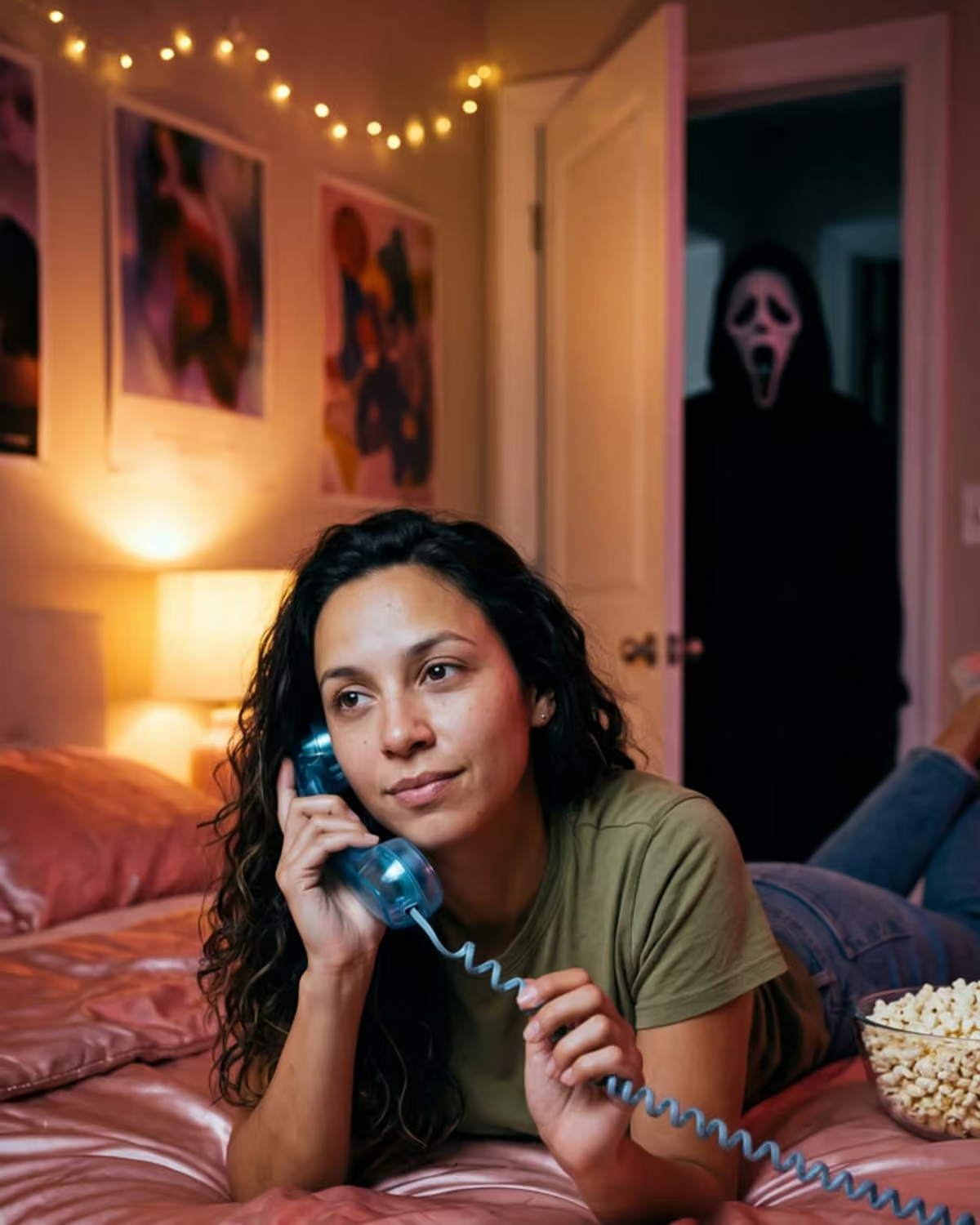
Candid editorial portrait of a 30s woman working at a desk, laughing mid-gesture.
Soft north-window light from the left, warm wooden desk, blurred bookshelf background.
35mm, shallow depth of field, natural skin tones. No heavy retouching. Aspect 4:5.
Tip: Change age, gender, setting; keep "no heavy retouching" to prevent plastic skin.
Studio. For press headshots.
Studio portrait on a warm gray seamless, 85mm lens, three-quarter view.
Soft key light from camera-left, subtle fill, gentle rim light from behind-right.
Subject: a 40s man in a charcoal knit sweater, relaxed expression. Sharp focus on eyes. Aspect 4:5.
Tip: Keep the lighting ratio language; only change subject wardrobe and expression.
Environmental. For founder stories and long-form profiles.
Environmental portrait of a ceramicist in her workshop, clay-dusted hands resting on a wheel.
Natural skylight, raw concrete walls, shelves of unfired pots behind, soft blur.
35mm, waist-up, subject looking just off camera. Aspect 3:2.
Tip: Add one environment detail (clay dust, flour, sawdust) that signals the craft.
Multilingual signage
English + Japanese. For Tokyo-set scenes and localization mocks.
Neon-lit alley storefront at night, wet asphalt reflections.
Sign above the door reads "Oakgen Studio" in English, and below it "オークジェン・スタジオ"
in clean Japanese signage lettering. Render every character exactly. Aspect 3:2.
Tip: Always quote non-Latin strings exactly and say "render every character exactly."
English + Arabic. For regional marketing and right-to-left mocks.
Café menu board on a sand-colored wall, warm daylight.
Top line: "Today's Specials" in a modern sans-serif.
Second line: "أطباق اليوم" in a clean Arabic type, right-aligned. Aspect 4:5.
Tip: Call out right-alignment for Arabic; GPT Image 2 usually handles it but confirming helps.
English + Hindi. For Indian market mocks and bilingual retail.
Storefront signage in Bengaluru, soft evening light.
Name panel reads "Oakgen Bakery" in English above, and "ओकजेन बेकरी" in Devanagari script below.
Render every character exactly. Warm tungsten interior glow. Aspect 16:9.
Tip: Devanagari conjuncts render cleanly when you quote the exact string; misspellings compound.
For 10 more ready-to-paste prompts, see our prompt library.
When GPT Image 2 fails (and what to do)
GPT Image 2 is the strongest all-around model available — it sits at #1 on LMArena with a 1512 Elo score as of launch — but it has three predictable failure modes. Knowing them saves credits.
Physics and combinatorial puzzles. The Rubik's-cube test (render a solved cube with consistent color faces on all sides) still trips it about half the time. Same for M.C. Escher-style impossible geometry and exact board-game positions. If your prompt requires strict combinatorial correctness, expect to retry 2–4 times or switch to a different approach (e.g., render the scene and composite the puzzle element separately).
Iterative-edit drift. If you upload an image and ask for five small edits in a row, the fifth version will have drifted noticeably from the first. Cap iterative edits at two per session and regenerate from a fresh prompt after that. This is a known limitation of autoregressive image models.
Photoreal skin under complex lighting. Multi-source lighting on human skin occasionally produces waxy highlights or uncanny eye reflections. If you need magazine-grade photoreal portraits, render a first pass in GPT Image 2, then run it through FLUX 2 Pro Max on Oakgen for skin and eye polish.
For more artistic, painterly, or fantastical work where accuracy matters less than mood, Midjourney v8 still has an edge. A short side-by-side is in our GPT Image 2 vs Nano Banana Pro comparison. For a systematic failure-mode map, see our upcoming 25 methodical GPT Image 2 capability tests.
When in doubt about which model to reach for, default to GPT Image 2 for the first pass. It has the broadest competence. Only switch when you've identified a specific weakness — don't switch reflexively.
Using GPT Image 2 on Oakgen specifically
GPT Image 2 is live on Oakgen as of April 24, 2026, one day after OpenAI's launch. Access it at /models/gpt-image-2. Each render costs 26 credits — roughly $0.10 at our 1 USD = 260 credits ratio — and returns in about 3 seconds typical. If you want the full context on what the model is and how it differs from the first generation, read what is GPT Image 2.
Oakgen runs GPT Image 2 through FAL as the primary provider with WaveSpeed as automatic failover, so if OpenAI's endpoint hiccups you don't have to retry manually. The orchestrator moves the job to the next provider transparently.
GPT Image 2 is included on paid plans. Each generation uses credits, and the cost is shown before you generate. See pricing.
FAQ
How long does GPT Image 2 take to generate on Oakgen? Roughly 3 seconds per image in typical conditions. The async job pattern means you submit the request, see a real-time "processing" status via websocket, and get the final image pushed to your browser the moment it's ready — you don't have to poll.
How much does each generation cost? 26 credits per image (about $0.10), on every plan. The exact cost is shown before you generate.
Which languages does GPT Image 2 handle well for in-image text? Latin scripts (English, Spanish, French, German, Portuguese, Italian) render almost perfectly. Japanese, Korean, and Simplified Chinese render cleanly when the exact string is quoted in the prompt. Arabic, Hebrew, Hindi, and Thai render well for short strings but occasionally struggle with dense layouts — break long copy into multiple lines and render each as its own element if needed.
Can I use GPT Image 2 outputs commercially? Yes. OpenAI's terms grant commercial usage rights to outputs, and Oakgen passes those rights through to you as the generating user. Always verify specific brand-mark, celebrity-likeness, or trademarked-material usage against local law.
How many iterations should I expect before a usable image? Budget 3–5 iterations for a first-of-its-kind image, and 1–2 iterations once you have a working style lock. At 26 credits each, that's roughly 100–150 credits (~$0.40–$0.60) for a first hero image and ~50 credits for each follow-up in the same series.
Is GPT Image 2 better than FLUX 2 Pro Max or Midjourney v8? For text rendering, instruction following, and general versatility — yes, measurably so (1512 Elo vs. the next closest at ~1470). For hyper-photoreal skin and hair detail, FLUX 2 Pro Max still edges ahead. For painterly and artistic output, Midjourney v8 remains the taste leader. Most teams use GPT Image 2 as the default and the other two for specialty shots.
Start with the six-element prompt anatomy. Refine by appending, not rewriting. Lock style across a series. Use the 15 templates as starting scaffolds, not finished products. That's the entire methodical workflow — ship your first batch and the rest gets faster from there.