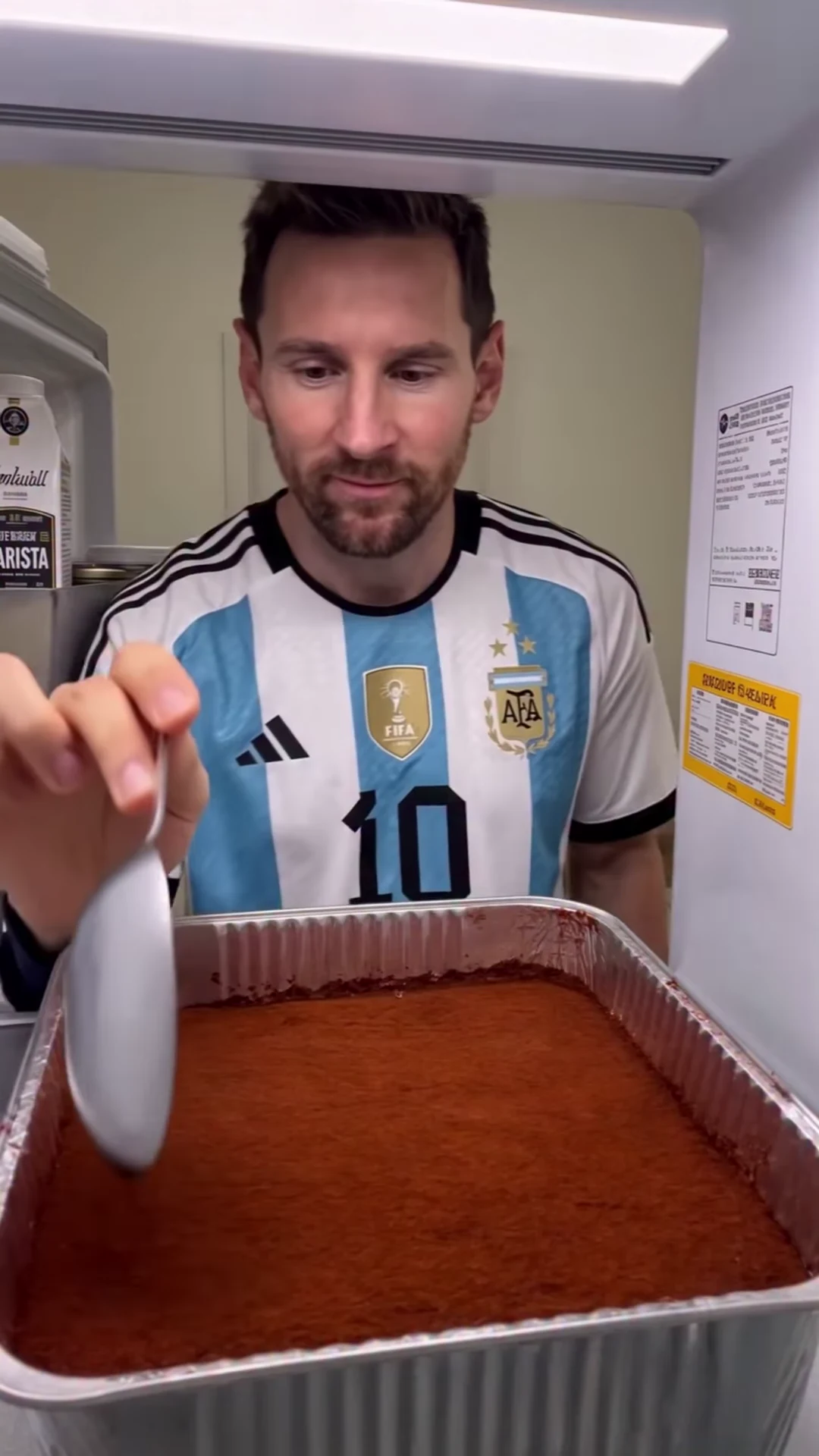
Plastic skin is the single most recognizable tell in an AI portrait. Faces look waxy, airbrushed, over-smoothed — pores gone, micro-shadows gone, the subtle asymmetries that make skin read as human quietly deleted. The cause is simple: most image models were trained on ad and stock photography, both of which are already retouched. The model's "default realism" is actually "default glamour retouch." The fix is five specific moves, in order: (1) pick a model that doesn't have the problem, (2) prompt with explicit texture language, (3) post-process in Photo Studio, (4) inpaint faces in Image Editor, or (5) regenerate with a real photograph as a skin reference. Do them in that order. Stop at the first one that works.
Why AI portraits get plastic skin — 30-second explainer
Two compounding causes. First, the training data. Fashion, beauty, and e-commerce photography — the stuff that dominates the open web — is professionally retouched to remove pores, blemishes, and texture variance. When a model learns "what a high-quality portrait looks like," it's learning the retouched version. "Realistic skin" in its latent space means "beauty-filter skin."
Second, the loss function. Most models are trained to produce visually pleasing outputs rated by humans, and humans rate smooth skin higher than textured skin in side-by-side tests. This creates a style bias at the reward-model level: even when the training data has pore detail, the post-training RLHF pushes the model toward the smoother variant. The result is portraits that look fine in a thumbnail and obviously fake at 100%.
Newer models have been specifically tuned against this. Older models haven't. Model choice is most of the battle.
Fix 1 — Pick a model that doesn't have the problem
The cheapest fix is to stop using models that ship plastic skin by default.
As of this writing, two models are class-leading for skin texture on Oakgen:
- Nano Banana Pro (Google) — the current pore-level king. Skin reads as photographed, not rendered. Asymmetric highlights, visible fine lines around the eyes, realistic forehead shine. Slower than GPT Image 2 at ~10–15s but the gap on skin is significant. Full breakdown in our Nano Banana 2 on Oakgen handbook.
- GPT Image 2 (OpenAI) — close behind on skin, faster, and better on almost everything else (text, layout, multi-image coherence). Our 500-generation review rates it 8.8/10 overall with skin as one of the areas it's genuinely competitive with Nano Banana Pro.
- FLUX 2 Pro — decent middle ground. Not as pore-accurate as the two above, but noticeably better than the previous FLUX generation and still a solid fallback.
Models to avoid for photoreal portraits when you want skin to look real: most SDXL checkpoints, most beauty-tuned LoRAs (they're literally trained to smooth), and anything marketed as "cinematic" without a photographic control in the prompt.
Open Oakgen, switch the model dropdown, regenerate the same prompt. Most of the time that alone solves it.
Nano Banana Pro and GPT Image 2 cost more per generation than older models — usually 2–3x. If you're generating hundreds of variations for ideation, start on a cheap model and final-render winners on a class-leading model. You get ideation throughput and final-output fidelity without paying premium rates on throwaways. See pricing for exact credit costs per model.
Fix 2 — Prompt with explicit texture language
If you're locked to a specific model, your second lever is the prompt. The default prompt "portrait of a woman, studio lighting, 50mm" will produce plastic skin on most models. You have to explicitly ask for texture, and you have to explicitly reject smoothing.
The language that works:
- "skin texture visible" — directly asks for what the default tries to hide
- "pores" — a literal token the model has to honor
- "natural skin imperfections" — gives permission for asymmetry, small blemishes, uneven tone
- "no smoothing, no beauty retouch, no airbrushing" — negative language matters, even without a formal negative prompt field
- "photographic realism, 85mm film portrait, unretouched" — anchors the output to a photographic vocabulary, not a render vocabulary
Three before/after prompt edits showing the shift:
Before: "Portrait of a 35-year-old woman, warm light, professional headshot." After: "Portrait of a 35-year-old woman, warm window light, unretouched editorial photograph, visible skin texture, natural pores, fine lines around the eyes, no beauty retouch, 85mm film."
Before: "Close-up of a man with a beard, moody lighting." After: "Close-up photograph of a man with a beard, moody side light, visible skin pores and micro-texture, slight forehead shine, natural skin imperfections, shot on Fujifilm X-T5 with a 56mm lens, no smoothing."
Before: "A fashion portrait of a model with bold makeup." After: "A fashion portrait of a model with bold makeup, natural skin visible under the makeup, pores and fine texture around the cheeks, editorial photography, unretouched capture, Hasselblad 80mm, no airbrushing."
The pattern: replace abstract quality words ("professional," "beautiful," "stunning") with concrete photographic specifics ("85mm," "unretouched," "film," "pores"). Abstract quality words pull the model toward its retouched training data. Photographic specifics pull it toward actual photographs.
Fix 3 — Use Photo Studio's texture-restore post-processing
If you already have the image you want to keep and the skin is the only problem, go to Photo Studio. Photo Studio has a texture-restore workflow specifically designed to rebuild realistic skin grain on finished AI portraits without changing the composition, pose, or lighting.
The four-step process:
- Upload the portrait to Photo Studio. Use the finished AI image — not the prompt, the image.
- Select "Restore skin texture" under the retouch panel. This triggers a guided pass that analyzes the face region and reintroduces high-frequency detail where the model flattened it.
- Adjust the intensity slider. Start at 40%. If the result looks like sandpaper, pull back. If it still looks waxy, push up. Most AI portraits land between 35% and 60%.
- Export. The output is the same image with restored pore-level detail, preserved lighting, and unchanged identity.
This is non-destructive — the original is always one click away. It's also faster and cheaper than regenerating, which matters when you've already spent credits nailing a specific pose or expression. The workflow is detailed further in our studio-quality photos guide.
Fix 4 — Use Image Editor's inpaint-skin feature
Sometimes the plastic-skin problem is localized. One face in a group shot looks fine, the other looks like a mannequin. Or the body skin is realistic but the face got over-smoothed. Or you only have plastic skin on a specific product model in an e-commerce composition.
For localized fixes, use Image Editor. The inpaint workflow lets you mask a specific face region and regenerate just that area with texture-aware prompting, while the rest of the image stays byte-for-byte identical.
When this is the right fix:
- Multi-person images where only some faces have the issue
- Commercial compositions where the scene is perfect but one face needs texture work
- Edits you've already made in external tools that you don't want to redo
- Hero shots where the composition took 30 iterations to nail and you cannot afford to regenerate
When it's not the right fix: if every face in the image has plastic skin, inpainting one at a time is slower than a full Photo Studio pass. Batch-texture with Photo Studio instead.
Fix 5 — Regenerate with reference images
The nuclear option: use a real photograph — even a non-AI one — as a skin-texture reference. Both Nano Banana Pro and FLUX 2 Pro on Oakgen support image-to-image conditioning with explicit reference weights. Feed the model a reference image with the exact skin quality you want, and instruct it to match the texture while changing pose or setting.
Who this is for:
- Pro photographers mixing AI composites with their own client work, who need the AI output to match a specific retouching style they've already committed to
- Brand teams with approved headshots they need to composite into new scenes
- Editorial creatives referencing specific film stocks (Portra 400, Cinestill 800T) where the grain structure is part of the brand
Upload the reference, set weight to 0.4–0.6 (high enough to pull texture, low enough not to copy the face), and prompt the new composition. Result: the new image inherits the reference's skin character.
Using someone's face as a skin-texture reference is fine. Using someone's face to generate a new image of them without consent is not. Oakgen's usage terms prohibit non-consensual likeness generation. Reference the texture, not the identity.
What NOT to do
Three common mistakes that make plastic skin worse:
- Over-sharpening. Users see smooth skin, reach for a sharpen filter, and end up with crunchy edges over plastic skin — worst of both worlds. Sharpening increases high-frequency contrast uniformly; it does not add the organic variance that real skin texture requires.
- "Film grain" filters. Uniform noise overlays are not skin texture. They add a consistent grain pattern across the entire image — sky, background, face, hair — which no real camera produces. The brain spots this instantly. Photo Studio's texture restore is face-aware; generic grain filters are not.
- Third-party beauty or "realism" apps. Most mobile filters billed as "realism" or "HDR" actually push contrast and saturation, which amplifies the plastic look by making the already-smooth skin more vivid. If the app has a slider, there is no slider setting that fixes plastic skin. Start over with the right model instead.
The quick decision tree
(a) You're still in the generation phase — haven't committed to a specific image yet: Use Fix 1 (switch to Nano Banana Pro or GPT Image 2) + Fix 2 (explicit texture prompt). Do both. This solves the problem at the source and costs nothing extra beyond one regeneration.
(b) You already have the image you want to keep — composition, lighting, pose are locked: Use Fix 3 (Photo Studio texture restore) for full-image fixes, or Fix 4 (Image Editor inpaint) for localized face-specific fixes. Skip regeneration entirely.
(c) You're building a repeatable pipeline (brand, e-commerce, editorial): Use Fix 5 (reference image) to lock a texture style across every future generation. One reference, consistent output. For a damaged or low-resolution source photo, pair with Image Restorer first to clean it up before using it as a reference.
FAQ
Why does my AI portrait look plastic even with a good model? Usually prompt default. "Portrait" alone is a generic token that pulls the model toward its retouched-training-data mean. Add "unretouched," "pores," "natural skin texture," and anchor with a photographic lens specification (85mm, 50mm, 35mm) to override the default.
Does Photo Studio's texture-restore work on non-AI photos? Yes. It's a post-processing pass that works on any uploaded portrait. It's especially useful for old photos that were over-retouched in the 2010s and now look dated. See our Photo Studio guide for the full feature list.
Which model has the most realistic skin on Oakgen right now? Nano Banana Pro at the top, GPT Image 2 a close second. FLUX 2 Pro third. Older SDXL models last. Rankings change every few months as new models ship — check the model dropdown for the current lineup.
Will fixing plastic skin cost me extra credits? Fix 1 and Fix 2 are free beyond one regeneration. Fix 3 (Photo Studio) is a fixed credit cost per pass. Fix 4 (Image Editor inpaint) charges only for the masked area. Fix 5 (reference regeneration) charges the normal generation cost. Full breakdown on pricing.
Do I need a Pro or Ultimate plan to access Nano Banana Pro and GPT Image 2? Nano Banana Pro and GPT Image 2 are available through eligible paid tiers. If you are generating portraits at volume, compare Ultimate and Creator monthly credits on the pricing page. Each generation uses credits, and the cost is shown before you generate.
Plastic skin is a solved problem as of 2026. The models exist, the prompts are known, the post-processing tools are built. The only reason an AI portrait should still look waxy is workflow — wrong model, vague prompt, or no texture pass. Pick the right fix from the decision tree above, and the tell goes away.
Start generating on Oakgen. If you run a creative agency or build an audience that would benefit from these tools, the affiliate program pays recurring commission on every subscription you bring in.